Most of us who write regularly still end up fighting our tools. Electron-based editors feel heavy after a few hours. Word processors bury the page under ribbons and panes. Even good Markdown editors often prioritise features over focus. Zed is different. It is a native, GPU-accelerated editor written in Rust. It starts instantly, stays light on system resources, and treats Markdown as a first-class citizen. Soft-wrapping works the way writers expect, line height can be made comfortable for long sessions, and the interface can be stripped down so the page itself stays primary.
This post is written for authors and bloggers who want a clean, fast writing environment on Linux. We will install and configure Zed on Debian 13, then look at three everyday uses: a short note or essay, a blog post, and a book chapter.
हिंदी सारांश
यह लेख लेखकों और ब्लॉगर्स के लिए डेबियन 13 पर ज़ेड (Zed) एडिटर को एक शांत और ध्यान-मुक्त लेखन वातावरण के रूप में कॉन्फ़िगर करने का व्यावहारिक मार्गदर्शन प्रदान करता है। भारी एलेक्ट्रॉन ऐप्स और जटिल वर्ड प्रोसेसर्स की तुलना में यह एक तेज़, नेटिव और जीपीयू-त्वरित (GPU-accelerated) टूल है जो काम के दौरान हल्का और तीव्र बना रहता है।
Install Zed on Debian 13
Debian 13 (Trixie) is the base we will use for this guide. The installation is straightforward.
Open a terminal and run the official install script:
$ curl -f https://zed.dev/install.sh | shOnce it finishes, launch Zed from the application menu or by typing zed in the terminal. It should open a clean window with almost no chrome. If you prefer a more manual approach or want to verify the binary, you can also download the latest Linux build from the Zed website and place it in ~/.local/bin or /usr/local/bin.
Optional: Recommended fonts for writing (install these before configuring):
$ sudo apt update
$ sudo apt install fonts-jetbrains-mono fonts-firacode
After installation, refresh the font cache:
fc-cache -fvThe next step is to give it a writer-friendly configuration so soft-wrapping, typography, and Markdown behaviour feel natural from the first file you open.
Configure for Writing
Once Zed is installed, open the settings file with Ctrl + , or run “zed: open settings” from the command palette. Replace the default contents with a minimal writer-focused configuration.
The most important settings for authors are:
- Soft wrap set to
bounded(oreditor_width) so long paragraphs wrap naturally - A comfortable preferred line length (around 100 characters)
- Larger buffer font size and
comfortableline height - Markdown-specific behaviour that keeps lists clean and removes trailing whitespace
- A calm theme that does not fight the text
You can keep Vim mode enabled if you already think in modal editing. Autosave on focus change is useful so you never lose a paragraph while switching windows. A complete, ready-to-use configuration is provided in the annexure at the end of this post. Copy it once, restart Zed, and the editor is ready for long-form work.
Practical Examples
Here are three everyday writing situations and how Zed handles them.
1. Short note / essay (Hindi example)
Open a new file, set the language to Markdown, and start writing. Soft wrap and the larger font make the page feel like a quiet notebook.
एक छोटी सी शाम
बारिश रुक चुकी थी। गली में पानी की पतली धार अभी भी बह रही थी। मैं छत पर बैठा था। नीचे से चाय की खुशबू आ रही थी और कहीं दूर मस्जिद की अज़ान की आवाज़ धीरे-धीरे फैल रही थी।
उस शाम कुछ खास नहीं हुआ। न कोई बड़ी बात, न कोई फैसला। सिर्फ एक शांत घड़ी थी जिसमें दिमाग थोड़ा हल्का हो गया था।
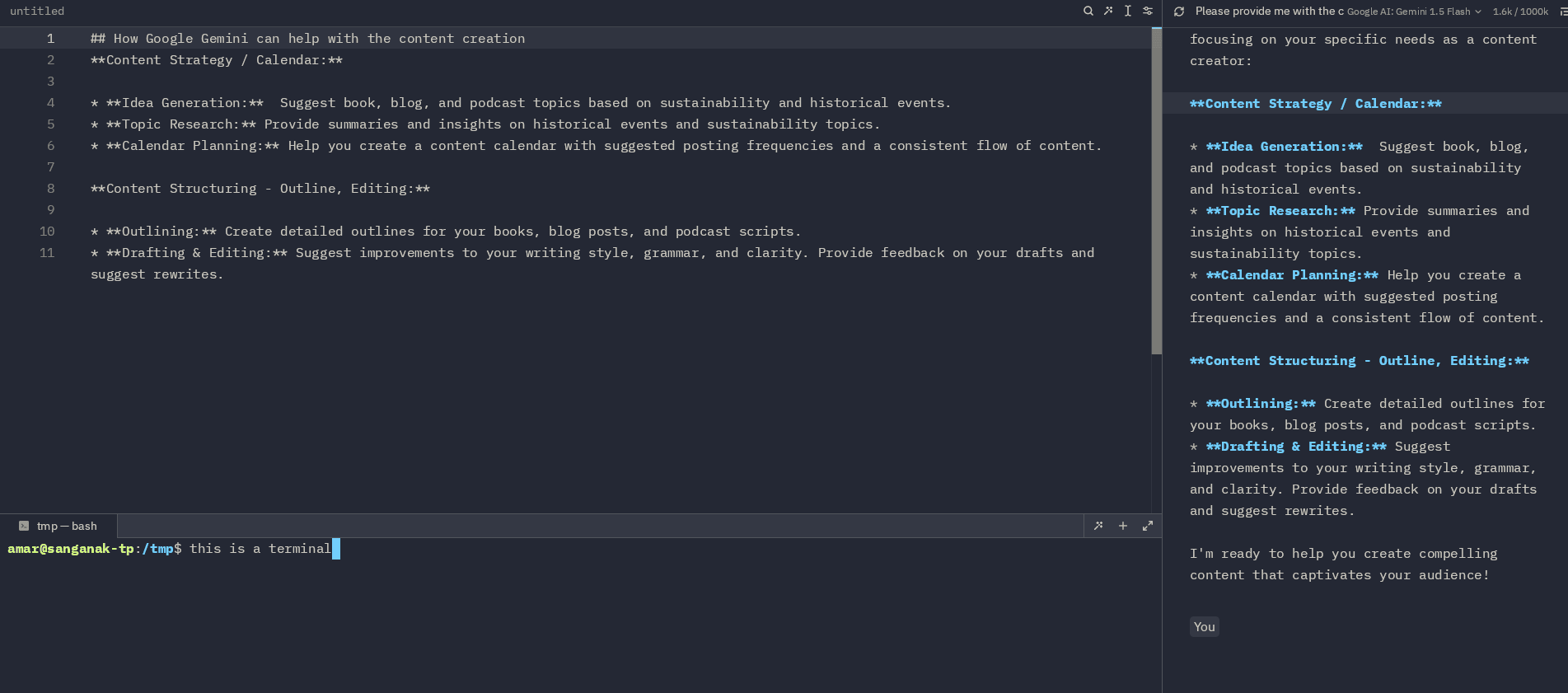
The paragraph wraps cleanly. You can keep writing without worrying about horizontal scrolling or awkward line breaks. If you want a quick expansion or a different opening, the AI panel on the right can suggest alternatives without leaving the page.
2. Blog post
Create the file with a clear title and a few headings. Keep research notes in a second tab or a split pane. Soft wrap keeps the body text readable even when the window is narrow. Export remains simple Markdown ready for your publishing system.
3. Book chapter
Longer files stay responsive. You can keep an outline in one pane and the chapter draft in another. Consistent soft-wrapping and comfortable line height reduce eye strain during multi-hour sessions. Occasional AI help for transitions or summaries stays available but never intrusive.

Conclusion
Zed does not try to be everything. It simply removes the usual friction of writing on a computer. On Debian 13 it feels light, starts quickly, and stays responsive even with long Markdown files. Soft wrapping, comfortable typography, and a quiet interface make it easy to stay with the page instead of fighting the tool.
Tools and Resources
- Official Zed documentation: https://zed.dev/docs
- Configuring Zed: https://zed.dev/docs/configuring-zed
- Markdown support in Zed: https://zed.dev/docs/languages/markdown
- Recommended fonts on Debian:
fonts-jetbrains-mono,fonts-firacode - Prettier (optional, for consistent Markdown formatting)
- Useful keybindings:
Ctrl + ,(settings),Ctrl + Shift + P(command palette),Alt + Z(toggle soft wrap)
Also read: series on Command line editors for Linux:
This series explores terminal-based text editors for Linux, featuring the classic ed, a beginner's guide to micro, a minimalist writing environment using Slackware, and an introduction to Helix for authors and bloggers.
For graphical editors, read about joplin, zed, writing in markdown, and zoho notebooks,
Zed configuration for authors & bloggers
{
  "theme": {
    "mode": "system",
    "light": "One Light",
    "dark": "Atelier Seaside Dark"
  },
  "soft_wrap": "bounded",
  "preferred_line_length": 100,
  "tab_size": 2,
  "buffer_line_height": "comfortable",
  "ui_font_size": 16,
  "buffer_font_size": 18,
  "buffer_font_family": "JetBrains Mono",
  "languages": {
    "Markdown": {
      "soft_wrap": "bounded",
      "preferred_line_length": 100,
      "format_on_save": "off",
      "remove_trailing_whitespace_on_save": true,
      "tab_size": 2
    }
  },
  "default_language": "Markdown",
  "vim_mode": true,
  "autosave": "on_focus_change",
  "indent_guides": {
    "enabled": true,
    "coloring": "indent_aware"
  },
  "preview_tabs": {
    "enabled": true,
    "enable_preview_from_file_finder": true,
    "enable_preview_from_code_navigation": false
  },
  "tab_bar": {
    "show": true,
    "show_nav_history_buttons": true
  },
  "tabs": {
    "close_position": "right",
    "file_icons": true,
    "git_status": false
  },
  "assistant": {
    "default_model": {
      "provider": "google",
      "model": "gemini-1.5-pro"
    },
    "version": "2"
  },
  "telemetry": {
    "metrics": false,
    "diagnostics": true
  }
}