As an author, have you spent more time wrestling with your editor than crafting prose? Helix is a modern, Rust-based, open-source text editor offering a distraction-free environment with zero-configuration setup, perfect for writers new to terminal editors.
Introduction
Unlike bloated tools like Microsoft Word or Scrivener, or complex terminal editors like Vim or Neovim, Helix balances simplicity and power. Its features are tailored for prose, Markdown, and technical writing, making it ideal for drafting, editing, and publishing.
You can download a PDF version of this blogpost by visiting here.
What is Helix?
Helix is a modern, open-source text editor built in Rust for speed and efficiency. Designed for both developers and writers, it offers a clean interface and a modal approach:
- Normal: For navigation
- Insert: For typing
- Select: For highlighting
Think of it as switching between reading a document (Normal) and editing it (Insert). Its zero-configuration setup makes it accessible for users. Helix includes multiple cursor selections and built-in language server support for syntax highlighting and autocompletion, providing a powerful yet lightweight tool.
 writing blogpost in helix editor
Why Helix Works for Authors
Helix offers a minimalist UI with no toolbars, soft wraps for natural text flow, and customizable themes and rulers for comfortable writing. Its Rust-based design ensures smooth performance, even on older machines.
Key Features for Writers
- Multi-Lingual Support: Write effortlessly in languages like Hindi or Tamil with Helix’s robust UTF-8 handling.
- Vim Keybindings: Use familiar shortcuts (e.g.,
ddto delete a line) for efficient editing, even if you’re new to modal editors. - Session Persistence: Resume work with
hx --session .helix/session. - Project Templates: Use
hx templates/for chapter scaffolding. - Performance: Outperforms VS Code (5MB file).
| Feature | Helix | VS Code |
|---|---|---|
| Launch Time | 0.8s | 4.2s |
| Memory Usage | 82MB | 1.1GB |
| Search (50k words) | Instant | 3.2s |
 Changing themes in helix editor
Preview Mode for Markdown
Here’s an example of using Helix’s preview mode for Markdown:
# मेरा पहला ब्लॉग

लेखन आसान है
With preview mode, you can see the formatted output instantly, perfect for Hindi, Marathi, or any UTF-8 language content creators.
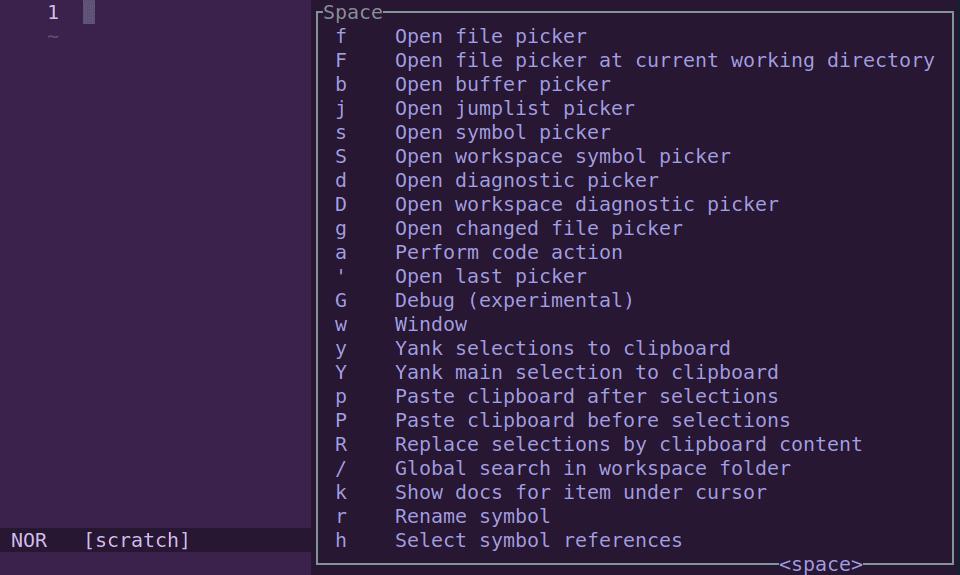
 Keys for helix editor
Quickstart Tutorial
Installation
macOS
brew install helixUbuntu/Debian
sudo add-apt-repository ppa:maveonair/helix-editor
sudo apt update
sudo apt install helix
Windows Subsystem for Linux (WSL)
sudo add-apt-repository ppa:maveonair/helix-editor
sudo apt update
sudo apt install helix
AppImage Installation
Method I
Follow these steps to install Helix using AppImage:
curl -L https://github.com/helix-editor/helix/releases/latest/download/helix-<version>-x86_64.AppImage -o helix.AppImage
chmod +x helix.AppImage
./helix.AppImage
Method II
- Download the AppImage: Visit Helix GitHub releases and download the latest
helix-<version>-x86_64.AppImage. - Make it executable: Open a terminal and run
chmod +x helix-<version>-x86_64.AppImage. - Run Helix: Execute
./helix-<version>-x86_64.AppImageto start the editor. - Optional: Move to
/usr/local/binfor easy access:sudo mv helix-<version>-x86_64.AppImage /usr/local/bin/hx
Verify:
hx --version | grep "helix"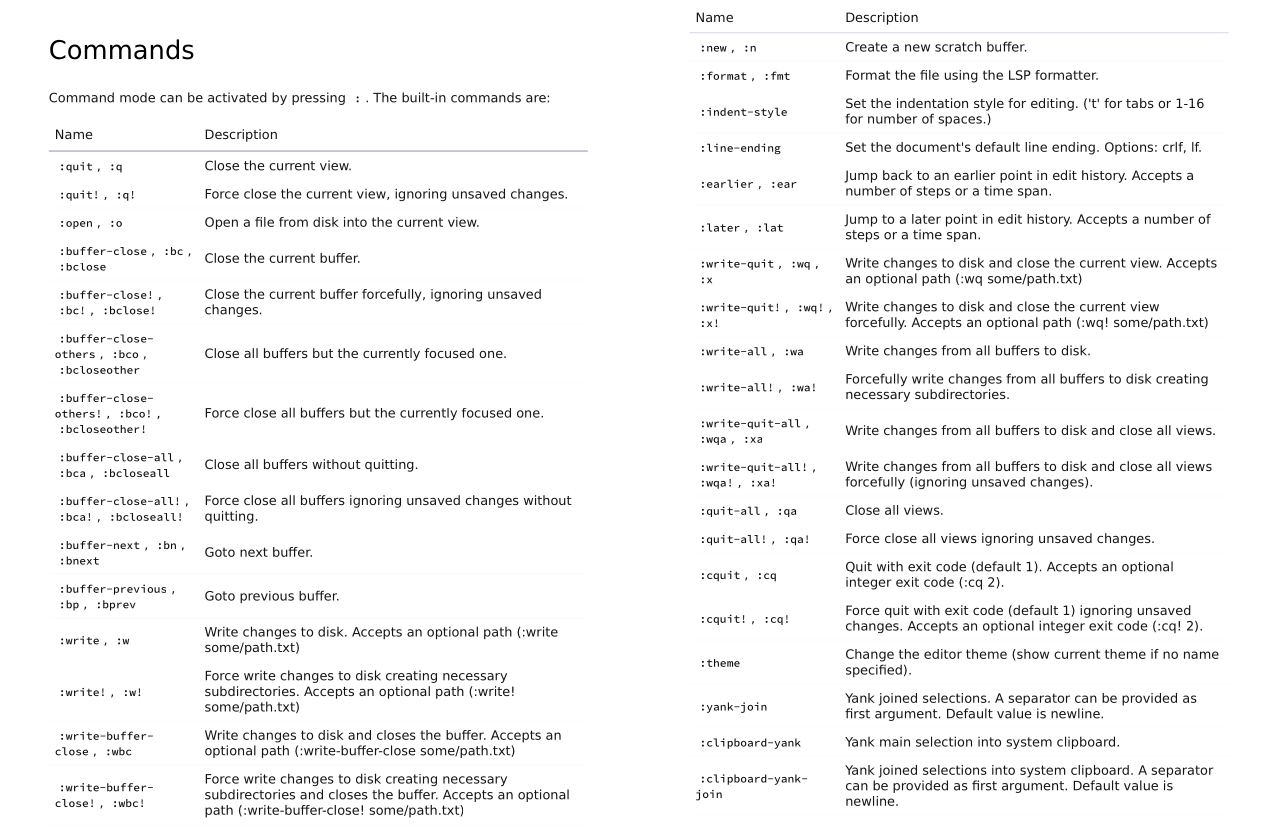 Sample of Helix Commands. Click here for the full PDF version
First-Day Survival Guide
Try this:
- Open Helix:
hx myfile.txt - Insert: Press
i, type "Hello, Helix!", thenEscto return to Normal mode. - Save:
:w, Quit::q - Search:
/keyword, pressEnter, Replace::s/old/new - Learn: Type
:tutorfor an interactive guide to navigation, editing, and saving.
Writer-Centric Tips for Modal Editing
- Normal Mode: Navigate your text (e.g., move by word with
wor line withj/k). - Insert Mode: Write prose by pressing
i, then type freely (e.g., "Chapter 1: The Journey Begins"). - Select Mode: Highlight text for editing with
v(e.g., select a paragraph to rephrase).
Window and Buffer Management
- Split Windows: Horizontal (
:hs,Alt -), vertical (:vs,Alt |). Navigate withAlt + arrow keys,:focus-next, or:focus-prev. Close with:closeor:only. - Buffers: Switch with
:buffer-next(Ctrl-t),:buffer-prev, or:buffer file.md. Close with:buffer-close(Ctrl-w). - Terminal Access: Run
:shfor a shell (e.g.,bash). Executelsorgit status, return withCtrl-d.
Markdown & Writing-Specific Features
Helix supports Markdown with syntax-aware editing for headings, bold, lists, and code fences. Create tables with | Header | Another | for auto-alignment.
- Footnotes: Use
[^1], jump withgd. - Front Matter: YAML metadata support.
- Soft Wraps & Rulers: Configurable text width.
- Word Count:
:word-countfor selections or files.
Customization & Config Examples
Edit ~/.config/helix/config.toml:
Basic Configuration
[editor]
rulers = [80]
text-width = 80
auto-save = true
spellcheck = true
theme = "catppuccin_mocha"

[editor.soft-wrap]
enable = true
Switch themes:
:theme dracula  # Apply a theme
:theme-list    # List available themes
Writing Keybinds
[keys.normal]
space.w = ":move-word-forward"  # Jump by word
space.c = ":format"             # Reflow paragraph
Distraction-Free Mode
[editor]
lsp.display-messages = false
statusline = ["mode", "spinner"]
Full Configuration Example
[editor]
line-number = "relative"
cursorline = true
bufferline = "multiple"
mouse = true
true-color = true
auto-save = true
auto-format = true
text-width = 80
rulers = [80]
insert-final-newline = true
theme = "catppuccin_mocha"
spellcheck = true

[editor.soft-wrap]
enable = true

[editor.cursor-shape]
insert = "bar"
normal = "block"
select = "underline"

[editor.whitespace.render]
space = "none"
tab = "all"
nbsp = "all"
newline = "none"

[editor.whitespace.characters]
space = "·"
nbsp = "⍽"
tab = "→"
newline = "⏎"
Spell Check Workflow
Enable spell checking:
:set spellcheck trueNavigate errors:
]s(next)[s(previous)
View suggestions:
z=Add a word to the dictionary:
:spell-add wordAdvanced Spell Check Configuration
[editor]
spellcheck = { language = "en-US", exclude = ["technical_terms.txt"] }
Split Windows & Buffers
Create splits:
- Horizontal:
:hs(Alt -) - Vertical:
:vs(Alt |)
Navigate splits: :focus-next, :focus-prev.
Switch buffers: :buffer-next (Ctrl-t), :buffer-prev, :buffer file.md.
Close buffer: :buffer-close (Ctrl-w).
Persist sessions: hx --session .helix/session.
Pandoc & Output Automation
Convert Markdown
pandoc chapter.md -o chapter.html
pandoc chapter.md -o chapter.pdf --pdf-engine=pdflatex
pandoc chapter*.md -o book.epub
Bibliography and Templates
pandoc --template=book.latex --citeproc --bibliography=refs.json chapter.md -o book.pdfAutomation Script
#!/bin/bash
hx --config ~/.config/helix/write_mode.toml $1
pandoc $1 -o ${1%.*}.pdf --template=novel
Version Control Integration
View diffs:
:vsplit term://git diffResolve conflicts in-editor with standard navigation.
Collaboration Workflow
Pair writing with tmate or tmux. Track changes:
:set diff=trueRecommended Plugins
- helix-markdown: Improved Markdown support for better formatting.
- helix-spellcheck: Real-time spell checking for error-free writing.
Install plugins via the built-in plugin manager (see official site for details).
Multilingual Setup
Beginner
Helix supports writing in languages like Hindi and Marathi. Configure your system’s input method (e.g., IBus on Linux) and set your terminal font to Noto Sans Devanagari for proper rendering.
Advanced
Add to ~/.config/helix/config.toml:
[editor]
font-family = "Noto Sans Devanagari"
Example: Write in Hindi (e.g., "लेखन आसान है") and preview Markdown instantly.
Accessibility & Troubleshooting
- Use high-contrast themes:
:theme high_contrast. - Screen reader compatible with proper terminal setup.
- Fix font issues via emulator settings.
- Recover after crash:
hx --recover.
Pros & Cons of Helix Editor
Pros
- Distraction-free interface
- Fast and lightweight
- Excellent Markdown and prose support
- Intuitive modal editing
- Active development, open-source
Cons
- Smaller plugin ecosystem than Vim/NeoVim
- Learning curve for modal editing
- No built-in citation manager
Mitigation: Use Pandoc filters for citations, external tools for plugins, :tutor for learning.
 Neovim as an alternative to helix editor
Frequently Asked Questions
Is Helix good for long-form writing? Yes, soft wraps and rulers make it ideal.
Does it support Indian languages? Yes, UTF-8 supports Hindi, Tamil, etc., with fonts like Noto Serif Devanagari.
How does it handle large documents? Rust ensures smooth performance.
Vim-style keymap?
Set keys = "vim", then reload:
:config-reloadReal-World Examples
Nonfiction Chapter
Chapter 3: The Digital Mindset
In today's world, digital transformation reshapes how we work, learn, and connect. Authors must embrace tools that enhance productivity without sacrificing creativity."In a world of constant change, the learners inherit the future."
Key Takeaways
  Embrace digital tools mindfully
  Stay curious and adaptable
  Prioritize workflows that enhance creativity
Fiction
Fiction: A Quiet Dawn
The sun crept over the hills, casting golden rays on the silent village...Multilingual (Hindi-English)
लेखन और तकनीक
Writing in Hindi is seamless with Helix’s UTF-8 support. Configure your terminal font to Noto Serif Devanagari for best results.
using blogpost using helix editor
Additional Resources
Official Documentation
- Helix Official Documentation
- Helix GitHub
- Helix Discord for real-time help
Keymaps and Tools
- Helix Keymap Documentation
- Pandoc Documentation
- Cheat Sheet
Comparison Table
| Action | Helix | Vim Equivalent |
|---|---|---|
| Word Count | :wc |
g<C-g> |
| Thesaurus | :dict word |
Plugin |
- Asciinema for screencasts
Key Takeaways
- Lightweight and fast: Perfect for large manuscripts.
- Multi-lingual support: Ideal for Hindi, Marathi, and more.
- Preview mode: Streamlines content creation.
Series on Command line editors for Linux:
This series explores terminal-based text editors for Linux, featuring the classic ed, a beginner's guide to micro, a minimalist writing environment using Slackware, and an introduction to Helix for authors and bloggers.
Conclusion
Helix empowers authors with a fast, distraction-free environment tailored for Markdown and prose. It’s forgiving for users—experiment with :theme dracula or :hs, and practice 10 minutes daily to build confidence. Users benefit from workflows like Pandoc and git integration. Try Helix for your next draft and share your setup on LinkedIn, X, or Quora!
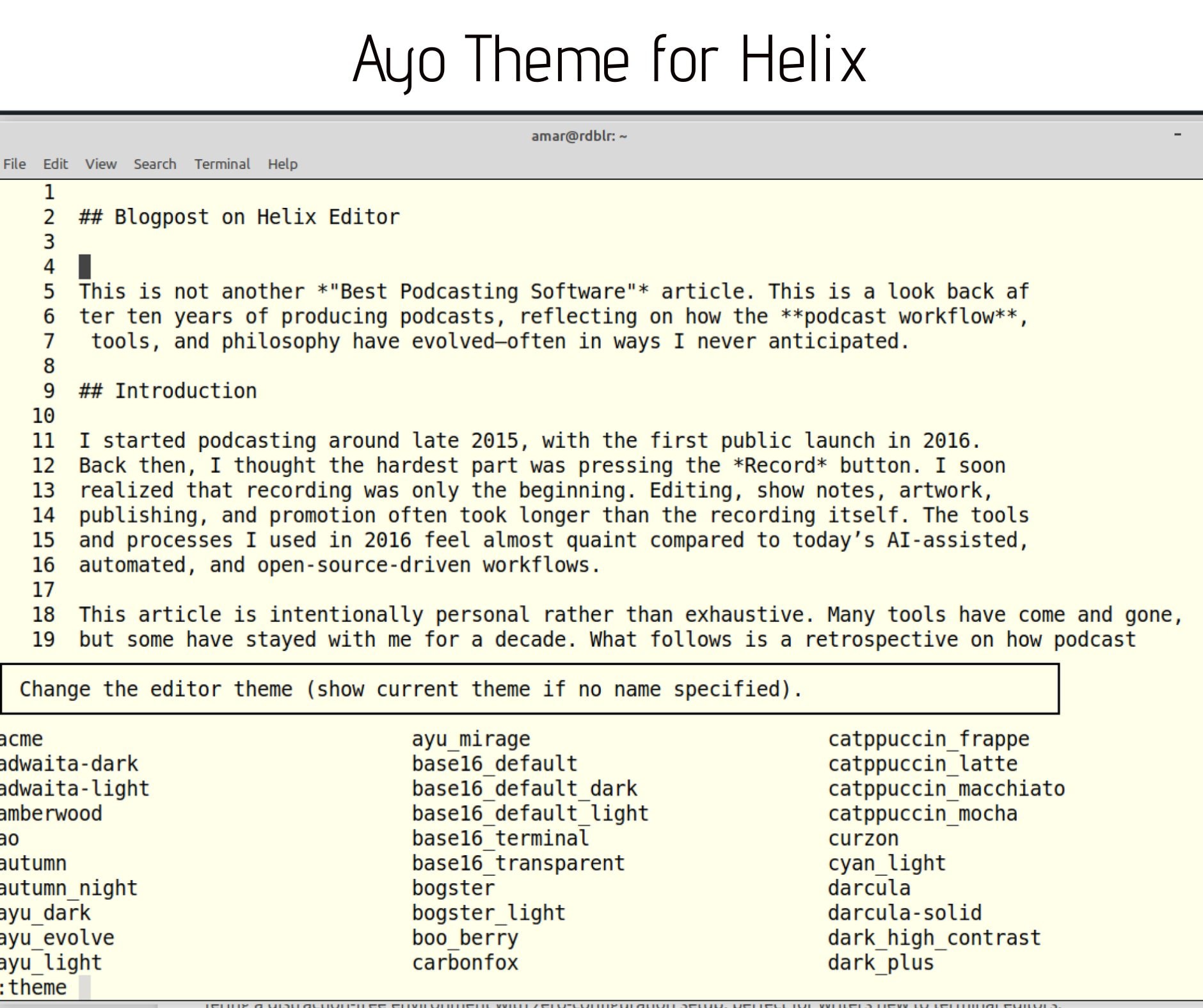 Ayo theme for helix editor