Terminal-based text editing on Linux often presents users with an all-or-nothing choice between extreme simplicity and overwhelming complexity.
Introduction
Beginners usually start with Nano, which is remarkably approachable yet lacks modern amenities like intuitive mouse support, universal clipboard shortcuts, and split-screen editing. On the other end of the spectrum sits Vim, a powerful tool that demands a steep learning curve just to perform basic editing operations. The Micro editor bridges this gap seamlessly by bringing the familiar, modern conveniences of graphical text editors into the command-line interface. This guide is specifically crafted for writers, bloggers, and note-takers who want to leverage Markdown on Linux without getting tangled in complex software development configurations.
Why Choose the Micro Editor for Writing?
Why Lightweight Editors Improve Focus
Modern graphical word processors and feature-heavy IDEs are often overloaded with toolbars, notification popups, and complex layout controls that split your attention. Writing inside a terminal environment strips away these visual distractions, placing your text front and centre to help you enter a state of deep focus. Lightweight terminal editors load instantly and consume minimal system resources, ensuring that your writing environment never lags during intense drafting sessions. By decoupling your creative process from heavy graphical interfaces, you can cultivate a faster, more disciplined drafting workflow.
Why Micro Stands Between Nano and Vim
While Nano is pre-installed on almost every Linux distribution, its reliance on non-standard keybindings—like using Ctrl+O to write out files and Ctrl+X to exit—can frustrate users accustomed to modern graphical software. Vim offers unmatched speed and extensibility, but its modal editing modes require weeks of dedicated muscle-memory training before you can write comfortably. Micro strikes the perfect middle ground by offering out-of-the-box support for standard desktop keybindings such as Ctrl+C for copy, Ctrl+V for paste, and Ctrl+S for save. It provides the lightweight, terminal-native agility of Nano alongside modern capabilities like syntax highlighting, split views, and full mouse support without forcing you to learn a completely new editing paradigm.
Who Should Consider Micro?
Micro is an ideal choice for writers, content creators, and technical bloggers who prefer storing their manuscripts and posts in plain text or Markdown format. If you frequently manage a personal blog hosted on static site generators like Hugo or Jekyll, write technical documentation, or simply want to take structured notes without leaving the Linux terminal, Micro fits your workflow perfectly. It is especially beneficial for Linux Mint and Debian users who want a clean, responsive, and reliable text editor that feels completely natural from the very first keypress.
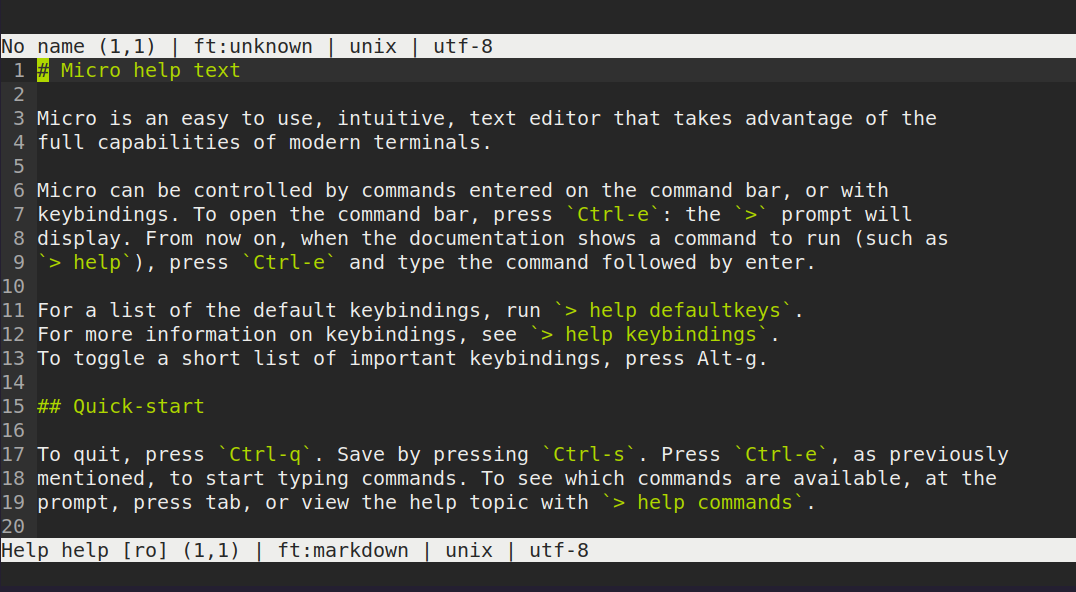
 Screenshot of the Micro editor on Debian Linux
Installing Micro and Writing Your First Markdown Document
Installing Micro on Debian and LMDE
Installing Micro on Debian, Linux Mint, or Linux Mint Debian Edition (LMDE) is straightforward because the package is available directly in the official software repositories. Open your terminal application and execute the standard package management command:
$ sudo apt update && sudo apt install micro
Why xclip and xsel Improve Clipboard Support
To ensure seamless copying and pasting between the Micro terminal editor and your desktop applications—such as a web browser or email client—it is highly recommended to install modern system clipboard utilities. Installing xclip or xsel allows Micro to access the system clipboard natively across all desktop environments. You can install both utilities using the following command:
$ sudo apt install xclip xsel
Creating Your First Markdown Document
Once the installation is complete, you can start drafting immediately by launching Micro alongside your desired file name from the terminal. If you wish to learn more about structuring plain-text files effectively, check out our guide on Why I Prefer Writing in Markdown. To create a new post, enter the following command:
$ micro my-first-blog.md
Saving, Searching, and Exiting
Writing in Micro feels instantly familiar because it honors universal keyboard conventions. To save your draft at any point, press Ctrl+S. If you need to search for a specific word or heading within a lengthy document, press Ctrl+F, enter your search query, and press Enter. When you are ready to close the document and return to the command line, simply press Ctrl+Q.
 Screenshot of the Micro editor with multiple windows
Everyday Writing Workflow with Micro
Writing Blog Posts and Technical Notes
Using Micro for daily blogging allows you to maintain clean formatting while organizing ideas efficiently. Micro automatically detects the .md file extension and applies crisp syntax highlighting to your Markdown headers, bold text, blockquotes, and code snippets. To publish your raw drafts into polished web formats or PDFs, pair Micro with command-line document converters as detailed in our guide on Pandoc and your Markdown-related guides.
Using the Command Palette
One of Micro’s most powerful features is its built-in command palette, which allows you to execute editor commands without memorizing complex key combinations. Press Ctrl+E to open the command prompt at the bottom of the editor window. From here, you can type commands like set softwrap on to ensure long prose paragraphs wrap cleanly within your terminal window, or set spellcheck on to highlight typos as you write.
Split Windows and Working with Multiple Files
Micro allows you to divide your editor window horizontally or vertically, making it easy to reference research notes while drafting an article. To split the screen vertically, open the command palette with Ctrl+E and type vsplit filename.md. To split the screen horizontally, use hsplit filename.md. You can switch between active panes seamlessly using Alt+w or simply by clicking inside the desired pane with your mouse pointer.
Essential Keyboard Shortcuts
Here is a reference table of the primary keyboard shortcuts you will use during your writing sessions in Micro:
| Action | Keyboard Shortcut | Function Description |
|---|---|---|
| Save File | Ctrl + S |
Writes current changes to the disk |
| Copy Text | Ctrl + C |
Copies selected text to the clipboard |
| Paste Text | Ctrl + V |
Pastes text from the clipboard |
| Find Text | Ctrl + F |
Searches for text within the open file |
| Command Palette | Ctrl + E |
Opens the prompt for advanced editor commands |
| Split Vertical | Ctrl + E then vsplit |
Opens a second file in a side-by-side pane |
| Quit Editor | Ctrl + Q |
Closes the active file or exits Micro |
 List of plugins for micro editor
Is Micro the Right Editor Right for You?
When I Would Choose Micro
Micro is the ideal choice when you want a fast, zero-configuration plain-text editor that works identically on a local Linux desktop and over remote SSH server connections. It is perfect for writers who appreciate standard desktop keyboard shortcuts, desire full mouse support in the command line, and prefer to write without spending hours configuring plugin architectures or memorizing modal commands.
When Another Editor Might be a Better Choice
While Micro excels at short-to-medium-length Markdown writing, developers and authors working on massive multi-file projects may require specialized tools. If you need advanced tree-style file browsers, built-in language servers, or complex spatial navigation, dedicated environments might serve you better. You can explore broader perspectives on modern graphical and terminal environments in our full breakdown of Markdown-based Writing Tools.
| Editor | Primary Target Audience | Key Advantage for Writers |
|---|---|---|
| Nano | System Administrators | Pre-installed everywhere, extremely simple |
| Micro | Writers & Terminal Beginners | Standard shortcuts, mouse support, clean syntax highlighting |
| Zed | Modern Software Developers | High performance, rich graphical interface |
| Helix | Terminal Power Users | Built-in language server features, modal efficiency |
| FocusWriter | Distraction-Free Authors | Full-screen graphical environment with novel-writing tools |
 Comparison of Micro, Helix and Nano
Frequently Asked Questions
Why install xclip?
Installing xclip allows Micro to communicate with your Linux desktop’s system clipboard, enabling seamless copying and pasting between terminal documents and graphical applications like web browsers.
Can I write in Hindi or Marathi?
Yes, Micro fully supports UTF-8 encoding, allowing you to write content in Indian languages such as Hindi and Marathi provided your terminal emulator is configured with appropriate Unicode fonts.
Does Micro support Markdown?
Yes, Micro includes native syntax highlighting for Markdown files out of the box, cleanly distinguishing headers, list items, bold text, and code blocks as you type.
Does it work well over SSH?
Micro works exceptionally well over remote SSH connections, giving you a full-featured, mouse-responsive editing environment even on lightweight remote Linux servers.
Where are configuration files stored?
Micro stores its main configuration settings, custom keybindings, and plugins inside the standard Linux user directory located at ~/.config/micro/. You can also rebind default keyboard shortcuts by modifying the keybindings configuration file stored in your local user configuration folder.
Does Micro support plugins?
Yes, Micro includes an integrated plugin manager that allows you to search, install, and update community plugins using simple commands within the editor's command palette.
Hindi Summary
Micro एडिटर उन लेखकों और ब्लॉगर्स के लिए एक बेहतरीन टेक्स्ट एडिटर है जो डिबियन या लिनक्स मिंट पर बिना किसी जटिलता के काम करना चाहते हैं। यह Nano की सादगी और Vim की आधुनिक विशेषताओं के बीच सही संतुलन बनाता है। इसमें सामान्य कीबोर्ड शॉर्टकट्स जैसे Ctrl+C और Ctrl+V का उपयोग किया जा सकता है, जिससे नए उपयोगकर्ताओं को इसे सीखने में समय नहीं लगता। xclip का उपयोग करके आप आसानी से अपने सिस्टम क्लिपबोर्ड से कंटेंट कॉपी और पेस्ट कर सकते हैं। स्प्लिट विंडो और कमांड पैलेट जैसी सुविधाएँ आपके लिखने की प्रक्रिया को तेज़ और आसान बनाती हैं। यदि आप लिनक्स टर्मिनल में बिना किसी भटकाव के टेक्स्ट या मार्कडाउन लिखना चाहते हैं, तो Micro आपके लिए एक सही विकल्प है।
मराठी सारांश
Micro एडिटर हा डिबियन आणि लिनक्स मिंट वापरणाऱ्या लेखकांसाठी आणि ब्लॉगर्ससाठी एक अत्यंत उपयुक्त आणि आधुनिक मजकूर संपादक आहे. Nano मधील साधेपणा आणि Vim मधील आधुनिक वैशिष्ट्ये यांचा उत्तम मेळ या एडिटरमध्ये पाहायला मिळतो. यामध्ये नेहमीचे कीबोर्ड शॉर्टकट्स जसे की Ctrl+C आणि Ctrl+V सहज वापरता येत असल्यामुळे नवशिक्यांसाठी हा एडिटर खूप सोपा ठरतो. xclip च्या साहाय्याने तुम्ही सिस्टीम क्लिपबोर्डचा वापर करून मजकूर सहजपणे कॉपी-पेस्ट करू शकता. स्प्लिट विंडो आणि कमांड पॅलेटसारख्या सुविधांमुळे तुमचे लेखन अधिक गतिमान आणि केंद्रित होते. लिनक्स टर्मिनलवर कोणताही त्रास न होता मार्कडाउन किंवा प्लेन टेक्स्ट लिहिण्यासाठी Micro हा एक उत्तम पर्याय आहे.
Conclusion
The Micro editor provides an exceptional environment for writers who want the focus and speed of terminal-based drafting without sacrificing modern editing conveniences. By combining standard keyboard shortcuts, intuitive mouse support, and clean Markdown syntax highlighting, it removes the technical barriers that often discourage beginners from using command-line text editors. Whether you are drafting a quick blog entry or maintaining a personal wiki on Debian or Linux Mint, Micro offers a stable and distraction-free workspace that respects your existing muscle memory. We encourage you to open your terminal, install Micro, and test this modern editor on your next writing project. If you have a favourite Micro command or workflow tip, feel free to share your thoughts in the comments below.
Additional Resources
Series on Command line editors for Linux:
This series explores terminal-based text editors for Linux, featuring the classic ed, a beginner's guide to micro, a minimalist writing environment using Slackware, and an introduction to Helix for authors and bloggers.