Joplin is more than just a note-taking app—it’s a fully open-source, Markdown-first tool designed for privacy, flexibility, and productivity. Whether you're a writer, researcher, or developer, Joplin offers a seamless experience across platforms, with features that cater to both casual users and power users alike. For me, Joplin’s appeal lies in its simplicity and depth. It doesn’t just handle text; it supports multi-language input, including Devanagari script, making it ideal for my writing needs. And unlike proprietary alternatives, Joplin gives you full control over your data, with options for end-to-end encryption and self-hosting.
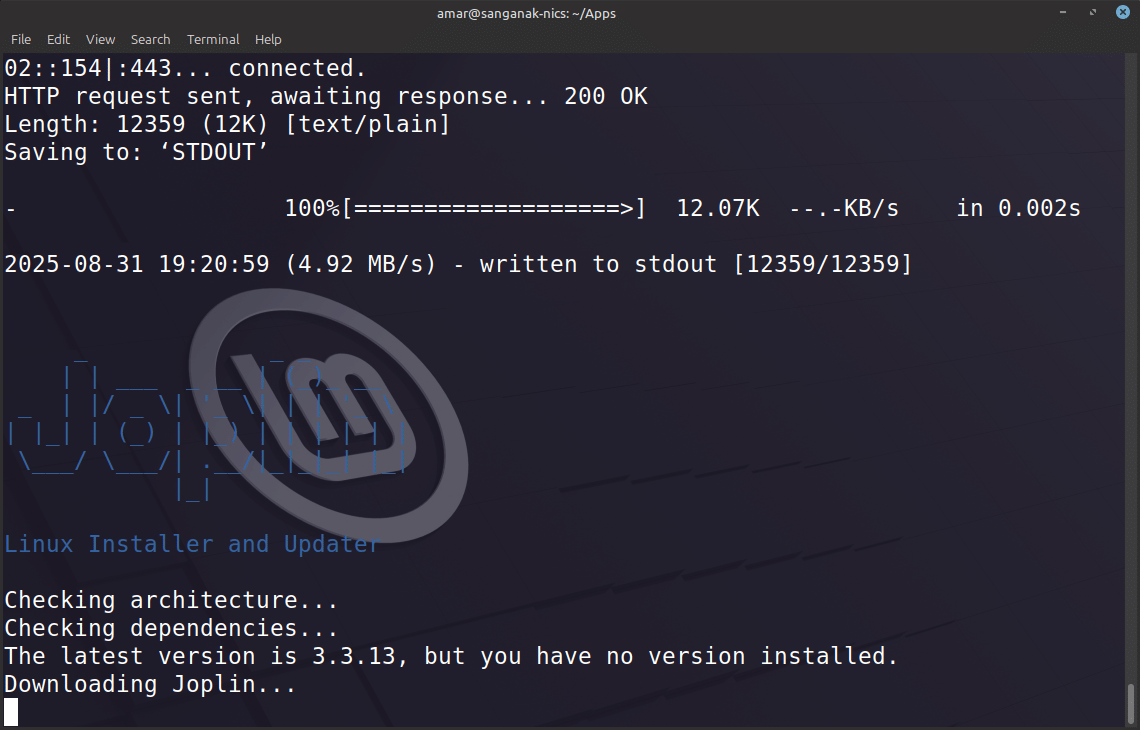 Starting command line installation for Joplin
Why Joplin Stands Out
Joplin is built around Markdown, which means you can write in a clean, distraction-free format while still having the power to format text, add links, and embed images. For someone like me who relies on Markdown for blogging and documentation, this is a game-changer. One of Joplin’s strongest suits is its multi-language compatibility. It handles Devanagari script (and other non-Latin scripts) flawlessly, allowing you to write in Hindi, Sanskrit, or any other language that uses the Devanagari alphabet. This was a critical factor for me, as many note-taking apps struggle with non-English scripts.
Key Features
Joplin is natively supported on Linux, with packages available for most distributions (Debian, Ubuntu, Arch, etc.). It integrates smoothly with the Linux ecosystem, and you can even run it as a flatpak or AppImage if you prefer. The Linux version is just as feature-rich as its Windows and macOS counterparts. For those who prefer the terminal, Joplin offers a command-line interface (CLI). You can create, edit, and delete notes, search your notes, export or import data, and sync with your cloud provider. This is particularly useful for automating workflows or integrating Joplin with other tools via scripts.
Joplin doesn’t lock you into its own ecosystem. Instead, it supports multiple cloud storage providers for syncing and backing up your notes, including Dropbox, OneDrive, Nextcloud, WebDAV, and Amazon S3. This means you can keep your notes in your preferred cloud storage, ensuring you always have access to them, no matter where you are.
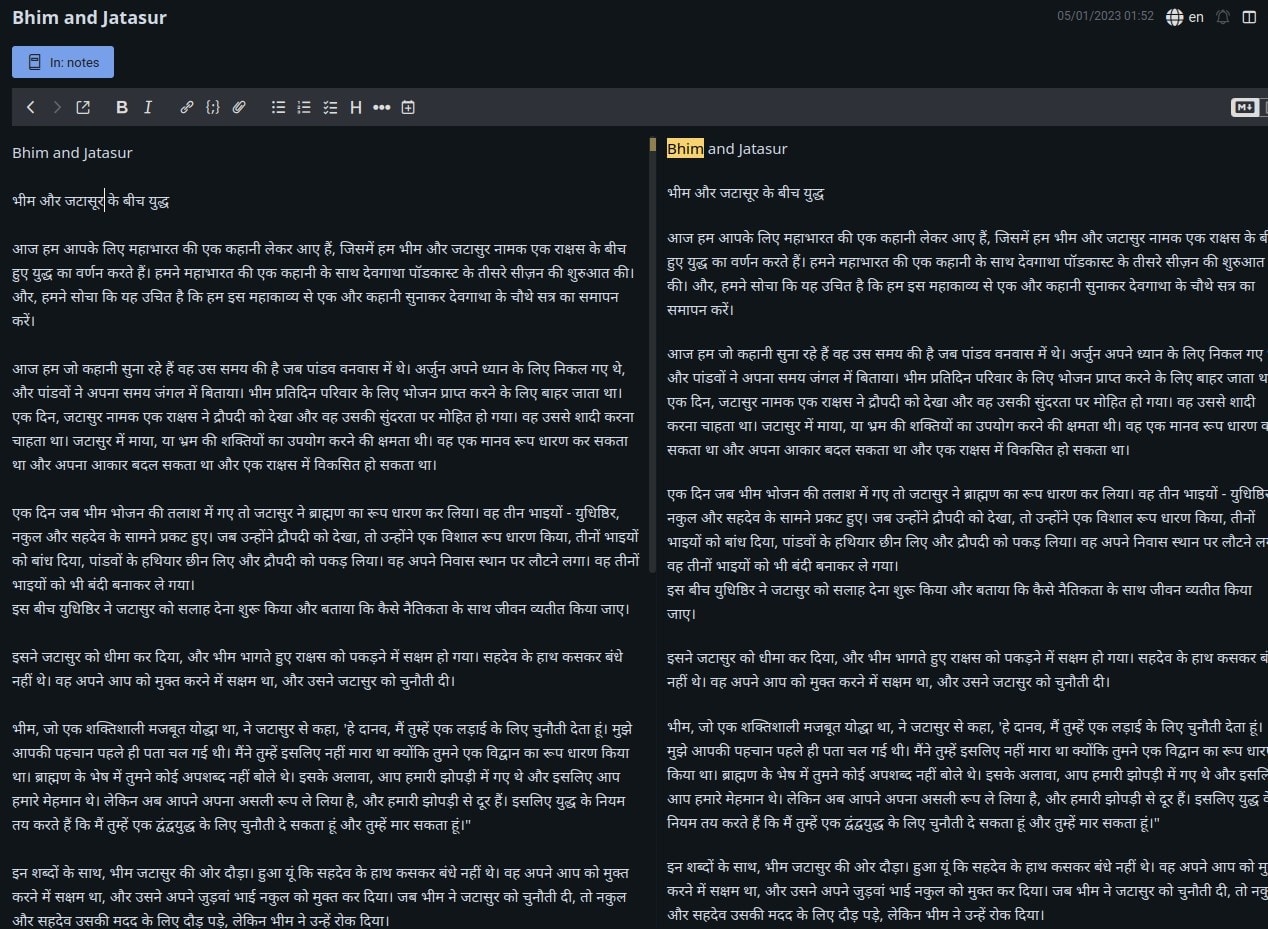 Devnagri mode in Joplin.
Privacy is a core principle of Joplin. All your notes are encrypted locally before being synced to the cloud, so even if your cloud provider is compromised, your data remains secure. Joplin works on Windows, macOS, Linux, Android, and iOS, so you can access your notes from any device. The mobile apps are just as powerful as the desktop versions, making it a true multi-device solution.
Joplin supports plugins to extend its functionality. Whether you need LaTeX support, dark mode, or custom themes, there’s likely a plugin for it. You can even develop your own plugins if you’re technically inclined. Unlike many cloud-based note-taking apps, Joplin is offline-first. Your notes are stored locally on your device, and syncing is optional. This makes it ideal for privacy-conscious users or those with unreliable internet connections.
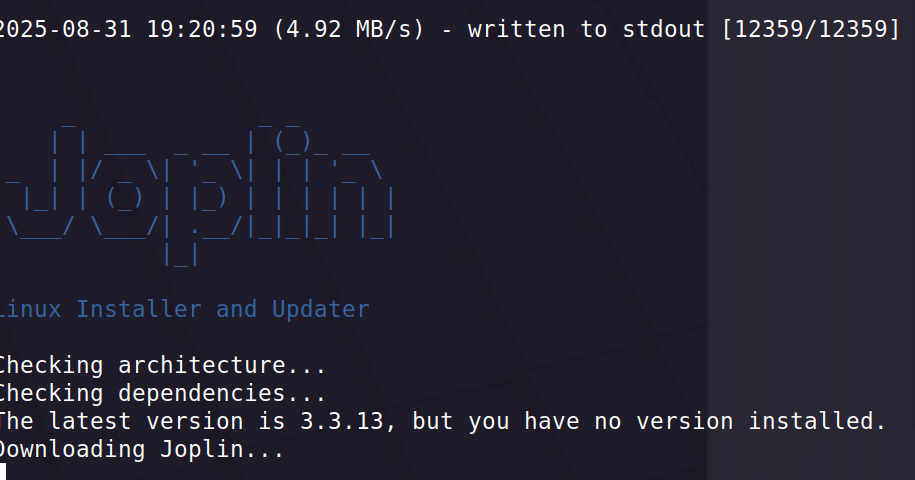 Debian linux- Command line install for Joplin’s editor.
Why I Chose Joplin
As someone who writes primarily in Markdown and occasionally in Devanagari, I needed a note-taking app that was open-source, multi-language, Linux-friendly, private, and flexible. Joplin checked all these boxes. It’s not just a replacement for Evernote or OneNote—it’s a better alternative, especially for those who value privacy and control.
Getting Started with Joplin
Installation
- Desktop: Download from Joplin’s official website.
- Linux: Install via your distribution’s package manager (e.g.,
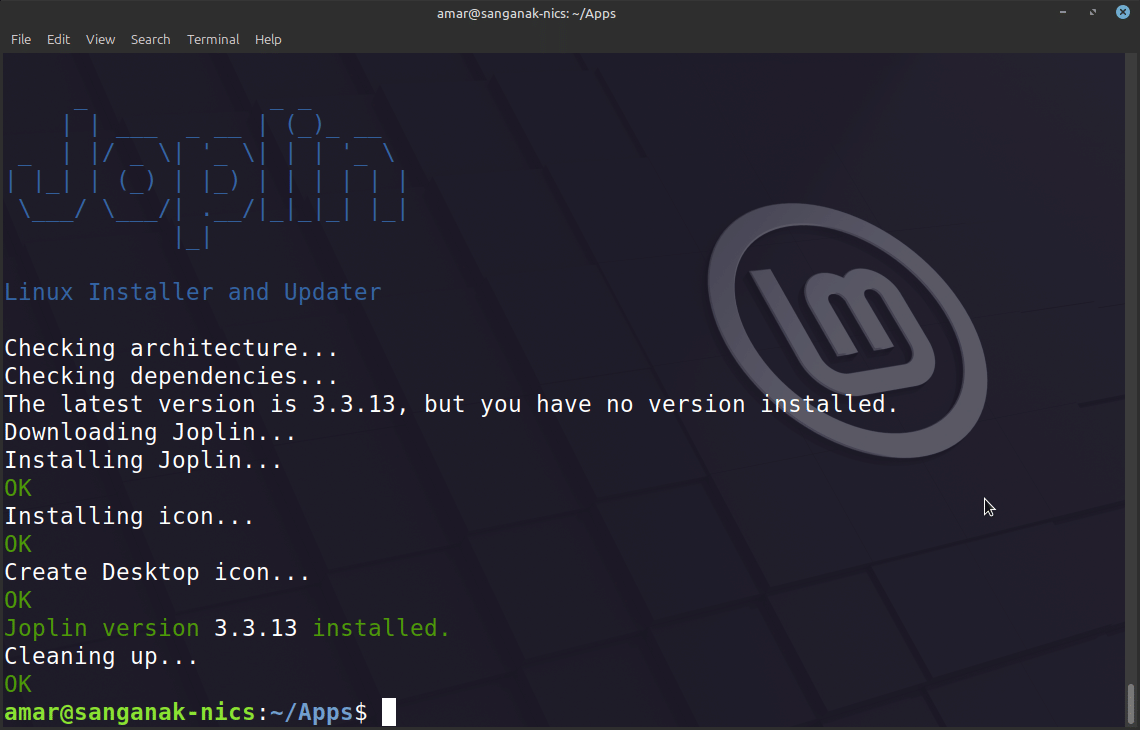
sudo apt install joplinfor Debian/Ubuntu). - Mobile: Available on the Google Play Store and Apple App Store.
- CLI: Install via npm (
npm install -g joplin).
Syncing with Cloud Storage
- Open Joplin and go to Settings > Synchronization.
- Select your cloud provider (e.g., Dropbox, OneDrive).
- Authenticate and configure the sync settings.
- Your notes will now automatically sync across all your devices.
Using the Command Line
Joplin’s CLI allows you to:
- Create a new note:
joplin note create --title "My Note" --body "This is a test." - List all notes:
joplin note list - Search notes:
joplin note search "keyword"
For more commands, check the official CLI documentation.
Final Thoughts
Joplin is a rare gem in the world of note-taking apps. It’s open-source, private, flexible, and feature-rich, making it ideal for writers, researchers, and anyone who values control over their data. Whether you’re writing in Markdown, Devanagari, or any other language, Joplin has you covered. If you’re looking for a true replacement for Atom’s note-taking capabilities or simply want a better way to organize your thoughts, give Joplin a try. You won’t be disappointed.
Links and References
- Joplin Official Website
- Joplin CLI Documentation
- Joplin on GitHub
- Joplin Mobile App (Android)
- Joplin Mobile App (iOS)
Series on Command line editors for Linux:
This series explores terminal-based text editors for Linux, featuring the classic ed, a beginner's guide to micro, a minimalist writing environment using Slackware, and an introduction to Helix for authors and bloggers.
Have you used Joplin? What’s your favorite feature? Share your thoughts!