
What began as a curiosity on how to check type of RAM in Linux turned into a deep dive when I was doing the great Laptop Switcharoo. That weekend, I was swapping, modifying and upgrading systems in laptops, I wanted to check the configuration of RAM for the different systems.
Summary
English: This blog post provides a step-by-step guide to determine the RAM type (e.g., DDR4, 2400 MHz) on a Linux system using commands like dmidecode, lshw, and /proc/meminfo. These methods help users identify memory specifications for upgrades or troubleshooting.
Hindi: यह ब्लॉग पोस्ट लिनक्स सिस्टम पर RAM प्रकार (उदाहरण के लिए, DDR4, 2400 MHz) निर्धारित करने के लिए चरण-दर-चरण मार्गदर्शन प्रदान करता है, जिसमें dmidecode, lshw, और /proc/meminfo जैसे कमांड का उपयोग किया जाता है। ये विधियाँ उपयोगकर्ताओं को अपग्रेड या समस्या निवारण के लिए मेमोरी विनिर्देशों की पहचान करने में मदद करती हैं।
Simplest way to check memory in Linux
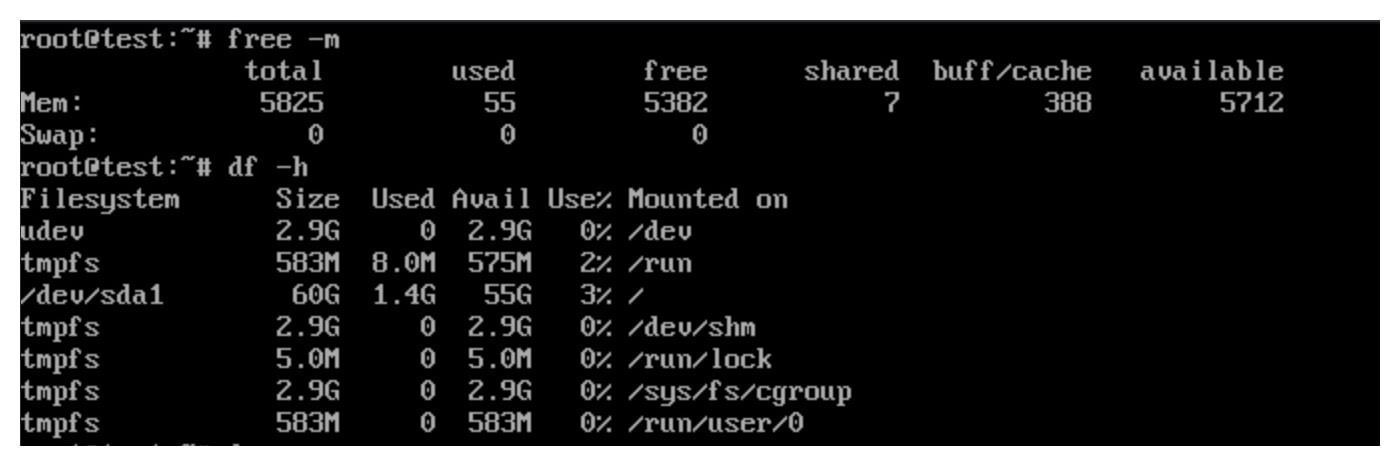
However it only shows us the amoutn of memory, not the type (e.g. DDR4 or DDR5, etc)

checking ram availability and usage using htop
Problem Statement
Determining the type and speed of RAM installed in a Linux system is essential for tasks such as upgrading hardware, optimizing performance, or troubleshooting memory-related issues. Users need reliable methods to retrieve detailed memory specifications, such as DDR generation (e.g., DDR4) and clock speed (e.g., 2400 MT/s), without physically inspecting the hardware.
I had the following issue:
- Different capacities for different RAM sticks (8 GB, 16 GB, etc)
- Different speeds (2400 MHz, 2133 MHz) for motherboards
- Varying speeds for RAM sticks (2400 MHz, 3200 MHz DDR4)
The Computer Systems
Three computers had the following memory configurations:
- 24 GB on desktop (3200 MHz DDR4 running at 2133 MHz)
- 24 GB on Lenovo laptop (8 GB + 16 GB DDR4 3200 MHz)
- 16 GB on Dell laptop (8 GB + 8 GB DDR4, 2400 MHz)
The Goal
I needed to check what would be the best mix-and-match approach for optimizing the RAM performance. For that I first need to check type of RAM in those computers. In particular, I was keen to set up 32 GB on the Dell Laptop, and 16 GB on the other computers, to get the advantage of dual channel on all laptops. That is how I ended up with the question:
How to Check type of RAM in Linux
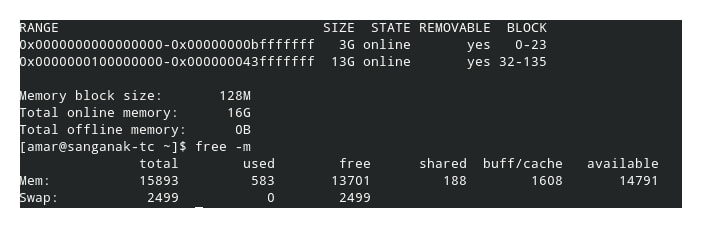
Note: Many of these commands should for MacOS as well.
Method 1
Using dmidecode
$ sudo dmidecode --type memoryThis command provides detailed information about the installed RAM sticks, including:
- Manufacturer
- Part number
- Capacity
- Speed
- Type (e.g., DDR4)
The dmidecode command retrieves hardware information from the system’s BIOS or UEFI firmware, making it the most reliable method for identifying RAM type and speed.
- Open a terminal.
- Run the following command with root privileges, as it requires administrative access:
$ sudo dmidecode -t memory - Review the output for sections labeled “Memory Device”. Look for:
- Type: Indicates the DDR generation (e.g., DDR4).
- Speed: Specifies the clock speed (e.g., 2400 MT/s).
- Size: Shows the capacity of each module.
Example Output:
Handle 0x0020, DMI type 17, 84 bytes
Memory Device
    Size: 8192 MB
    Type: DDR4
    Speed: 2400 MT/s
Note: “MT/s” (mega transfers per second) is the standard unit for DDR RAM speed, though it is sometimes referred to as “MHz” in casual usage.
Method 2
Using lshw
$ sudo lshw -C memoryThis command displays information about the memory controller and installed RAM, including:
- Total memory size
- Memory bus width
- Memory clock speed
The lshw (list hardware) command provides a detailed overview of system hardware, including memory specifications.
- Install
lshwif it is not already present:$ sudo apt install lshw # For Debian/Ubuntu-based systems $ sudo yum install lshw # For Red Hat/CentOS-based systems - Run the command with root privileges:
$ sudo lshw -class memory - Locate the “memory” class section. Look for entries under “bank” or “description” that specify the RAM type and speed.
Example Output:
*-memory
    description: System Memory
    *-bank:0
        description: DIMM DDR4 Synchronous 2400 MHz (0.4 ns)
        size: 8GiB
Method 3 to Check type of RAM in Linux
The /proc/meminfo file provides basic memory statistics but is limited in detailing RAM type or speed. It is primarily useful for confirming total memory size.
- Run the following command:
$ cat /proc/meminfo | grep MemTotal - Review the output, which shows the total memory but does not include DDR type or speed details.
Note: This method is less effective for identifying RAM specifications and is included for completeness.
Method 4
Using free
$ free -hThis command shows the total and available memory, including swap space.
Sample Output – check type of RAM in Linux
    # Example output from dmidecode
    Handle 0x000B, DMI type 16, 23 bytes: Memory Device
    Array Handle: 0x0009, Location: Bottom Slot of Top Side (left)
    Use: System Memory
    Memory Type: DDR4
    Capacity: 16 GB
    Speed: 3200 MHz
    Manufacturer: Kingston
    Part Number: KVR32S22S6/16
Explanation
These commands provide essential information about the type, speed, and capacity of RAM sticks installed in your system, helping you make informed decisions about upgrades and optimizations.
Links and Resources
- dmidecode Man Page – Official documentation for the
dmidecodecommand. - lshw Man Page – Official documentation for the
lshwcommand. - Linux /proc Filesystem Documentation – Information on
/proc/meminfoand other system files.
Recommendations
- Preferred Tool: Use
dmidecodefor the most accurate and detailed RAM information, provided you have administrative access. - Cross-Verification: If the output is unclear or incomplete, verify with
lshwor consult the system’s documentation or physical hardware labels. - Dependencies: Ensure required tools are installed.
dmidecodeis typically pre-installed, butlshwmay need to be installed separately.
Conclusion
By using these commands, you can effectively check type of RAM in Linux system and optimize your memory configuration for better performance.
This post was updated and archived on June 4, 2026