Using rclone for Backups and Cloud Storage Management
Often described as the Swiss army knife of cloud storage, rclone offers a versatile command-line interface that mirrors familiar Unix commands like rsync, cp, mv, and ls. This unified interface excels in managing multiple cloud accounts, automating backups, and performing advanced operations across diverse storage providers. Whether you're backing up a Virtual Private Server to Koofr or pCloud, syncing documents across devices, or building automated workflows for enterprise deployments, rclone provides the flexibility and power needed for efficient data management.
What is Rclone ?

Rclone is an open-source tool that allows you to sync files between your local system and various cloud storage providers through a unified command-line interface. It supports over 40 cloud storage products including Google Drive, Amazon S3, Dropbox, Microsoft OneDrive, Backblaze B2, Koofr, pCloud, and Zoho WorkDrive. Beyond basic file transfers, rclone offers server-side transfers, client-side encryption, compression, mounting capabilities, and automated backup scheduling for efficient data management across platforms.
The tool bridges connectivity constraints common across Indian infrastructure while providing enterprise-grade features at no licensing cost. Its ability to schedule transfers during off-peak hours like 2 to 4 AM IST helps optimize bandwidth usage when internet speeds are typically faster in many cities. This makes rclone particularly valuable for developers, businesses, and individuals navigating the unique challenges of managing data across multiple cloud providers within variable connectivity conditions.
Getting Started with Rclone

Before using rclone for backups or synchronization, you need to install it on your system. The tool runs on Windows, macOS, and Linux, with installation methods varying by platform. Verifying successful installation ensures that subsequent configuration and command steps will execute properly.
Installation on Linux
Linux users have several options for installing rclone depending on their distribution and package preferences. The most straightforward method uses the official installation script, while Debian-based systems can use package managers for simpler maintenance.
$ curl https://rclone.org/install.sh | sudo bashAlternatively, Debian and Ubuntu users can install via apt after updating package lists, while Snap provides a cross-distribution option with automatic updates. Manual installation from downloaded binaries gives you control over version selection and placement.
$ sudo apt update && sudo apt install rclone$ sudo snap install rclone --classicInstallation on macOSInstallation on Mac
Mac users can leverage Homebrew for quick installation and automated updates. This approach keeps rclone synchronized with newer releases without manual intervention.
$ brew install rcloneInstallation on Windows
Windows requires downloading the executable from the official website, extracting it to a dedicated folder, and adding that path to your system environment variables for command-line access from any prompt.choco install rcloneVerify Installation Confirm that rclone is installed correctly and check the version information. This step validates that the binary is accessible from your command line and ready for configuration.
$ rclone versionConfiguration and Setup : Rclone configuration for S3
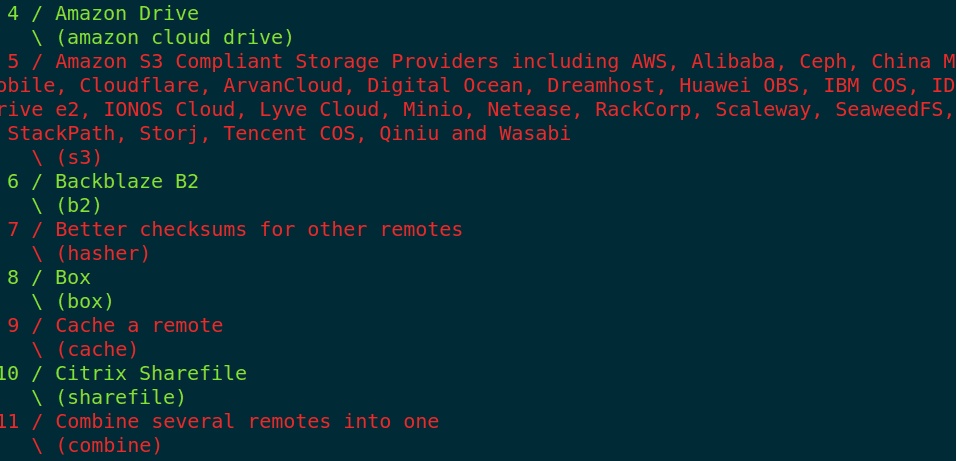
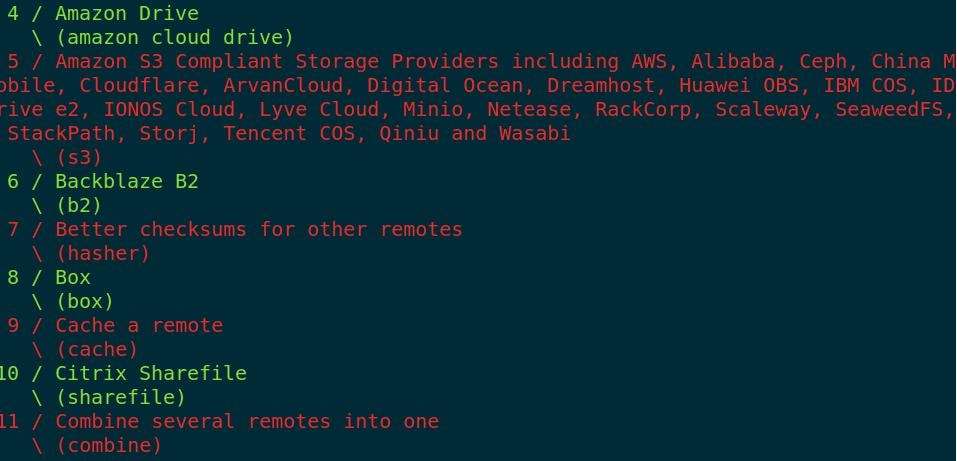
Once rclone is installed, you need to configure it to connect to your chosen cloud storage providers. The configuration wizard guides you through authentication and connection setup for each remote service.
Configure Your First Remote
Run the interactive configuration tool to establish connections with cloud providers. This process creates a configuration file that stores your remote credentials and settings securely.rclone configThe wizard prompts you to create a new remote connection, select a storage provider type, authenticate using OAuth or API keys, and assign a memorable name for future reference. You can configure multiple remotes simultaneously, enabling transfers between different cloud services without staging data locally.
Authentication Methods
Different providers require different authentication approaches depending on their APIs and security models. OAuth flows work for consumer services like Google Drive and Dropbox, while API keys are standard for enterprise platforms including Amazon S3 and Zoho WorkDrive. Encryption Setup
For sensitive data, rclone supports client-side encryption before uploading to cloud storage. This adds a layer of security beyond what providers offer natively, ensuring that only you can decrypt the files.
$ rclone crypt /path/to/local/folder remote:encrypted-folderEssential Commands
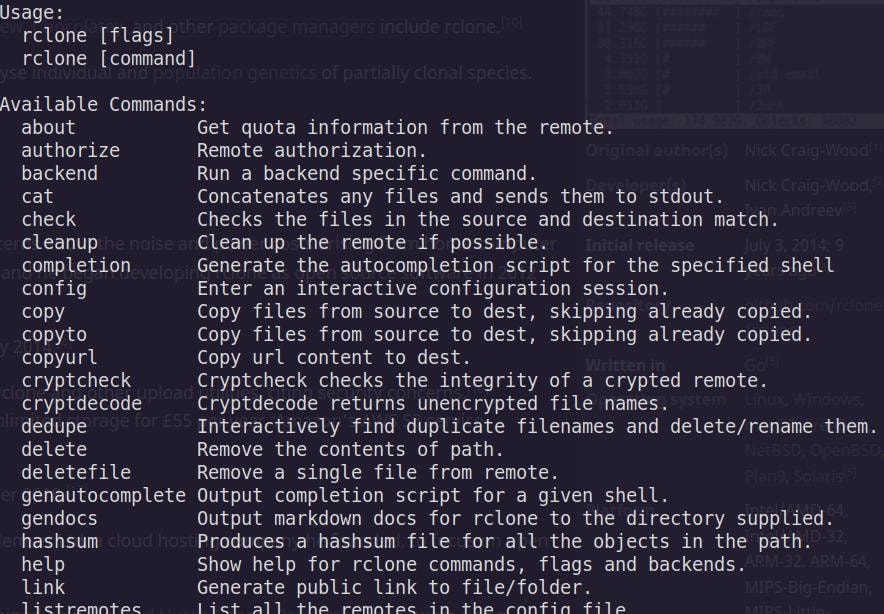
rclone commands
Mastering rclone starts with understanding its core command set, which handles everything from simple file transfers to complex backup strategies. Each command serves a distinct purpose depending on whether you need to preserve existing data, overwrite it, or manage storage space efficiently.
The rclone copy command transfers files from a source location to a destination without removing anything already present at the target. This makes it safe for incremental backups where you want to add new files without risking deletions. By contrast, rclone sync mirrors the source exactly to the destination, deleting any files that don't exist on the source side.
While powerful for maintaining identical directory structures, this destructive behavior means you should use it with caution and always test with dry-run flags first. The rclone move command combines copying and deletion in a single step, transferring files and then removing them from the source once the operation completes successfully.
Beyond file operations, several utility commands help you inspect and manage your setup. Running rclone listremotes displays all configured remote connections, useful for verifying configuration or scripting automated workflows. The rclone about command queries a remote storage provider for quota information, showing total space, used space, and available capacity. For more advanced use cases, rclone mount exposes remote storage as a local filesystem, allowing standard Unix tools to interact with cloud objects as if they lived on your disk.
Example
rclone copy Copies files without deleting destination files
$ rclone copy /local/path remote:pathrclone syncSynchronizes files, deleting destination files not in source
$ rclone sync /local/path remote:pathrclone lslists files in a remote path
$ rclone ls remote:path $ rclone lsdlists directories in a remote path
$ rclone lsd remote:$ rclone mountMounts cloud storage as a local filesystem
$ rclone mount remote:path /mount/point$ rclone aboutDisplays storage
$ rclone about remote:Testing Your Connection
Verify that rclone can communicate with your cloud storage by listing the contents of your remote storage. This confirmation ensures your connection is successful and data transfers will function reliably.
$ rclone ls remote_name:Replace remote_name with the identifier you assigned during the configuration process.
Practical Backup Scenarios
For routine document synchronization, mirror your home directory to cloud storage with minimal configuration. This approach works well for personal files that change regularly and benefit from having an off-site copy.
$ rclone sync ~/Documents remote:Documents
The tilde expansion resolves to your home directory, making the command portable across different user accounts. The remote name acts as a logical prefix, organizing files into a Documents container within the configured backend.
Backup a VPS to Cloud Storage
System administrators often need to back up entire directories without disturbing running services. The copy command preserves existing remote data while adding fresh snapshots, making it suitable for periodic VPS backups that accumulate over time.

$ rclone copy /var/backups remote:vps-backups
This command recursively copies everything under /var/backups to a remote container named vps-backups. Unlike sync, it leaves older backups intact on the remote, enabling you to maintain a rolling history of snapshots across multiple runs.
Transfer Files Between Servers
Moving data between two remote locations eliminates the need to stage files locally, saving bandwidth and time when working with large datasets or slower connections. You can also filter specific file types to reduce transfer overhead.
$ rclone copy server1:data server2:backup --exclude "*.tmp"
Here rclone connects to two different remote backends and copies data directly between them. The --exclude flag skips temporary files matching the glob pattern, preventing unnecessary noise in your final backup. Both servers must be configured as named remotes in your rclone.conf for this to work.
Automation with Cron Jobs

Automating backups is essential for consistent data protection without manual intervention. The cron utility makes scheduling rclone operations seamless using intuitive syntax that specifies timing intervals precisely.
Create a Backup Script
Wrap your rclone commands in a dedicated shell script to gain a single, testable artifact you can run manually or schedule with cron. This approach simplifies error handling, logging, and multi-step logic as your backup requirements grow.
#!/bin/bash
SOURCE="/path/to/your/data"
DESTINATION="remote_name:backup_folder"
rclone sync "$SOURCE" "$DESTINATION" --log-file /path/to/your/log/file.log
Replace /path/to/your/data with the actual path to the data you want to back up on your VPS, remote_name with the name of the remote you configured, and backup_folder with the folder name you want to use in your cloud account.
Make the Script Executable
Grant execute permissions to your backup script so that cron can run it as a command.
$ chmod +x backup.sh
Test the Backup Script
Execute the script manually to verify it functions correctly before relying on automated scheduling. Check your cloud storage account afterward to confirm the data transferred as expected.
$ ./backup.sh
Schedule Backup with Cron
Open your crontab to define when the backup should run. Cron uses a five-field syntax specifying minute, hour, day-of-month, month, and day-of-week for precise timing control.
$ crontab -e
Add a line like the following to run daily backups at 3:00 AM. This time slot typically coincides with lower network traffic on most servers.
$ 0 3 * * * /path/to/your/backup.sh
eplace the path with the actual location of your backup script on the system. Save the file and exit the editor, after which your backup will run automatically according to the defined schedule.
Environment Variables for Cron
Cron jobs execute with a minimal environment that won't pick up your interactive shell configuration or custom PATH entries. To resolve this, explicitly extend the PATH variable at the top of your crontab or within the script itself.
$ export PATH=$PATH:/usr/local/bin
This ensures that rclone and any other binaries installed outside the default cron search paths remain discoverable when the job executes.
Advanced Configuration
Beyond basic usage, rclone offers advanced configuration options for optimizing performance, handling errors, and managing storage costs across different providers and network conditions.
Incremental Backups
If you want point-in-time recovery instead of a blind mirror, rclone's --backup-dir flag preserves the previous version of every changed or deleted file before the sync overwrites it. Each run writes superseded files into a timestamped directory on the remote, giving you a rolling history to walk back through.
$ rclone sync /path/to/local/folder remote:backup --backup-dir remote:backup-$(date +%Y-%m-%d)
The date substitution stamps the backup directory with the current date, so today's run deposits overwritten or deleted files into something like remote:backup-2026-07-20. Over time, you build up a series of dated directories, each containing only the files that changed or were removed in that particular sync.
Custom Scripts with Error Handling
For production environments, create robust scripts that handle errors gracefully and send notifications on failure. This approach ensures you're alerted immediately if a backup does not complete successfully.
#!/bin/bash
LOG_FILE="/var/log/rclone-backup.log"
EMAIL="[email protected]"
timestamp() { date "+%Y-%m-%d %H:%M:%S"; }
handle_error() {
local exit_code=$1
local error_msg=$2
echo "$(timestamp) ERROR: $error_msg (Exit code: $exit_code)" >> $LOG_FILE
echo "Backup failed with error: $error_msg" | mail -s "Backup Failed" $EMAIL
exit $exit_code
}
echo "$(timestamp) Starting backup" >> $LOG_FILE
if [ ! -d "/path/to/source" ]; then
handle_error 1 "Source directory does not exist"
fi
rclone sync /path/to/source remote:/path/to/destination \
--progress \
--create-empty-src-dirs \
--log-file=$LOG_FILE
if [ $? -ne 0 ]; then
handle_error 2 "Rclone sync failed"
else
echo "$(timestamp) Backup completed successfully" >> $LOG_FILE
echo "Backup completed successfully at $(timestamp)" | mail -s "Backup Successful" $EMAIL
fi
Performance Tuning
Optimize transfers by limiting bandwidth during peak hours, increasing retry attempts for unstable connections, and adjusting chunk sizes for better throughput.
$ rclone copy /source remote:dest --bwlimit 1M --retries 10 --timeout 30s
For stable connections, increase parallel transfers and checkers to maximize throughput. Use regional server endpoints to reduce latency and improve reliability.
$ rclone copy /source remote:dest --transfers 8 --checkers 16 --s3-region ap-south-1

Zoho WorkDrive is a popular cloud storage solution for team collaboration and file sharing. Configuring it with rclone allows you to automate backups, synchronize files, and integrate it with existing workflows using command-line tools.
Set Up API Credentials
Begin by creating API credentials in the Zoho Developer Console. Navigate to the API Console and create a new client under Server-based Applications, selecting the WorkDrive scope. Record the Client ID and Client Secret for later use in rclone configuration.
Configure Rclone for WorkDrive
Run the configuration wizard and select Zoho WorkDrive from the list of providers. Enter your Client ID and Client Secret when prompted, then complete the authentication flow to establish a secure connection.
$ rclone config
Name your remote something meaningful like workdrive for easy reference in commands. After configuration, test the connection by listing directories on the remote.
rclone lsd workdrive:
Create a dedicated folder structure like workdrive:/team-backups/ to organize files logically within your WorkDrive workspace.
Cloudflare R2 CDN Integration
Cloudflare R2 offers a cost-effective object storage solution, particularly valuable for distributing images, videos, and other assets via a Content Delivery Network with zero egress fees. Integrating R2 with rclone enables efficient file management and CDN distribution, minimizing costs and latency.
Configure Rclone for R2
Select Amazon S3 as the provider during rclone configuration, then enter your R2 API credentials and custom endpoint. Leave the region field blank and disable session tokens to match R2's S3-compatible API requirements.
$ rclone config
Sync Files to R2
Upload media assets to your R2 bucket for CDN distribution. The progress flag shows transfer status in real-time, helping you monitor large uploads.
$ rclone sync /local/media r2-cdn:cdn-assets --progress
Manage Costs with Lifecycle Rules
Implement automated cleanup policies to delete old files and prevent storage costs from growing indefinitely. Monitor usage in the Cloudflare Dashboard to avoid unexpected charges.
$ rclone delete r2-cdn:cdn-assets --min-age 30d
Troubleshooting Common Issues

When rclone encounters problems, verbose logging helps diagnose the root cause. Address common issues like slow transfer speeds, authentication failures, quota exceeded errors, and ISP throttling with targeted flags and configuration adjustments.
Slow Transfer Speeds
Limit bandwidth during peak business hours to prevent congestion, and increase retry attempts for unstable connections. Smaller chunk sizes help with intermittent connectivity.
$ rclone copy /source remote:dest --bwlimit 1M --retries 10 --timeout 30s --transfers 4 --checkers 8
Authentication Failures
Reconnect to refresh tokens and verify your configuration file contains valid credentials. Log out and back in through the config wizard if needed.
$ rclone config reconnect remote:
Quota Exceeded Errors</
Check available space on your remote and stop transfers when approaching limits. Some providers like Google Drive offer flags to detect upload thresholds automatically.
rclone about remote:
$ rclone copy /source remote:dest --drive-stop-on-upload-limit
Debug Issues
Enable verbose logging to capture detailed diagnostic information for analysis. Isolate problematic files by limiting transfer sizes, then compare directories to identify discrepancies.
rclone copy /source remote:dest -vv --log-file=debug.log
$ rclone check /source remote:dest
$ rclone copy /source remote:dest -vv --log-file=debug.log
$ rclone check /source remote:destGUI Options
Graphical Interface for rclone
While rclone itself is a command-line tool, a few community-developed graphical interfaces can enhance usability for Linux users. One of the most notable is Rclone Browser, a cross-platform GUI that supports Linux, Windows, and macOS. It provides a user-friendly way to configure rclone remotes, mount cloud storage, and perform file operations like copying, syncing, and deleting.Rclone Browser is Qt/GTK application distributed for Linux as an AppImage, .deb, or .rpm package with support for remote management, mounting, and portable configuration files.
 Rclone Browser- MacOs client. Source: Rclone Browser
For users who prefer a web-based approach, rclone serve http can be used to expose a simple web interface for browsing and managing files on configured remotes. Additionally, projects like rclone-webui-react offer a more modern, browser-based interface for interacting with rclone. These tools are particularly useful for those who want to avoid the complexity of command-line operations while still leveraging rclone's powerful features. While rclone excels as a command-line tool, graphical interfaces exist for users who prefer visual management. These alternatives provide the same functionality through point-and-click workflows.
 Source: Rclone Browser
Mountain Duck: Another option is Mountain Duck, which allows users to mount cloud storage as local drives, though it is primarily focused on integration with file explorers rather than a full-fledged GUI for rclone. You can mount cloud storage as a local drive with Finder or Explorer integration.
RcloneUI: Use rclone serve to create a browser-based interface accessible from any device Watch the video of RcloneUi here
Web GUI for RClone
The simplest option is the built-in Web GUI that comes with rclone itself, launched via the rclone gui command. This starts a local web server serving a browser-based dashboard at http://127.0.0.1:50802 where you can view configured remotes, browse files, monitor transfers, and manage settings—all without installing additional software. More details are available on the official rclone GUI page. Terminal Command:
$ rclone serve http remote:bucket-name --addr :8080*RClone Manager** uses Angular and Tauri to deliver a native-feeling experience across Linux, Windows, and macOS, with ongoing development toward Docker and web-UI deployment—details shared on the rclone forum announcement.
RcloneView, released in early 2024, focuses on multi-cloud synchronization with visual folder comparison, mounting, and detailed transfer monitoring; visit their website for more information.
Key Takeaways
Rclone offers a robust solution for managing diverse cloud storage needs across Indian infrastructure. Its ability to unify multiple providers, automate secure backups, and optimize performance under variable internet conditions makes it indispensable for developers, businesses, and individuals alike.
The tool provides unified management of over 40 cloud storage providers through a single interface, automated backups that work reliably even with inconsistent connections, and secure data transfers with built-in encryption for sensitive information. Cost optimization comes from efficiently utilizing storage space across providers, with scalable solutions suitable for everything from personal backups to enterprise deployments.
Start with basic file operations to become familiar with the rclone workflow, then gradually implement automation through scripts and scheduled tasks. Add encryption for sensitive data when needed and optimize performance with appropriate flags based on your connection quality. Join the rclone community for ongoing support and advanced configurations.
Conclusion
Rclone stands as a powerful ally in the quest for efficient cloud storage management. Throughout this guide, we've explored how this versatile tool enables users to navigate the unique challenges of managing data across multiple cloud providers, often within connectivity constraints common across the subcontinent.
The strength of rclone lies in its flexibility. Whether you're a solo developer backing up project files, an IT manager synchronizing team documents to Zoho WorkDrive, or a photographer archiving large image files across multiple storage providers, the command-line interface delivers powerful automation capabilities after a reasonable learning investment.
For businesses embracing digital transformation, rclone offers a cost-effective approach to cloud storage management without vendor lock-in. The ability to script operations and schedule them during periods of better connectivity demonstrates how the tool can be tailored to local infrastructure realities. As cloud services continue to evolve, rclone's active development ensures it will remain relevant for years to come.
Links of Interest
- Rclone Documentation - Comprehensive official documentation covering all features and commands
- Command Reference - Complete list of commands with usage examples and flag explanations
- Rclone Forum - Community forum where users share experiences and get help
- GitHub Repository - Source code and issue tracking for latest developments
- GUI Tools - List of graphical interfaces available if you prefer visual tools
- Rclone Installation Guide - Platform-specific installation instructions
- Rclone Scripting Guide - Documentation for automation and scripting
- Rclone Advanced Commands - Deep dive into advanced features and flags
Cloud Provider Specific Guides
- Koofr Setup Guide - Configuration instructions for Koofr cloud storage
- pCloud Setup Guide - Configuration instructions for pCloud cloud storage
- Amazon S3 Guide - Documentation for Amazon S3, a popular storage backend
- Zoho WorkDrive Help - Official documentation for Zoho WorkDrive
- Cloudflare R2 Dashboard - Create and manage R2 buckets for CDN distribution
External References
- Cron Utility - Understanding cron job syntax and scheduling
- Shell Scripting Basics - Introduction to bash scripting for backup automation
- Rclone Browser GitHub - Cross-platform GUI for rclone
- Mountain Duck - Mount cloud storage as a local drive