This guide walks through reviving a 2012 MacBook Pro Retina with Slackware 15.0 and XFCE. You'll learn about driver installation, display tuning, real-world limitations, and whether older Mac hardware deserves a second life instead of joining the e-waste pile.
मराठी सारांश: हा लेख २०१२ मॅकबुक प्रो रेटिनाला स्लॅकवेअर लिनक्ससह पुनर्जीवित करण्याची प्रक्रिया तपशीलवार सांगतो. हा मार्गदर्शक ब्रॉडकॉम वायफाय ड्रायव्हर, रेटिना डिस्प्ले स्केलिंग आणि बॅटेरी मर्यादांसारख्या तांत्रिक बाबींचा समावेश करतो.
हिंदी सारांश: यह लेख 2012 के मैकबुक प्रो रेटिना को स्लैकवेयर लिनक्स के साथ पुनर्जीवित करने की प्रक्रिया का विस्तृत वर्णन करता है। यह गाइड ब्रॉडकॉम वाईफाई ड्राइवर, रेटिना डिस्प्ले स्केलिंग और बैटरी सीमाओं जैसे तकनीकी पहलुओं को कवर करता है।
Why Revive an Ageing Mac That Is Unsupported by Apple?
When Apple drops support for older hardware, the standard path usually leads to a sluggish, patch-heavy experience or an outright retirement of the machine. However, deploying Slackware 15.0 paired with the lightweight XFCE desktop environment provides an entirely different outcome, transforming an otherwise obsolete 2012 MacBook Pro Retina into a blazing-fast, functional workstation. Operating entirely outside the modern trend of resource-heavy background processes and complex system abstractions, this minimal setup leaves the machine running cooler and feeling notably snappier than it did under original software constraints.
Slackware 15.0 (2022) remains fully supported in late 2025, with regular security patches. The -current branch continues to evolve, moving toward newer kernels, and Patrick Volkerding maintains active development.
Performance Footprint: What You Actually Get
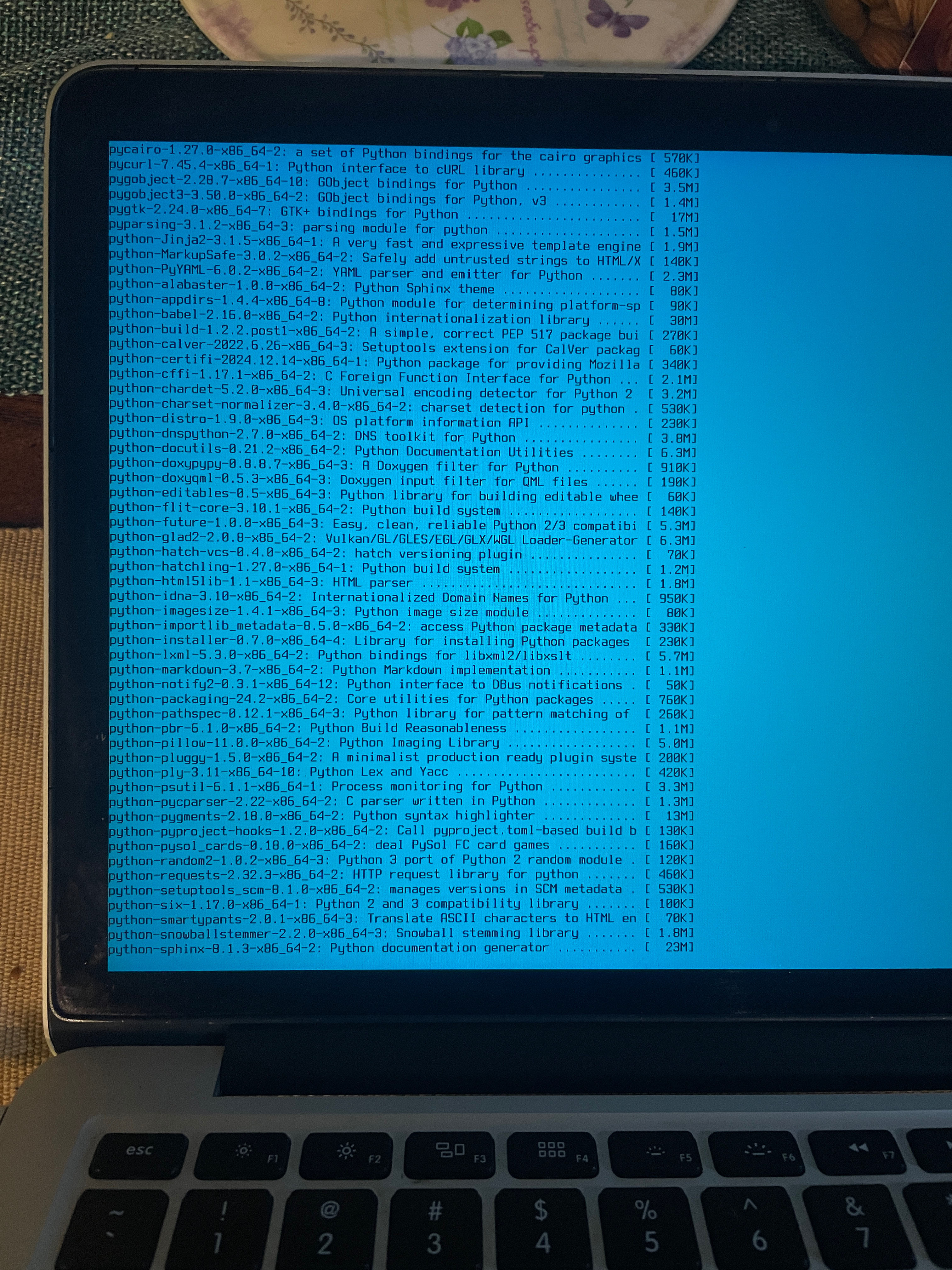 Installation of slackware on Macbook Pro 2012 Retina
Slackware is one of the oldest Linux distributions, known for its simplicity, stability, and minimalism. Unlike modern distributions with heavy dependencies, Slackware offers a clean, lightweight environment perfect for older hardware like the MacBook Pro Retina 2012. XFCE, a lightweight desktop environment, complements Slackware’s philosophy by providing a fast, customizable GUI without sacrificing performance. The most immediate benefit of this hardware rescue is an incredibly low operational footprint. While modern desktop operating systems routinely consume gigabytes of memory just sitting at an empty screen, Slackware paired with XFCE idles at a mere 550 to 650 MB of RAM. Furthermore, because the system operates without complex modern system abstractions draining resources in the background, power management becomes highly efficient.
My Actual Hardware Setup: The Fine Print
My unit carries the i5 3rd generation processor paired with 8 GB DDR3 1600 MHz RAM. I replaced the original 128 GB Mac SSD with a 256 GB mSATA drive, though I also tested a 480 GB variant without any issues. Hardware is indeed dated but works just fine for the intended purpose. Most peripherals respond correctly to Linux drivers, though there are nuances worth noting. The keyboard presents a small friction point where the Command key behaves differently from the Windows-style leader key familiar to many Linux users. Some remapping through xmodmap or Xorg configuration resolves this, but it adds another manual step to the setup. Audio also required tweaking—one speaker had failed on my unit, and the remaining channel needed ALSA adjustment to restore balanced output. Beyond these specific quirks, almost everything else works out of the box, which is genuinely refreshing compared to mainstream Linux distributions on Mac hardware.
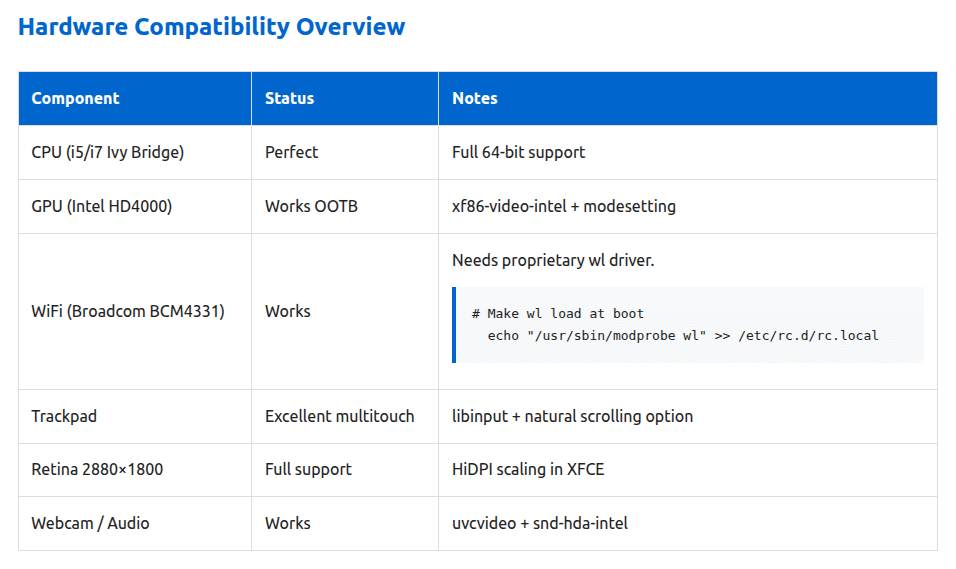 Hardware compatibility- Slackware on of Macbook Pro 2012 Retina
Installation and Post-Configuration Essentials
Deploying Slackware alongside the lightweight XFCE desktop environment effectively transforms an aging MacBook Pro Retina 2012 into a lean, highly efficient workstation. Crucial post-installation adjustments—such as configuring nab`—breathe new life into the laptop, tailoring it perfectly into a focused, distraction-free writing environment.
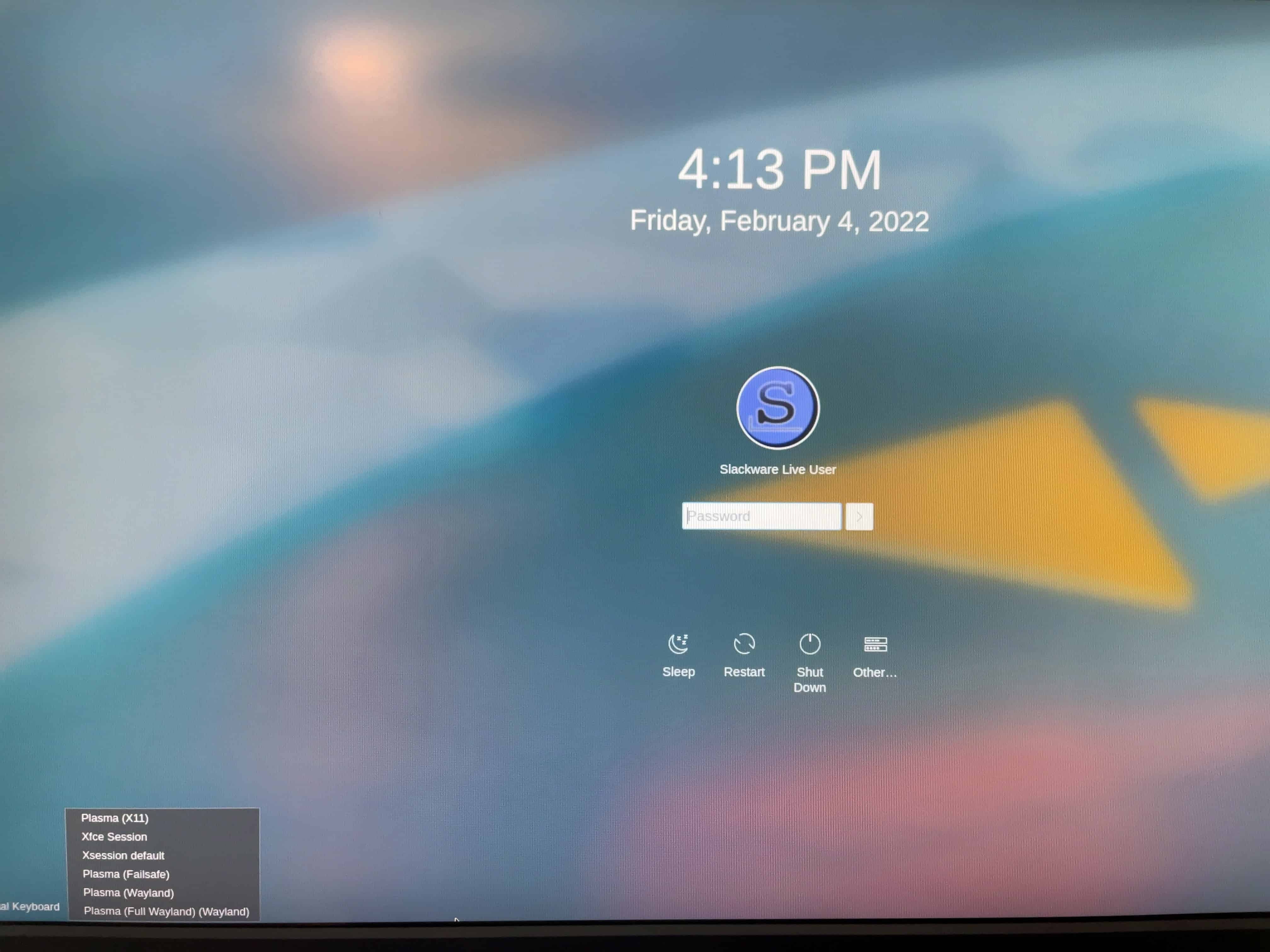 KDELogin- Slackware on Macbook Pro 2012 Retina
Pre-Installation Checklist
- Backup macOS Data: Use Time Machine or another backup tool.
- Create a Bootable USB: Download Slackware ISO (e.g., Slackware Current) and use Etcher or
ddto flash it to a USB drive. - USB-C to USB Adapter: The 2012 MacBook lacks USB 3.0 ports; use an adapter for the USB drive.
- Check Hardware Compatibility: Verify drivers for Intel HD 4000 and Broadcom Wi-Fi (if present).
Step-by-Step Installation
1. Boot Slackware Live USB
- Insert the USB drive and restart the MacBook.
- Hold the Option (Alt) key during boot to access the startup manager. Select the USB drive.
2. Partition the SSD
- Open
cfdiskorgdiskto create partitions:- EFI System Partition (ESP): 512MB (FAT32, flagged as
boot). - Root Partition: Remaining space (ext4).
- Swap Partition (Optional): 2GB for hibernation.
- EFI System Partition (ESP): 512MB (FAT32, flagged as
- Format partitions:
mkfs.fat -F 32 /dev/sda1
mkfs.ext4 /dev/sda2
mkswap /dev/sda3
3. Install Slackware Packages
- Mount partitions:
mount /dev/sda2 /mnt mount --mkdir /dev/sda1 /mnt/boot swapon /dev/sda3 - Run the Slackware installer:
setup - Select essential packages:
a,ap,d,l, andxorg(for graphics).
4. Configure the System
- Set hostname, root password, and user accounts.
- Install GRUB:
grub-install --target=x86_64-efi --efi-directory=/mnt/boot --bootloader-id=Slackware - Generate
grub.cfgusinggrub-mkconfig.
5. Install XFCE
- Mount the Slackware ISO and install XFCE packages:
slackpkg install xfce - Alternatively, download XFCE from XFCE’s official site.
Critical Post-Install Fixes
- Set Fonts DPI to 192 in Settings → Appearance → Fonts
- Adjust Display Scale to 200% in Settings → Display
- Apply a dark theme like Adwaita-dar or Greybird in Window Manager → Theme
- Configure LILO/ELILO for EFI boot (select
eliloduring setup) - Reboot to apply changes
Of course, migrating an older Mac to a traditional Linux architecture comes with standard configuration hurdles. The primary technical friction point involves the notorious internal Broadcom BCM4331 wireless network interface card, which requires manual sourcing and compilation of proprietary drivers before the machine can connect to a network. Resolving this means ensuring kernel-headers and kernel-source are installed via slackpkg, and then compiling or installing the broadcom-sta package to generate the wl kernel module. Once generated, executing modprobe wl brings the interface online, and adding it to /etc/rc.d/rc.modules.local keeps the wireless card active across system reboots. Additionally, the high-density 2880×1800 Retina display demands deliberate manual font configuration and pixel scaling adjustment—specifically overriding the monitor's DPI setting to a sharp 192×192 via an Xorg configuration file (/etc/X11/xorg.conf.d/90-monitor.conf)—to prevent the default text from rendering microscopic.
Real-World Limitations: Battery and Beyond
Not every aspect of this revival is smooth sailing. On my particular machine, the battery holds charge for barely thirty minutes, rendering it practically a desktop tethered to mains power. If you plan to use the revived Mac as a portable device, budget for a battery replacement from the outset. This limitation, however, does not diminish the overall value proposition. Even as a stationary workstation, the machine delivers a clean, responsive experience that modern cheap laptops struggle to match. The combination of Slackware's stability and the Retina display's clarity creates a dedicated writing terminal that never drifts toward update interruptions or telemetry pings.
Lessons Learned After 6 Months of Use
- Trackpad Quirks: macOS-style gestures may require third-party tools like
libinput-gestures. - Wi-Fi Drivers: Broadcom cards often need manual firmware installation. It remains the biggest pain point—always have Ethernet ready during installation.
- SSD Optimization: Enable
noatimein/etc/fstabto reduce wear. - Backup GRUB Config: Reinstall GRUB if kernel updates break boot.
- 8 GB RAM + SSD + XFCE delivers performance snappier than what MacOS can offer
Video: Slackware Live Installation
Slackware forces you to learn real Linux—unforgiving, but deeply rewarding. It is the only popular Linux system left that doesn't use systemd, whic is the standard background tool that most Linux systems use to start up the computer and manage programs running behind the scenes. In simpler terms, Slackware is the car with manual transmission, while most major Linux distributions such as Debian, Fedora, etc. have moved on to automatic transmission.
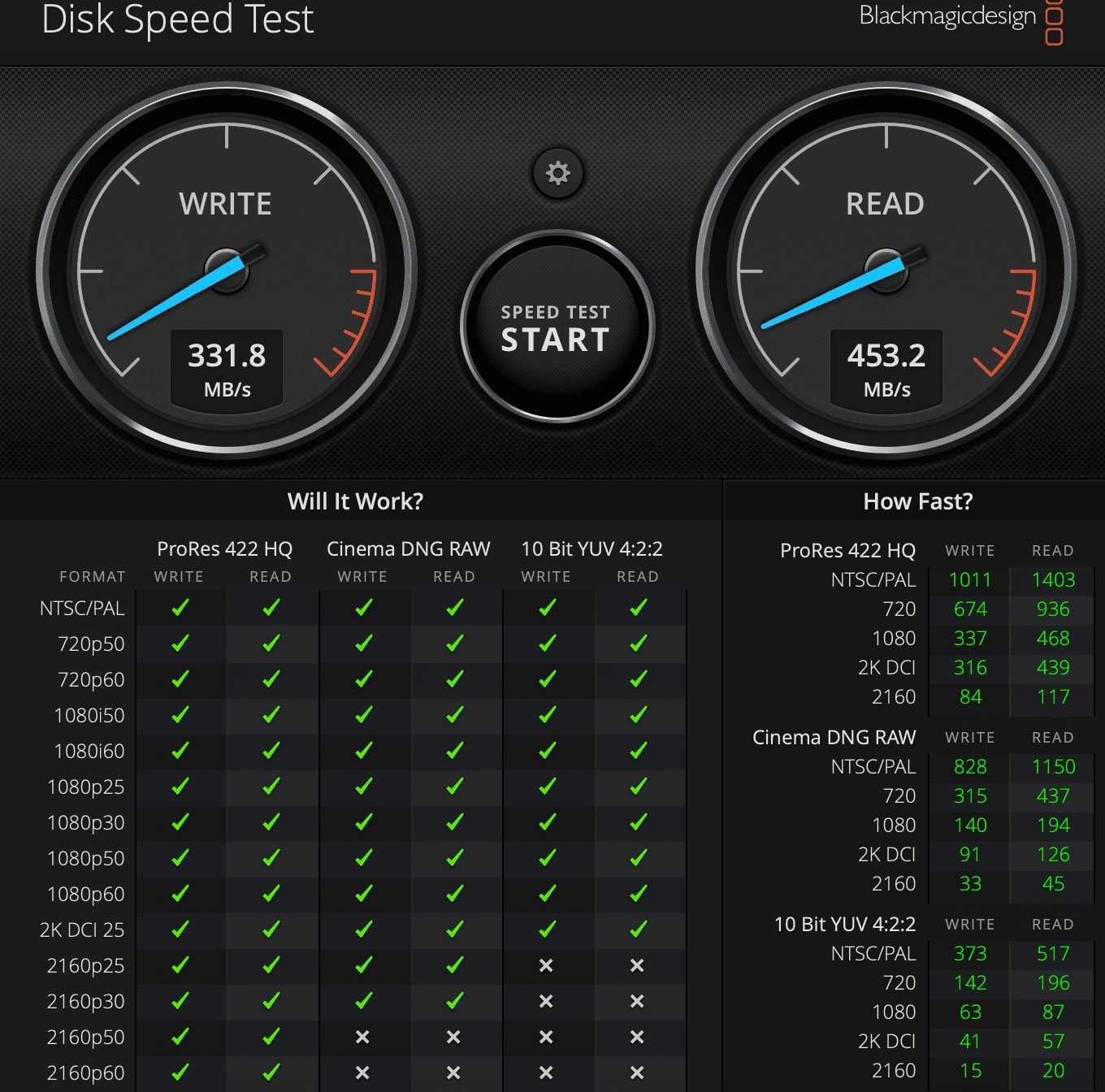 Disk speed on the original disk of Macbook Pro 2012 Retina
Should You Try It? And What Are Your Alternatives?
Would I recommend it? Absolutely. Lack of support from Apple for macOS on older hardware does not mean the hardware is destined to join the e-waste stream. An extra decade of useful life from a machine that already paid its environmental cost is a net positive. For those intimidated by Slackware's manual installation process, consider forks like SalixOS, Porteus, or Zenwalk. These distributions inherit Slackware's core philosophy while offering simplified package managers and friendlier setup wizards. They serve as excellent entry points if you want the efficiency without the sysadmin overhead.
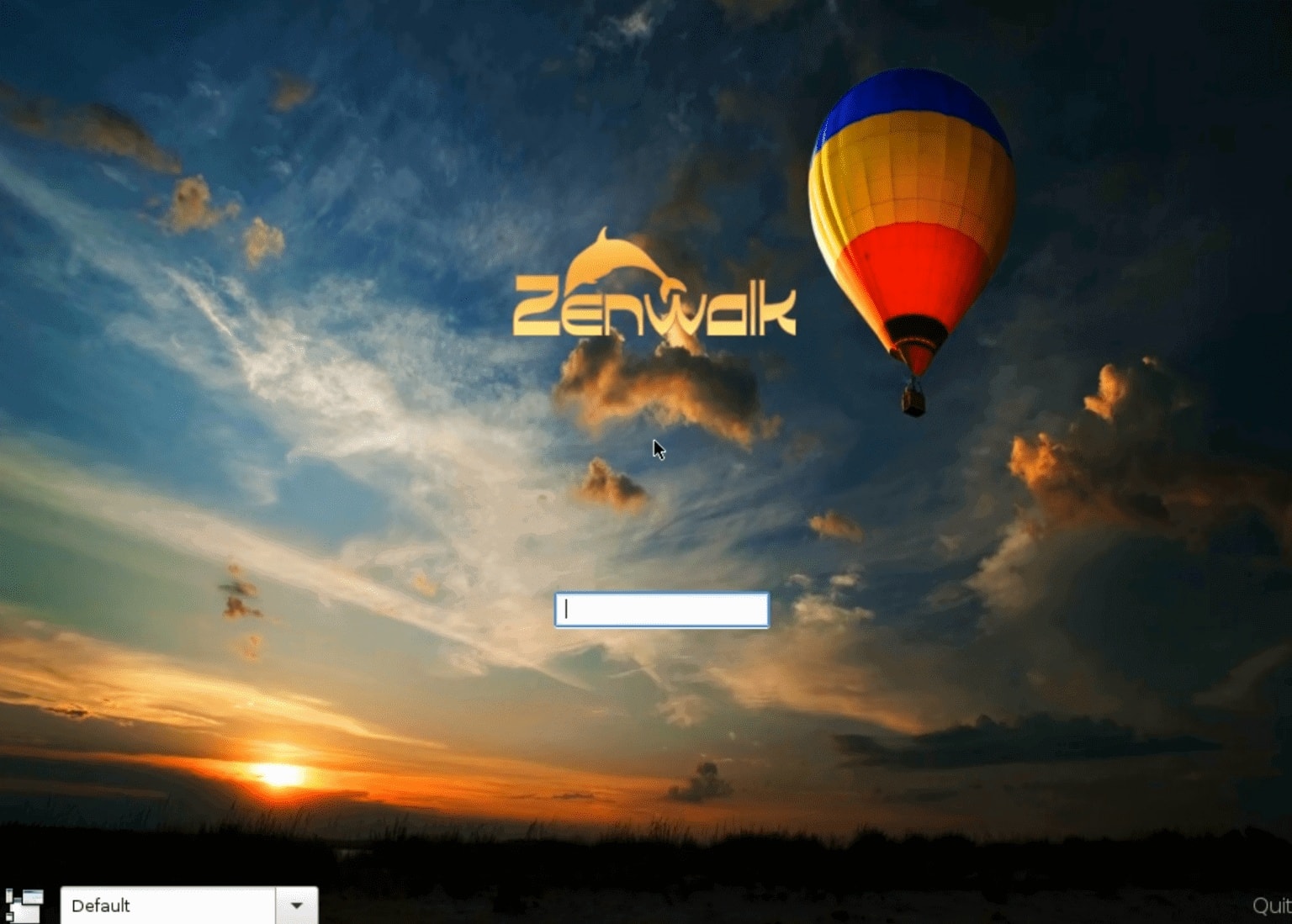 Zenwalk Linux on Macbook Pro Retina
Final Verdict: Old Hardware, New Life
The ultimately rewarding takeaway from this restoration project is that old hardware rarely lacks capability; rather, it is simply weighed down by modern software bloat. Opting out of opinionated corporate software ecosystems in favor of a clean, text-configured base structure forces an administrator to understand the core elements of system management. Slackware + XFCE transforms the MacBook Pro Retina 2012 into a lean, efficient workstation. While the installation requires manual configuration, the result is a system tailored to your workflow. For those seeking control and minimalism, Slackware remains a timeless choice.
 Slackware Logo AI generated Image
Links and References
-
Slackware Linux Project — Official homepage, including download mirrors and release announcements for Slackware 15.0.
-
SlackBuilds.org: broadcom-wl — Community-maintained build script for the proprietary Broadcom STA (
wl) kernel module, compatible with Slackware 15.0 and the 5.15.x kernel series. -
LinuxQuestions.org: broadcom-sta on Slackware 15 current — Thread covering
broadcom-stacompilation against newer kernels in Slackware 15-current. -
SalixOS Official Site — Homepage for Salix, including documentation and package repositories.
-
Porteus Official Site — Homepage for Porteus, including desktop and kiosk editions.
-
Zenwalk Official Site — Homepage for Zenwalk GNU Linux.