
I first learned about Yunohost while researching server management panels for a blog post. It was mentioned by a few members on Low End Spirit and Low End Gov, and I was intrigued by its promise of simplicity and flexibility. After giving it a try, I realized it was exactly what I needed for self-hosting applications without the complexity of traditional server management.
Why I Chose Yunohost for Self-Hosting
When I first dipped my toes into self-hosting, I was overwhelmed by the sheer complexity of managing a server. Traditional methods required deep technical knowledge, and I often found myself stuck in a maze of command-line instructions and configuration files. That’s when I discovered Yunohost.
Yunohost is a server operating system built on Debian, designed to make self-hosting web applications as straightforward as possible. Unlike other solutions that demand expertise in server administration, Yunohost provides a web-based admin panel. This means I can manage applications, users, and domains without needing to dive into the command line for every task. It was a breath of fresh air.
What really sold me on Yunohost was its ability to simplify the entire process. I could deploy applications like WordPress, Nextcloud, and Matrix with minimal effort, thanks to its one-click installation feature. Security was another major selling point. Yunohost comes with built-in firewall protection, automatic SSL certificates via Let’s Encrypt, and regular updates, ensuring my server remains secure without constant manual intervention.
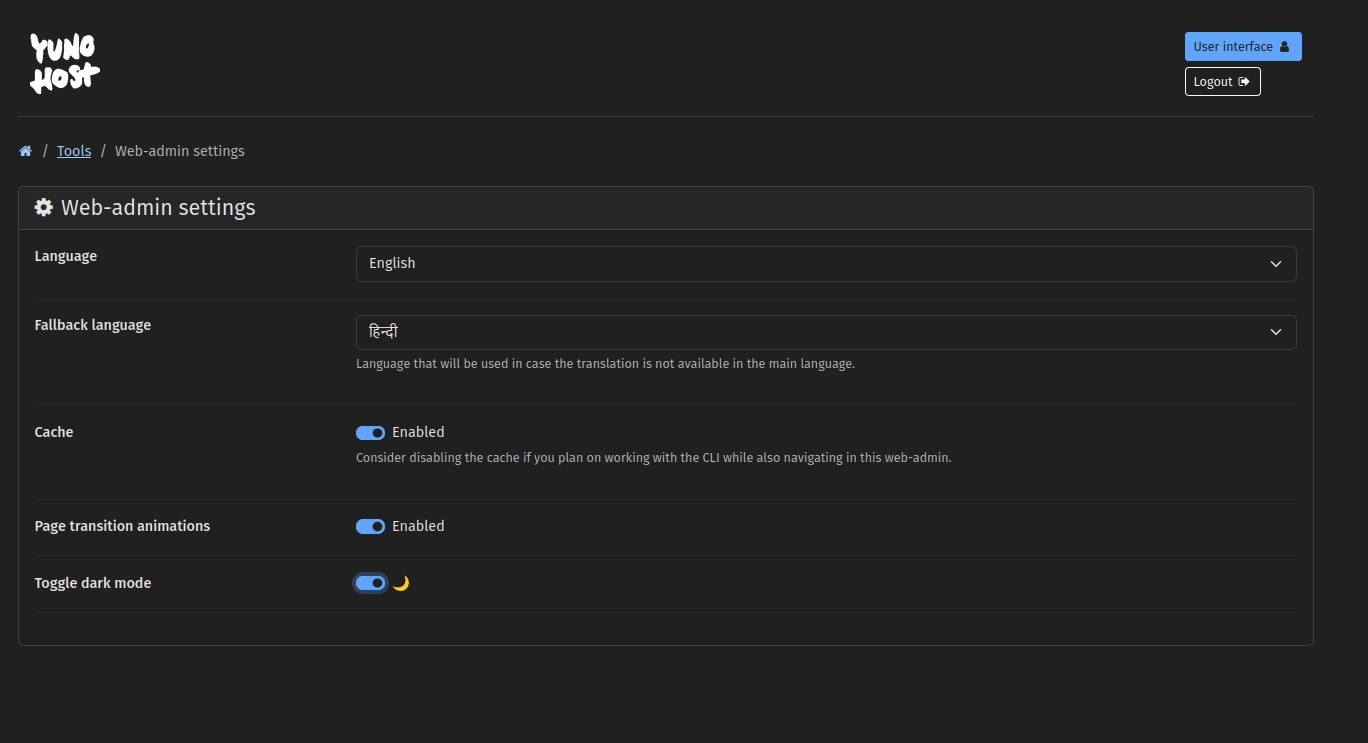
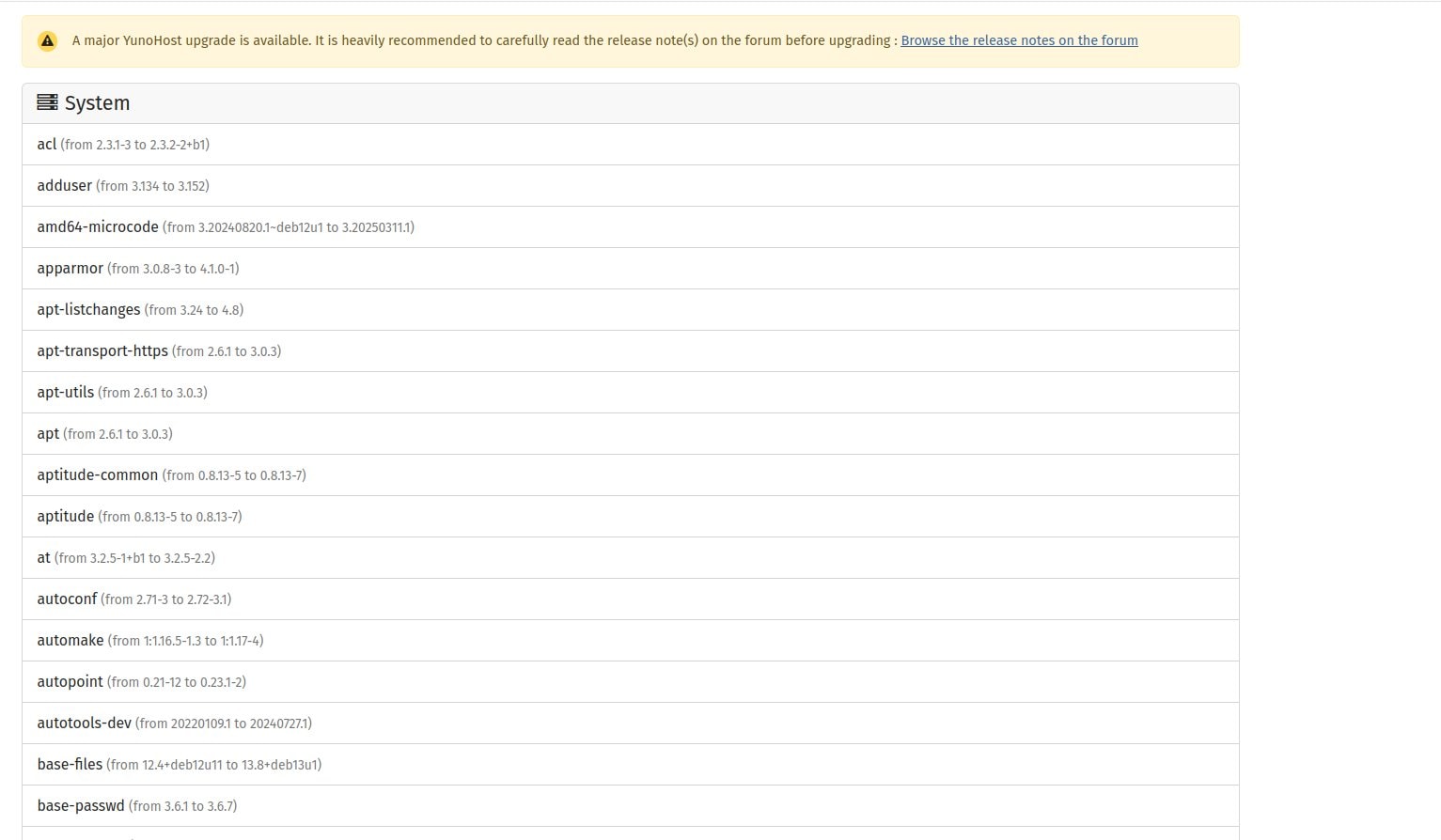
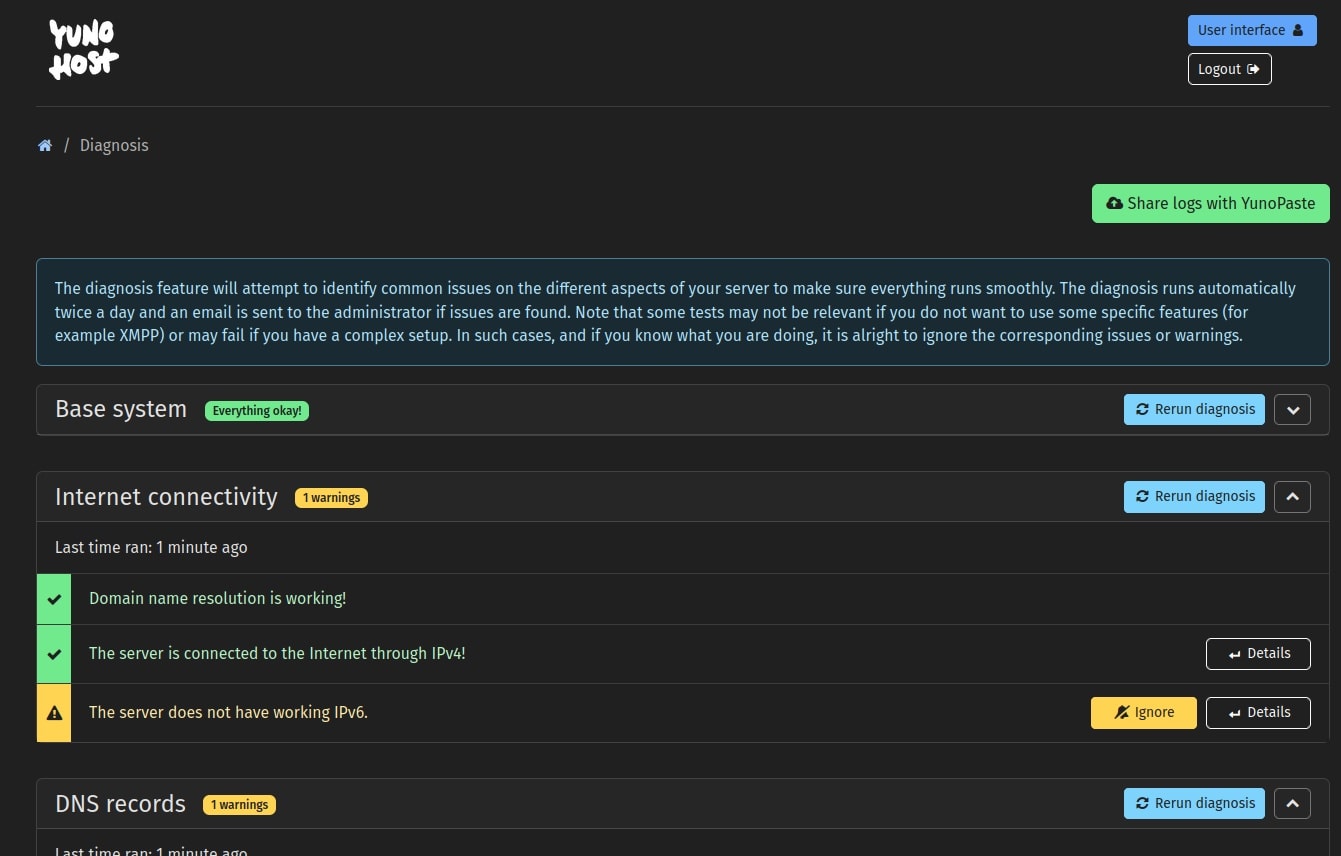
Gallery 1: Yunohost System and Management
Click to view Yunohost system and management screenshots
Why Yunohost Stands Out
Self-hosting can be intimidating, but Yunohost simplifies the process in ways that other solutions don’t. The web-based admin panel means I don’t need to be a command-line expert to manage my server. Installing popular applications takes seconds, not hours, which is a huge time-saver.
Security is another area where Yunohost excels. All my sites are automatically secured with Let’s Encrypt certificates, and the built-in firewall and Fail2Ban protection keep my server safe from brute-force attacks and unauthorized access. This level of automation means I can focus on building and managing my applications rather than worrying about security vulnerabilities.
Flexibility is where Yunohost truly shines. From blogs to file storage, Yunohost supports a wide variety of applications. I can host multiple websites under different domains on a single server, which is perfect for someone like me who juggles multiple projects. Plus, the cost-effectiveness of Yunohost cannot be overstated. It’s completely free and open-source, which means I no longer have to rely on third-party hosting providers for my projects.
My Initial Journey and Early Impressions
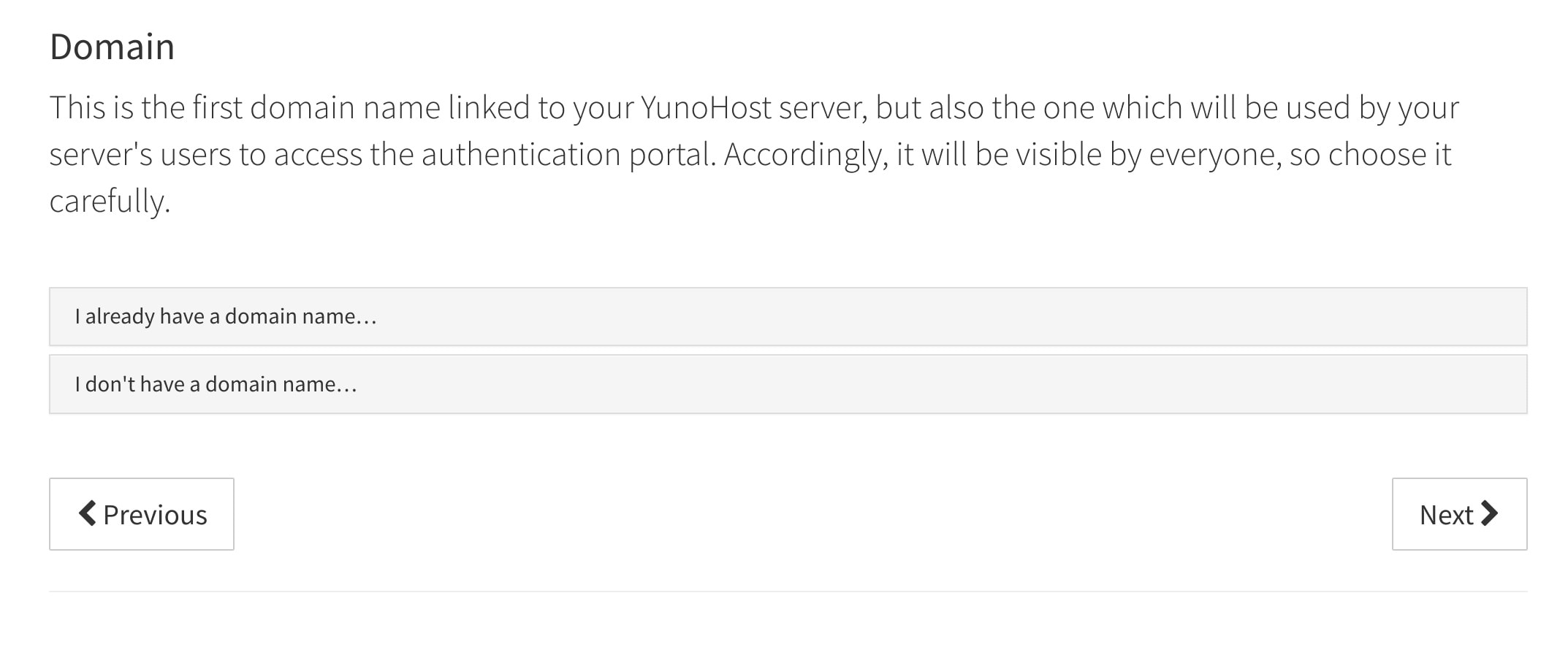
I decided to give this platform a try on a server located in New Jersey, which I had subscribed to as part of a Black Friday 2020 offer. The server had largely been sitting idle, making it a brilliant opportunity to test this new system for my personal projects. During the initial setup, I ended up encrypting the disk, which split the 20 gigabytes hard drive into 7.5 GB for the root server and 12.5 GB for home. While the installation was mostly smooth, I found the persistent transparent graphic on the interface somewhat bothersome on mobile screens. Despite these few minor quirks, the overall experience was overwhelmingly positive and encouraged me to dive much deeper into the self-hosting ecosystem.
Hardware Prerequisites for Yunohost Open Source Server Panel
To successfully install the Yunohost open source server panel, you will need a dedicated server or a virtual private server with at least 1GB of RAM and 10GB of storage space. It is highly recommended to use a clean installation of Debian 9 or 10 to ensure optimal compatibility with the software. You will also need a registered domain name and a static IP address securely linked to your server instance. Please keep in mind that users who prefer other Linux distributions, such as CentOS or Fedora, will not be able to utilise this panel. Following these specific requirements ensures the system runs smoothly and securely across all your newly hosted applications.
Performance Benchmarks for Debian Server Setups
I also took the time to test the panel's performance on local hardware setups to see how it fares outside of a traditional cloud environment. Running benchmark tests on a Raspberry Pi 4 revealed cached read speeds of 1550 MB in just 2.00 seconds. Additionally, testing a Crucial SATA SSD on a Dell Latitude D520 showed stable temperatures hovering around 52°C during standard operations. Under heavier benchmarking loads without an external fan, the CPU temperatures safely reached up to 69°C. These precise figures beautifully demonstrate that the panel is lightweight enough to run efficiently on modest local hardware for everyday tasks.
Exploring Self-Installing SaaS Applications
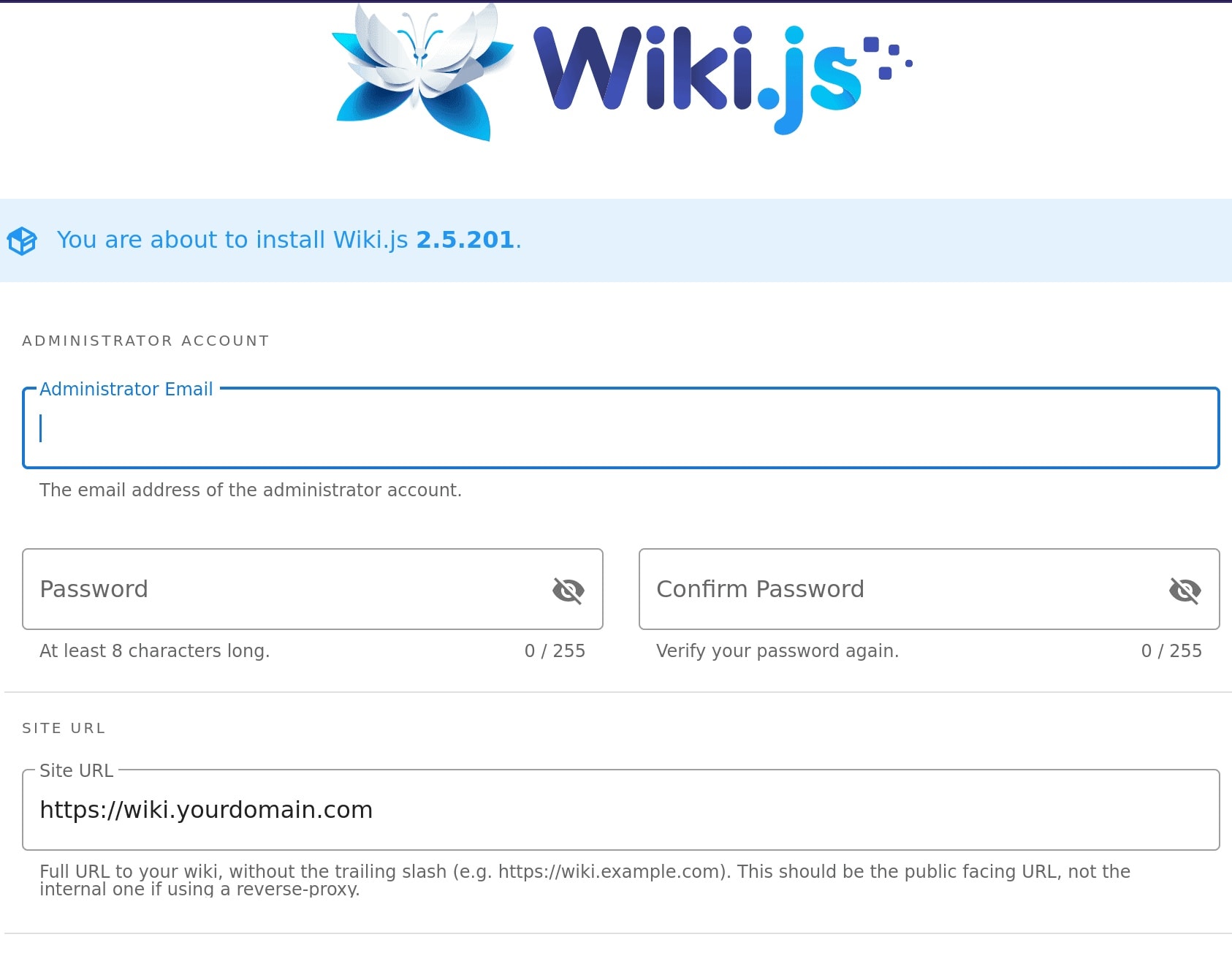
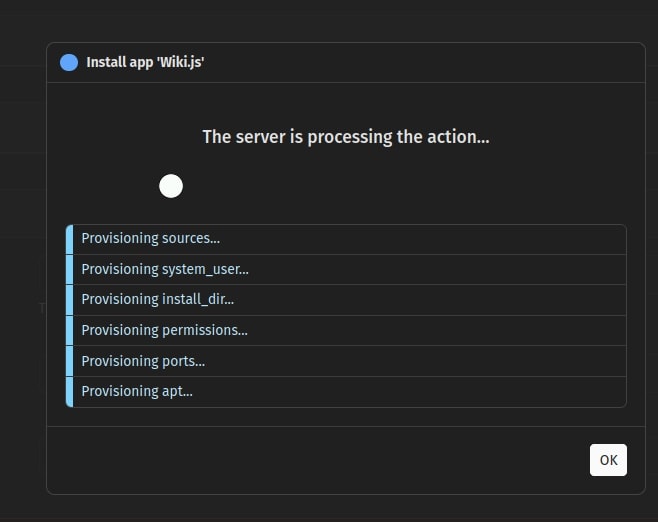
The platform supports a brilliant array of self-installing SaaS applications that cater to a wide variety of productivity and communication needs. You can easily deploy collaborative platforms like Nextcloud for file storage or Wiki.js for creating a lightning-fast knowledge base. It also features robust document editors such as OnlyOffice and Haroopad, ensuring remote teams stay productive across different timezones. Users can effortlessly browse through distinct categories ranging from Kanban boards to URL shorteners directly from the dashboard. Most of these powerful applications are strictly open-source and remain under active development by the dedicated developer community.
How to Recover Passwords for Application Hosting
If you ever forget the admin username or password for your application hosting setup, there is absolutely no need to panic. As long as you maintain SSH access to your server, the entire recovery process is remarkably straightforward and quick. First, you can confirm the exact admin username by running the yunohost user list command directly in your terminal. Next, execute sudo yunohost tools adminpw to securely set a brand-new password without requiring the old one. This ensures you can quickly regain access to your Web Admin panel without losing any of your carefully configured applications.
How I Installed Yunohost on a VPS
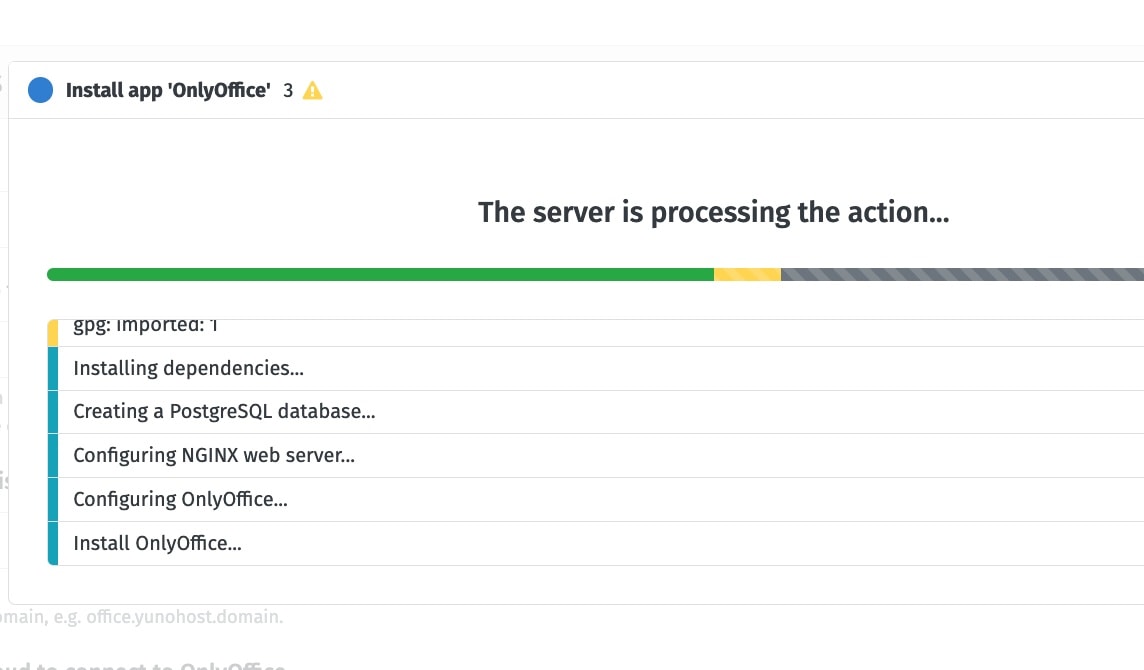
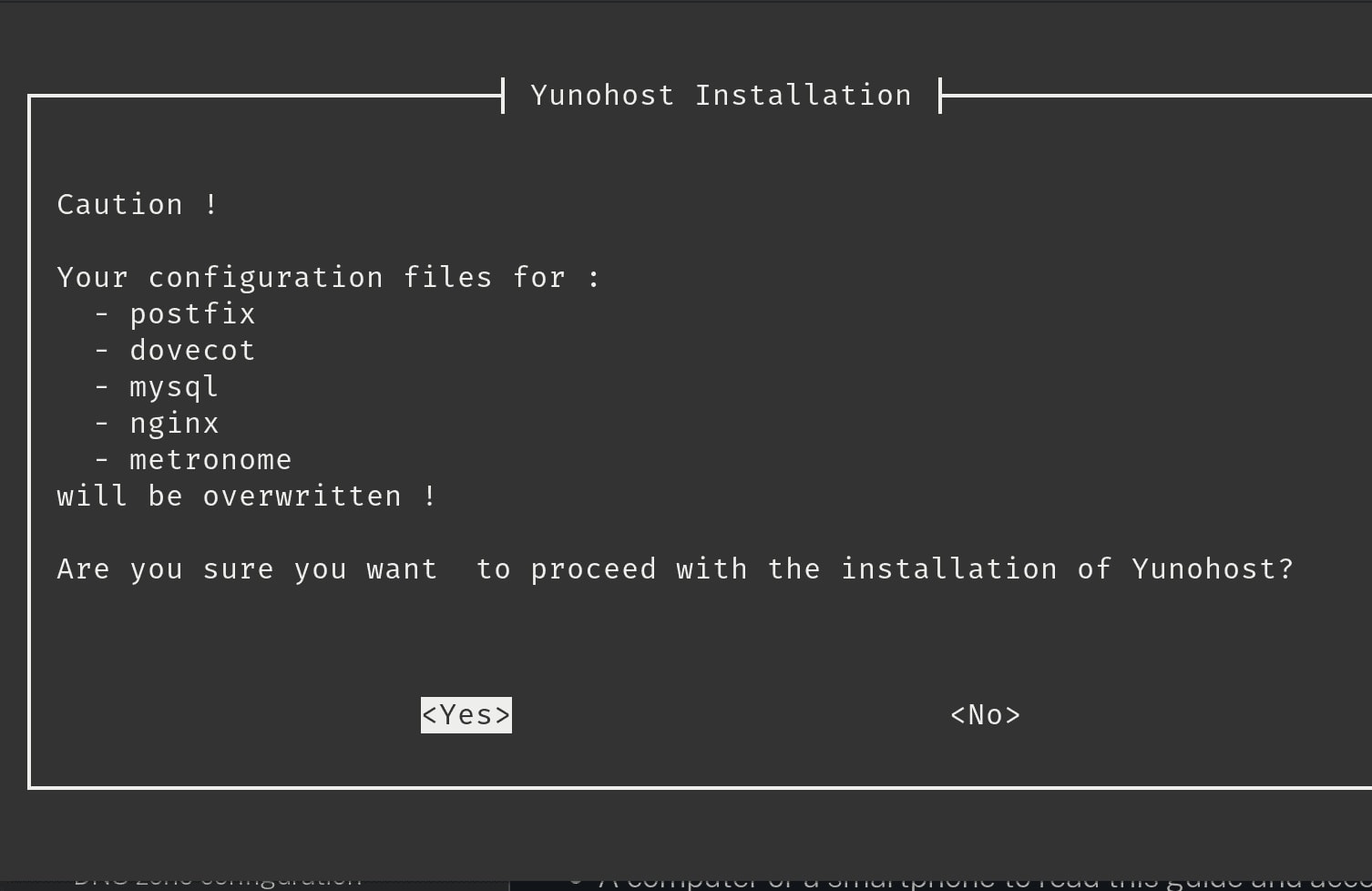
Getting started with Yunohost was simpler than I expected. I had a VPS from DigitalOcean, though any VPS including Linode and Hetzner work just as well. The first step was connecting to my VPS via SSH, which I did using the command:
ssh root@my_server_ipOnce connected, I ran the Yunohost installation script:
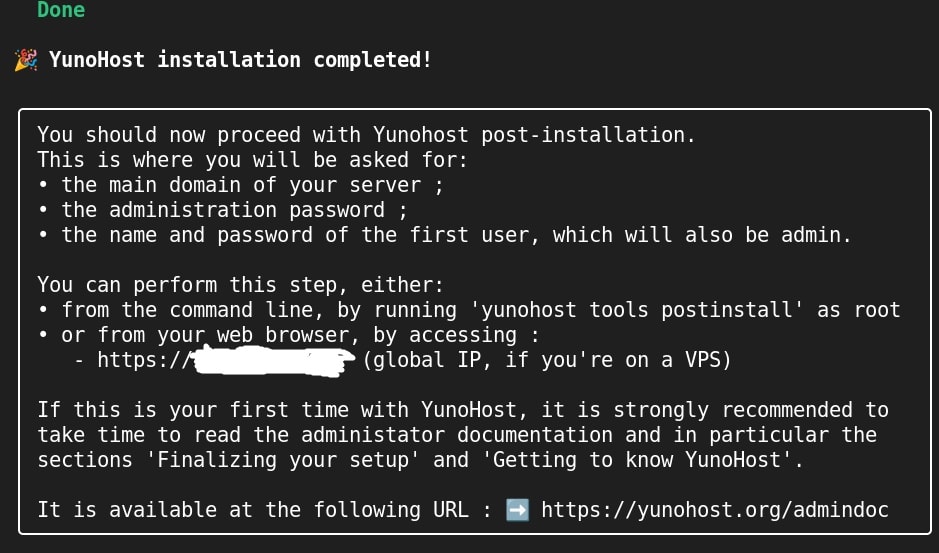
curl https://install.yunohost.org | bashThe script guided me through the process with on-screen prompts. I set a password for the admin user and configured my domain name and email for SSL certificates. Within minutes, Yunohost was installed and ready to go. I accessed the admin panel by visiting https://mydomain.com/yunohost/admin and logging in with my credentials.
For those who prefer a visual guide, I also created an HTML version of this post that walks through the installation process step-by-step.
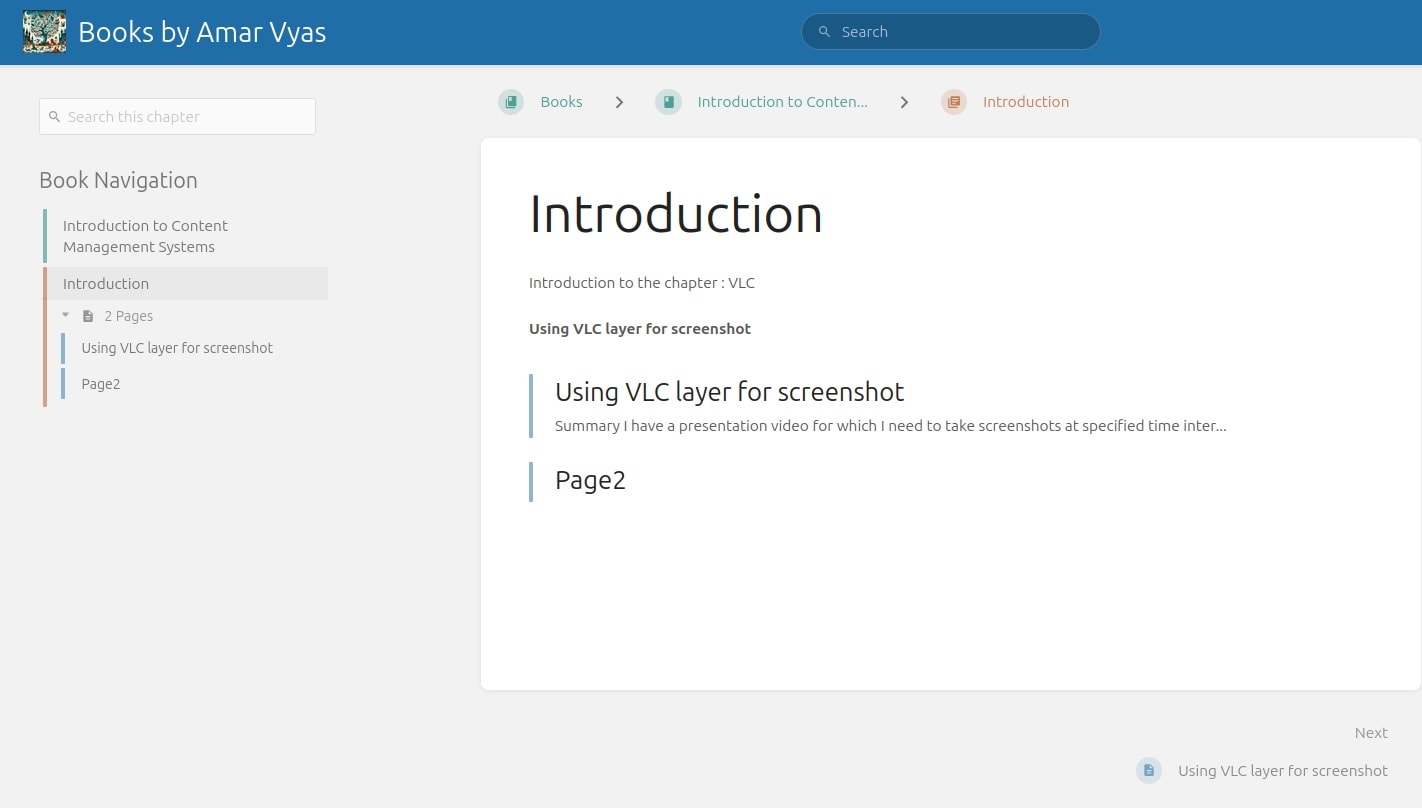
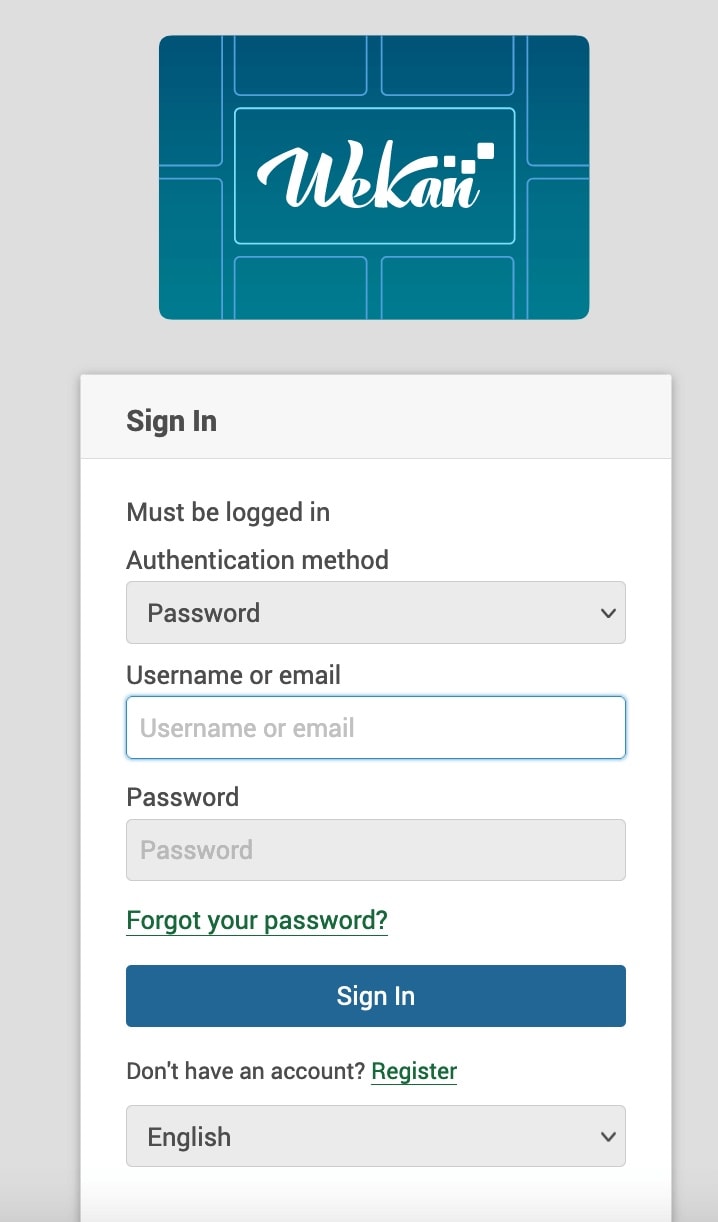
Gallery 2: Yunohost Applications and Interfaces
Click to view Yunohost applications and interfaces
How I Use Yunohost in Real-World Scenarios
Yunohost isn’t just for experimentation—it’s a practical tool that I’ve integrated into my daily workflow. For my personal blog, I use WordPress, which I deployed in minutes using Yunohost’s one-click installation. The ease of setup allowed me to focus on writing content rather than wrestling with server configurations.
I also use Nextcloud for file storage, which serves as a self-hosted alternative to Dropbox. It’s been a reliable solution for storing and sharing files securely. For communication, I’ve set up Matrix, which provides a secure messaging platform for my projects. The ability to host these applications on my own server gives me full control over my data and privacy.
Collaboration is another area where Yunohost has been invaluable. I use Etherpad for real-time document editing, which has been a lifesaver for team projects. And for media streaming, I’ve experimented with Jellyfin, a self-hosted alternative to Netflix. It’s amazing to have all these tools at my fingertips, managed through a single, user-friendly interface.
Yunohost vs. Other Self-Hosting Solutions
I’ve tried a few self-hosting solutions over the years, and Yunohost stands out for its balance of simplicity and functionality. Unlike Docker, which requires a deep understanding of containers and command-line tools, Yunohost offers a web-based interface that makes it accessible to users of all skill levels. Cloudron is another great option, but it comes with a price tag, whereas Yunohost is completely free.
Sandstorm is also worth mentioning, but its community support is more limited compared to Yunohost. What I appreciate most about Yunohost is its strong community and extensive documentation. Whenever I’ve run into issues, I’ve been able to find solutions quickly, either through the official documentation or the active forum.
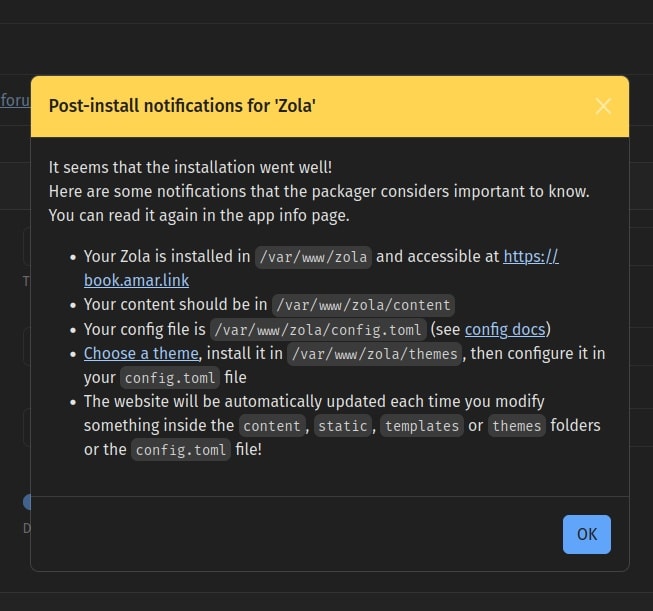
Gallery 3: Yunohost Installations and Dashboards
Click to view Yunohost installations and dashboards
Troubleshooting Common Issues
Of course, no system is perfect, and I’ve encountered a few challenges with Yunohost. During my first installation, I ran into dependency conflicts that prevented the script from completing. After some research, I found that running yunohost tools install --force would retry the installation, which resolved the issue.
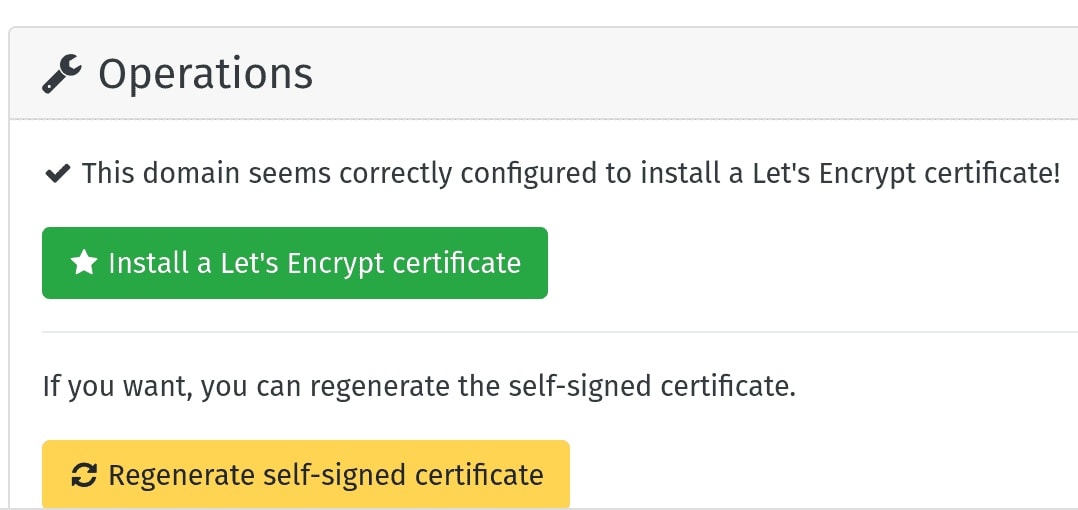
Another common problem I’ve faced is SSL certificate errors. Let’s Encrypt sometimes fails to issue certificates if the domain’s DNS isn’t correctly pointed to the server IP. In these cases, I double-checked my DNS settings and retried the process through the admin panel. It’s a small hurdle, but one that’s easily overcome with a bit of patience.
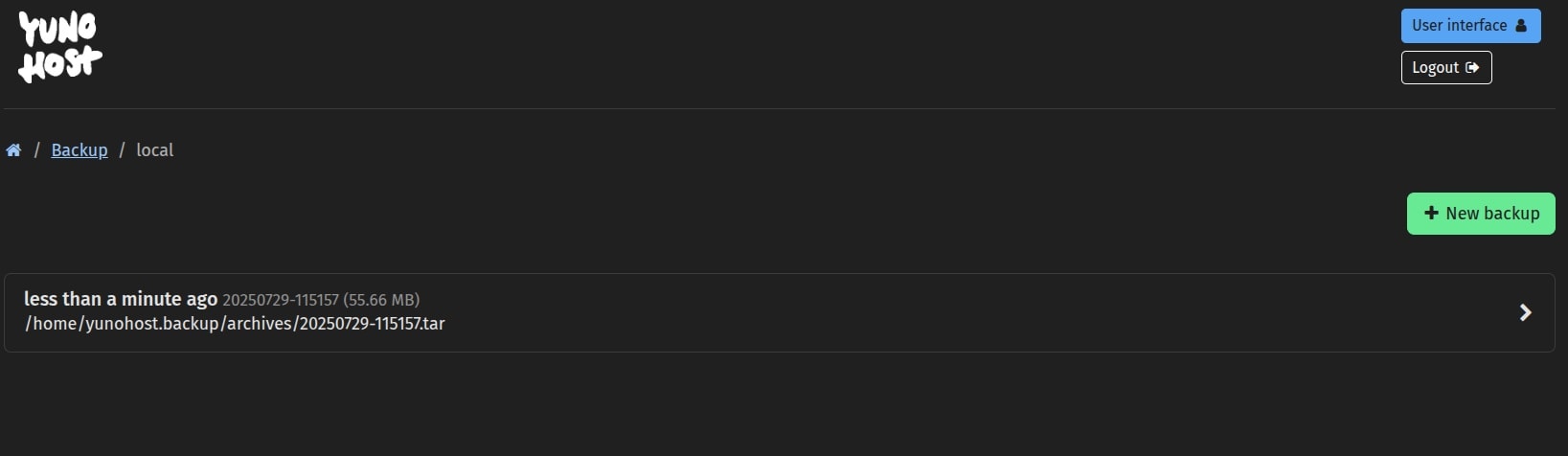
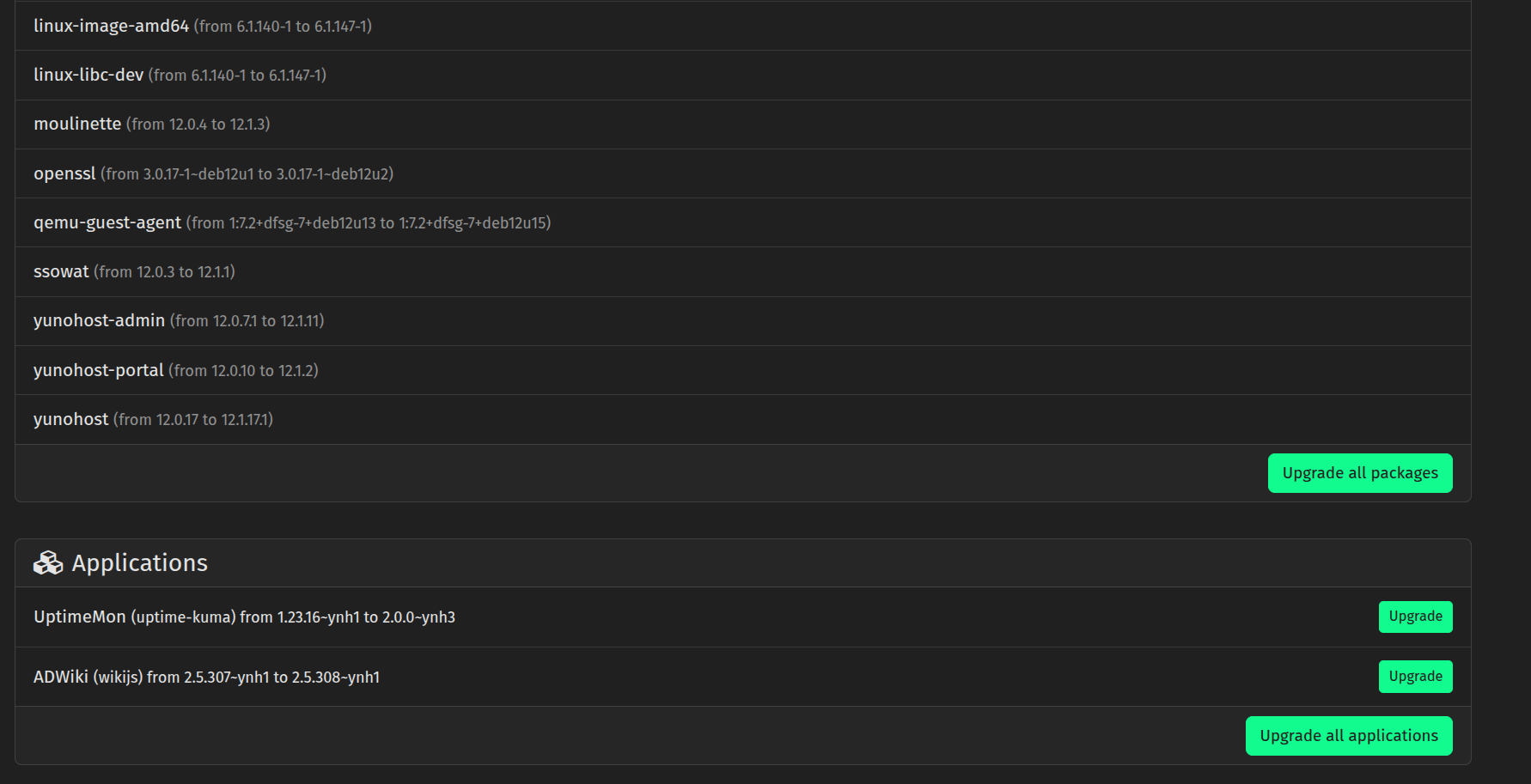
App updates have also caused issues on occasion. Once, an update to Nextcloud broke some functionality, and I had to restore from a backup. Since then, I’ve made it a habit to back up my Yunohost instance before performing any updates. The yunohost backup command is a simple way to ensure I can always revert to a working state if something goes wrong.
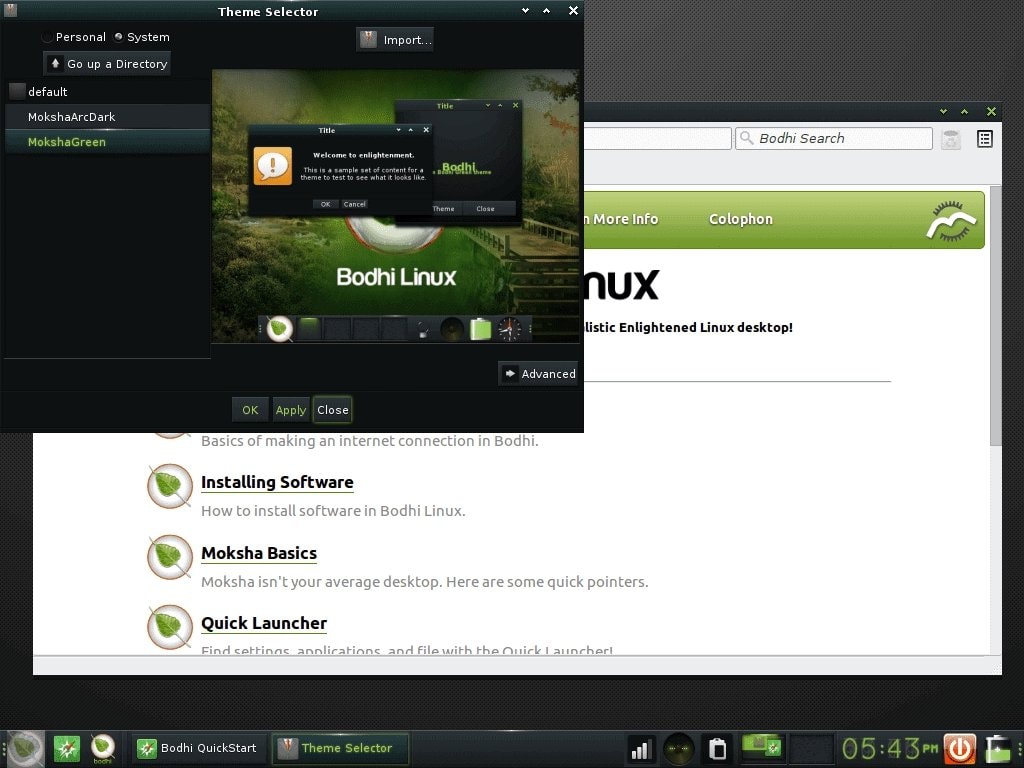
Experimental: Yunohost on Bodhi Linux
A screenshot from my tests in December 2017.
Supported Operating Systems for YunoHost
When setting up your server, you have several reliable paths to ensure a smooth YunoHost installation. The most recommended approach is using a bare metal or virtual machine image, installed directly onto your hardware. Alternatively, cloud providers like DigitalOcean, Hetzner, and Scaleway offer pre-built images with YunoHost pre-installed, saving you setup time. YunoHost is designed to run on a wide range of hardware, ensuring flexibility for different use cases:
Supported Hardware for YunoHost
| Hardware Type | Description |
|---|---|
| x86 Computers | Standard desktop or server hardware, including most modern PCs and dedicated servers. Ideal for general-purpose self-hosting. |
| Raspberry Pi 3/4/5 | Officially supported ARM-based single-board computers, perfect for lightweight or home server setups. |
| Other ARM Boards | Compatible with a variety of ARM-based devices, making it suitable for low-power or embedded environments. |
| Remote Servers | Works seamlessly on VPS, dedicated servers, and cloud-based hosting solutions for scalable deployments. |
| Virtual Machines | Fully supported in virtualized environments like VMware, VirtualBox, or KVM for testing or development. |
| WSL (Experimental) | Can be tested on Windows Subsystem for Linux, though this is not recommended for production use. |
Understanding the Installation Script
There is often confusion about the command-line installation script, with some sources incorrectly labeling it as strictly for development. However, the official YunoHost documentation explicitly states that installing via the script on a fresh Debian 12 installation is a valid and supported method. This approach is particularly useful when pre-built images are unavailable from your hosting provider.
To avoid issues, ensure the script runs on a clean, unmodified Debian base. Modifications to the underlying system can lead to conflicts, so this method is best suited for users who need flexibility or are working in controlled environments.
Blogging with Yunohost
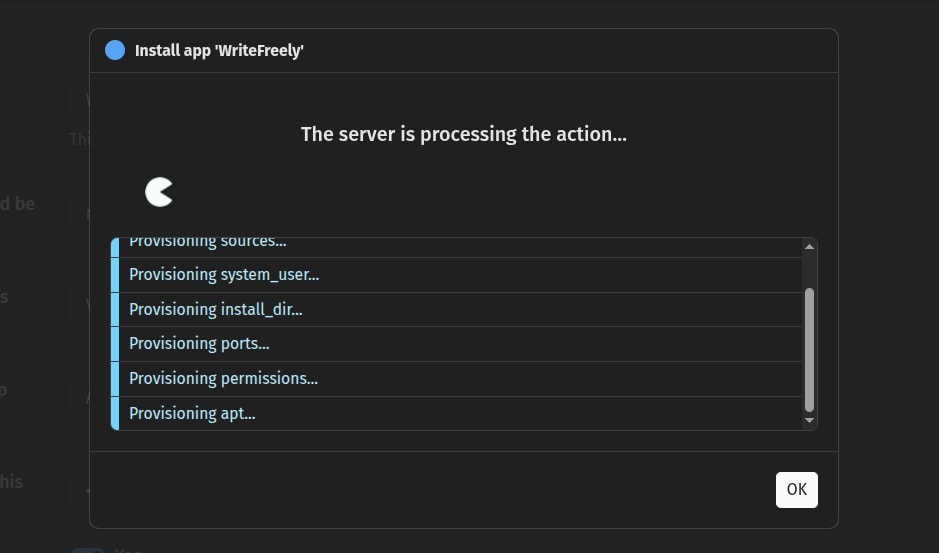
For blogging, WriteFreely is a minimalist, privacy-focused alternative to WordPress. It’s easy to install on Yunohost and provides a clean, distraction-free writing experience with Markdown support and ActivityPub federation.
Click to view WriteFreely on Yunohost

Monitoring and Maintenance
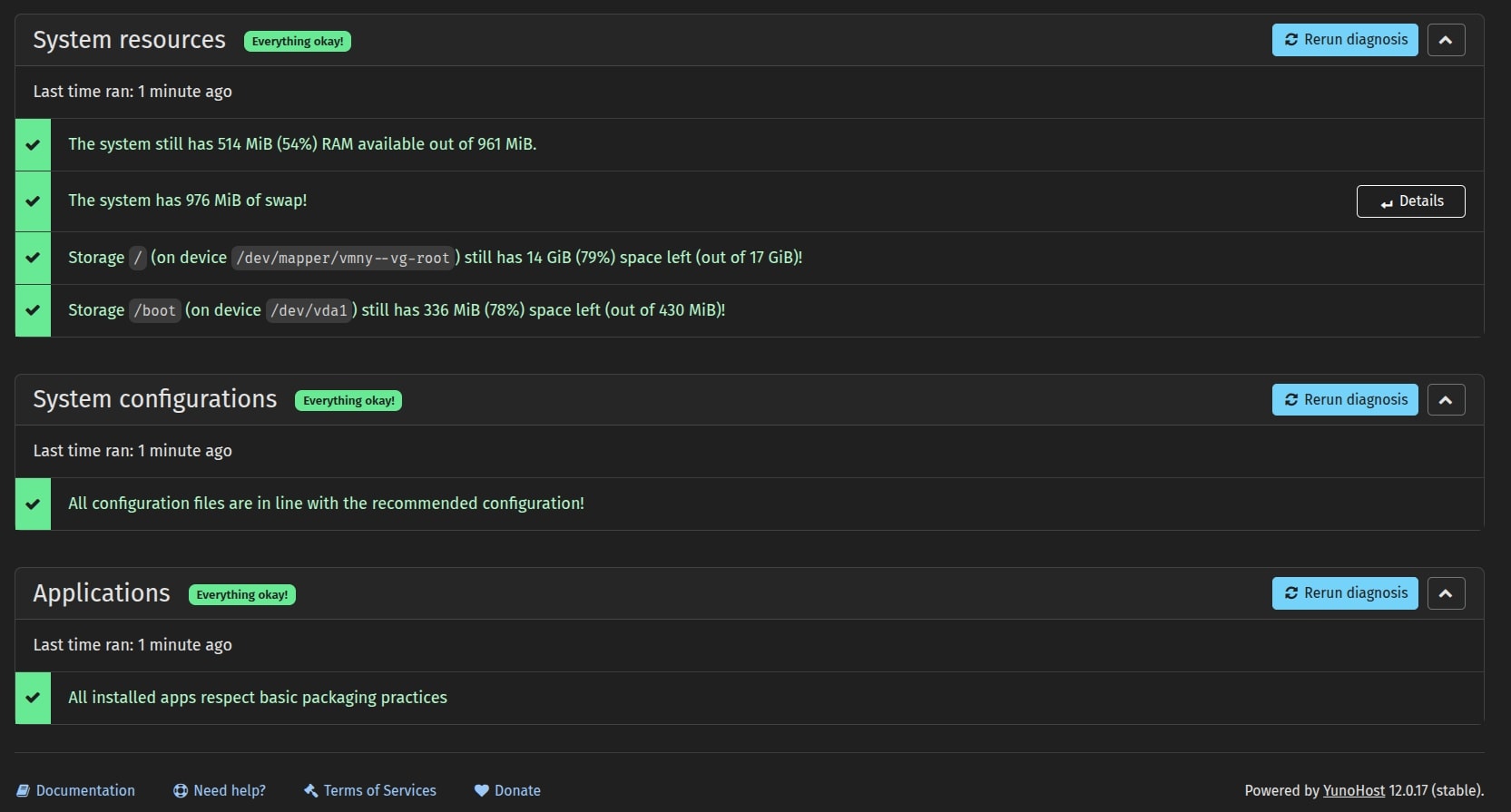
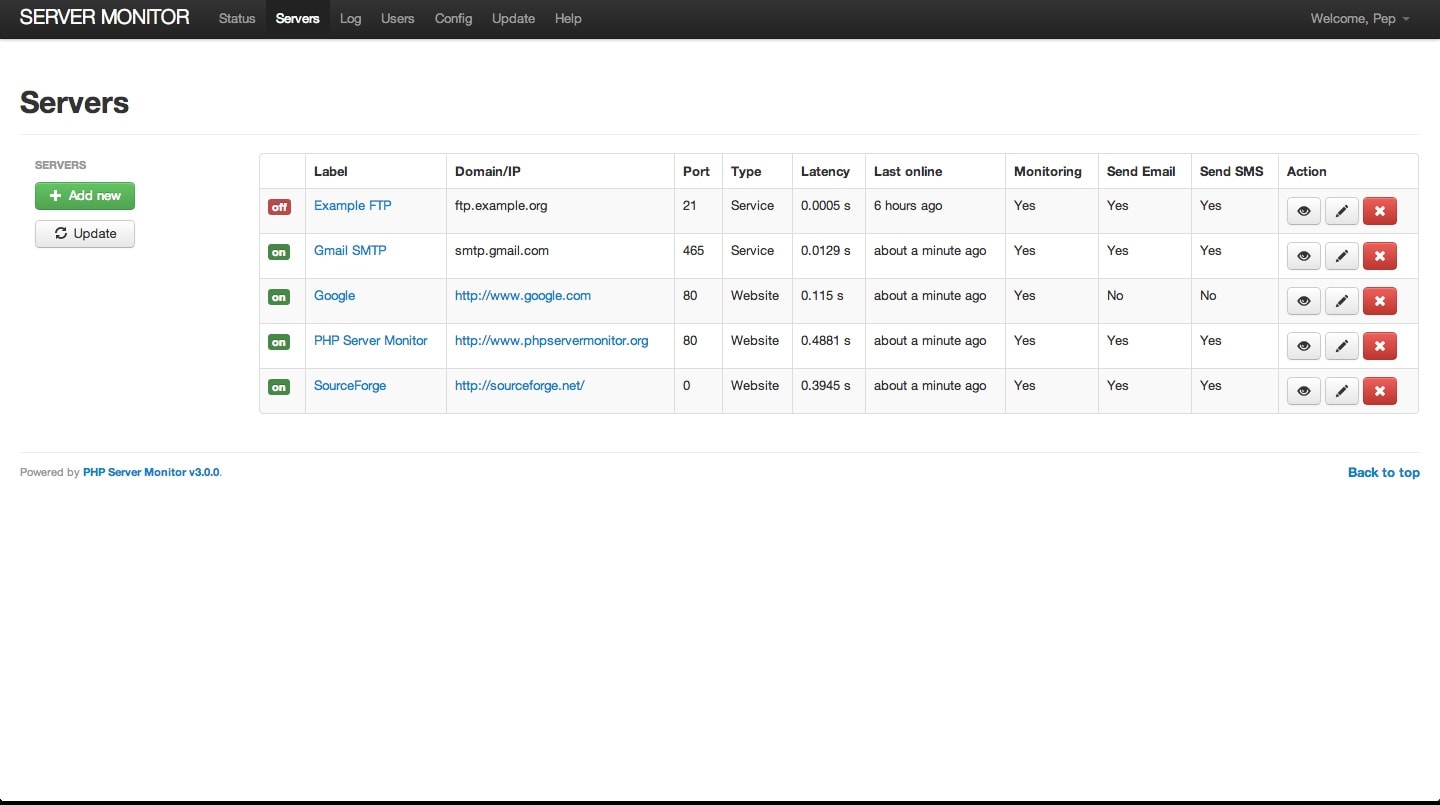
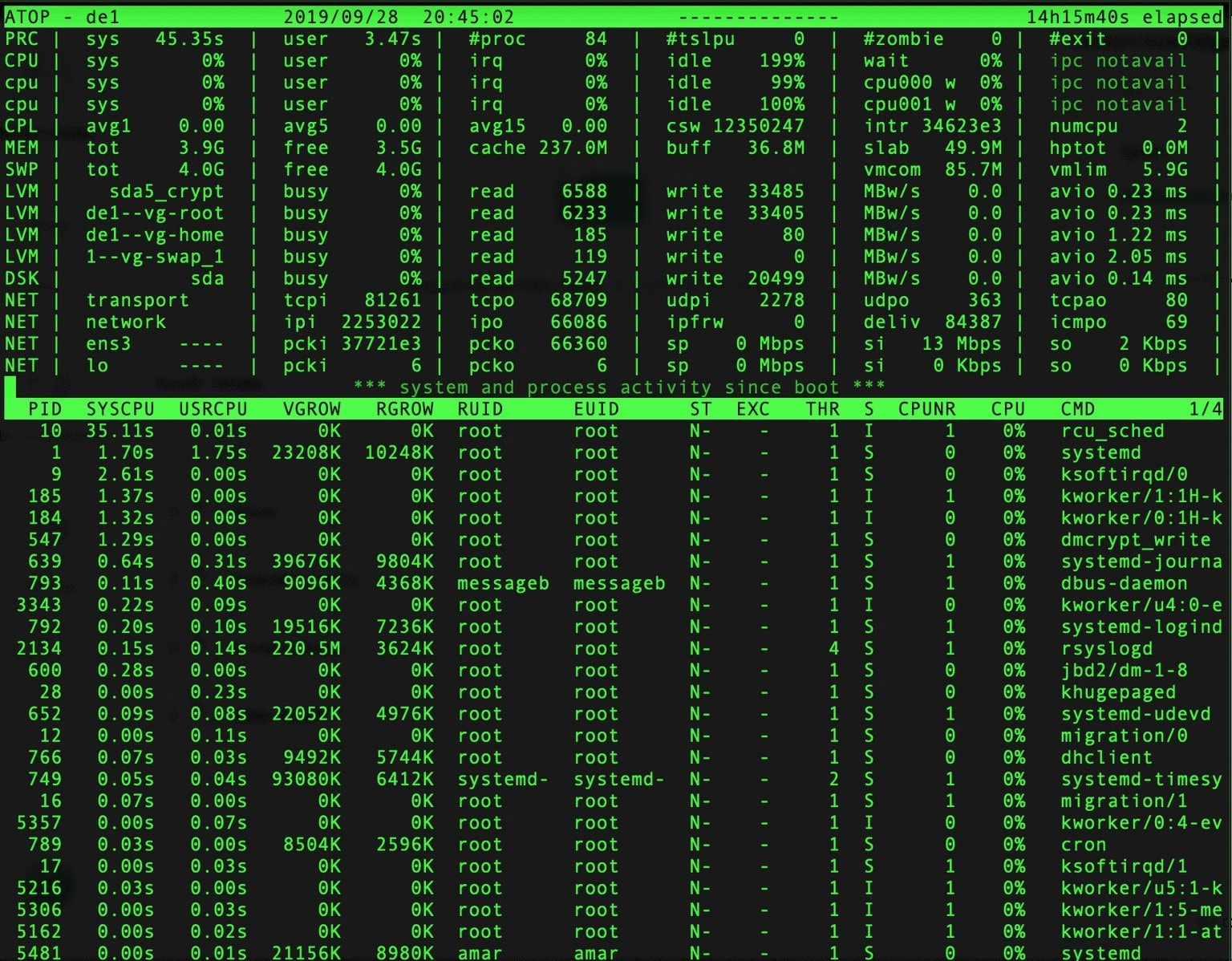
To keep my Yunohost server running smoothly, I use PHP Server Monitor and atop for tracking resource usage. These tools help me proactively identify issues like CPU spikes or failing services.
Click to view monitoring tools
Yunohost and Automation
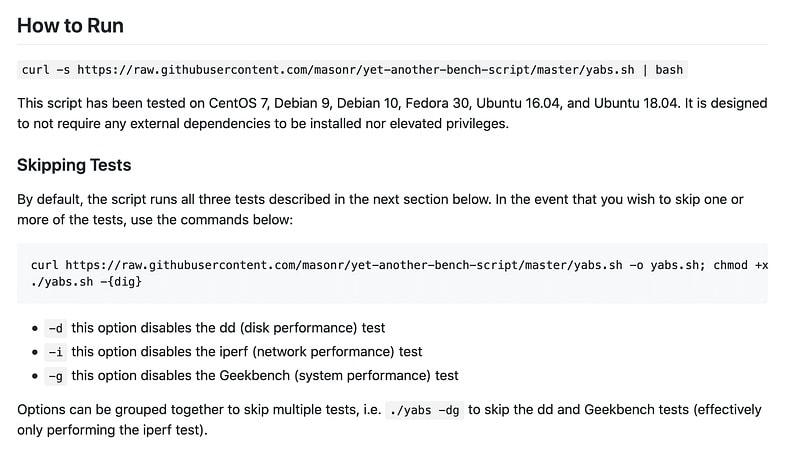
Automation tools like YABS (Yet Another Benchmark Script) help me assess server performance and identify bottlenecks. Yunohost handles much of the automation itself, but adding scripts like YABS provides extra control.
AI Tools on Yunohost
Yunohost’s flexibility extends to AI-powered tools, such as self-hosted image generators. While resource-intensive, these tools can be deployed on a VPS with modest specs, giving you full control over your data.
Click to view AI tools

Customizing Yunohost
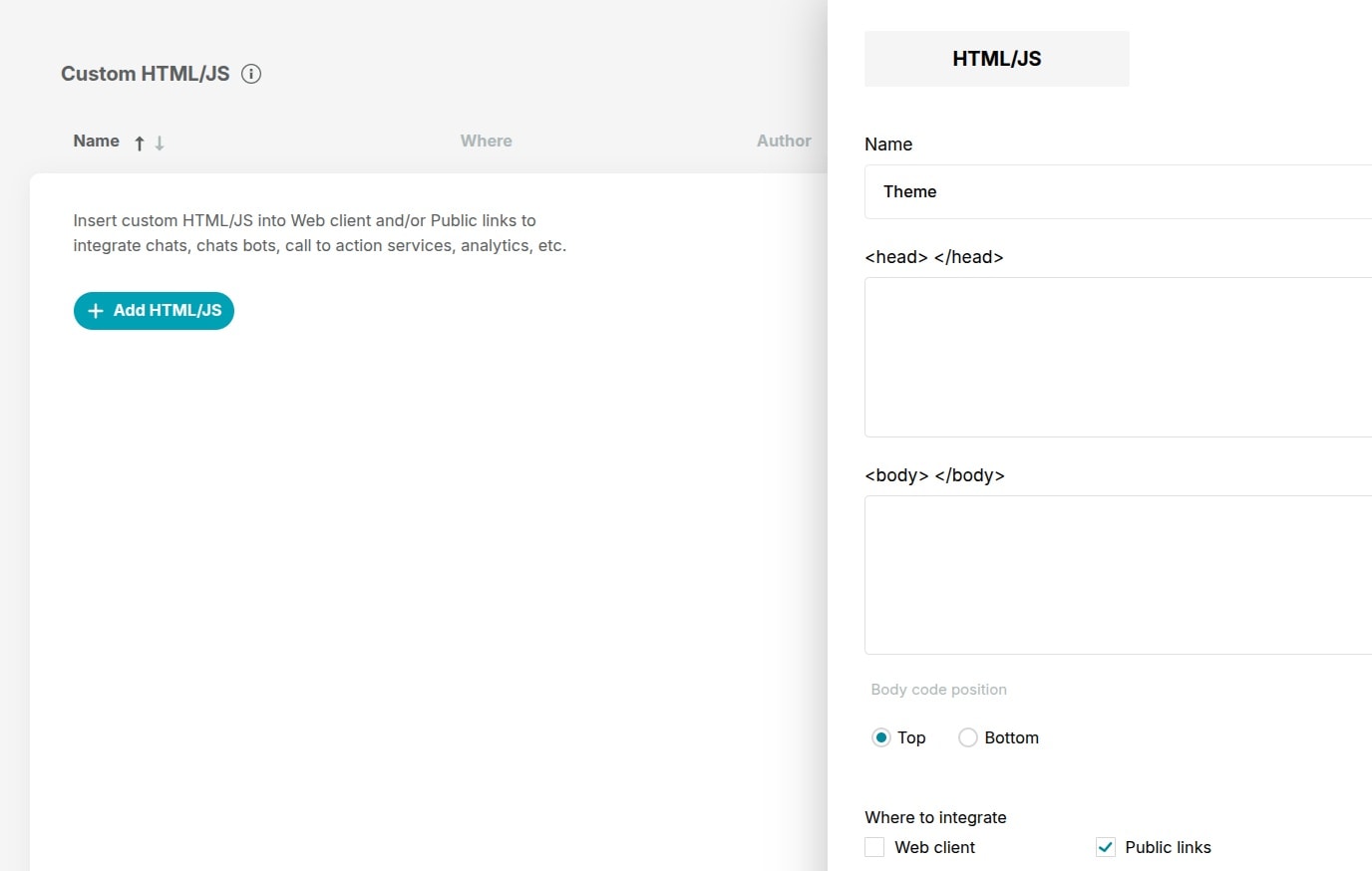
Yunohost’s modular design allows for custom HTML themes and dashboard adjustments. This personalization ensures the platform fits your workflow, whether you’re a developer, blogger, or business owner.
Security and Access Control
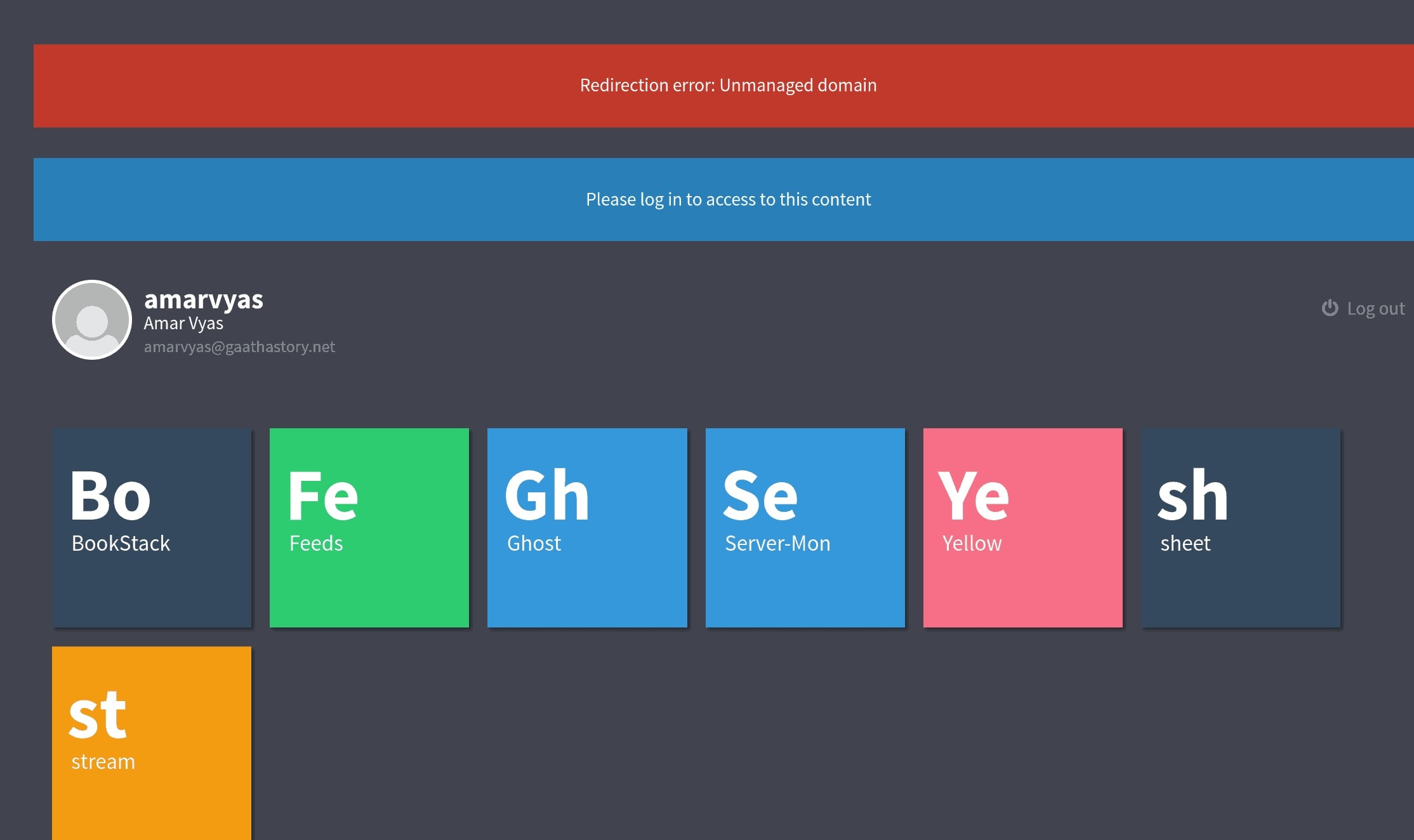
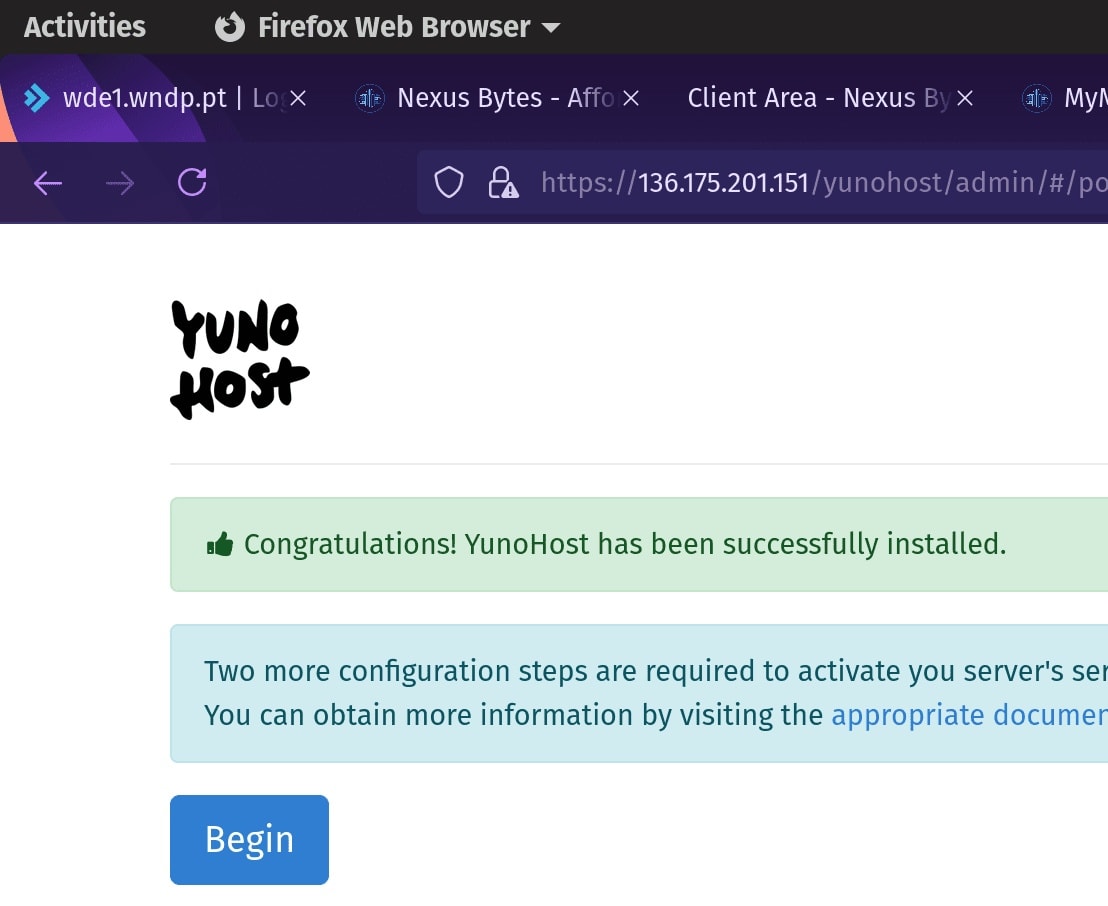
Yunohost includes built-in firewall rules, Fail2Ban, and automatic SSL certificates via Let’s Encrypt. The login interface is just the first layer of protection, and enabling 2FA adds an extra security layer.
2025 Yunohost App Ecosystem
Yunohost’s app ecosystem continues to expand, with new tools added regularly. The platform now supports a wider range of applications, from productivity to niche utilities.
Click to view 2025 apps

Exploring Alternatives to YunoHost
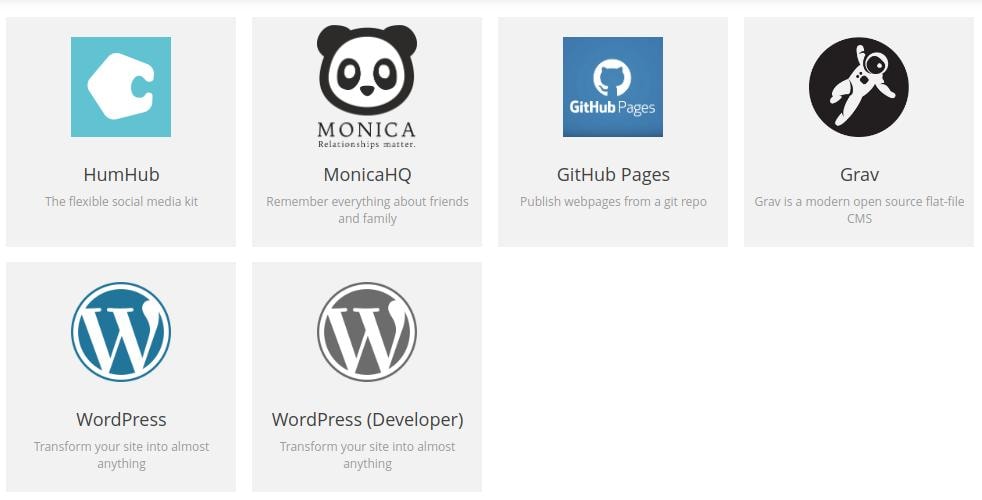
While YunoHost is exceptionally user-friendly, it’s wise to explore other self-hosting alternatives for your projects. Here’s a quick overview:
-
Docker: A powerful containerization platform that allows you to run applications in isolated, portable environments. Unlike YunoHost, Docker requires a steeper learning curve and deeper technical knowledge to manage effectively. It’s ideal for users who need fine-grained control over their applications.
-
Cloudron: A commercial alternative that simplifies application management with a sleek web-based interface. While it offers a polished experience, it comes with a recurring premium price tag, unlike the free and open-source YunoHost.
-
CasaOS has been suggested in some reports but I have not tried this option.
Summing it up
Yunohost has transformed the way I approach self-hosting. It’s made the process accessible, secure, and flexible, allowing me to take full control of my digital presence. Whether you’re a developer, a small business owner, or simply someone who values privacy, Yunohost provides the tools to host your own applications without the headaches of traditional server management.
If you’re curious to try it out, I highly recommend starting with the official resources:
Have questions or feedback? Reach out at [email protected].