What began as a curiosity on how to check type of RAM in Linux turned into a deep dive during my great Laptop Switcharoo. Over that weekend, I was swapping, modifying and upgrading systems across multiple laptops, and I needed to verify the exact RAM configuration for each machine.
Summary
English: This blog post provides a step-by-step guide to determine the RAM type (e.g., DDR4, DDR5, 2400 MT/s) on a Linux system using commands like dmidecode --type 17, lshw, /proc/meminfo, and inxi -m. These methods help users identify memory specifications for upgrades or troubleshooting.
Hindi: यह ब्लॉग पोस्ट लिनक्स सिस्टम पर RAM प्रकार (उदाहरण के लिए, DDR4, DDR5, 2400 MT/s) निर्धारित करने के लिए चरण-दर-चरण मार्गदर्शन प्रदान करता है, जिसमें dmidecode --type 17, lshw, /proc/meminfo, और inxi -m जैसे कमांड का उपयोग किया जाता है। ये विधियाँ उपयोगकर्ताओं को अपग्रेड या समस्या निवारण के लिए मेमोरी विशिष्टताओं की पहचान करने में मदद करती हैं।
Simplest Way to Check Memory Amount in Linux
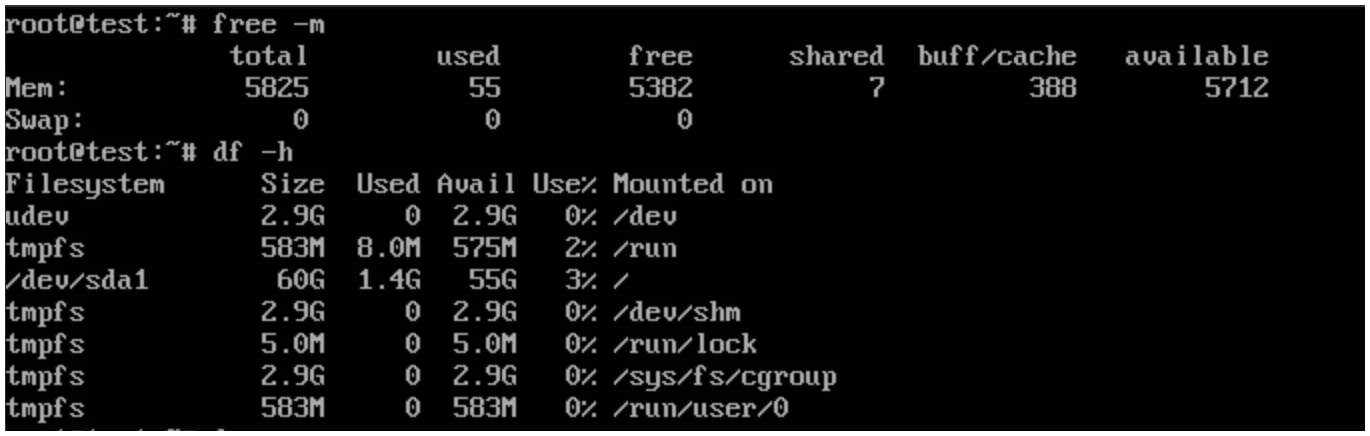
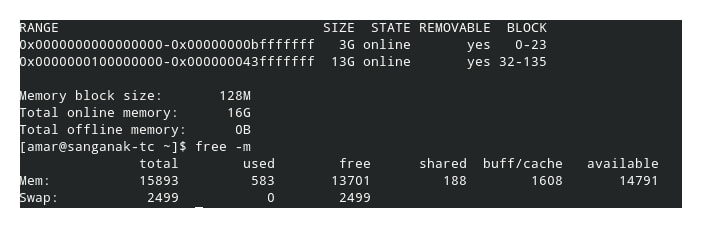
Commands like free -h only show total memory, not the type (e.g. DDR4 or DDR5):
$ free -h
              total        used        free      shared  buff/cache   available
Mem:           15Gi       4.2Gi       6.1Gi       256Mi       5.4Gi        11Gi
For RAM type and speed, you need specialized tools.
Problem: Determining Type and Speed of RAM
Determining the type and speed of RAM installed in a Linux system is essential for tasks such as upgrading hardware, optimizing performance, or troubleshooting memory-related issues. Users need reliable methods to retrieve detailed memory specifications, such as DDR generation (e.g., DDR4, DDR5) and clock speed (e.g., 2400 MT/s), without physically inspecting the hardware.
Common issues I encountered:
- Different capacities for different RAM sticks (8 GB, 16 GB, etc.)
- Different speeds (2400 MHz, 3200 MHz) across motherboards
- Mixed speeds causing suboptimal dual-channel performance
Computers Used for Testing
| System | Configuration |
|---|---|
| Desktop | 24 GB total (3200 MHz DDR4 running at 2133 MHz) |
| Lenovo Laptop | 24 GB total (8 GB + 16 GB DDR4 3200 MHz) |
| Dell Laptop | 16 GB total (8 GB + 8 GB DDR4, 2400 MHz) |
Goal for Checking RAM Type
I needed to find the optimal mix-and-match approach for maximizing RAM performance. First, I had to verify the exact RAM type on each computer. My goal: configure 32 GB on the Dell laptop and 16 GB on the others to enable dual-channel mode across all machines. That's how I arrived at the question: how to check RAM type in Linux?
How to Check RAM Type in Linux
Note: Many of these commands work on macOS as well with minor adjustments.
Method 1: Using dmidecode
$ sudo dmidecode --type 17The --type 17 flag targets DMI type 17 (Memory Device) records specifically, filtering out unrelated memory controller information for cleaner output. This is more precise than the broader --type memory variant.
Steps:
- Open a terminal adn run the command with root privileges:
$ sudo dmidecode --type 17- Look for each "Memory Device" block containing:
- Type: DDR generation (e.g., DDR4, DDR5)
- Speed: Clock speed (e.g., 2400 MT/s, 3200 MT/s)
- Size: Module capacity
- Manufacturer: Brand name
- Part Number: Exact module identifier
Quick One-Liner for Key Info:
$ sudo dmidecode --type 17 | grep -E 'Type:|Speed:|Size:'Example Output:
Handle 0x0020, DMI type 17, 84 bytes
Memory Device
    Size: 16 GB
    Type: DDR4
    Speed: 3200 MT/s
    Configured Memory Speed: 2400 MT/s
    Manufacturer: Kingston
    Part Number: KVR32S22S6/16
Note: "MT/s" (mega transfers per second) is the standard unit for DDR RAM speed, though it's commonly referred to as "MHz" in casual usage. If your RAM shows a lower configured speed than rated, check BIOS settings for XMP/DOCP profiles.
 *A physical RAM stick for reference — useful when cross-checking CLI output against the actual hardware.
Supplementary: Physical Memory Array (DMI Type 16) : To find on where each RAM stick is physically seated, you can also query DMI type 16
Method 2: Using lshw
$ sudo lshw -class memoryDisplays detailed hardware information including memory bank configurations, clock speeds, and bus widths.
Steps:
- Install
lshwif needed:
$ sudo apt install lshw     # Debian/Ubuntu
$ sudo yum install lshw # RHEL/CentOS/Fedora- Run with root privileges:
$ sudo lshw -class memory- Look under
*-bankentries for RAM type and speed.
Example Output:
*-memory
     description: System Memory
     physical id: 0
     size: 32GiB
   *-bank:0
        description: DIMM DDR4 Synchronous 2400 MHz (0.4 ns)
        physical id: 0
        size: 16GiB
        width: 64 bits
   *-bank:1
        description: DIMM DDR4 Synchronous 2400 MHz (0.4 ns)
        physical id: 1
        size: 16GiB
        width: 64 bits
Method 3: Using /proc/meminfo
$ cat /proc/meminfoProvides runtime memory statistics but does not report RAM type or speed. Useful for confirming total memory size quickly.
Steps:
$ cat /proc/meminfo | grep MemTotalExample Output:
MemTotal: 32768232 kBNote: This confirms total memory only — use
dmidecodeorinxifor DDR generation and speed details.
Method 4: Using free
$ free -hShows total, used, and available memory (including swap space). Like /proc/meminfo, this doesn't display RAM type.
Example Output:
              total        used        free      shared  buff/cache   available
Mem:           31Gi        4.2Gi        6.1Gi       256Mi        5.4Gi         11Gi
Swap:         2.0Gi          0B        2.0Gi
Tip: For a more interactive view of memory usage, htop provides a real-time, color-coded display of RAM consumption alongside CPU and process activity. Install it with sudo apt install htop (Debian/Ubuntu) or equivalent for your distro, then run htop. While it doesn't show RAM type or speed, it's excellent for monitoring live memory behavior during upgrades or troubleshooting.
Method 5: Using inxi -m
$ inxi -minxi is a powerful system information script that presents RAM details in a clean, readable format. Excellent for quick summaries without parsing verbose output.
Steps:
- Install if needed:
$ sudo apt install inxi      # Debian/Ubuntu
$ sudo dnf install inxi      # Fedora
$ sudo pacman -S inxi # Arch- Run:
$ inxi -mExample Output:
Memory:
  System RAM: total: 32 GiB available: 31.25 GiB used: 11.41 GiB (36.5%)
  Array-1: capacity: 32 GiB slots: 2 modules: 2 EC: None
  Device-1: DIMM A type: DDR4 size: 16 GiB speed: spec: 3200 MT/s
    actual: 2400 MT/s
  Device-2: DIMM B type: DDR4 size: 16 GiB speed: spec: 3200 MT/s
    actual: 2400 MT/s
Note:
inxi -mmay require sudo privileges on some distributions to access full DMI data. Runsudo inxi -mif output appears incomplete.
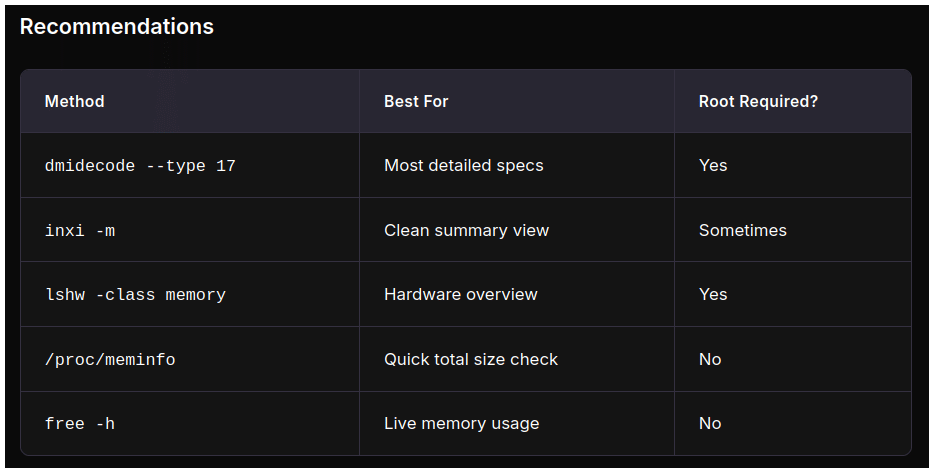
Recommendations
| Method | Best For | Root Required? |
|---|---|---|
dmidecode --type 17 |
Most detailed specs | Yes |
inxi -m |
Clean summary view | Sometimes |
lshw -class memory |
Hardware overview | Yes |
/proc/meminfo |
Quick total size check | No |
free -h |
Live memory usage | No |
Best Practices:
- Preferred Tool: Use
dmidecode --type 17for the most accurate and detailed RAM information - Cross-Verification: If output is unclear, verify with
lshworinxi -m - Dependencies: Ensure required tools are installed (
dmidecodetypically pre-installed;lshwandinximay need installation) - Performance Note: If your RAM runs slower than rated, check BIOS for XMP/DOCP profile settings
Checking RAM Health
For detecting failing memory sticks or errors, tools like memtest86+ (boot-level stress test) and edac-util (hardware error counters for ECC systems) exist, but these are beyond the scope of this post. A periodic memtest86+ run is recommended for diagnosing intermittent crashes or stability issues.
Conclusion
By using these commands, you can effectively check the type, speed, and capacity of RAM in your Linux system and make informed decisions about upgrades and optimizations. The key takeaway: dmidecode --type 17 gives the most detail, while inxi -m offers the cleanest overview for daily use.
Links and Resources
- dmidecode Man Page – Official documentation
- lshw Man Page – Official documentation
- Linux /proc Filesystem Documentation – Information on
/proc/meminfo - inxi GitHub – Script repository and documentation