This post describes how to migrate from WordPress to ClassicPress for my blog and website. After years of working with WordPress, its growing complexity, especially with the introduction of Gutenberg, pushed me to look for alternatives that could offer a simpler, more straightforward experience. Here’s why I chose ClassicPress and how the migration unfolded.
Summary
Frustrated with WordPress’s complexity and new editor, I migrated to ClassicPress for its simplicity. This post outlines my reasons for switching, the migration process involving backups, plugin usage on a staging site, and the smooth implementation, offering insights for anyone considering a similar move.
वर्डप्रेस की जटिलता और नए एडिटर से नाराज होकर, मैंने क्लासिकप्रेस की सादगी के लिए पलायन किया। इस लेख में मैंने बदलाव के कारण, प्रक्रिया को बैकअप, स्टेजिंग साइट पर प्लगइन के उपयोग और सफल क्रियान्वयन के बारे में बताया है।
Why I Left WordPress
My Disappointment with WordPress
The introduction of Gutenberg has transformed WordPress into something quite complex from what was once a simple blogging tool. Customizing posts and managing content became less intuitive, requiring more time and technical know-how. For someone who just wants to write without diving deep into the tech, this was a significant letdown.
Need for Alternatives
In search of simplicity, I explored alternatives. ClassicPress, a fork of WordPress, promises to keep WordPress’s classic editor alive. Another option was Flat File CMS, which doesn’t require a database, theoretically reducing complexity and potential security issues. However, ClassicPress seemed more aligned with my needs due to its familiarity.
What is ClassicPress?
ClassicPress is essentially WordPress without the Gutenberg editor. It aims to maintain the simplicity and ease of use that WordPress originally offered, focusing on a streamlined user experience without the bloat of modern WordPress updates.
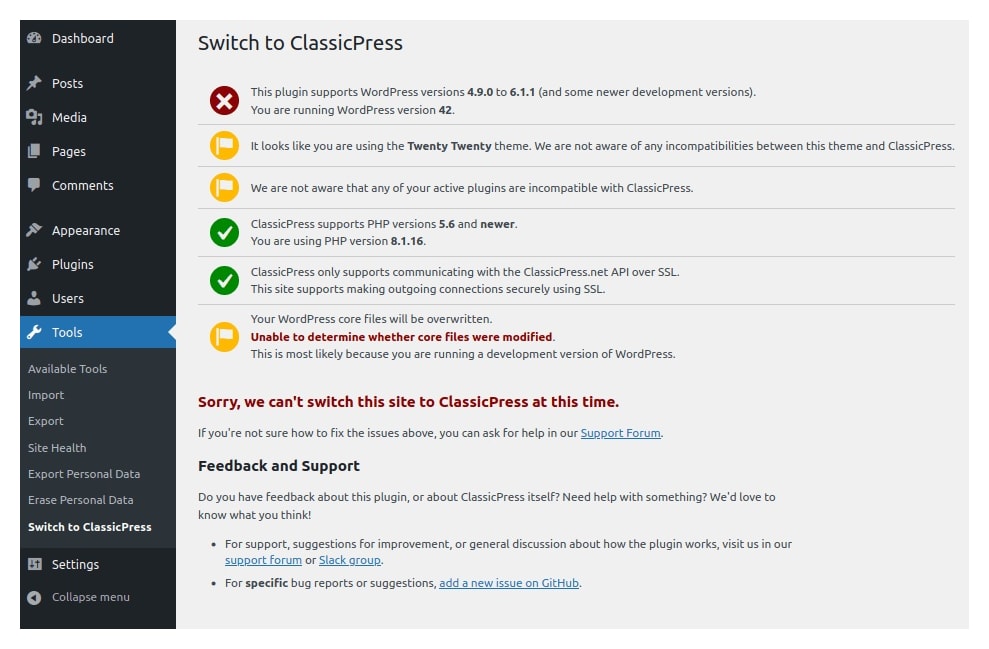
How to Migrate From WordPress to ClassicPress
Migration Process: Steps to Follow
- Backup: Essential before any major changes. Use plugins like UpdraftPlus or manually export your database and files.
- Export Content: Use WordPress’s export tool to get your content in XML format.
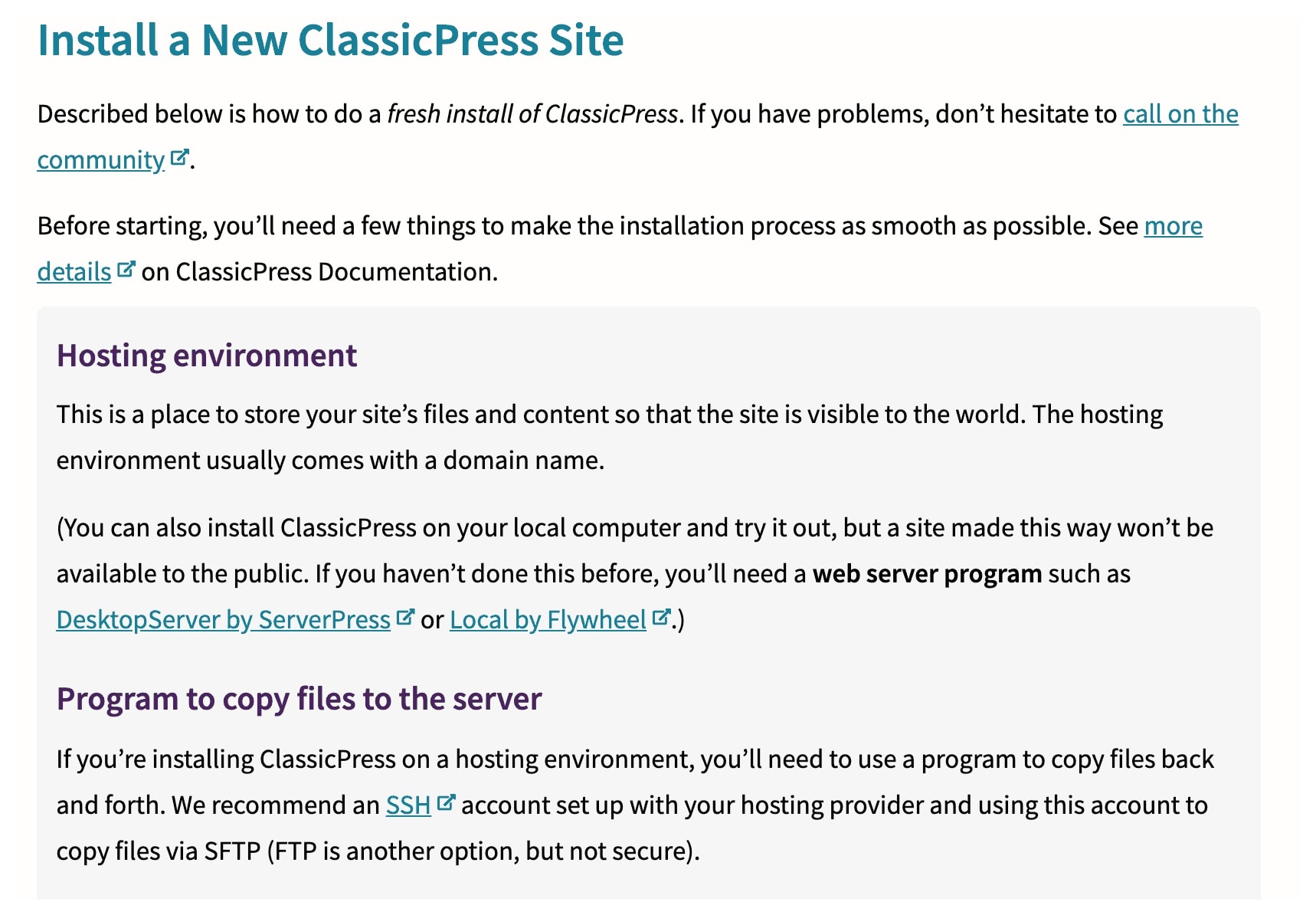
- Setup ClassicPress: Install ClassicPress on your hosting environment or locally for testing.
Migration Using Plugin on Staging/Test Site
- Plugin Use: Tools like Duplicator or All-In-One WP Migration can automate much of the process.
- Testing: Run your site on a staging environment to ensure everything functions as expected without affecting your live site.
Actual Implementation After Making Backup
Once confident, backup again, then replicate the migration on the live site. This step was nerve-wracking but went surprisingly smoothly with minimal content issues.
Key Takeaways
- Simplicity Wins: Sometimes, going back to basics can be more efficient.
- Backup: Always, always backup. It’s your safety net.
- Staging: Test changes before going live to avoid any hiccups.
- Community Support: ClassicPress, though smaller than WordPress, has a dedicated community for support.
Conclusion
The decision to migrate from wordpress to ClassicPress was a decision driven by the need for simplicity in managing my website. The process, while initially daunting, proved to be straightforward with the right tools and precautions. For anyone struggling with WordPress’s complexity, ClassicPress might just offer the simplicity you’re looking for.
Resources
To further explore ClassicPress and its community, visit the following links and resources:
Frequently Asked Questions
What are the benefits of ClassicPress?
Benefits of ClassicPress
ClassicPress offers several compelling benefits for users seeking a streamlined and efficient content management system. It retains the essential features of WordPress while removing unnecessary complexities, allowing users to focus on creating and managing content without the distractions of modern bloatware. ClassicPress provides a familiar environment for long-time WordPress users, combining simplicity and functionality to enhance the web design experience. Additionally, it improves website performance and responsiveness, resulting in faster loading times and a more intuitive user interface.
How did the change impact website speed or performance?
Impact on website speed and performance
The migration from WordPress to ClassicPress has been reported to significantly improve website performance and speed. Users have observed faster loading times, more responsive interactions, and an enhanced overall user experience after making the switch. These performance improvements can be attributed to the removal of unnecessary complexities and bloat that are present in recent versions of WordPress, particularly with the introduction of the Gutenberg editor. By streamlining the codebase and focusing on essential functionality, ClassicPress enables websites to operate with increased stability and reliability, ultimately leading to a more efficient and satisfying user experience.
Read my other posts on ClassicPress by visiting this link.