In this chapter, we’ll explore archiving and compression of folders and files in Linux. Archiving combines multiple files into a single file, while compression reduces the size of files to save disk space and speed up file transfers.
Summary
Linux file archiving and compression with tar, zip, zstd, and 7z on Debian 12 simplifies backups, transfers, and storage. Combining compression with gpg encryption ensures secure data management for beginners.
By the end, you’ll create archives, compress files, and extract them using:
tar – The universal archiver, gzip – Balance of speed and compression, bzip2 – Better compression ratios, xz – Highest compression efficiency, zip – Cross-platform compatibility, zstd – fast compression
Linux file archiving and compression enables efficient bundling, compression, encryption, and transfer of data. Learning these tools helps organize multiple files into a single archive for backups, reduces file sizes to optimize storage and speed up transfers, and secures archives with encryption for enhanced data protection.
Archiving and Compression Tools
1. tar (Tape Archive)
Purpose: Bundle files/directories into a .tar archive. Integrates with compressors via flags or pipelines.
- Create:
tar -cvf archive.tar file1 dir/ - Extract:
tar -xvf archive.tar - List contents:
tar -tvf archive.tar - Exclude patterns:
tar -czvf archive.tar.gz --exclude='*.log' dir/ - Partial extract:
tar -xvf archive.tar path/to/file - Numeric owner:
tar -xvf archive.tar --numeric-owner - With zstd pipe:
tar -cvf - dir/ | zstd -19 -T0 > archive.tar.zst
2. gzip (GNU Zip)
- Compress:
gzip -1..-9 file.txt(level 1 fast…9 best) - Keep original:
gzip -k file.txt - Decompress:
gzip -d file.txt.gzorgunzip file.txt.gz - Parallel:
pigz -p4 file.txt(multi-core)
3. bzip2
- Compress:
bzip2 -1..-9 file.txt - Keep original:
bzip2 -k file.txt - Decompress:
bunzip2 file.txt.bz2orbzip2 -d file.txt.bz2 - Parallel:
pbzip2 -p4 file.txt
4. xz (LZMA)
- Compress:
xz -0..-9 -T4 file.txt - Keep original:
xz -k file.txt - Decompress:
unxz file.txt.xzorxz -d file.txt.xz
5. zstd
- Compress:
zstd -1..-22 -T8 file.txt - Decompress:
unzstd file.txt.zst - With tar:
tar -cvf - dir/ | zstd -19 -T0 > archive.tar.zst
6. zip / unzip
- Install:
sudo apt install zip unzip - Create recursive:
zip -r archive.zip folder/ - Password protect:
zip -r -e secret.zip folder/ - List contents:
unzip -l archive.zip - Extract:
unzip archive.zip
7. 7z (p7zip)
- Install:
sudo apt install p7zip-full - Create:
7z a archive.7z file1 dir/ - Password + encrypt headers:
7z a -pYOURPASS -mhe=on secure.7z dir/ - Test archive:
7z t archive.7z - Extract:
7z x archive.7z
8. rar / unrar
- Install:
sudo apt install rar unrar - Create:
rar a archive.rar file1 dir/ - Extract:
unrar x archive.rar - List:
unrar l archive.rar
9. brotli
- Install:
sudo apt install brotli - Compress:
brotli --quality=11 --lgwin=22 file.txt - Decompress:
brotli -d file.txt.br
10. gpg (Encryption)
- Install:
sudo apt install gpg - Symmetric encrypt:
gpg -c archive.tar.gz - Asymmetric encrypt:
gpg --encrypt --recipient alice@example.com archive.tar.gz - Decrypt:
gpg -d archive.tar.gz.gpg > archive.tar.gz - Sign:
gpg --sign file.tar.gz
Note: Brotli and gzip are both lossless compression algorithms widely used for web content and image optimization, but they differ in efficiency and performance. Brotli, developed by Google, typically achieves better compression ratios (smaller file sizes) than gzip, especially for text-based content like HTML, CSS, and JavaScript, making it ideal for reducing bandwidth usage and improving load times.
Gzip remains popular due to its faster compression/decompression speeds and broad compatibility esp. for images. Cloudflare and similar platforms enable automatic Brotli compression by detecting client support and serving Brotli-compressed content when possible, falling back to gzip if unsupported.
Combined & Advanced Workflows
# Backup a home directory, exclude caches, use gzip:
$ tar --exclude='*.cache/*' -czvf home-$(date +%F).tar.gz /home/alice

# Split a large tar.bz2 into 2 GB chunks:
$ tar -cjvf - bigdata/ | split --bytes=2G - bigdata.tar.bz2.part-

# Create a dual-compressed, encrypted archive:
$ tar -cvf - project/ \
  | zstd -19 -T0 \
  | gpg --encrypt --recipient bob@example.com \
  > project.tar.zst.gpg
Practical Exercises
- Create and extract a
.tar.gzarchive with exclusions. - Compress a large log file with
zstdat levels 3, 10, and 19; measure times. - Build a password-protected
.zipand verify withunzip -l. - Encrypt a
.tar.xzusing symmetric and asymmetricgpg. - Archive a directory with
7z, test integrity, then extract a single file.
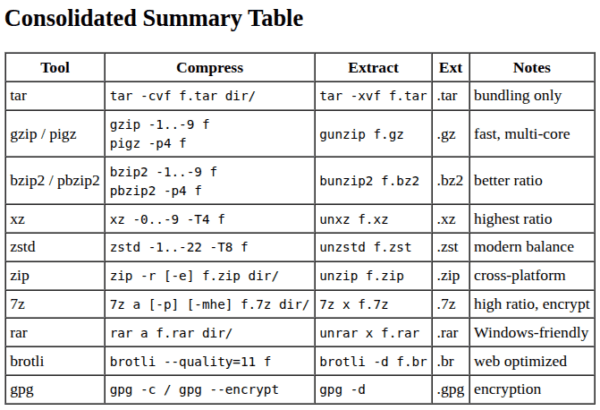
Consolidated Summary Table
| Tool | Compress | Extract | Ext | Notes |
|---|---|---|---|---|
| tar | tar -cvf f.tar dir/ |
tar -xvf f.tar |
.tar | bundling only |
| gzip / pigz | gzip -1..-9 fpigz -p4 f |
gunzip f.gz |
.gz | fast, multi-core |
| bzip2 / pbzip2 | bzip2 -1..-9 fpbzip2 -p4 f |
bunzip2 f.bz2 |
.bz2 | better ratio |
| xz | xz -0..-9 -T4 f |
unxz f.xz |
.xz | highest ratio |
| zstd | zstd -1..-22 -T8 f |
unzstd f.zst |
.zst | modern balance |
| zip | zip -r [-e] f.zip dir/ |
unzip f.zip |
.zip | cross-platform |
| 7z | 7z a [-p] [-mhe] f.7z dir/ |
7z x f.7z |
.7z | high ratio, encrypt |
| rar | rar a f.rar dir/ |
unrar x f.rar |
.rar | Windows-friendly |
| brotli | brotli --quality=11 f |
brotli -d f.br |
.br | web optimized |
| gpg | gpg -c / gpg --encrypt |
gpg -d |
.gpg | encryption |
Best Practices
- Choose gzip/pigz for speed (
logs, temp files). - Choose bzip2/xz for maximum ratio (
archives, datasets). - Use zstd for a modern speed/ratio balance.
- Always test your archives (
tar -t, unzip -l, 7z t). - Encrypt sensitive archives with
gpgor7z -mhe.
Archiving Tools
Archiving tools have been essential in Unix/Linux systems since the early days of computing. The first archiving tool, tar (Tape Archive), was introduced in the 1970s to store files on magnetic tapes. Over time, new tools emerged to address specific needs, such as compression, encryption, and file system imaging.
Beginner-Friendly Tools
tar(Tape Archive) – a command-line tool for creating and extracting archives.taris one of the oldest archiving tools in Unix/Linux.zip– a compression and archiving tool that creates .zip files.zipis widely used for compressing files and directories.gzip– a compression tool that reduces the size of files.gzipis often used in conjunction withtarto create compressed archives.
Moderate Complexity Tools
bzip2– a high-compression tool that provides better compression ratios thangzip.bzip2is often used for compressing large files and archives.xz– a high-compression tool that provides better compression ratios thanbzip2.xzis often used for compressing large files and archives.7z– a compression and archiving tool that creates .7z files.7zis widely used for compressing files and directories.
Advanced Tools
cpio– a tool that creates and extracts archives, similar totar.cpiois often used for creating archives of entire file systems.pax– a tool that creates and extracts archives, similar totarandcpio.paxis often used for creating archives of entire file systems.dar– a disk archiving tool that creates and extracts archives of entire file systems.daris often used for creating backups of entire systems.afio– a tool that creates and extracts archives, similar totarandcpio.afiois often used for creating archives of entire file systems.star– a tool that creates and extracts archives, similar totarandcpio.staris often used for creating archives of entire file systems.
Note: This is not an exhaustive list, and there are many other archiving tools available in Unix/Linux systems.

Conclusion
File archiving and compression are essential skills for managing files efficiently in Linux. Whether you’re creating backups, saving disk space, or sharing files, tools like tar, gzip, bzip2, xz, zip, and zstdmake these tasks easy and effective. By mastering these tools, you’ll be well-equipped to handle file management like a pro.
Previous: Chapter 20 | Next: Chapter 22