In this chapter, we’ll introduce the linux shell, i.e. the command-line interface that lets you interact with your Linux system. You’ll learn what the shell is, why it’s important, and how to use some basic commands to get started.
What is the Linux Shell?
The Linux shell is your gateway to interacting with a Linux system through text-based commands. Think of it as a translator that converts your keyboard inputs into actions the system understands. For beginners, the shell—often accessed via the terminal—is a powerful tool to manage files, automate tasks, and control servers efficiently.
The most popular shell is Bash (Bourne Again Shell), which we’ll focus on in this guide. Whether you’re using Linux as a desktop or server, mastering the Linux shell unlocks a world of productivity.
In this book, we’ll focus exclusively on Bash
Why have I opted for Bash ?
Bash is the default shell on most Linux distributions, making it an easily available and accessible linux shell for most users. Its widespread use, robust scripting capabilities, and detailed documentation make it an ideal starting point for mastering the Linux command line, without the complexity of alternative shells like Zsh or Fish.
Why Learn Bash Commands?
Using Bash commands in the Linux shell offers several advantages:
- Speed: Typing commands is faster than navigating graphical interfaces.
- Power: Access advanced tools for system management.
- Automation: Write scripts to streamline repetitive tasks.
- Remote Access: Manage servers seamlessly via SSH.
Getting Started with the Linux Shell
To open the terminal on Debian 12, press Ctrl + Alt + T or search for “Terminal” in the application menu. You’ll see the command prompt, like this:
user@debian:~$This prompt signals the Linux shell is ready for your commands.
Your First Bash Commands
Let’s explore some basic Bash commands to get you comfortable with the terminal:
- echo: Prints text to the screen.
echo "Hello, Linux!"
Output:Hello, Linux! - pwd: Shows your current directory (Print Working Directory).
pwd
Output:/home/user - ls: Lists files and directories in your current location.
ls
Output:Documents Downloads Music Pictures
Practice these commands to build confidence in the terminal. If you make a typo, don’t worry—even experienced users mistype! The shell is case-sensitive, so ls differs from Ls.
Exploring Modern Shells and Tools
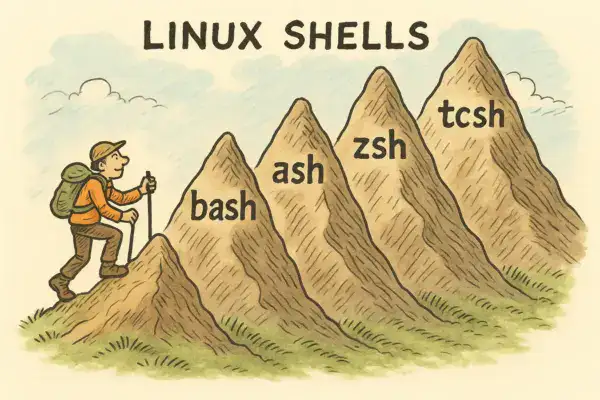
Besides Bash, modern shells like Zsh and Fish enhance the command-line experience. Zsh, paired with Oh My Zsh, offers plugins for productivity, while Fish provides intuitive suggestions and keybindings. The Starship prompt customizes your prompt across shells, displaying context like your current directory or Git status.
Installing Alternative Shells
Here’s how to install and configure Zsh and Fish on Debian 12:
# Install Zsh
$ sudo apt install zsh

# Set Zsh as default shell
$ chsh -s $(which zsh)

# Install Oh My Zsh
$ sh -c "$(curl -fsSL https://raw.github.com/ohmyzsh/ohmyzsh/master/tools/install.sh)"

# Install Fish
$ sudo apt install fish

# Install Starship prompt
$ curl -sS https://starship.rs/install.sh | sh
Try these tools to customize your Linux shell experience.
Tips for Linux Beginners
Errors are part of learning the command line. If a command fails, double-check your spelling and syntax. Use the man command (e.g., man ls) to access manuals for any command. As you progress, you’ll find the terminal is a powerful ally for managing your Linux system.
Which Linux Shell to Choose?
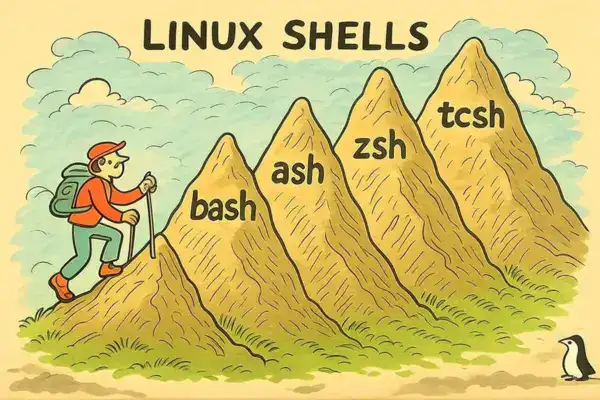
In the Linux operating system, there are several different shell options available, each with its own unique features, strengths, and weaknesses. Here’s a brief overview of some of the most popular shells, along with their pros and cons, and their suitability for beginners:
-
Bash (Bourne-Again SHell):
- Pros: Widely used, feature-rich, and compatible with the original Bourne shell (sh).
- Cons: Can be complex for beginners due to its extensive features and customization options.
- Suitability for beginners: Bash is a good choice for beginners as it is the default shell in most Linux distributions and has a large user community, providing ample resources for learning.
-
Ash (Almquist SHell):
- Pros: Lightweight, fast, and compatible with the original Bourne shell (sh).
- Cons: Limited features compared to Bash, and may not have all the advanced functionality that some users require.
- Suitability for beginners: Ash can be a good choice for beginners who prefer a simpler and more lightweight shell, or for use on resource-constrained systems.
-
Zsh (Z SHell):
- Pros: Highly customizable, with advanced features like tab completion, spelling correction, and support for themes and plugins.
- Cons: Can be more complex to set up and configure than Bash, especially for beginners.
- Suitability for beginners: Zsh may not be the best choice for complete beginners, as its extensive customization options can be overwhelming. However, it can be a great choice for users who are willing to invest time in learning and configuring the shell to their liking.
-
Tcsh (TENEX C SHell):
- Pros: Provides advanced features like command-line completion, history expansion, and key bindings.
- Cons: Less widely used than Bash or Zsh, and may have fewer resources and community support available.
- Suitability for beginners: Tcsh can be a good choice for beginners who are familiar with the C programming language or who prefer a shell with a more C-like syntax.
-
Ksh (Korn SHell):
- Pros: Provides a balance of features and performance, with support for advanced scripting and programming capabilities.
- Cons: May have a steeper learning curve than Bash, and is not as widely used as some other shells.
- Suitability for beginners: Ksh may not be the best choice for complete beginners, as it has a more complex syntax and feature set compared to Bash. However, it can be a good option for users who are already familiar with shell scripting and want to explore a more advanced shell.
When choosing a shell, the decision should be based on your specific needs and preferences. Beginners may find Bash to be the most suitable choice, as it is widely used, well-documented, and has a large user community. However, if you have specific requirements, such as a preference for a more lightweight shell or a desire for advanced customization options, you may want to consider other shells like Ash or Zsh.
Ultimately, the choice of shell is a personal preference, and you may want to experiment with different options to find the one that best suits your needs and workflow.
Glossary of Commands and Tools
Reference: For detailed command documentation, visit Linux Manpages. For package installation, search on Debian APT.
| Command/Tool | Description |
|---|---|
| echo | Prints text to the terminal. |
| pwd | Displays the current working directory. |
| ls | Lists directory contents. |
| zsh | Advanced shell with plugin support. |
| fish | User-friendly shell with command suggestions. |
| starship | Customizable cross-shell prompt. |
Websites for Different Shells
-
Bash (Bourne-Again SHell): https://www.gnu.org/software/bash/
-
Ash (Almquist SHell): https://git.kernel.org/pub/scm/utils/dash/dash.git/
-
Zsh (Z SHell): https://www.zsh.org/
-
Tcsh (TENEX C SHell): https://www.tcsh.org/
-
Ksh (Korn SHell): http://www.kornshell.com/
That’s it for Chapter 1 ! As we continue our journey in Part I of this book, in Chapter 2 , we’ll dive into Navigation and learn how to move around the filesystem like a pro. Until then, practice these commands and get comfortable with the shell. Remember, the journey of a thousand commands begins with a single echo.