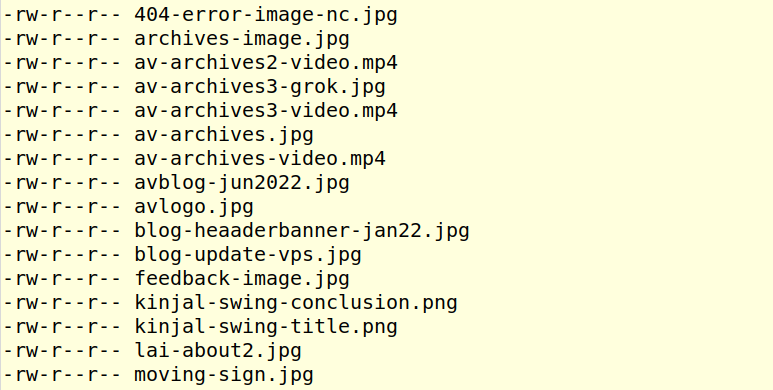
You've set up a media server on a separate subdomain (e.g., media.mydomain.in) to serve images for your main website. However, upon reviewing the folder structure, you discover that file permissions are inconsistent across the directory tree — some files have read-only access, others have group write permissions, and in extreme cases, some image files even have read and write access granted to guest users. This is a serious security vulnerability that needs immediate attention.
Background: Understanding Media Servers
A media server is a dedicated subdomain or separate server that hosts static assets (images, videos, CSS, JavaScript) for your website. Separating media from your application has several advantages:
- Performance: Dedicated server optimized for serving static files
- Security isolation: Media server is decoupled from your application logic
- Scalability: Easy to distribute media across CDNs or multiple servers
However, this separation also introduces security considerations. Since your media server is accessible publicly, file permissions become critical — you want users to read your images, but definitely not to modify them.
The Problem: Inconsistent and Risky Permissions
What We Discovered
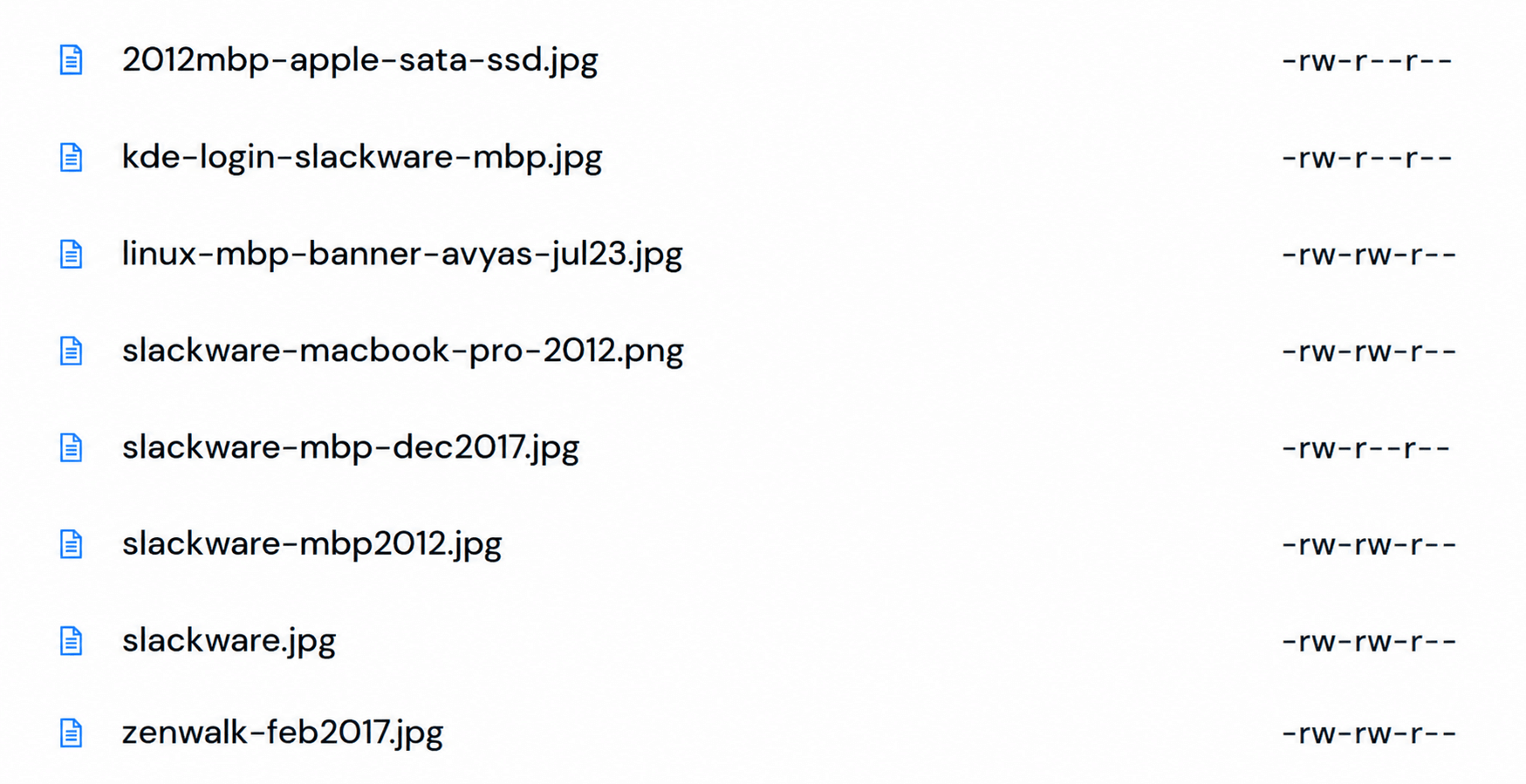
When auditing the folder which had the media files, e.g. /media/ folder (and subfolders like media/images/, media/images/slackware/), the permissions looked like this:
-rw-r--r-- 2012mbp-apple-sata-ssd.jpg
-rw-r--r-- kde-login-slackware-mbp.jpg
-rw-rw-r-- linux-mbp-banner-avyas-jul23.jpg
-rw-rw---- slackware-macbook-pro-2012.png
-rw-r--rw- slackware-mbp-dec2017.jpg ← EXTREME CASE
Security Risks
-
Group write permissions (
rw-rw-r--, 664): If your web server runs under a different user or group, or if multiple users have group access, they could accidentally (or maliciously) modify your images. -
"Other" write permissions (
rw-r--rw-, 666): This is the critical issue — anyone on the system can modify your images. In the extreme case of one file, guests had read and write access, allowing unauthorized users to replace, corrupt, or delete your media assets. -
Inconsistent permissions: Mixed permissions make it harder to audit and maintain security; they also suggest ad-hoc manual changes rather than a deliberate security policy.
Why This Matters
- Data integrity: Attackers could replace legitimate images with malicious content
- Website defacement: Your website could be compromised by tampering with image assets
- Legal liability: If malicious content is served through your media, you're responsible
- SEO and trust: Corrupted or replaced assets harm user experience and search rankings
The Solution: Standardize Permissions
Understanding the Standard Permissions
For a public-facing media server, use these permissions:
| Item | Permission | Numeric | Meaning |
|---|---|---|---|
| Files | rw-r--r-- |
644 | Owner can read/write; others (including web server) can read only |
| Directories | rwxr-xr-x |
755 | Owner has full control; others can enter and read directories |
Applying Permissions Recursively
Method 1: Using find (Recommended — More Precise)
# Set all files to 644 recursively
find /path/to/media/ -type f -exec chmod 644 {} \;

# Set all directories to 755 recursively
find /path/to/media/ -type d -exec chmod 755 {} \;
Method 2: Using chmod -R (Simpler)
# First, set everything to 755
chmod -R 755 /path/to/media/

# Then, fix files back to 644
find /path/to/media/ -type f -exec chmod 644 {} \;
One-Liner
chmod -R 755 /path/to/media/ && find /path/to/media/ -type f -exec chmod 644 {} \;Setting Default Permissions for Future Files: The Umask
The umask (user file creation mask) controls what permissions new files and directories get when created. Set it in your shell profile (~/.bashrc, ~/.zshrc, or ~/.profile):
umask 0022This ensures:
- New files default to 644 (read-write for owner, read-only for others)
- New directories default to 755 (full access for owner, read+execute for others)
Add this line to your profile, then reload:
source ~/.bashrcVerifying the Changes
Method 1: Using ls with Head (Quick Spot-Check)
ls -lR /path/to/media/ | head -20This shows the first 20 lines of the recursive directory listing. Look for:
- Directories:
drwxr-xr-x(755) - Files:
-rw-r--r--(644)
Method 2: Using stat Command (More Detailed)
# Show permissions and filename for all files
find /path/to/media/ -type f -exec stat -c '%a %n' {} \;
Output example:
644 /path/to/media/2012mbp-apple-sata-ssd.jpg
644 /path/to/media/kde-login-slackware-mbp.jpg
755 /path/to/media/l-oss
644 /path/to/media/l-oss/slackware/linux-banner.jpg
The first column shows the numeric permission (644 or 755), and the second shows the full file path.
Tip: Listing Only Permissions and Names
If you want a cleaner view showing only permissions and filenames (without owner, group, size, and date), use this command:
ls -lR /path/to/media/ | awk '{print $1, $NF}'Output:
-rw-r--r-- 2012mbp-apple-sata-ssd.jpg
-rw-r--r-- kde-login-slackware-mbp.jpg
-rw-r--r-- linux-mbp-banner-avyas-jul23.jpg
drwxr-xr-x l-oss
drwxr-xr-x slackware
Checking Local Permissions Before Transfer
Before syncing files to your media server with rsync, verify that your local folder permissions are consistent. Since rsync preserves permissions by default (with the -a flag), any permission inconsistencies in your local files will replicate to the server. Run a quick audit:
Quick check:
ls -lR ~/media/ | head -20Detailed audit:
find ~/media/ -exec stat -c '%a %n' {} \;If you find scattered permissions locally, standardize them to match your server target (644 for files, 755 for directories) before syncing, or use rsync's --chmod flag to normalize permissions during transfer:
rsync -av --chmod=D755,F644 ~/media/ [email protected]:/arc/This ensures a clean permission chain from local machine to media server.
Summary: A Secure Media Server Setup
- Identify the problem: Audit your media folder with
ls -lRorfind - Apply standard permissions: Use
chmodrecursively to set files to 644 and directories to 755 - Prevent future issues: Set
umask 0022in your shell profile - Verify regularly: Use
statorlscommands to spot-check permissions
By following this approach, you ensure that:
- Your web server can serve images (read access)
- Only you (the owner) can modify images (write access)
- Guests and other system users cannot tamper with assets (no write access)
- All future files follow the same secure standard