Markdown is a lightweight markup language that simplifies formatting for bloggers, offering readability, portability, and compatibility across platforms. This guide explores why Markdown is ideal for writing, real-world use cases, tool comparisons, and personal anecdotes from my journey. Whether you're a beginner or an experienced writer, Markdown can streamline your workflow and enhance productivity.
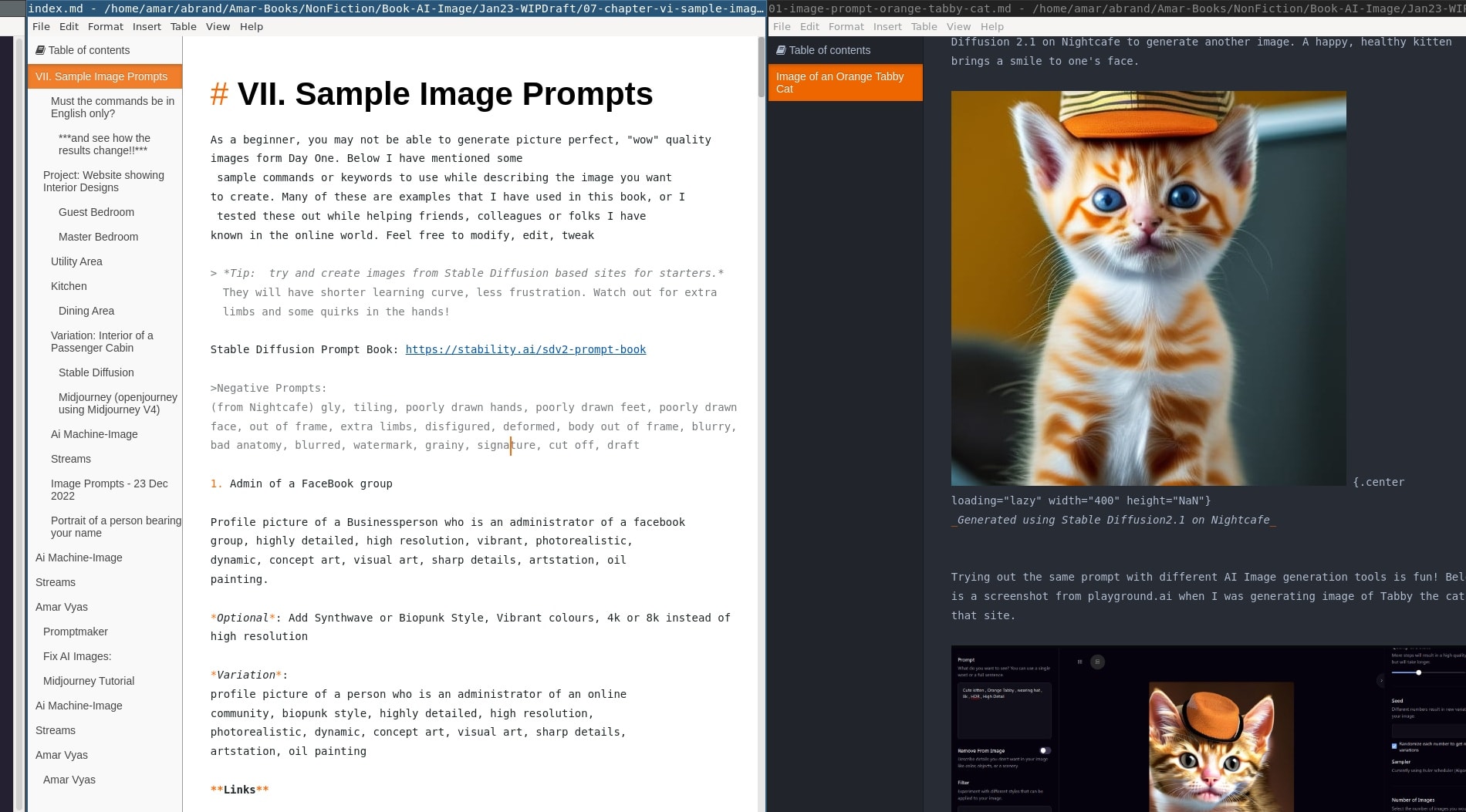
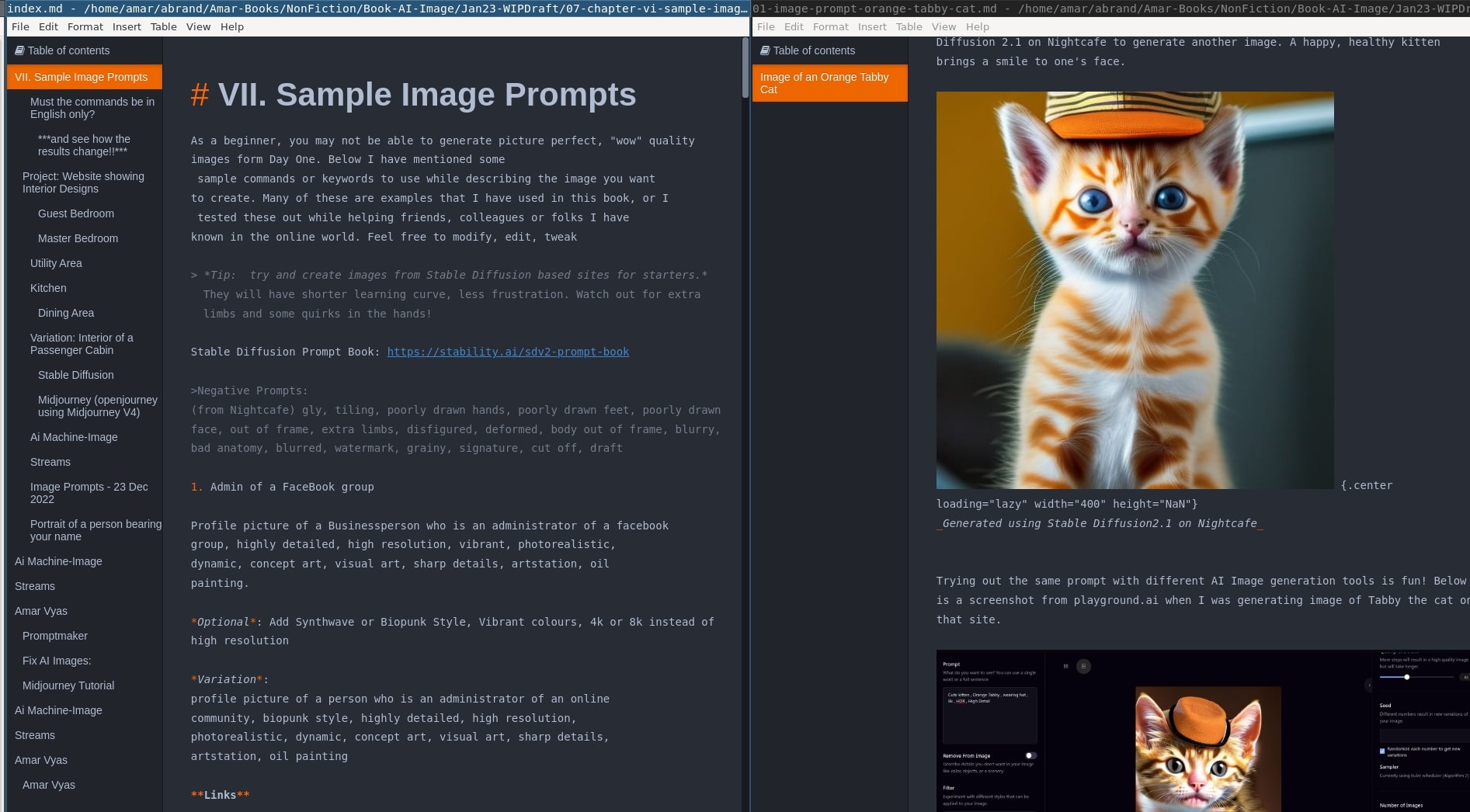 Abricotine showing raw markdown and preview in dark mode
Why Use Markdown for Blogging?
Simplicity and Readability
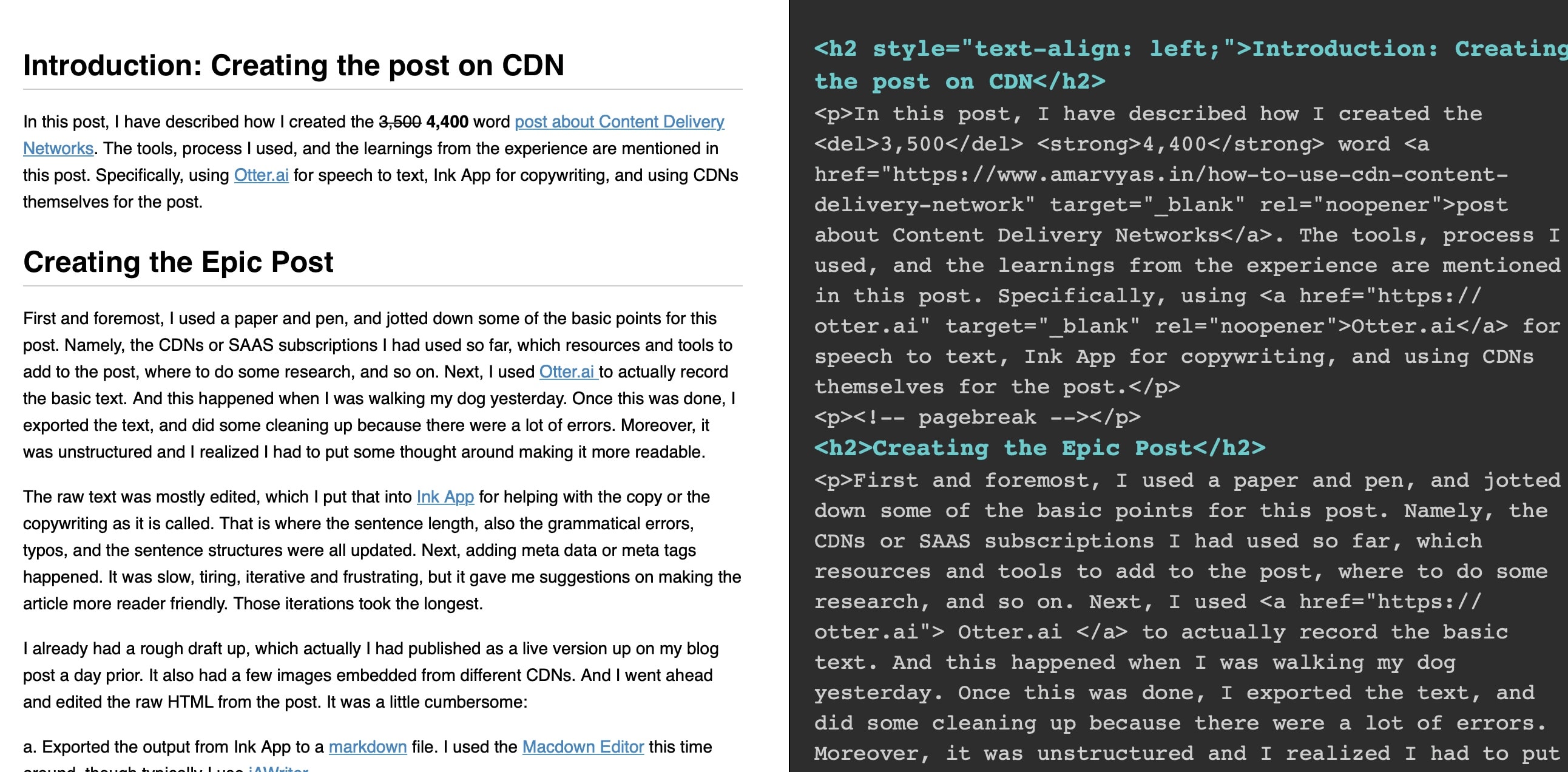
Markdown’s plain-text syntax allows writers to focus on content without distractions. Unlike WYSIWYG editors or the old days of Microsoft Word, where converting to HTML often resulted in cluttered code with excessive span tags, Markdown keeps formatting simple and human-readable.
Portability and Compatibility
Markdown files are universally compatible with platforms like Ghost and static site generators (e.g., Hugo, Jekyll). This makes it easy to migrate content or publish across multiple platforms.
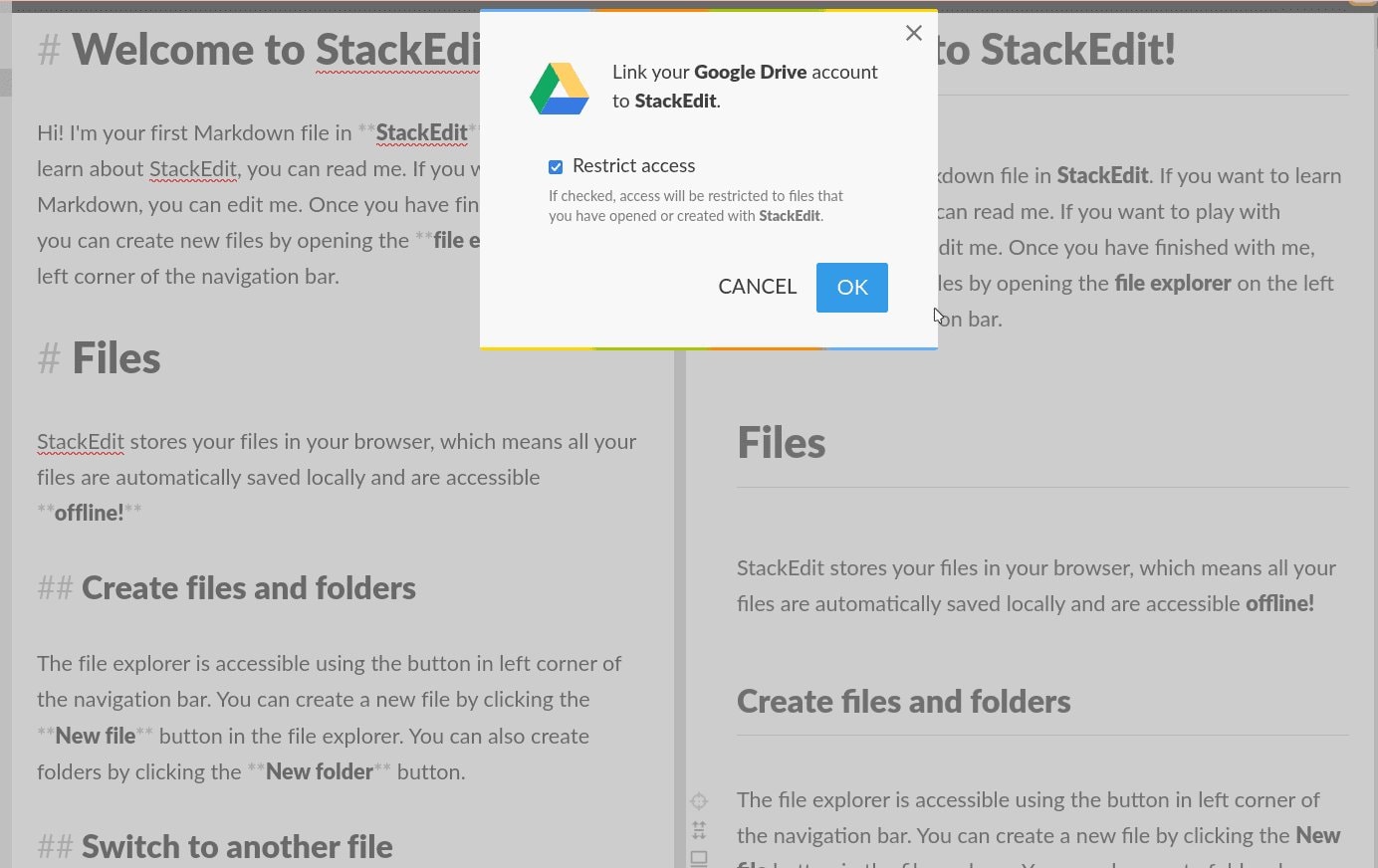
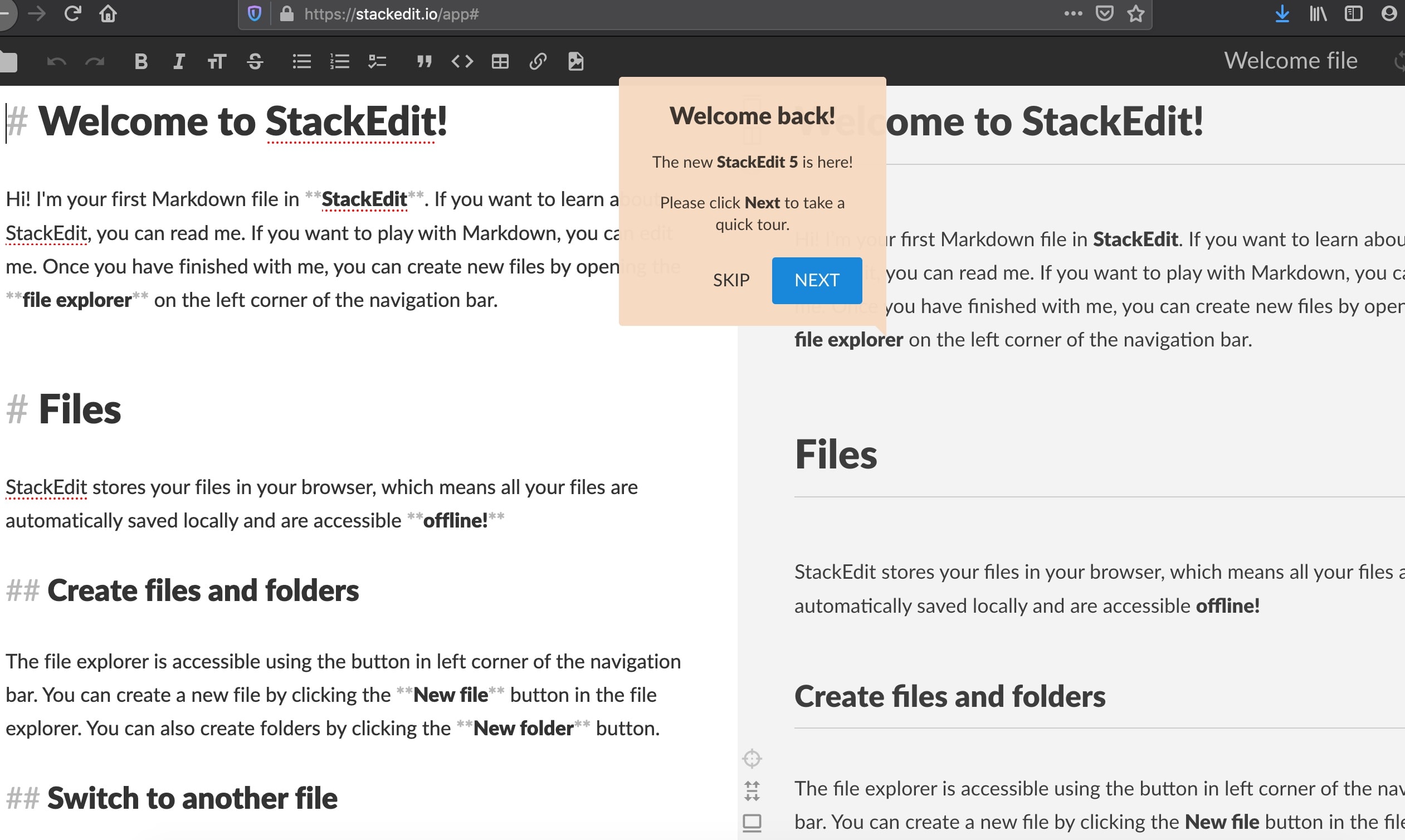 Stackedit Markdown Editor
Version Control and Collaboration
Markdown’s plain-text nature makes it ideal for version control (e.g., Git). This is especially useful for collaborative writing or tracking changes over time.
I have been using Markdown since 2017 or 2018. The ability to write in plain text and preview instantly changed how I approached blogging. No more wrestling with rich text editors. I still use Markdown for my books, this very blog, and website (HTML rendering is done by Parsedown). In 2026, I use Markdown Live Preview (Dev) and Markdown Live Preview (Com) more and more for their simplicity and instant feedback.
Real-World Use Cases for Markdown
Blogging
Markdown is ideal for bloggers who want to write quickly and publish seamlessly. Platforms like Ghost support Markdown natively, and static site generators (e.g., Hugo, Jekyll) rely on it for content creation.
Example: Write a blog post in StackEdit, preview it in real-time, and export it directly to HTML or publish it to Ghost.
Technical Documentation
Markdown is widely used for documentation (e.g., GitHub READMEs, API docs). Its simplicity makes it easy to maintain and update technical content.
Example: GitHub’s README files are written in Markdown, allowing developers to document projects with minimal effort.
Note-Taking and Knowledge Management
Tools like Joplin and Obsidian use Markdown for note-taking and knowledge management. This allows for easy organization, linking, and searching of notes.
I use Joplin to manage all my research notes for this booklet project. The ability to link between notes and export them to Markdown has been a game-changer for organizing my thoughts.
Academic and Long-Form Writing
Markdown is also useful for academic writing or long-form content (e.g., books, reports). Tools like Pandoc can convert Markdown to PDF, EPUB, or Word, making it versatile for different publishing needs.
Essential Tools for Markdown Writing
Web-Based Editors
Overview
Web-based editors are ideal for bloggers who prefer writing in a browser and need cloud syncing, real-time preview, and collaboration features.
Tool Comparisons
- StackEdit: Real-time preview, Google Drive sync, publishing to Ghost/Blogger.
- Dillinger: Clean interface, GitHub sync, export to HTML/PDF.
- Haroopad: Supports Mermaid diagrams, distraction-free mode.
- Markdown Live Preview (Dev): Instant live preview, minimalist interface, 2026 update.
- Markdown Live Preview (Com): Fast, lightweight, and easy to use, 2026 update.
| Online Editor | Best For | Features |
|---|---|---|
| Haroopad | Offline writing | Offline-first, syntax highlighting, exports to PDF/HTML/ODT, lightweight |
| StackEdit | GitHub users & collaboration | GitHub/GitLab/Google Drive sync, real-time collaboration, Mermaid diagrams |
| Joplin | Notes and documentation | Desktop, mobile & web access, Nextcloud/Dropbox/OneDrive sync, encryption, PDF/HTML/Markdown export |
| Dillinger | Quick browser editing | Live preview, Google Drive & Dropbox integration, exports to PDF/Word/ePub |
| Encryptic | Privacy-conscious users | End-to-end encryption, self-hosted, CommonMark & GitHub Flavoured Markdown |
| HedgeDoc | Teams | Real-time collaboration, self-hosted, Mermaid, reveal.js presentations, Docker support |
| Zoho Notebook | Zoho ecosystem users | Zoho integration, cross-device sync, PDF/plain text export |
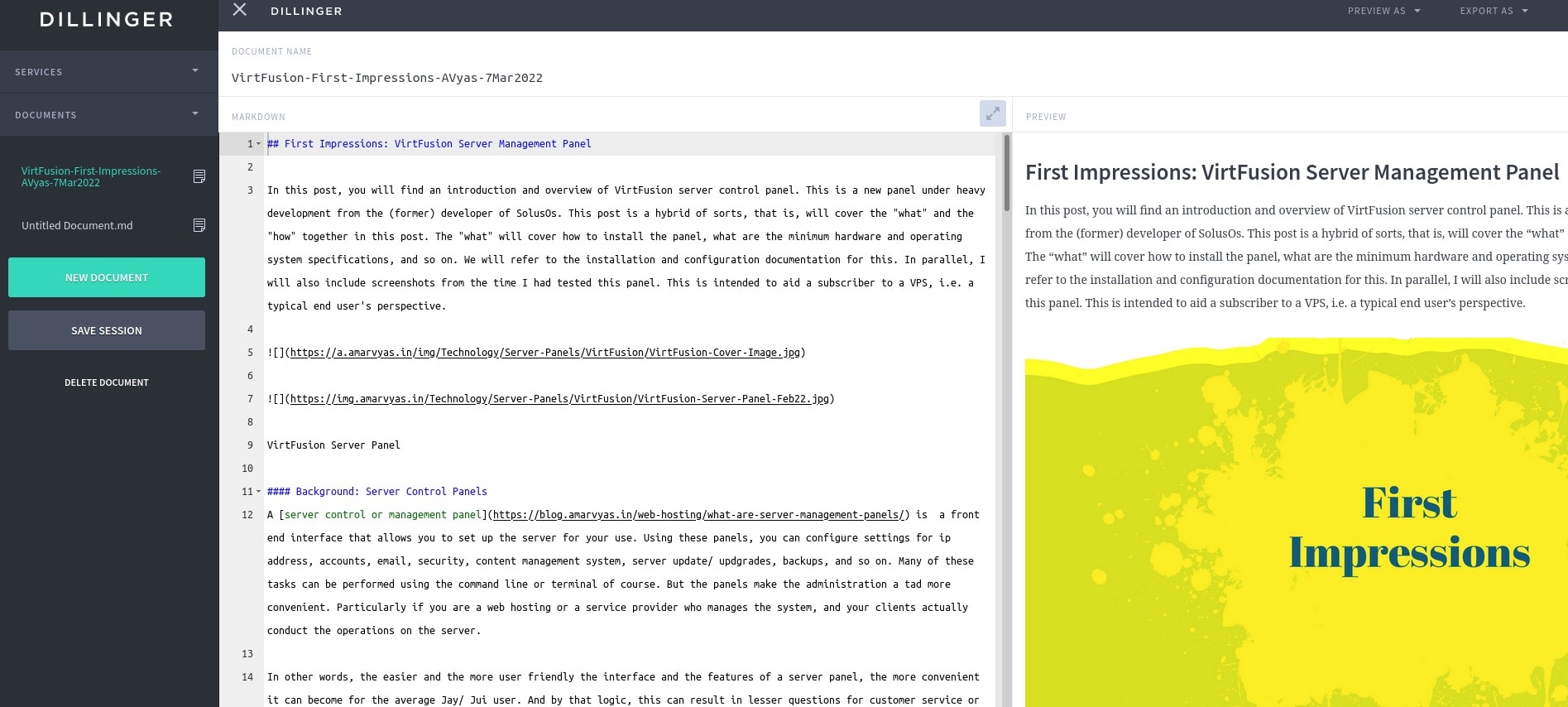 Dillinger is a web based mardwdown writing, preview and exporting tool
I used StackEdit for most of my early blog posts. Its ability to sync with Google Drive and publish directly to Ghost saved me hours of formatting time. However, I eventually switched to a desktop tool for offline access. In 2026, I use Markdown Live Preview (Dev) and Markdown Live Preview (Com) more and more for their simplicity and instant feedback.
Graphical Editors for Linux
Overview
Graphical editors provide a desktop experience with features like live preview, syncing, and export options. These are ideal for writers who prefer a distraction-free environment.
Tool Comparisons
- Joplin: Open-source, end-to-end encryption, plugin support.
- Ghostwriter: Minimalist, distraction-free, live preview.
- ReText: Simple, lightweight, supports extensions.
- Abricotine: Inline preview, dark/light themes.
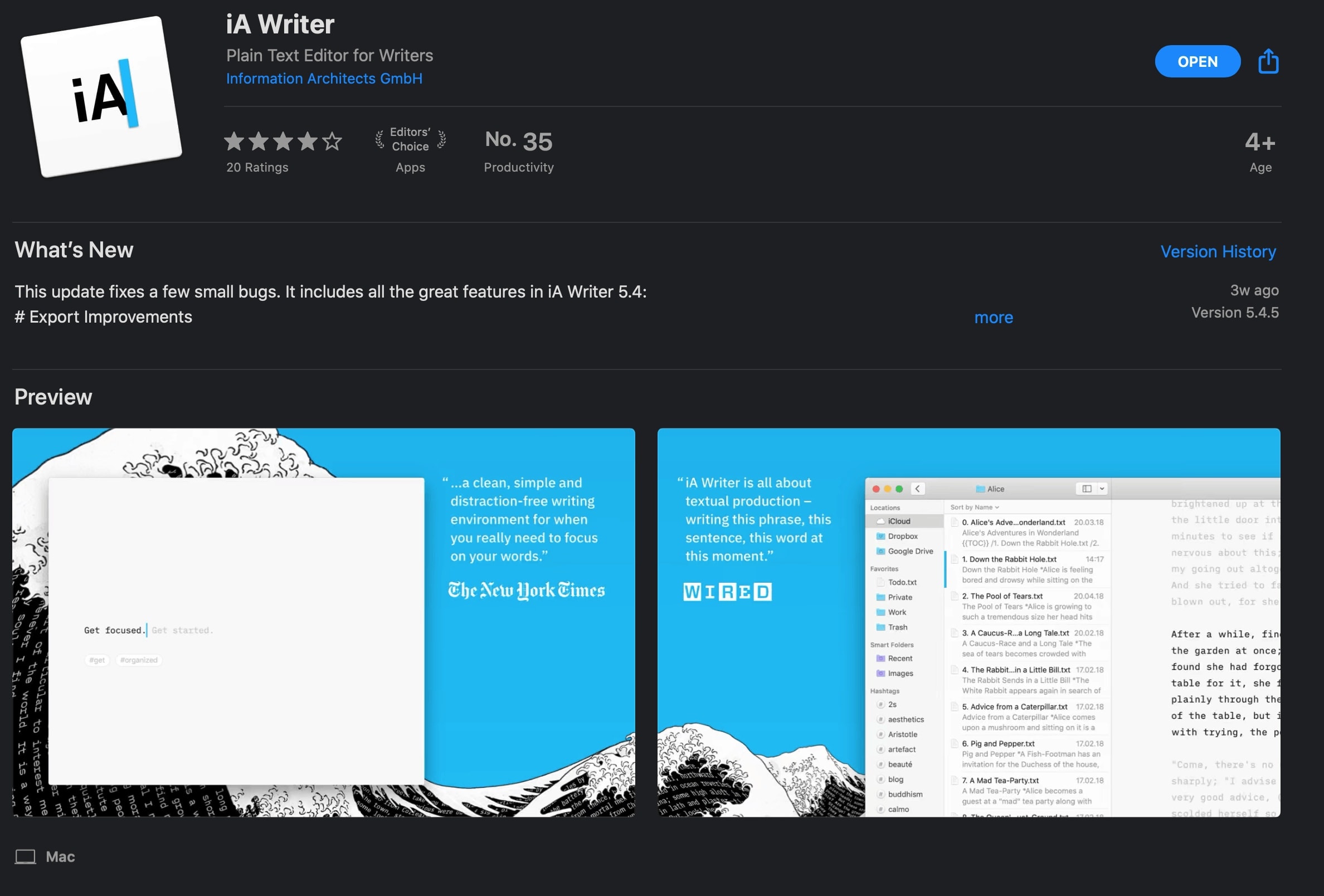
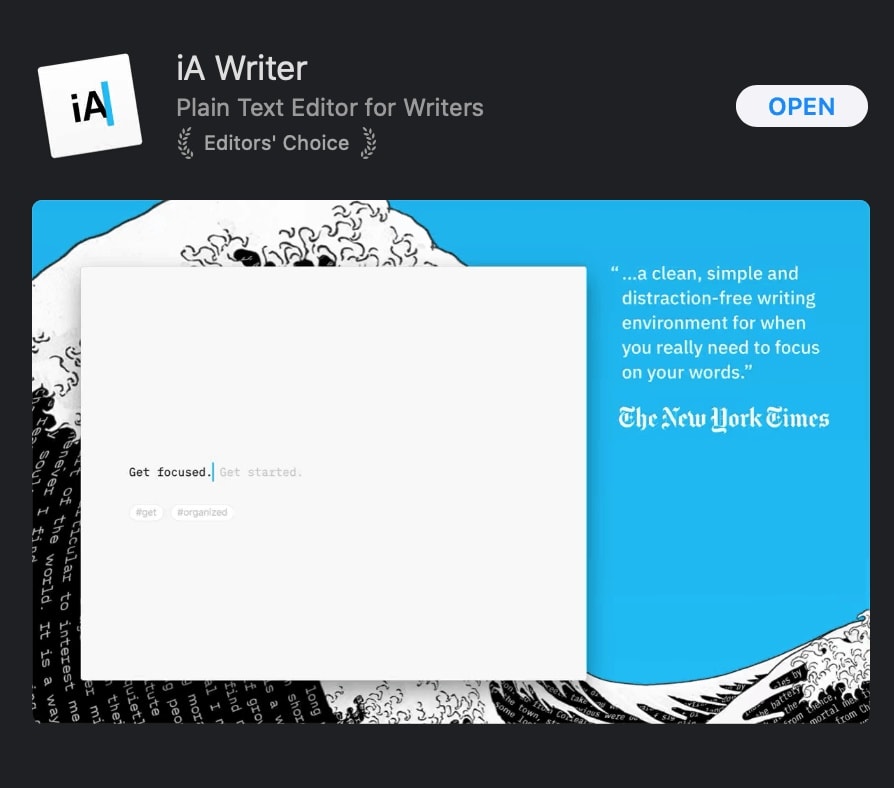 iAWriter for mac showing writing in Markdown
I switched to Joplin in 2022 for its end-to-end encryption and plugin ecosystem. The ability to sync notes across devices and export them to Markdown made it my go-to tool for research and drafting.
Advanced Workflows and Tips
Key Tools and Commands
- Pandoc: Convert Markdown to PDF, EPUB, or Word.
- fd: Fast and user-friendly alternative to find.
- sed: Batch find/replace in files.
- rg (ripgrep): Fast text search.
Example Workflow: I use fd to find all Markdown files in my project directory, then sed to replace a common typo across all files. This saves me hours of manual editing.
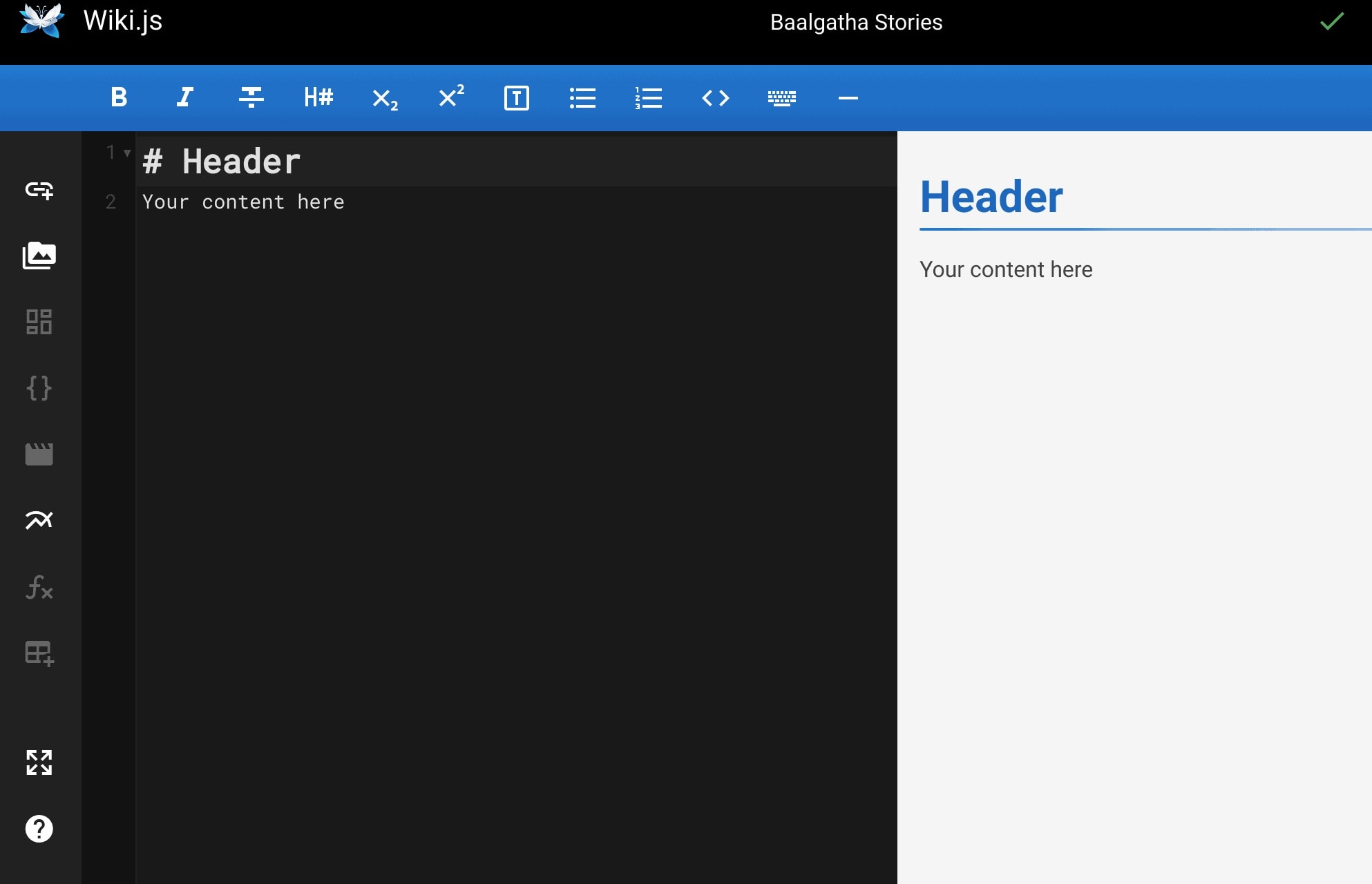 online Content Management System wiki.js has a markdown editing tool
CLI Tools for Power Users
Advanced users can leverage command-line tools like pandoc for format conversion or fd and sed for batch operations. These tools automate repetitive tasks, such as global find/replace or file management.
Batch Operations
Use CLI tools to automate repetitive tasks:
- Global find/replace:
rg -l "old_phrase" | xargs sed -i 's/old_phrase/new_phrase/g' - Batch renaming:
fd -e md | fzf -m | xargs -I {} mv {} chapter-{}
Mermaid Diagrams
Markdown supports Mermaid syntax for creating diagrams such as flowcharts, sequence diagrams, and Gantt charts. This is useful for technical documentation or visualizing workflows.
Example:
A[Start] --> B[Write in Markdown];
B --> C[Preview];
C --> D[Publish];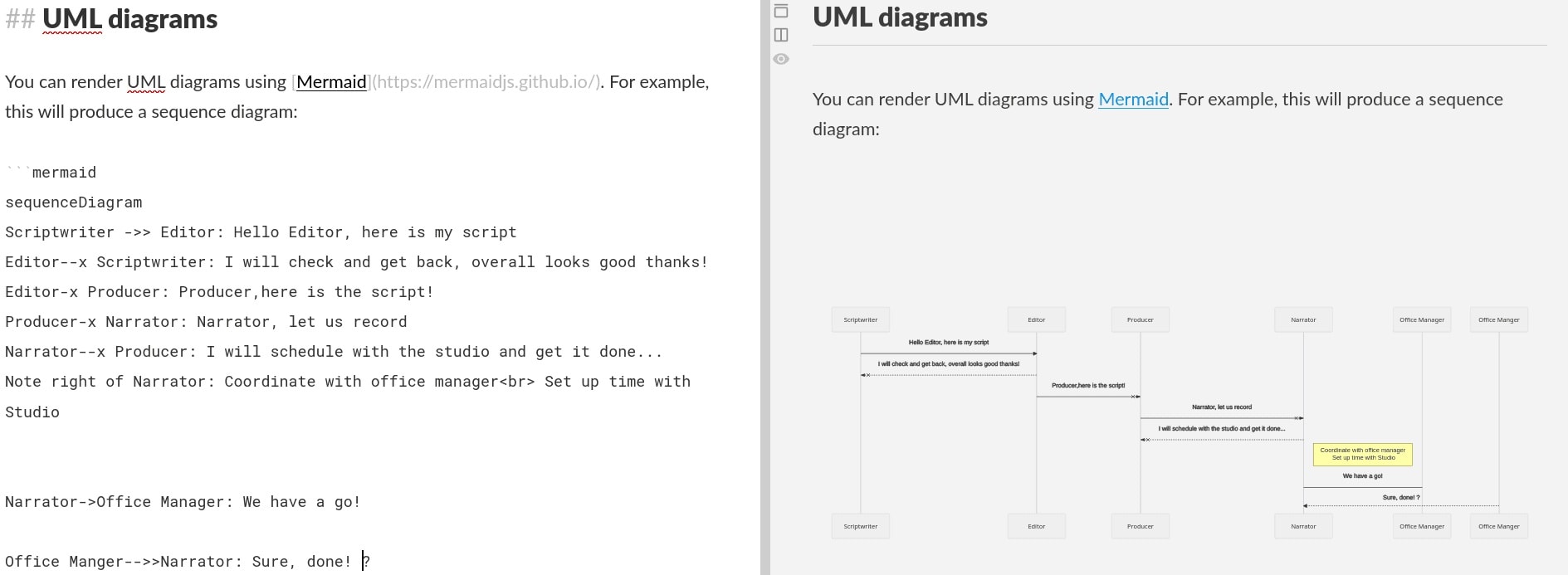 Mermaid workflow for Markdown
Exporting and Publishing
- Use Pandoc to convert Markdown to other formats such as PDF, EPUB, or Word.
- Publish directly to platforms like Ghost from tools like StackEdit or Dillinger.
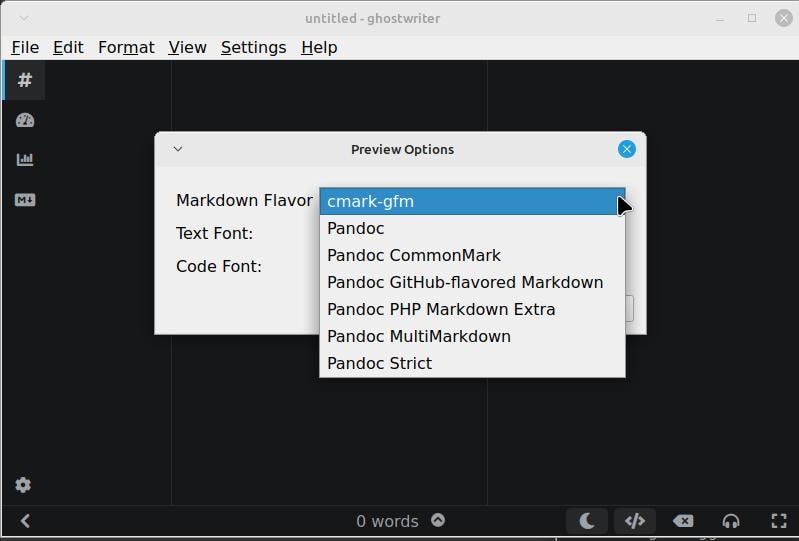 ghostwriter for linux with export to other formats
Limitations and Considerations
Flavors of Markdown
Markdown has evolved into multiple flavors, each with its own extensions and syntax variations. The most notable flavors include:
- Original Markdown by John Gruber: Markdown
- GitHub Flavored Markdown (GFM): GitHub Flavored Markdown Spec
- CommonMark: CommonMark
- Aaron Swartz’s contributions to Markdown can be explored in the context of its early development and community adoption.
These variations can lead to compatibility issues. For example, a table written in GitHub Flavored Markdown may not render correctly in a tool that only supports CommonMark.
Provider-Specific Tutorials
Many platforms and content management systems provide their own Markdown tutorials, which can differ slightly in syntax or supported features. Examples include:
- Datenstrom Yellow: Yellow Markdown
- Grav: Grav Markdown
Compatibility Issues
Different platforms and tools may interpret Markdown syntax differently. For instance:
- Tables, footnotes, or task lists may not be supported in all flavors.
- Some platforms add custom extensions (e.g., GitHub’s task lists, Mermaid diagrams).
However, the simplicity, short learning curve, and cross-platform compatibility of basic Markdown syntax far outweigh these downsides. Basic syntax (headers, lists, links, images) is universally adapted.
Cheat Sheets
Here are some placeholders for Markdown cheat sheets that you can update with links later:
- Basic Markdown Cheat Sheet
- GitHub Flavored Markdown Cheat Sheet
- Extended Markdown Cheat Sheet
Conclusion and Takeaways
Markdown is a versatile, efficient, and portable tool for bloggers and writers. Whether you prefer web-based editors, graphical tools, or CLI workflows, Markdown can adapt to your needs.
Key Takeaways:
- Use Markdown for simplicity, portability, and readability.
- Choose tools that fit your workflow, such as StackEdit, Joplin, or CLI tools like Pandoc.
- Explore advanced features like Mermaid diagrams or batch operations to boost productivity.
Final Thought: Markdown isn’t just a tool—it’s a mindset. It’s about focusing on content first and formatting second. Once you embrace it, you’ll wonder how you ever wrote without it.
Links and References
| Abricotine | Dillinger |
|---|---|
| Ghost | Ghostwriter |
| Haroopad | Joplin |
| MacDown | Mermaid |
| Obsidian | Pandoc |
| ReText | StackEdit |