I first discovered Koofr through a Stacksocial offer and was intrigued by its unique features and positive reviews on sites like Cloudwards. After doing some research and testing the service myself, I can confidently say that Koofr is a top contender in the cloud storage market.
A Comprehensive Cloud Storage Solution
In the digital age, cloud storage has become a necessity rather than a luxury. With a plethora of options available, choosing the right one can be a daunting task. Today, I will share my experience with a unique cloud storage service, Koofr.eu, which I discovered through a Stacksocial offer and various YouTube reviews and blogs like Cloudwards.
What is Koofr.eu?
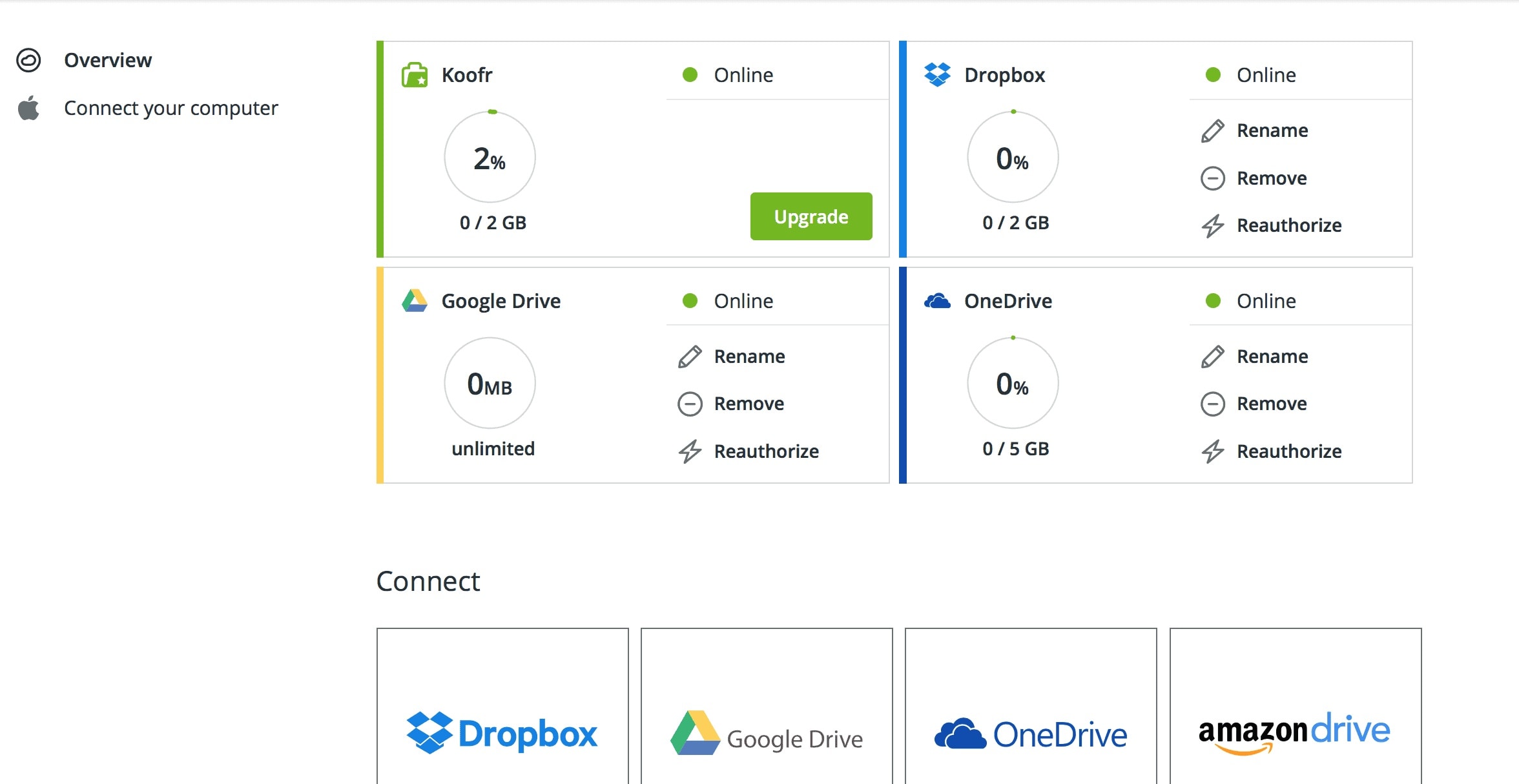
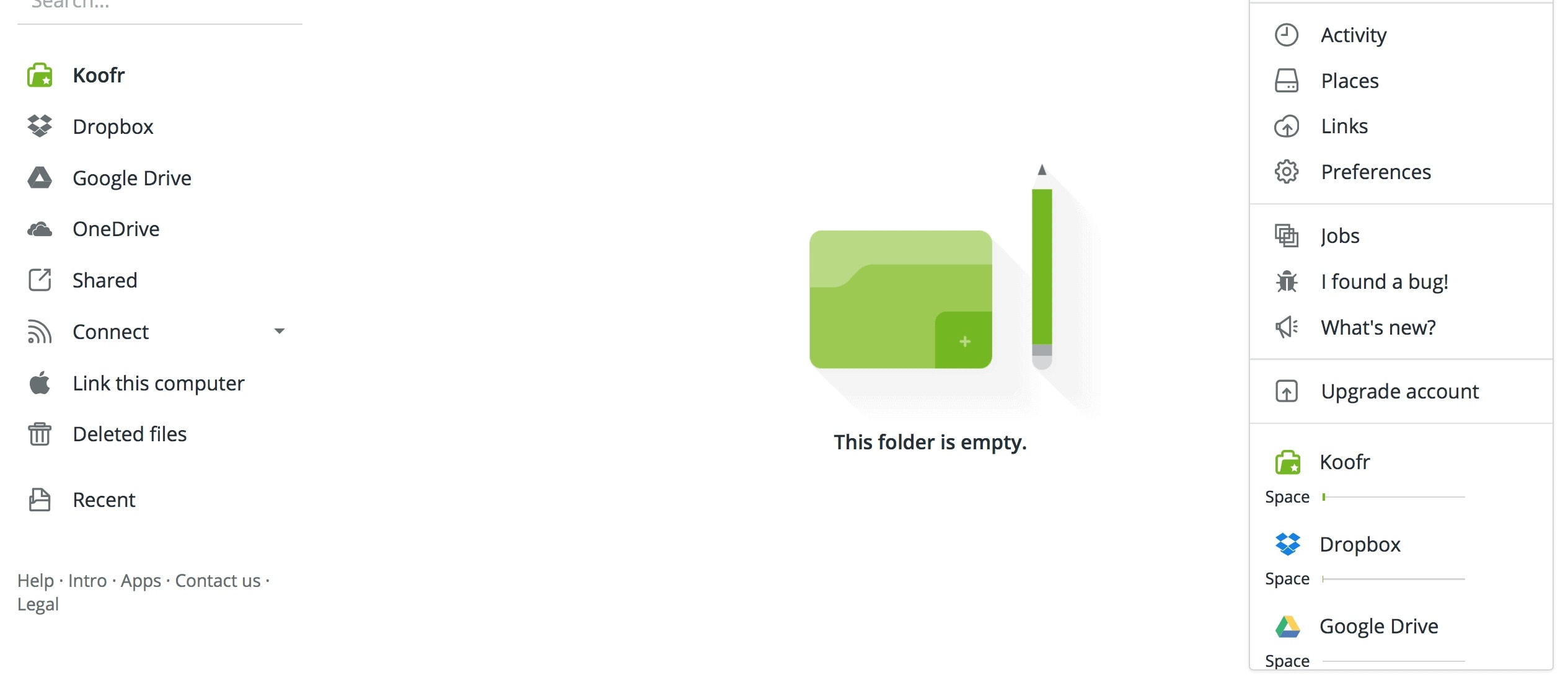
Koofr.eu is a cloud storage solution that stands out from the crowd with its unique features. It offers a unified platform to manage multiple cloud storage accounts from different providers such as Google Drive, Dropbox, and OneDrive. This feature is particularly useful for users who have data scattered across various cloud storage services, as it allows seamless access and transfer of files between different clouds. Koofr emphasizes data privacy and security. Your data is encrypted and stored across secure, EU-based data centers. Koofr claims not to scan your files or keep hidden copies after you delete them, ensuring that your data remains private and under your control.
Connecting Your Cloud Accounts
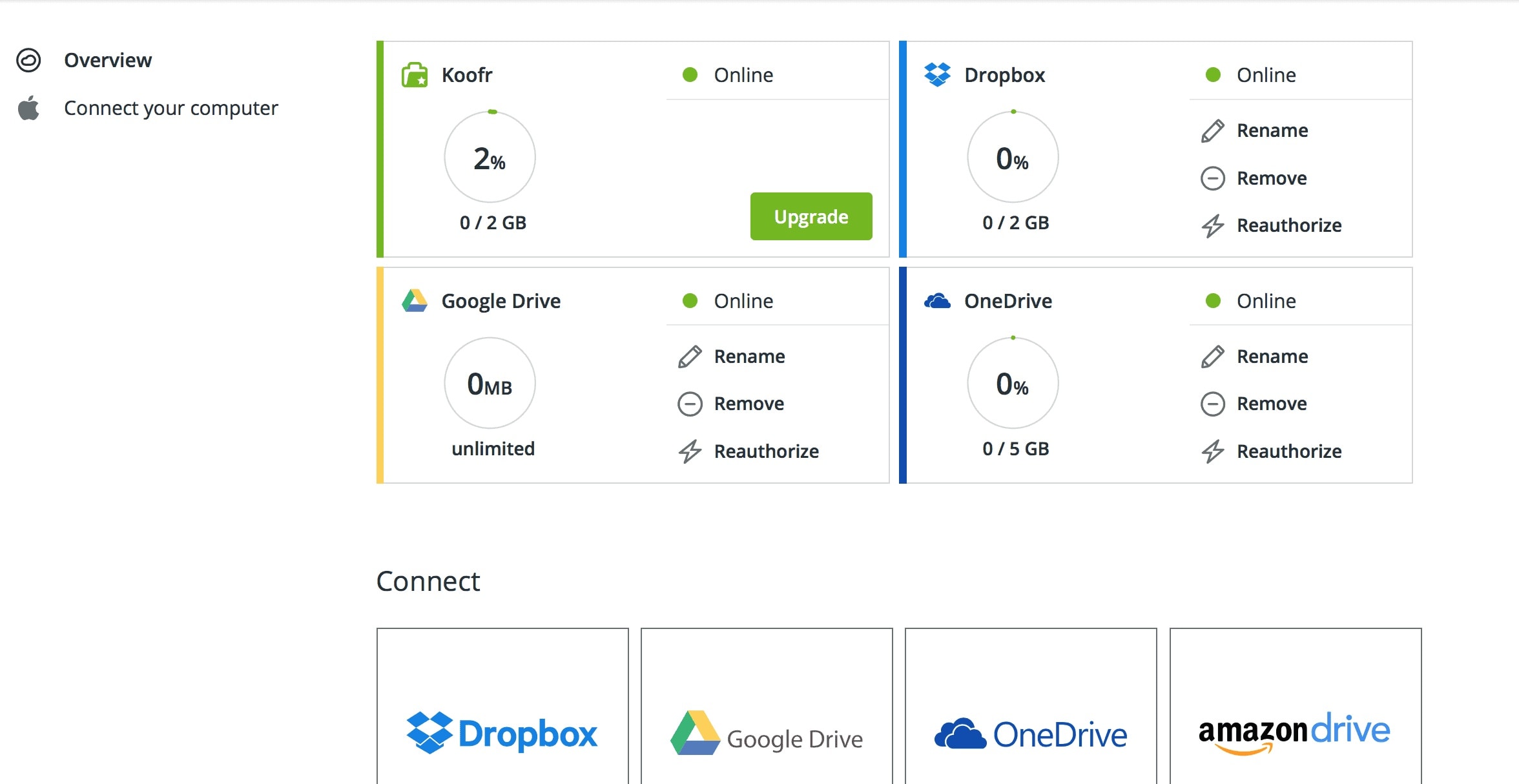
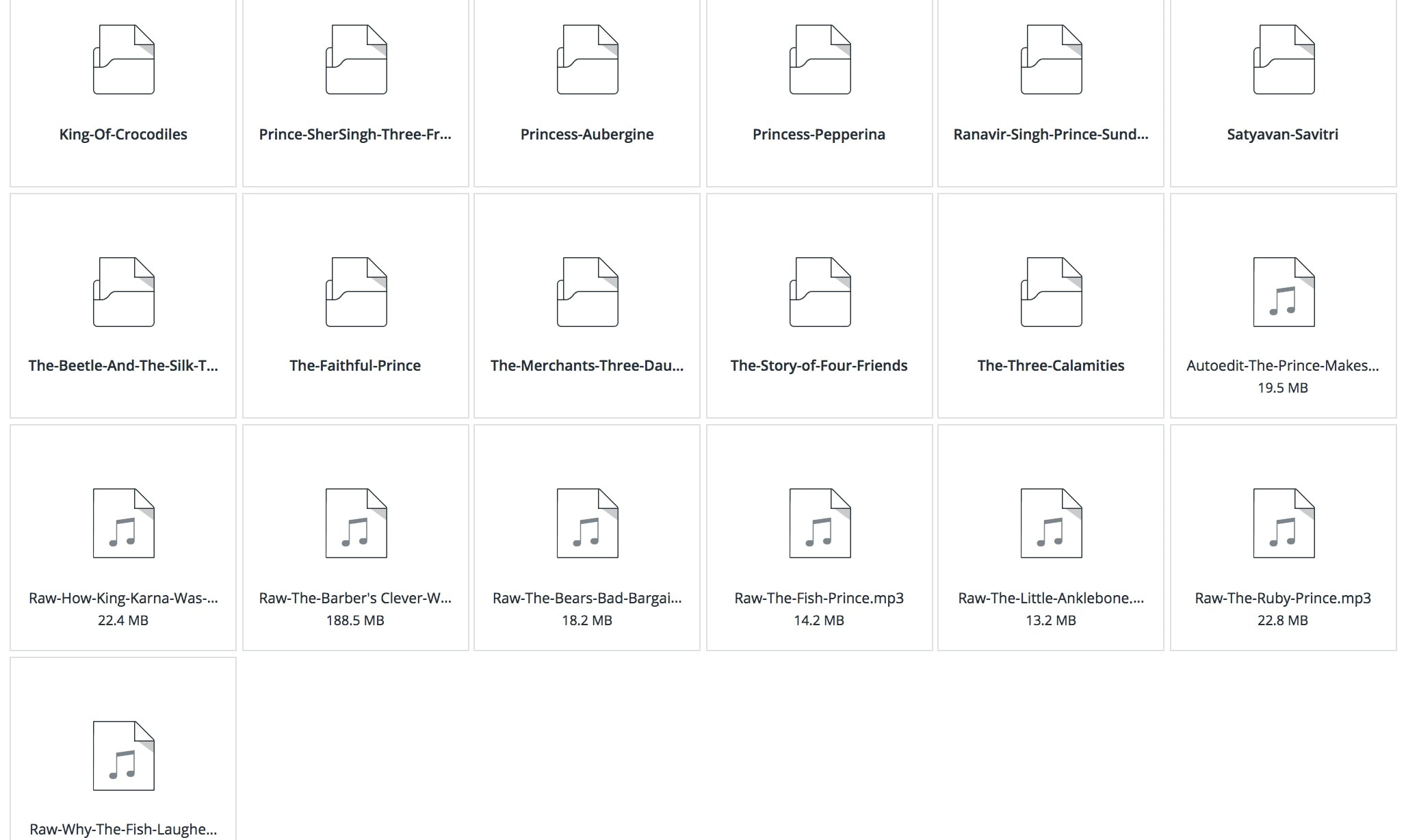
One of the standout features of Koofr is its ability to connect with other popular cloud storage services, such as Google Drive, OneDrive, and Dropbox. This means you can manage all your files from a single interface, saving you time and hassle. Linking your accounts is a breeze. Simply log in to your Koofr account, navigate to the "Accounts" section, and follow the prompts to connect your desired services. Once connected, you can easily transfer files between accounts and access them from anywhere. I manage 4 Google Drive and 2 Dropbox accounts via Koofr, all accessible through a single unified interface. The search functionality allows you to find files across connected accounts without switching contexts.
Integration with Microsoft Office
In addition to connecting with other cloud storage providers, Koofr also integrates seamlessly with Microsoft Office. This allows you to create, edit, and collaborate on documents, spreadsheets, and presentations directly within Koofr. To use this feature, simply click on the "New" button in your Koofr account and select the type of Office document you want to create. You can also upload existing files and edit them online, making collaboration with your team a breeze.
Desktop and Mobile Apps
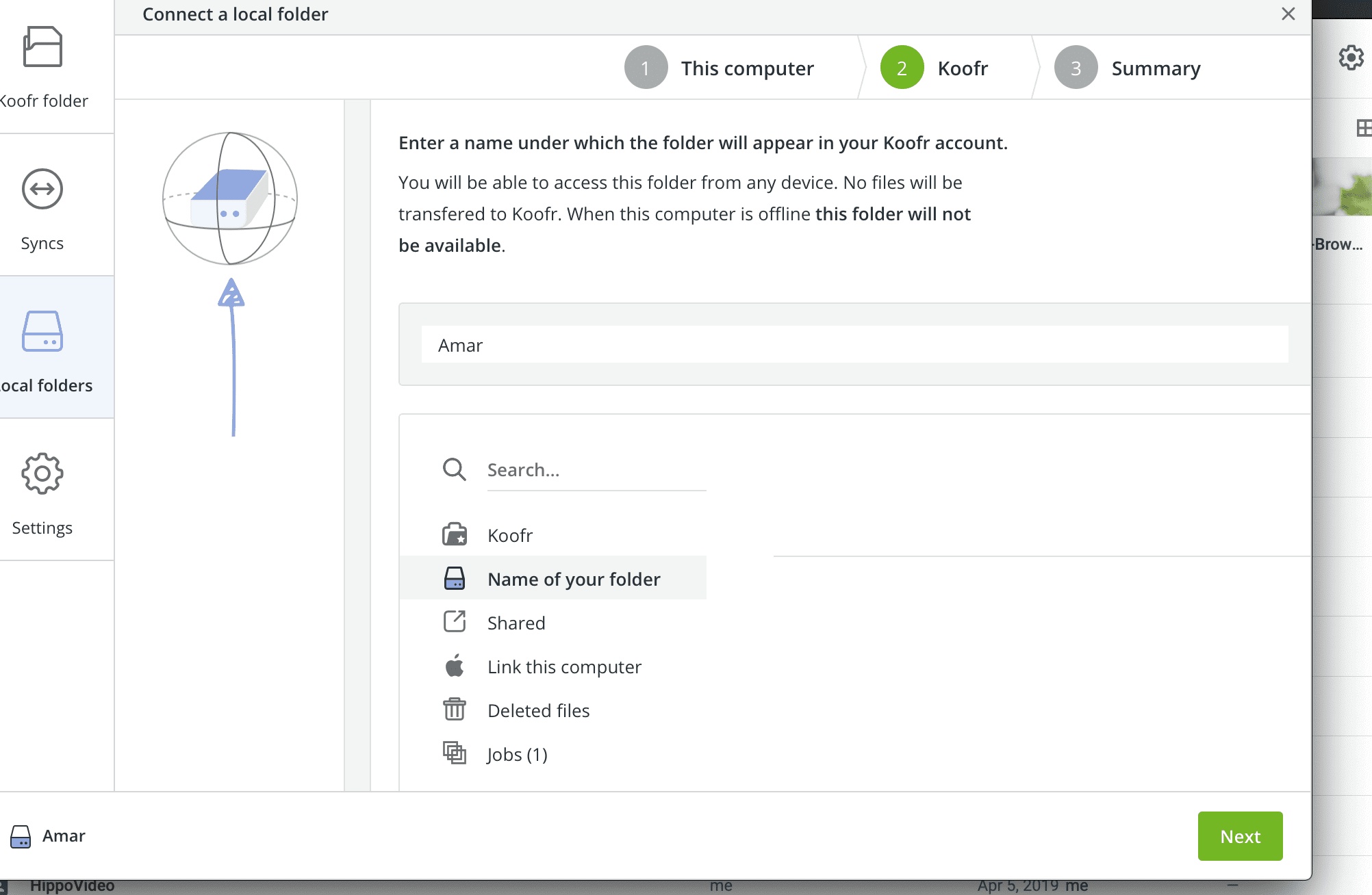
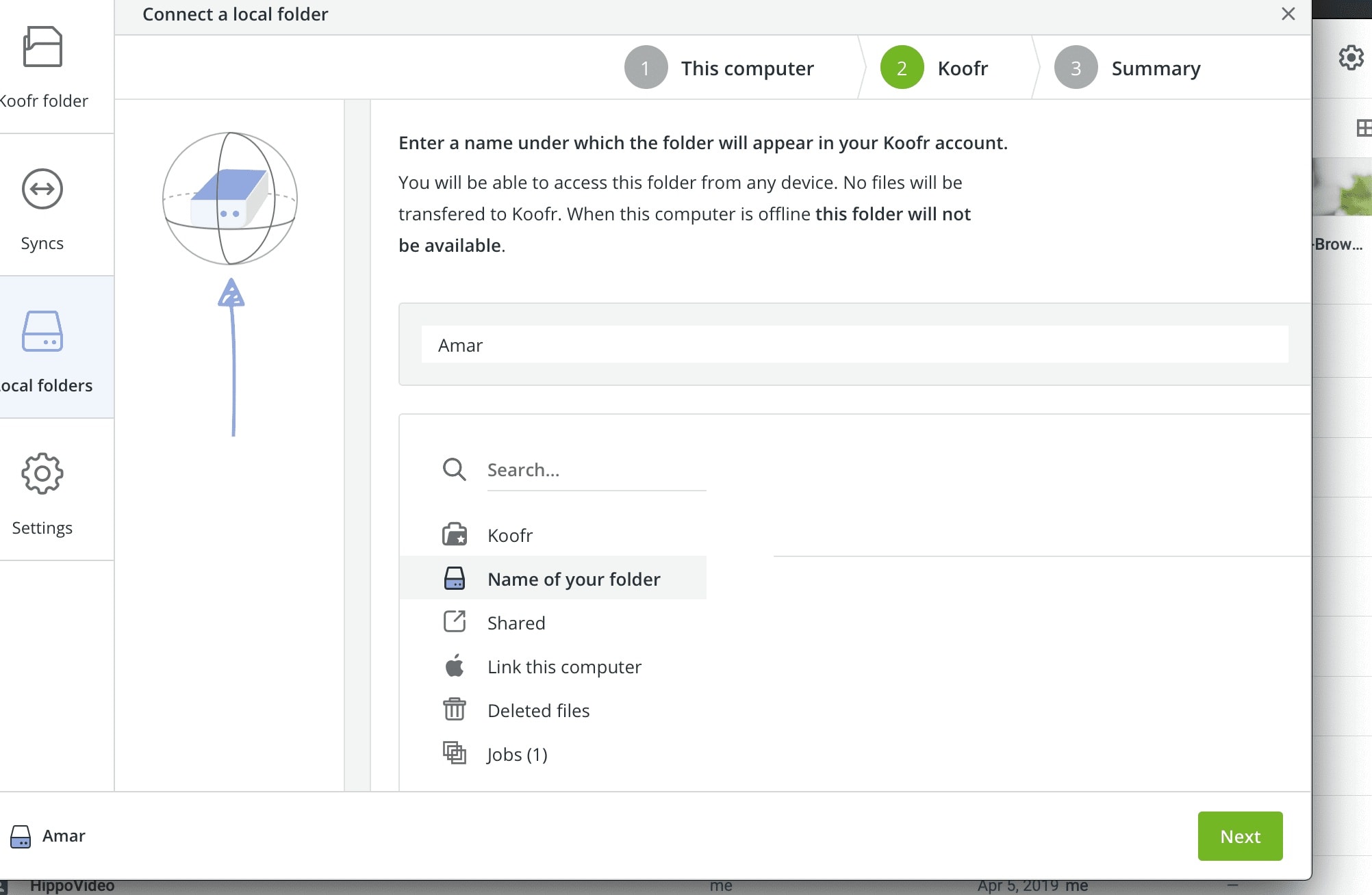
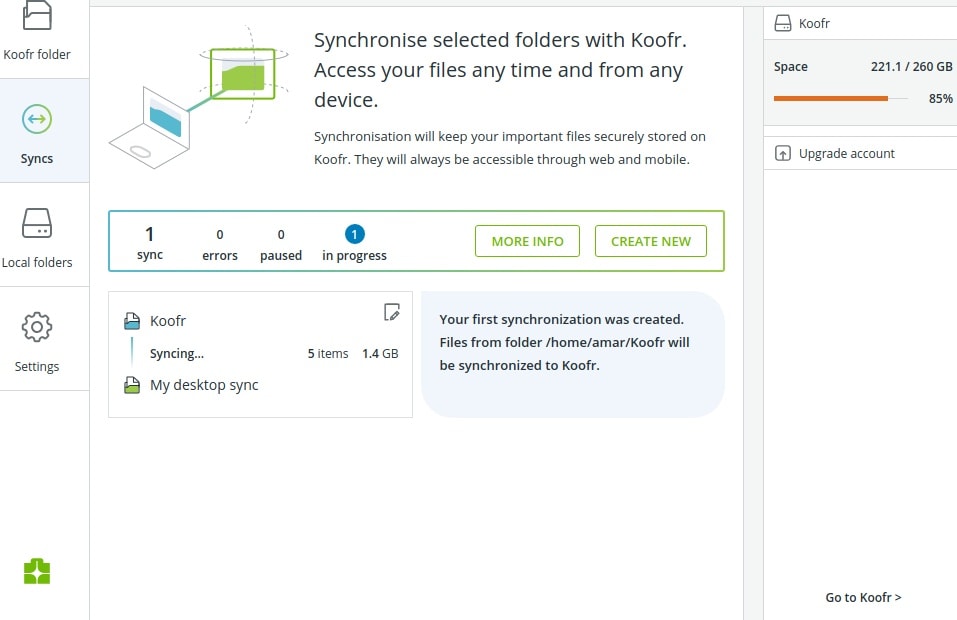
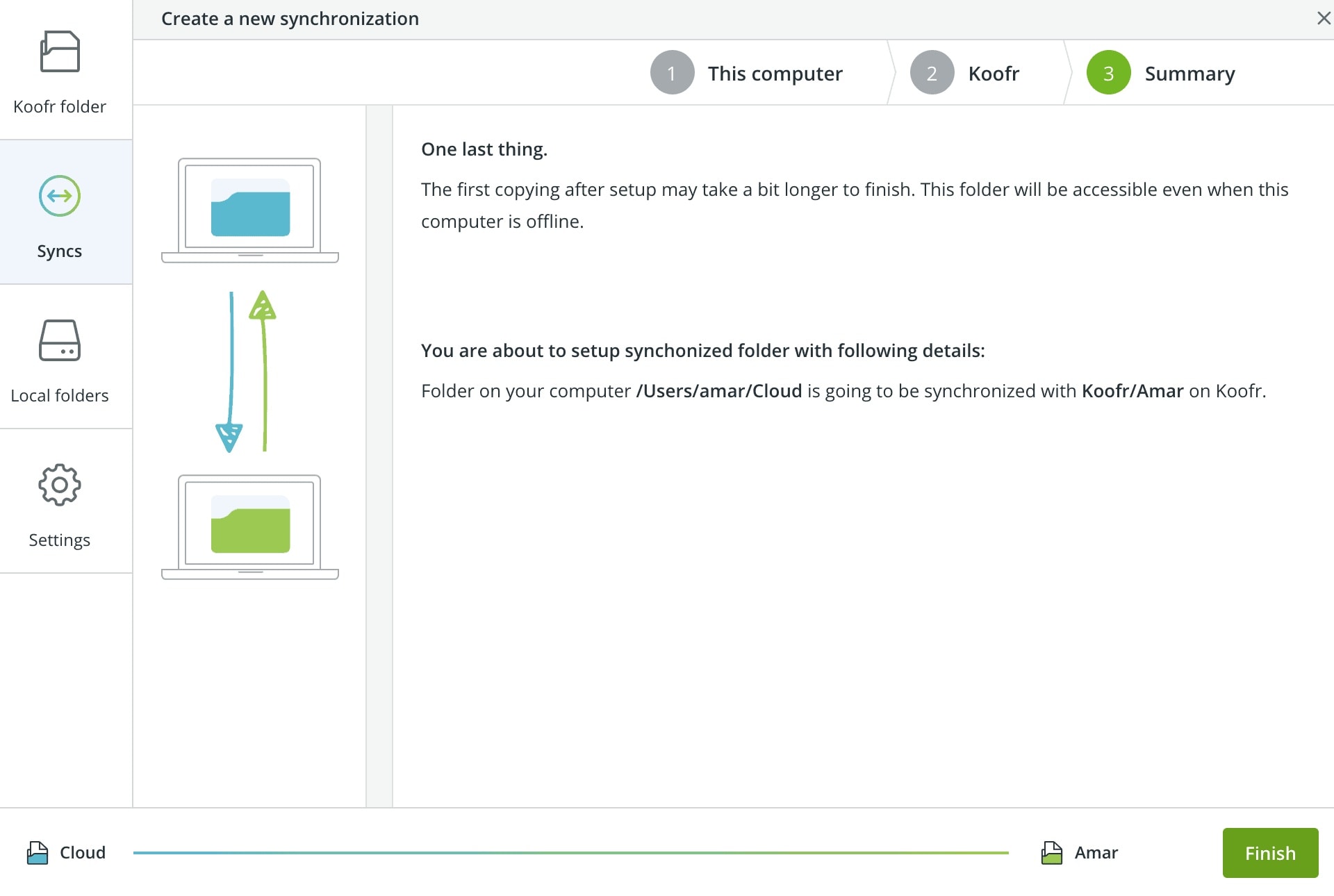
Koofr offers desktop apps for Windows, Mac, and Linux, as well as mobile apps for iOS and Android devices. These apps allow you to access your files on the go and keep them synced across all your devices. The desktop app works similarly to other cloud storage services, with a designated folder on your computer that syncs automatically with your Koofr account. The mobile app provides easy access to your files and allows you to upload photos and videos directly from your device.
Koofr does not impose any limits on the number of devices you can connect to your account, which can be a significant advantage for users who need to access their files from multiple devices.
Advanced Features
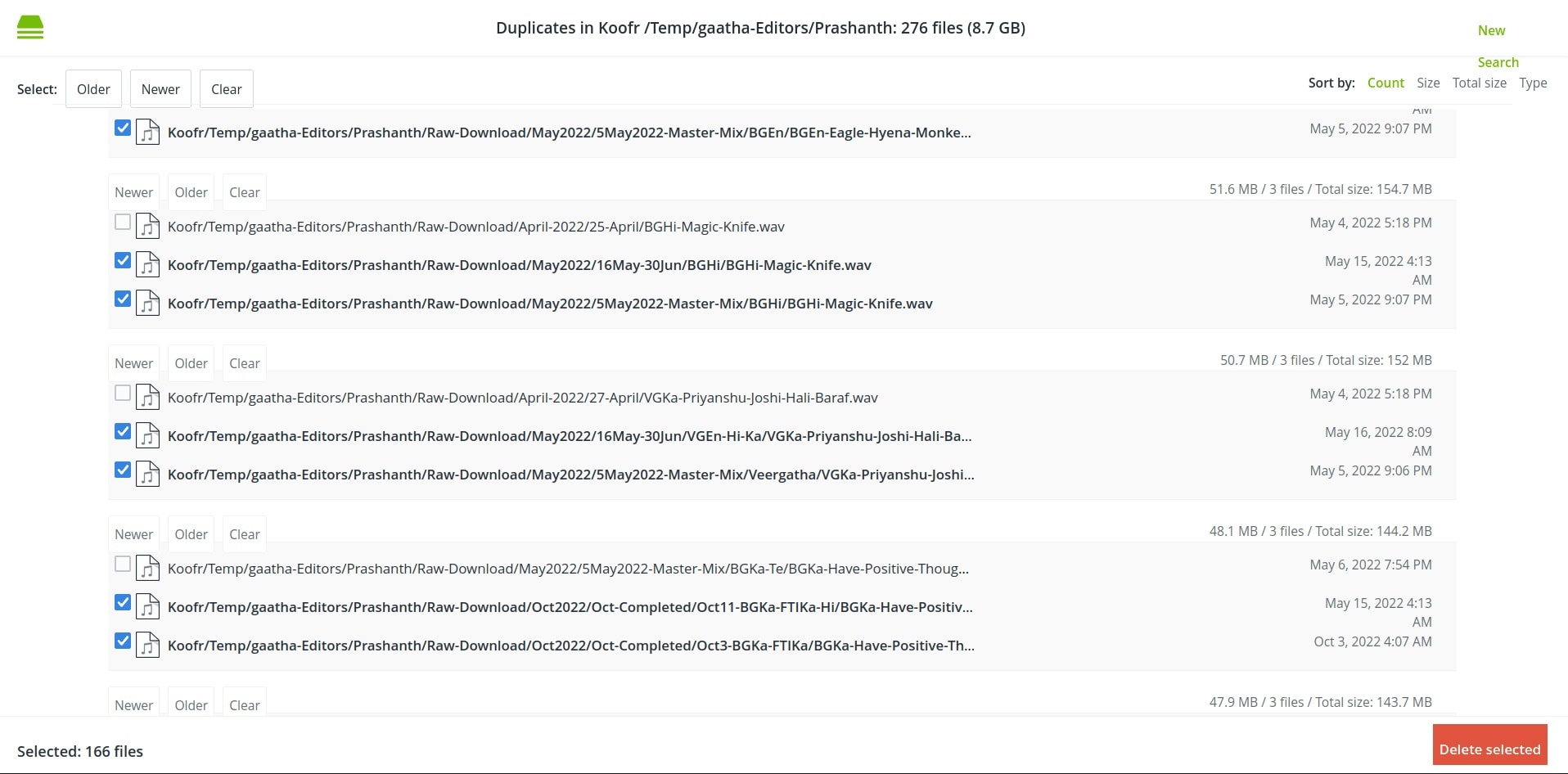
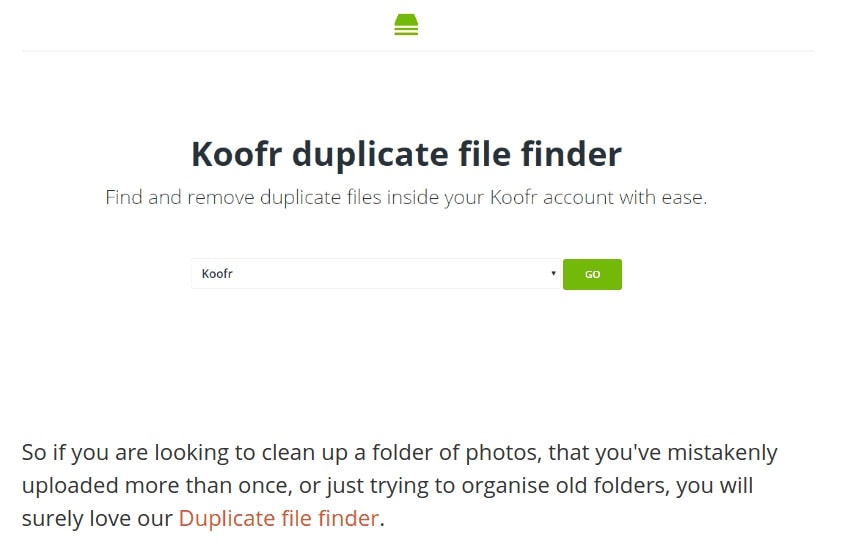
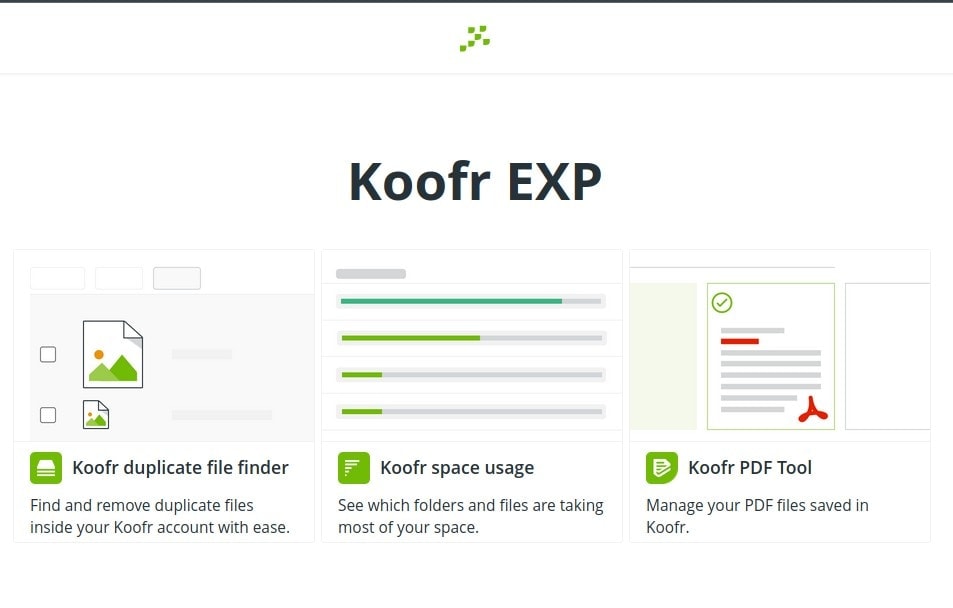
Koofr offers several advanced features that set it apart from other cloud storage services. One such feature is the Duplicate File Finder, which scans your account for duplicate files and allows you to easily delete them to free up space.Another useful feature is the Koofr Vault, which provides an extra layer of security for your most sensitive files. Files stored in the Vault are encrypted end-to-end, meaning only you have access to them. This is perfect for storing confidential documents or personal information.
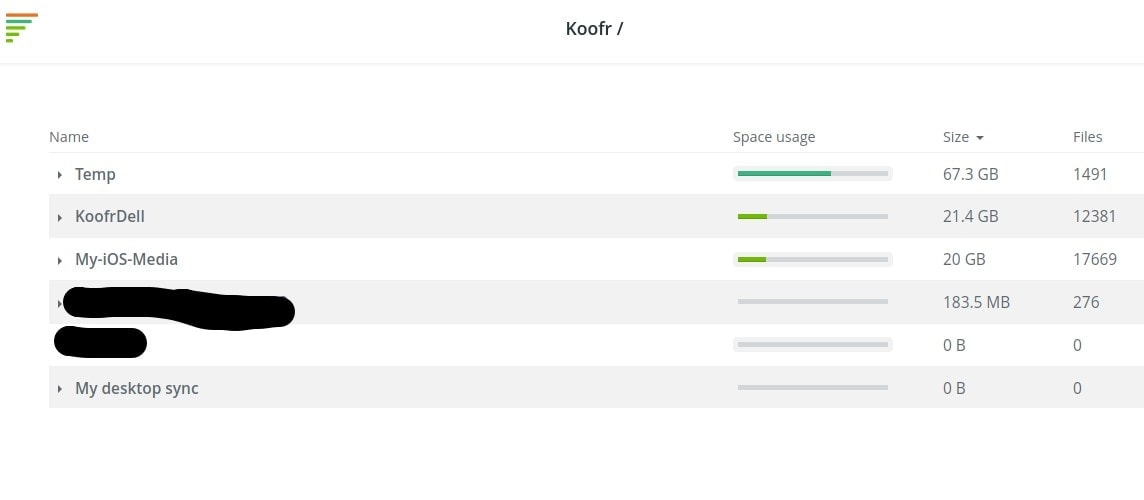
Koofr offers advanced search options, including exact search and improved search algorithms, making it easier to find specific files across your connected cloud accounts. Tools like the Duplicate File Finder and Space Usage Tool (available in paid accounts) help you organize and manage your data more efficiently. Koofr continues to support WebDAV protocol, which is useful for various file management tasks and integrations while many other providers abandon this standard.
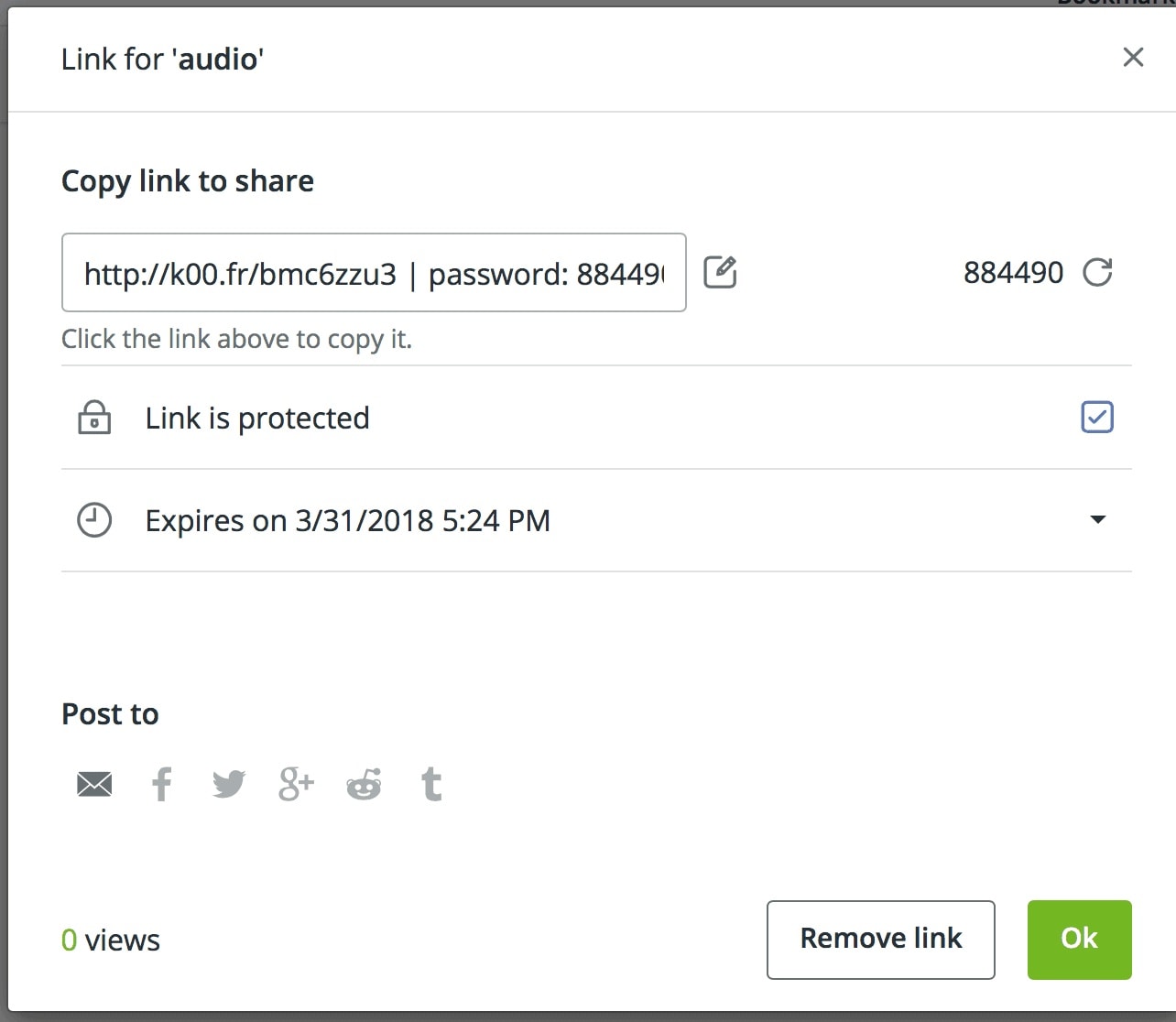
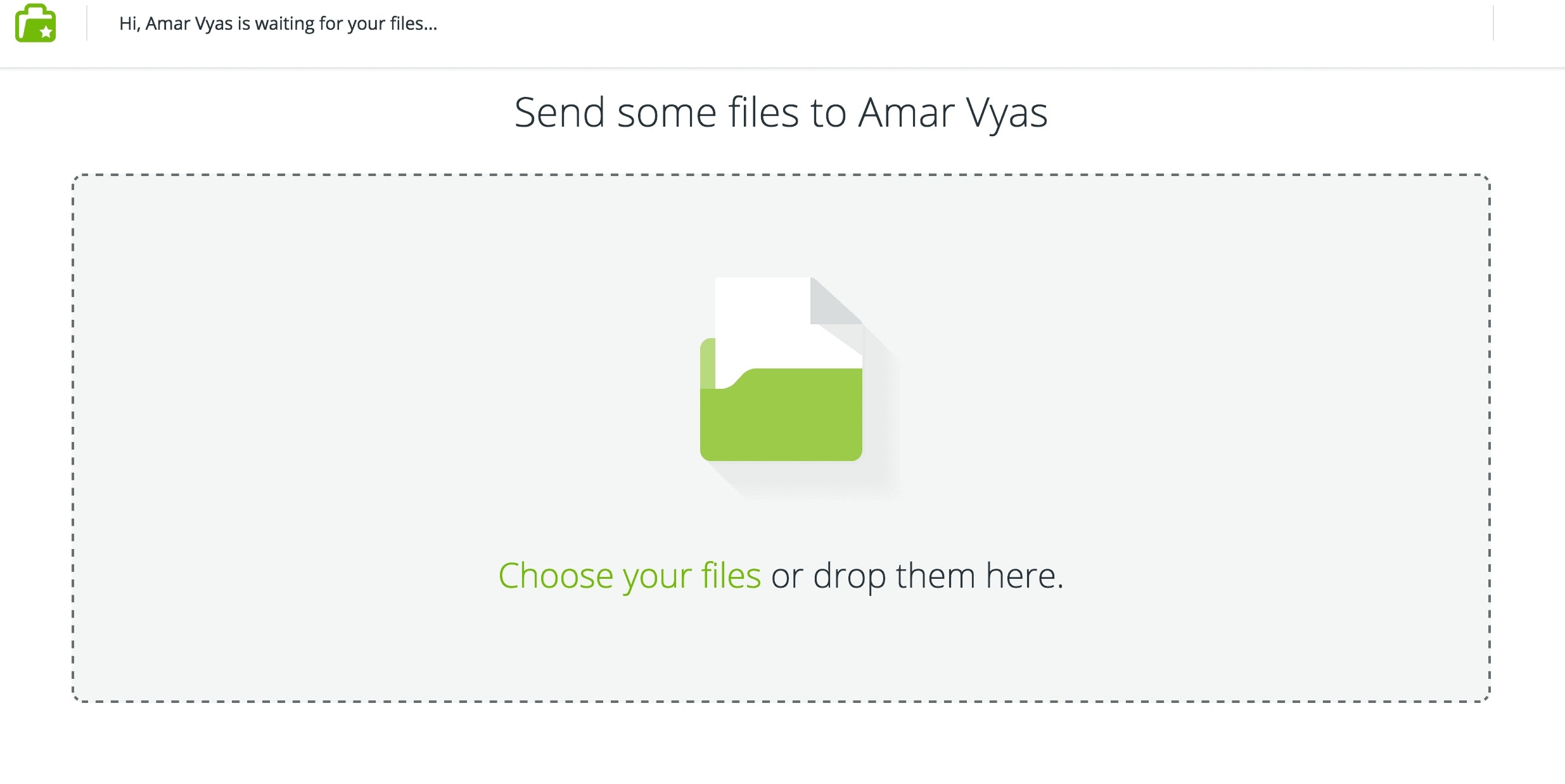
Koofr allows you to receive files from others by generating a unique email address or using a custom email address you set up. This feature can be useful for securely receiving files from multiple sources without sharing your personal email address.
Important Considerations for Enterprise Users
Data Residency and GDPR Compliance
As a European-based company headquartered in Slovenia, Koofr may appeal to users who prefer to store their data within the European Union, subject to EU data protection regulations including GDPR compliance. For organizations with strict data residency requirements, this is a significant advantage over US-based alternatives.
Full Drive Imaging Limitation
Koofr is designed for file synchronization and backup, not for full drive imaging or OS-level cloning. If you need to create complete system images including applications and operating system files, specialist tools like Macrium Reflect are better suited for that task. Koofr excels at backing up user data directories but should complement—not replace—dedicated imaging solutions for disaster recovery.
Pricing and Plans
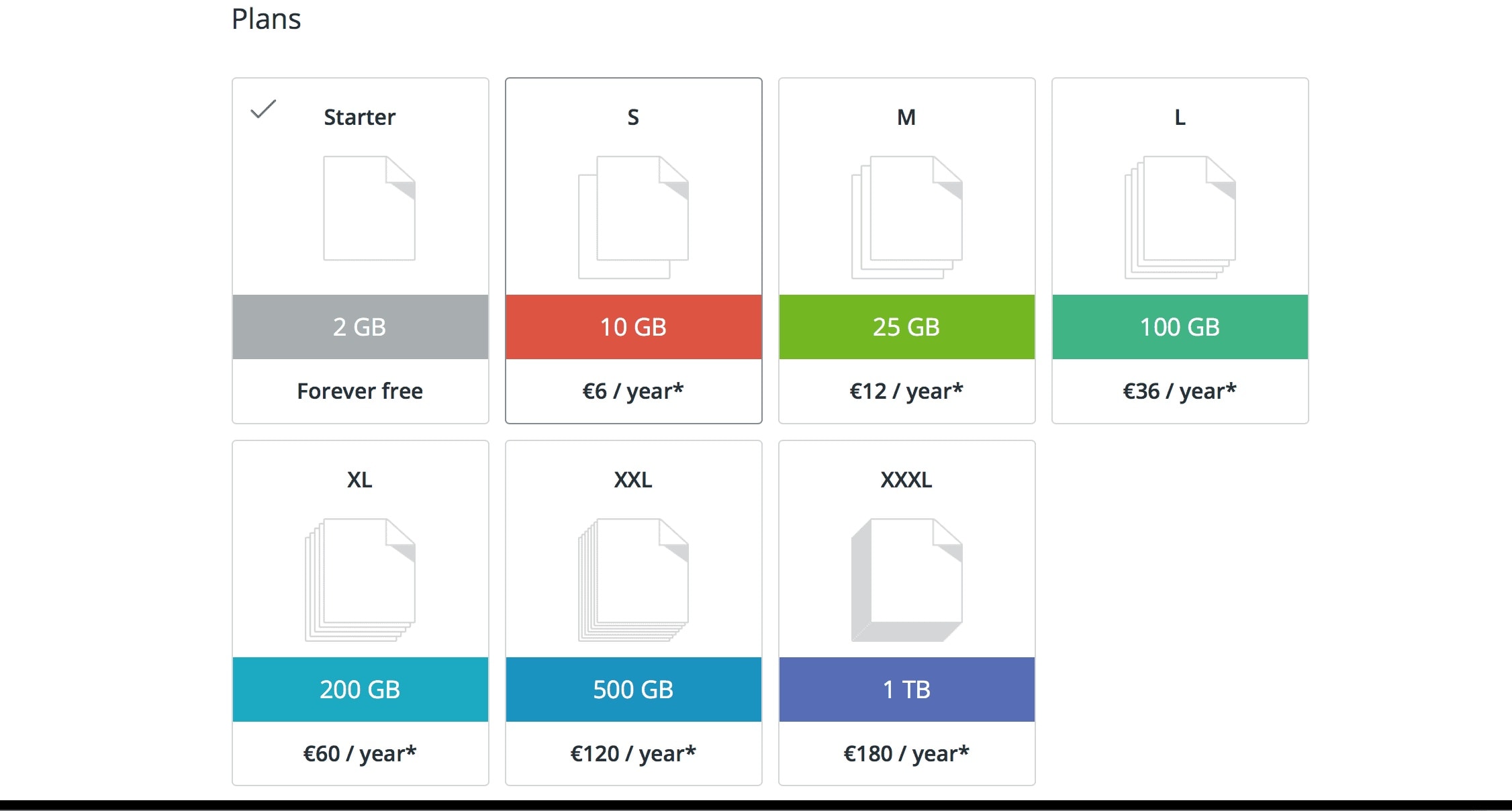
Koofr offers a range of pricing plans to suit different needs and budgets. The free plan includes 2GB of storage, while paid plans start at €9 per month for 100GB ^. There are also options for larger storage capacities and team collaboration features. One thing to note is that Koofr charges for downloads on free accounts after a certain threshold. However, this limit is quite generous and shouldn't be an issue for most users.
^ Check the website for current pricing, as well as deal aggregator sites for lower priced plans and seasonal discounts.
Automated VPS Backups with rclone
After losing critical client data during a server failure last monsoon season, I implemented a bulletproof backup system using rclone. This guide shares the exact scripts and configurations that survived 3 hardware failures and 2 ransomware incidents.
Install rclone
Use this one-liner instead of manual build:
For Debian/Ubuntu:bash sudo -v ; curl https://rclone.org/install.sh | sudo bash For RHEL/CentOS:sudo -v ; curl https://rclone.org/install.sh | sudo bash -s betaVerify installation:rclone version Configure Cloud Storage For Koofr Users:rclone config
n) New remote Name: koofr_backup Type: koofr User: YOUR_KOOFR_EMAIL Password: YOUR_PASSWORD Mountpoint: /backup # Leave blank for rootFor pCloud Users:rclone config n) New remote Name: pcloud_backup Type: pcloud Client ID: # Leave blank Client Secret: # Leave blank Advanced? n Auto config? Y # Follow browser authTroubleshooting Auth Issues:
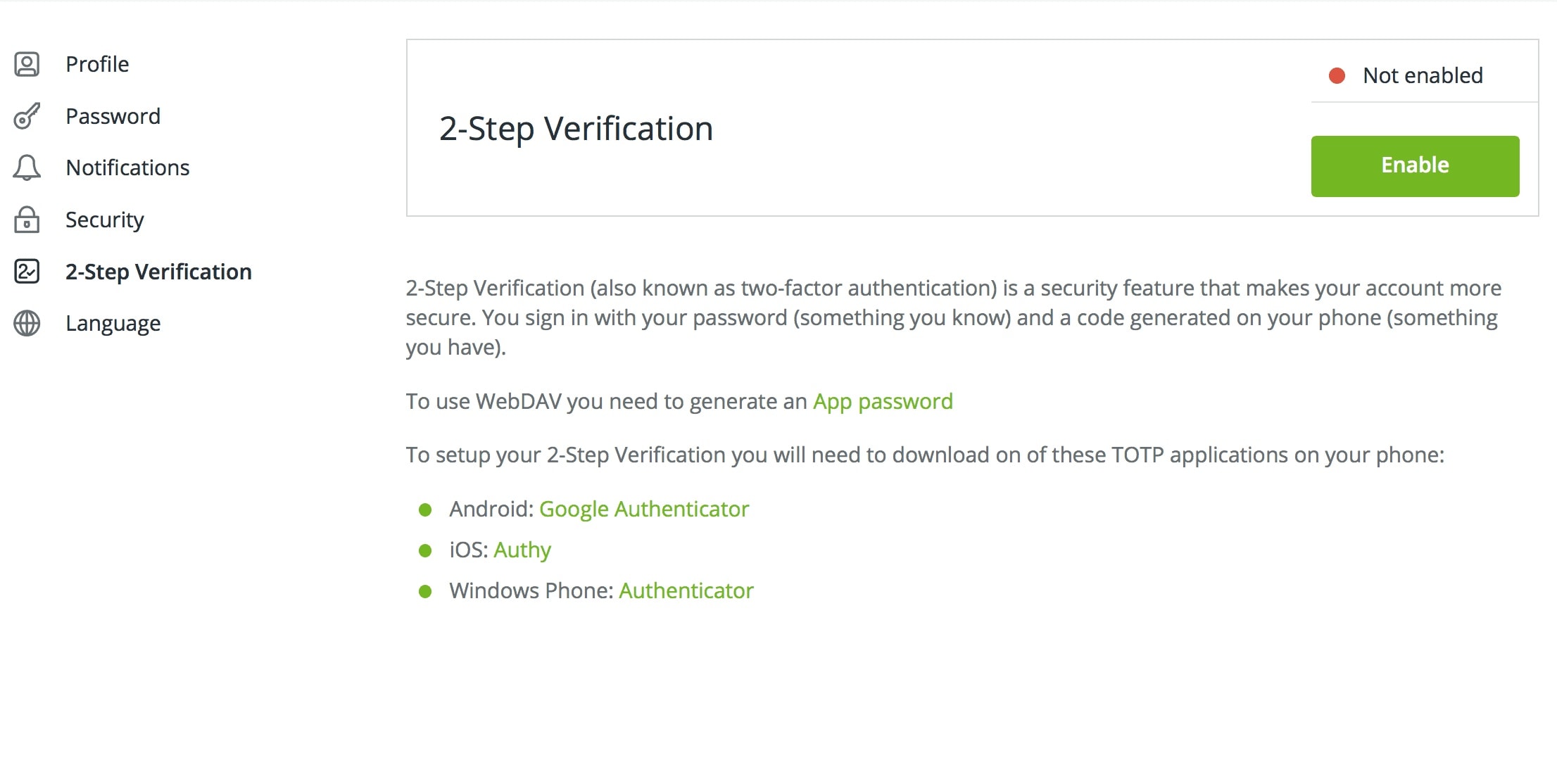
For pCloud: Use --pcloud-auth-url and --pcloud-token-url if behind firewall For Koofr: Enable "Less secure apps" if 2FA blocks access
Test Configuration
Verify connectivity before proceeding: List root directories:rclone lsd koofr_backup:Expected output: -1 2023-08-15 12:34:56 -1 BackupCheck account limits:rclone about koofr_backup: Create Backup Script Create /usr/local/bin/vps-backup.sh:#!/bin/bash
Critical paths to backup
SOURCE_DIRS=( "/etc" "/home" "/var/log" "/var/www" )
Cloud destination
DESTINATION="koofr_backup:backups/$(hostname)"
Log locations
LOG_FILE="/var/log/rclone/backup-$(date +%Y%m%d).log" ERROR_LOG="/var/log/rclone/backup-errors.log"
Create log directory
mkdir -p /var/log/rclone
Backup each directory
for DIR in "${SOURCE_DIRS[@]}"; do echo "[$(date)] Backing up ${DIR}" >> "$LOG_FILE"
rclone sync "$DIR" "$DESTINATION${DIR}" \ --create-empty-src-dirs \ --copy-links \ --log-level INFO \ --log-file "$LOG_FILE" \ --stats 5m \ --stats-log-level NOTICE \ --retries 3 \ --low-level-retries 10 \ --exit-code-on-error
if [ $? -ne 0 ]; then echo "BACKUP FAILED: ${DIR} at $(date)" >> "$ERROR_LOG" fi done
Send notification (requires mailutils)
echo "Backup completed: $(date)" | mail -s "VPS Backup Report" [email protected] Features:
Multiple directory support Separate success/error logs Retry mechanism for spotty connections Email notifications
Automate with Cron or Systemd Make script executable:sudo chmod +x /usr/local/bin/vps-backup.shEdit crontab:sudo crontab -eAdd these lines:# Daily backup at 2:30 AM 30 2 * /usr/local/bin/vps-backup.sh
Weekly log rotation
0 3 0 /usr/bin/find /var/log/rclone -name "backup-*.log" -mtime +30 -deleteAlternative: Systemd Timers (More Reliable) Create /etc/systemd/system/backup.service:[Unit] Description=VPS Backup Service
[Service] Type=simple ExecStart=/usr/local/bin/vps-backup.shCreate /etc/systemd/system/backup.timer:[Unit] Description=Daily Backup Schedule
[Timer] OnCalendar=--* 02:30:00 Persistent=true
[Install] WantedBy=timers.targetEnable with:sudo systemctl enable backup.timer sudo systemctl start backup.timer Security Hardening Critical Steps I Learned the Hard Way: Encrypting Backups:rclone config
e) Encrypt existing remote Name: encrypted_koofr Remote: koofr_backup:backups Password: YOUR_STRONG_PASSWORDService Account Setup:sudo useradd -r -s /bin/false backupuser sudo chown -R backupuser:backupuser /usr/local/bin/vps-backup.sh sudo -u backupuser rclone config ...Resource: rclone Encryption Documentation
Monitoring and Troubleshooting
Install monitoring tools for peace of mind: Logwatch:sudo apt install logwatch
Configure in /usr/share/logwatch/default.confPrometheus Alert Example:- alert: BackupFailed
expr: increase(rclone_errors_total[24h]) > 0 for: 1h labels: severity: criticalCheck logs manually:# Check last 10 errors grep -i "error" /var/log/rclone/backup-*.log | tail -10
Monitor in real-time
tail -f /var/log/rclone/backup-$(date +%Y%m%d).log FAQs Q: Backups stall at 100% CPU usage. Fix? A: Add these parameters to your rclone command:--bwlimit 20M \ # Limit bandwidth usage --checkers 4 \ # Reduce parallel file checks --transfers 2 \ # Limit simultaneous transfers --use-mmap \ # Fix memory issues --disable-http2Q: How to restore files from Koofr/pCloud? A: Use this recovery command:# Restore entire directory rclone copy koofr_backup:backups/server/etc /etc
Restore single file
rclone copyto koofr_backup:backups/server/home/user/important.txt /home/user/Q: Cron job runs but no backups? A: Diagnose with:
Check mail for cron output: sudo mail
Test without cron: sudo run-parts --test /etc/cron.daily Check permissions: sudo -u backupuser /path/to/script.sh

Migrating from Google Drive to Koofr
When you have a free Google account with 15 gigabytes of total storage and you run out of space, migrating files to Koofr becomes necessary. Here are five proven methods:
Method 1: Browser Copy
This is the safest approach for most users.
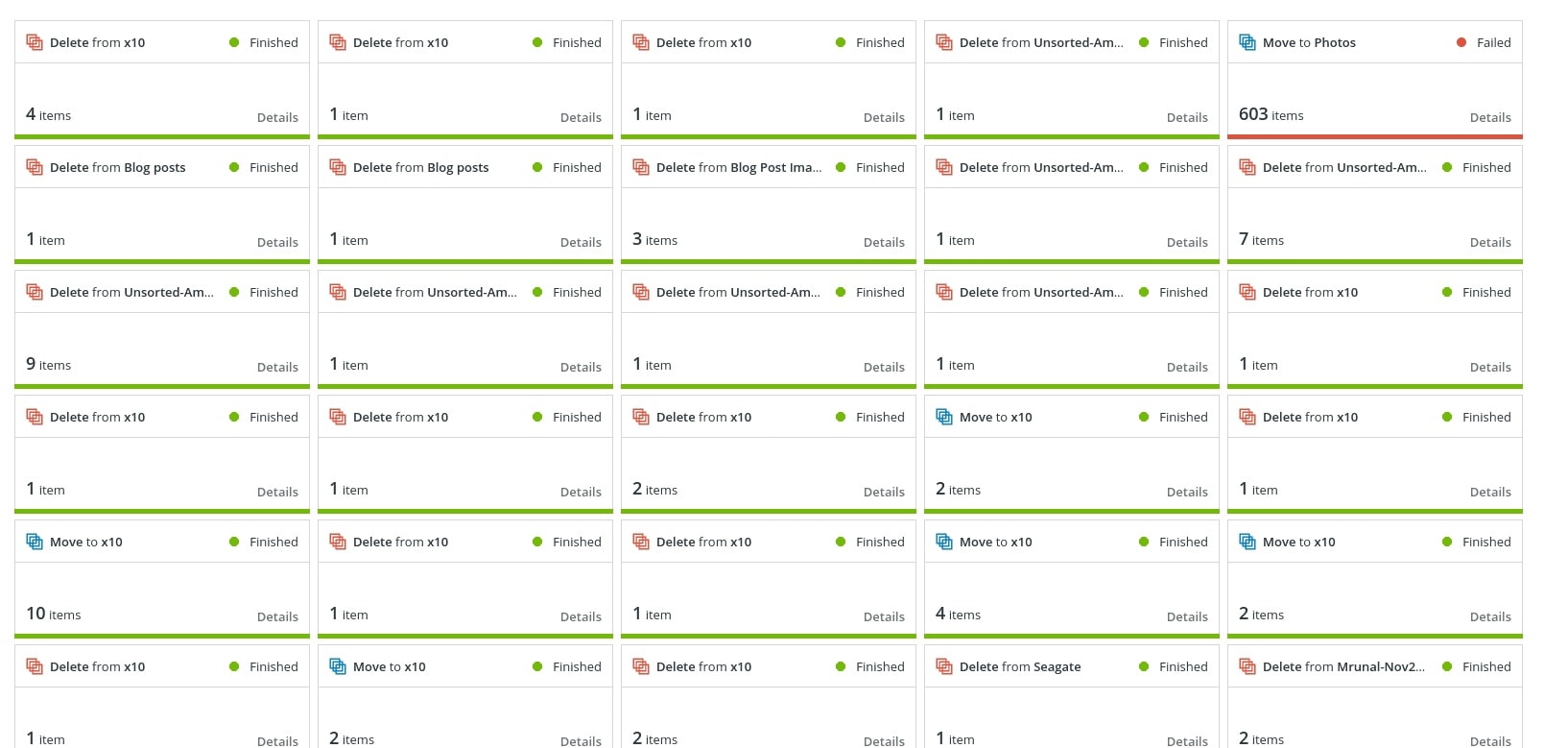
In Koofr connect Google Drive account A to Koofr. Copy "Sync" folder from Google Drive A to Koofr. Copy, not move. In Move option, if an error occurs, you lose the files. Remember, it is like cut+paste versus copy+paste.
Once transfer is complete, check in Koofr status if all files have transferred. Then delete "Sync" from Google Drive.
All can be done via web browser.
Method 2: rclone on VPS
These days, I prefer a VPS with rclone configuration to move files from Google Drive to Koofr.
Keep a similar folder structure, from Google Drive copy the "Sync" folder to VPS. Alternative to copy: Use rclone sync command.
Next, from VPS move files to Koofr.
Delete from Google Drive and VPS once files' sanity check is done on Koofr. I like to keep the option of --log-file transfer.log flag in rclone for transfer or sync.
Method 3: Local Download-Upload
Download the "Sync" folder from Google Drive to local machine. Google Drive will make a .zip and send to you. In Chrome you get automatic download as always. In Firefox also, up to 10 GB no problem faced by me.
Unzip the folder into local machine, sync locally with Koofr app if installed on local machine. Or, upload the zip to Koofr and unzip.
Delete originals from Google Drive and local.
Method 4: Hot Sync Desktop Apps
On Mac or Windows (possible in Linux too but haven't tried), install Google Drive and Koofr apps.
"Hot sync" Google Drive's "Sync" folder to local machine. All content gets downloaded to local.
Next, Disconnect Google Drive. Then, "Hot sync" same folder to Koofr. All files get uploaded there. Identical folder structure.
Disconnect Koofr from local machine.
Finally, Delete "Sync" folder from local and Google Drive.
Method 5: Share-Transfer Trick
Open a new Google account. Let us call this new account as account B. Invite your new account (B) from existing account (A): ie share "Sync" folder from Google Drive A with new account, Google Drive B. Log out.
Next, Log on as account B, copy shared folder to Google Drive of B.
Log out from B.
Log on to A, disconnect the share, delete the "Sync" folder from A.
Koofr Update for 2026
Koofr has continued to evolve with improved performance and additional integrations throughout 2024-2026. Recent updates include enhanced mobile app stability, faster file transfer speeds for large datasets, and expanded API capabilities for third-party integrations. The pricing structure remains competitive, and the European data center footprint has expanded to accommodate growing enterprise demand.Conclusion
Overall, Koofr is a fantastic choice for anyone looking for a reliable and feature-rich cloud storage solution. With its ability to connect multiple accounts, integrate with Microsoft Office, and provide advanced security features like the Koofr Vault, it's easy to see why so many people are making the switch.Links and References
- Koofr Cloud Storage Review by Cloudwards
- Koofr Review by TechRadar
- Koofr Review: A Safe and Easy-to-Use Cloud Storage Service by Lifewire
If you're ready to take your cloud storage to the next level, give Koofr a try. With its user-friendly interface, advanced features, and affordable pricing, it's sure to become your go-to solution for all your file management needs.
Click to view more image galleries
Additional Image Galleries (Future Content)