Related: This guide complements the Debian SSH Mastery series. Mosh requires a working SSH setup for its initial handshake.
Introduction
Mosh (Mobile Shell) is a UDP-based replacement for interactive SSH sessions. It survives IP changes, laptop sleep, and high-latency networks by predicting your keystrokes locally.
Summaries
English:
Mosh is a remote terminal tool for unreliable networks. This guide explains how it differs from SSH, how to install it on Debian, and how to configure the UDP firewall. You will learn the essential connection commands, escape sequences, and the hard limitations that keep SSH relevant. By the end, you will have a cheat sheet for daily use and know exactly when to switch back to standard SSH.
Hindi Summary:
Mosh एक रिमोट टर्मिनल टूल है जो अस्थिर नेटवर्क्स के लिए बना है। यह गाइड बताती है कि Mosh SSH से कैसे अलग है, Debian पर इसे कैसे इंस्टॉल करें, और UDP फायरवॉल कैसे कॉन्फ़िगर करें। आप आवश्यक कनेक्शन कमांड्स, एस्केप सीक्वेंस, और सीमाएँ सीखेंगे जो SSH को प्रासंगिक रखती हैं।
How Mosh Works
- Predictive local echo: Keystrokes appear instantly on your screen before the server confirms them. This removes the lag you feel on high-latency links.
- Session persistence: Close your laptop lid, change coffee shops, or switch from Wi-Fi to tethering. Mosh reconnects without dropping your shell state.
- Bootstrap via SSH: Your first connection always uses SSH to authenticate and start the server process. You cannot use Mosh if SSH is completely blocked.
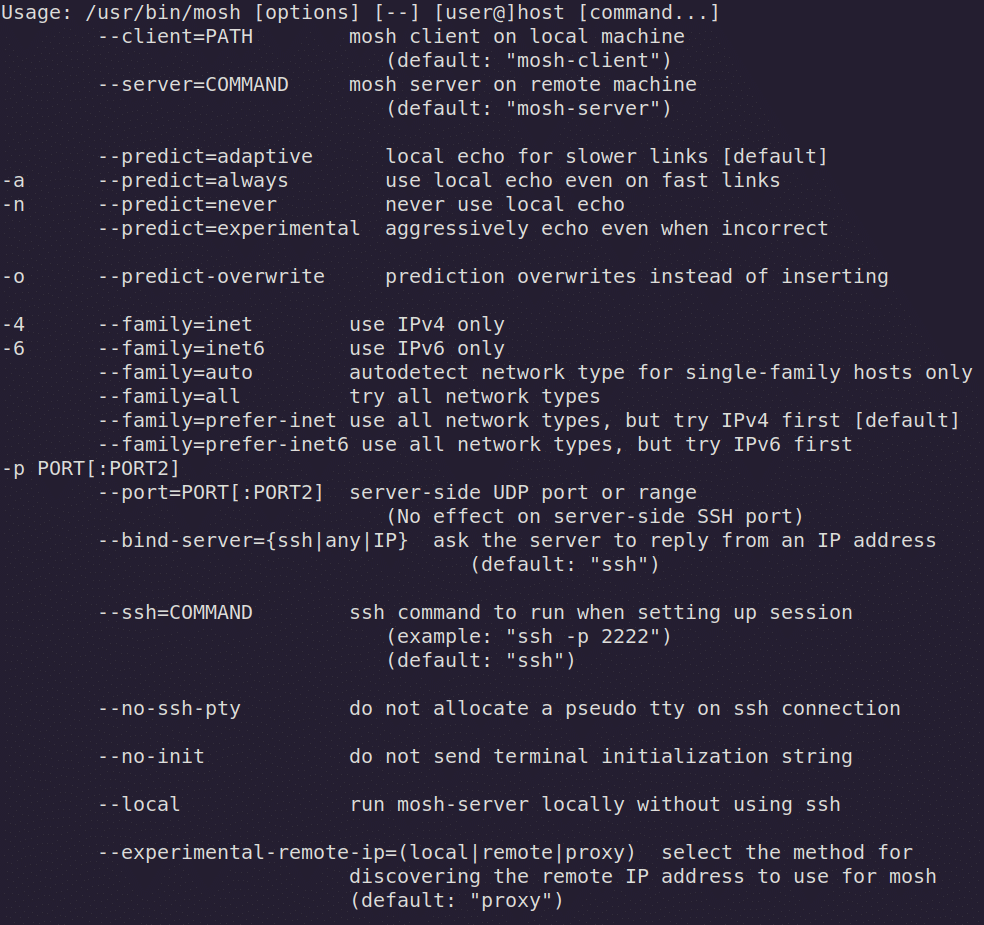 Commands for Mosh (dark mode)
When to use Mosh
- Use Mosh when: You are on trains, cafés, or switching between Wi-Fi and 4G.
- Avoid Mosh when: You need file transfers (
scp,rsync), port forwarding (-L/-R/-D), or tunneling. Use standard SSH for those. - How it works: Mosh opens a real SSH connection briefly to spawn
mosh-server, then hands the session off to an encrypted UDP channel. If your network drops, it buffers state and reconnects silently.
Limitations and When to Use SSH Instead
Mosh is not a full SSH replacement. Know where the line is.
- No file transfers. You cannot run
scp,rsync, orsftpthrough Mosh. Return to SSH. - No port forwarding. Local (
-L), remote (-R), and dynamic (-D) tunnels do not exist in Mosh. Use SSH orsshuttle. - No native scrollback. Mosh synchronizes only the visible screen state. For full scrollback and session history, run
tmuxorscreeninside Mosh. - Requires initial SSH access. If the server blocks SSH entirely, Mosh cannot bootstrap.
Installing Mosh and Opening the Firewall
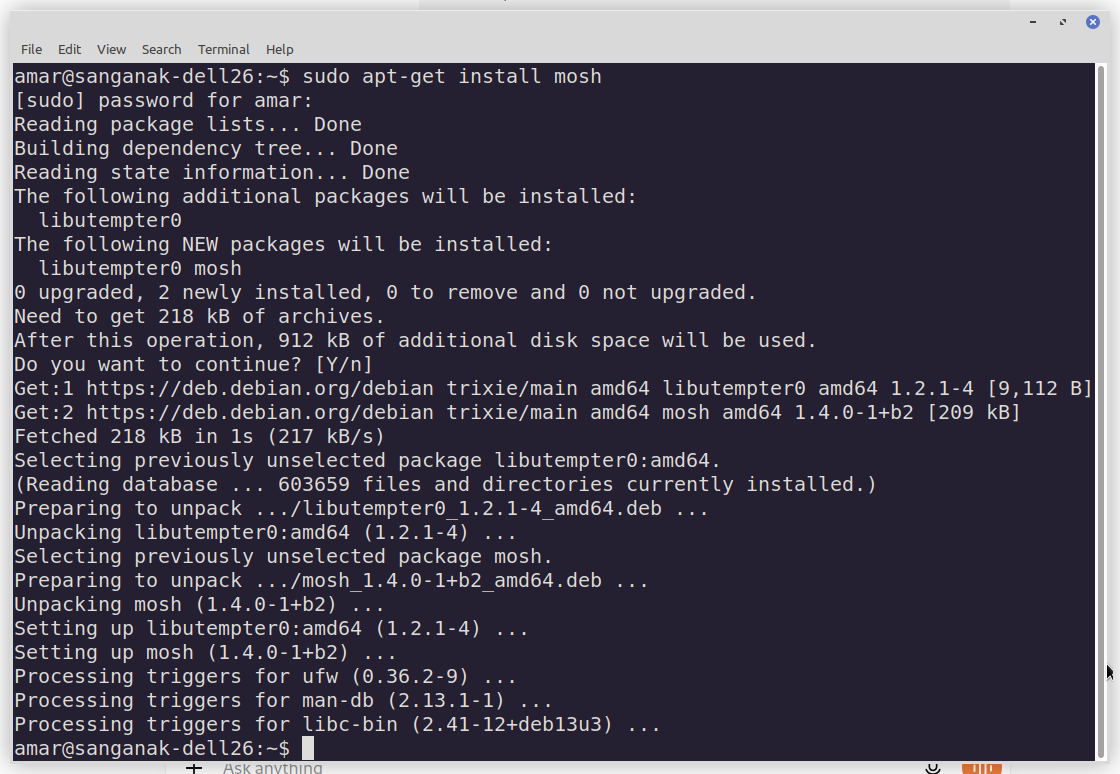
Mosh must be installed on both machines - client and server. We will show below how to install mosh on Debian.
Install on Client and Server
$ sudo apt update && sudo apt install moshAllow UDP Ports
Mosh does not use TCP port 22 for its data stream. It negotiates a UDP port between 60000 and 61000. If you use a different firewall, allow inbound UDP on that same range. Open this range on the server:
$ sudo ufw allow 60000:61000/udpThe Essential Commands for Mosh
| Task | Command / Shortcut |
|---|---|
| Connect to host | mosh user@remote-ip |
| Non-standard SSH port | mosh --ssh="ssh -p 2222" user@remote-ip |
| Specific identity key | mosh --ssh="ssh -i ~/.ssh/key" user@remote-ip |
| Combine port and key | mosh --ssh="ssh -p 2222 -i ~/.ssh/id_ed25519" user@remote-ip |
| Force predictive echo on | mosh --predict=always user@remote-ip |
| Disable predictive echo | mosh --predict=never user@remote-ip |
| Emergency client detach | Ctrl+^ followed by . |
| Suspend session | Ctrl+^ followed by Ctrl+Z |
Additional Flags
-
Force predictive echo on immediately:
$ mosh --predict=always user@remote-ip -
Disable predictive echo:
$ mosh --predict=never user@remote-ip -
Combine custom port and key:
$ mosh --ssh="ssh -p 2222 -i ~/.ssh/id_ed25519" user@remote-ip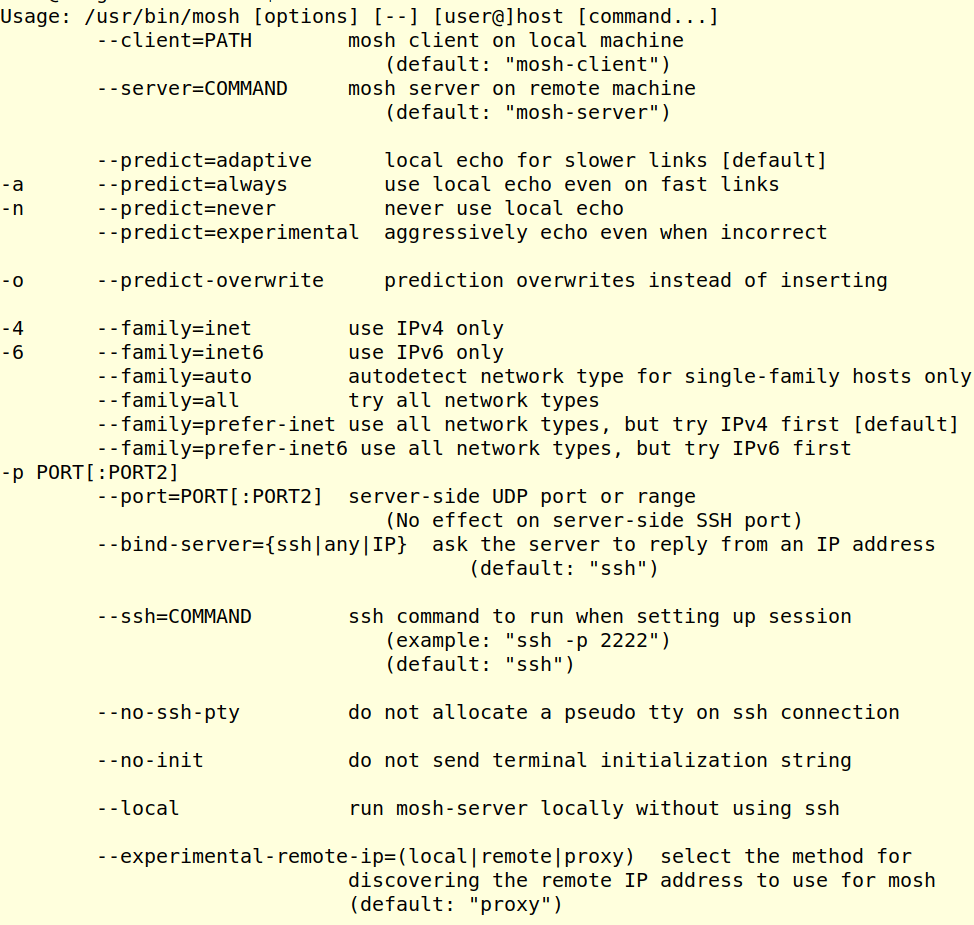 Commands for Mosh (bright mode)
Conclusion
Mosh gives you a shell that moves with you. You installed it, opened the firewall, and have a command matrix ready. Remember the rule: Mosh for roaming interactive shells, SSH for everything else.
Key Takeaways:
- Mosh uses UDP and survives IP changes, sleep, and network drops.
- Install
moshon both sides and allow UDP ports 60000–61000. - Use
--ssh="..."to pass custom ports or identity files through to the bootstrap SSH command. - Mosh is for interactive shells only; return to SSH for file copies and tunnels.
- Pair Mosh with
tmuxon the server if you need persistent scrollback history.
FAQ Section:
1. Is Mosh more secure than SSH?
Mosh uses AES-OCB encryption and authenticates via your existing SSH keys during bootstrap. It is not inherently more secure, but its smaller UDP-based attack surface differs from SSH's.2. Can I use Mosh on Windows?
Yes, via Windows Subsystem for Linux (WSL). Native Chrome and mobile clients also exist. The Debian server instructions remain the same.3. Why does Mosh need SSH to start?
Mosh has no system-wide daemon likesshd. It logs in via SSH briefly to spawn a per-user mosh-server process on a random UDP port, then drops the TCP connection.
Call-to-Action:
Install Mosh on your Debian laptop and server today. Try connecting, switch your Wi-Fi off and on mid-session, and watch the prompt survive. Then return to the Debian SSH Mastery series to keep your underlying SSH setup hardened.
Links and Resources
- What Is SSH?
- Mosh Official: https://mosh.org/
- Mosh GitHub: https://github.com/mobile-shell/mosh
- Debian Mosh Package: https://packages.debian.org/search?keywords=mosh