
Introduction
If you're running a Virtual Private Server (VPS), you've probably wondered about the best way to back up your data. Many users assume their hosting provider handles backups automatically—but that's a dangerous misconception.
Understanding the right backup tools can save you from catastrophic data loss. In this guide, we'll compare two powerful tools: Rsync and Rclone. By the end, you'll know exactly which one fits your needs.
Summaries
This blog post explores the critical differences between Rsync and Rclone for VPS backup strategies. Rsync excels at local and server-to-server synchronization, while Rclone specializes in cloud storage integration with providers like AWS S3, Google Drive, and Backblaze B2.
We'll examine when each tool is appropriate, their limitations, and how combining both can create a robust backup architecture.Whether you need fast internal sync or offsite redundancy, this guide helps you make an informed decision for your server backup needs.
Hindi Summary
यह ब्लॉग पोस्ट VPS बैकअप रणनीतियों के लिए Rsync और Rclone के बीच महत्वपूर्ण अंतर की पड़ताल करता है। Rsync स्थानीय और सर्वर-टू-सर्वर सिंक्रनाइज़ेशन में उत्कृष्ट है, जबकि Rclone AWS S3, Google Drive और Backblaze B2 जैसे प्रदाताओं के साथ क्लाउड स्टोरेज एकीकरण में विशेषज्ञ है। हम यह भी देखेंगे कि दोनों को मिलाकर एक मजबूत बैकअप आर्किटेक्चर कैसे बनाया जाए।
Why VPS Backup Strategy Matters
Many VPS users make a critical mistake: they assume their hosting provider automatically backs up their data.This assumption can lead to devastating consequences. While some providers offer snapshots, these are not a complete backup solution.
Snapshots are point-in-time images of your server. They're useful for quick rollbacks but have limitations:
- They're stored on the same infrastructure as your VPS
- If the provider experiences a major outage, snapshots may be inaccessible
- They don't protect against account-level issues or billing problems
A robust backup strategy requires multiple copies in different locations. This is where tools like Rsync and Rclone become essential.
Rsync for VPS Backup
Rsync has been the go-to tool for file synchronization since 1996. It's fast, efficient, and built into most Linux distributions.
When Rsync Is Enough
Rsync shines in specific scenarios:
- Local backups: Copy files to an attached storage device or another partition
- SSH sync between servers: Transfer files securely between VPS instances
- NAS targets: Synchronize with Network Attached Storage devices
For server-to-server transfers, Rsync uses delta encoding. This means it only transfers the changed portions of files, making it incredibly efficient for large datasets with minor modifications.
Rsync Limitations
Despite its strengths, Rsync has notable limitations:
- Not cloud-native: Rsync doesn't natively support cloud storage APIs
- No API integrations: You can't directly sync to AWS S3, Google Drive, or similar services
- Manual scheduling: While you can use cron jobs, Rsync lacks built-in scheduling features
These limitations become problematic when you need offsite redundancy through cloud storage.
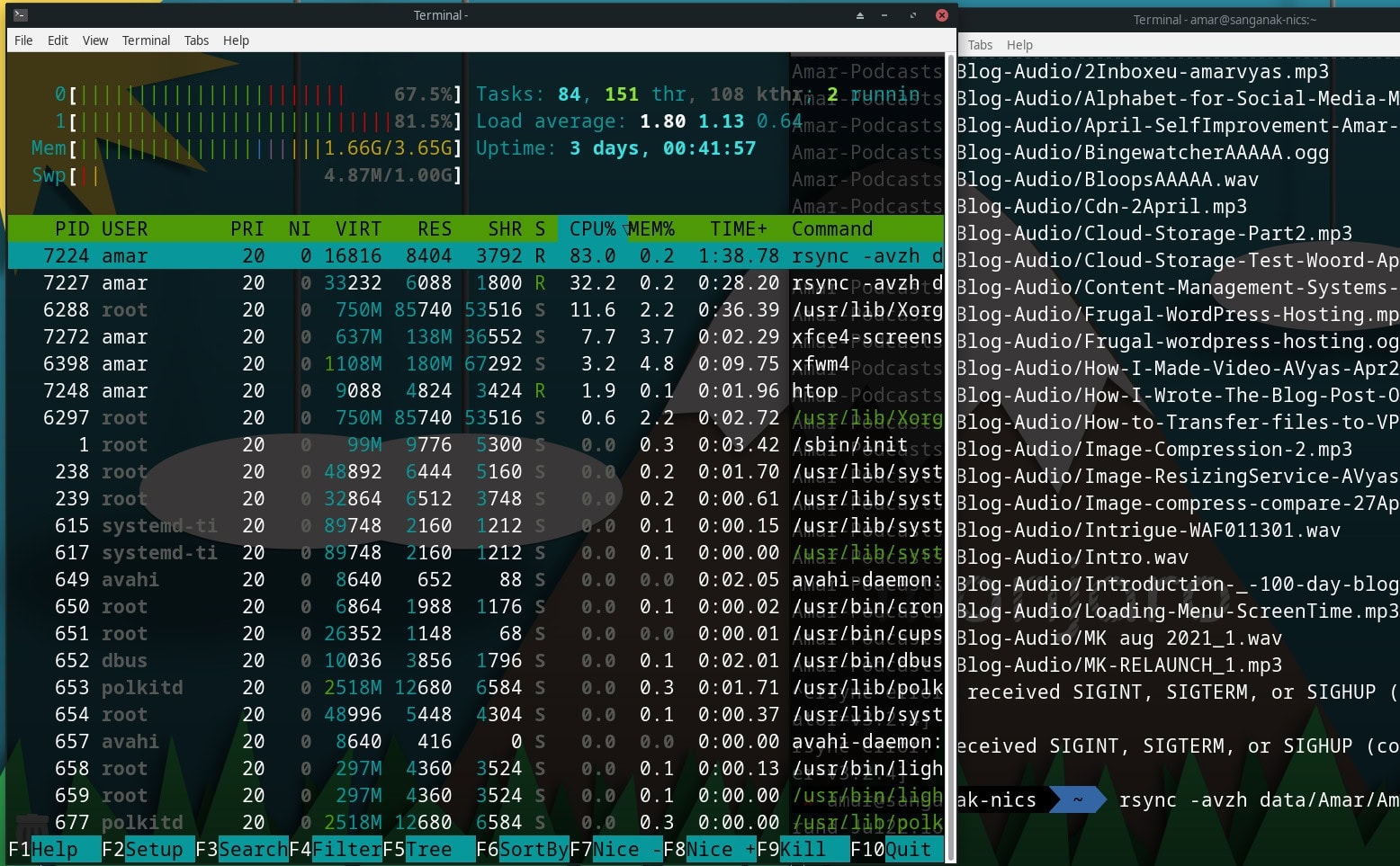 Rsync consumes low resource- rsync running on laptop with Debian and XFCE
Rclone for VPS Backup to Cloud Storage
Rclone is often called "the Swiss Army knife of cloud storage." It's a command-line tool that manages files on cloud storage providers.
What Is Rclone?
Rclone is a powerful, open-source tool that syncs files and directories to and from various cloud storage providers. It supports over 40 different backends, making it incredibly versatile.
Key features include:
- Encryption: Built-in encryption for data at rest and in transit
- Bandwidth control: Limit transfer speeds to avoid overwhelming your connection
- Mounting: Mount cloud storage as a local filesystem
- Checksum verification: Ensure data integrity after transfers
Learn more in my post introduction to rclone.
Supported Cloud Storage Providers
Rclone supports an impressive range of cloud storage providers:
- Dropbox: Personal and business accounts
- Google Drive: Including Shared Drives
- Amazon Web Services (S3): All S3-compatible storage
- Backblaze (B2): Cost-effective cloud storage
- Microsoft OneDrive: Personal and business
- Wasabi: S3-compatible hot cloud storage
This flexibility means you can choose the provider that best fits your budget and requirements.

Rclone vs Rsync – Side-by-Side Comparison
| Feature | Rsync | Rclone |
|---|---|---|
| Local backup | Yes | Yes |
| Cloud integration | No | Yes |
| Encryption | Limited | Yes |
| S3 compatible | No | Yes |
| Ease of automation | Medium | High |
| Best for | Server-to-server | Server-to-cloud |
Backup Architecture Examples
Let's explore three common backup architectures:
Example 1 – VPS → VPS (rsync)
Ideal for quick, local redundancy. You maintain a secondary VPS and use Rsync to keep files synchronized.
Example 2 – VPS → S3 (rclone)
Perfect for offsite backups: Rclone transfers your data to AWS S3 or S3-compatible storage like Backblaze B2.
Example 3 – Hybrid (Local + Cloud)
The most robust approach: use Rsync for fast local sync and Rclone for cloud redundancy.
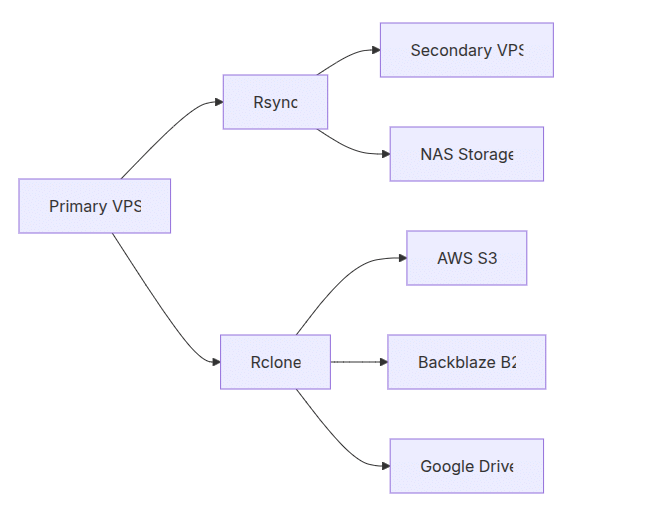 Backups using Rsync and RClone
Should You Use Both Rsync and Rclone?
The short answer: Yes, often.
Here's why combining both tools makes sense: Rsync for fast internal sync: Quickly replicate data between servers or local storage, Rclone for offsite redundancy: Ensure your data survives even catastrophic failures
This dual approach follows the 3-2-1 backup rule: three copies of data, on two different media types, with one copy offsite.

Graphical Method: Timeshifr on Linux
Timeshift is a Linux backup utility that creates system snapshots using either btrfs filesystem snapshots or rsync file-by-file backups. It protects system files and settings by default, excluding user home directories to focus on configuration files, installed packages, and critical system directories. Users can schedule automatic backups with configurable retention policies, and the tool integrates with GRUB to allow boot-time recovery after failed updates or system misconfiguration
The utility excludes user home directories by default, focusing instead on system configuration files, installed packages, and critical directories like /etc, /usr, and /boot to restore your system after failed updates or misconfiguration. Scheduled backups can be created hourly, daily, weekly, monthly, or on boot, with retention policies to manage disk space automatically. Check the official Timeshift documentation for details.
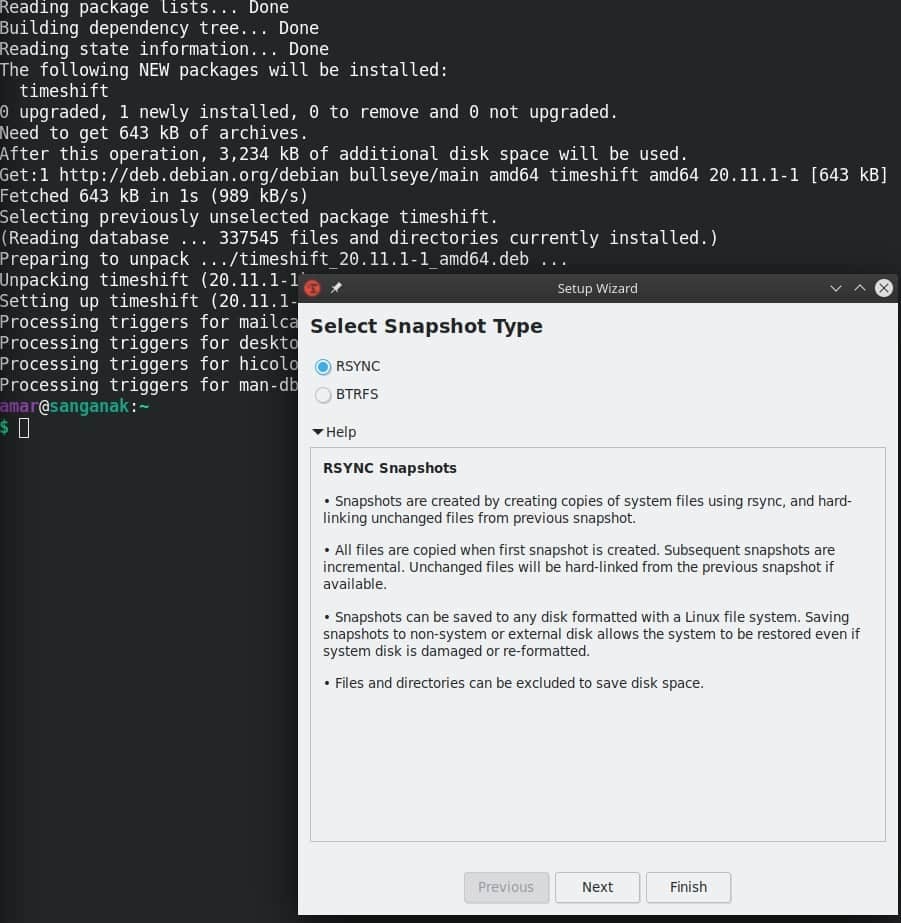 Timeshift Utility on MX Linux
Conclusion and Takeaways
Choosing between Rclone and Rsync isn't about picking a winner—it's about understanding your needs. Rsync excels at local and server-to-server synchronization, while Rclone opens the door to cloud storage integration. For most VPS users, the ideal strategy combines both tools. Use Rsync for fast, local redundancy and Rclone for secure, offsite cloud backups. his approach ensures your data survives hardware failures, provider outages, and even catastrophic events.
Key Takeaways
- VPS providers don't automatically backup your data—snapshots aren't enough
- Rsync is perfect for local and server-to-server synchronization
- Rclone enables cloud storage integration with 40+ providers
- Combining both tools creates a robust 3-2-1 backup strategy
- Automation with cron jobs or systemd timers ensures consistent backups
FAQ Section
-
Is Rsync still relevant in 2026? Yes, Rsync remains essential for local and server-to-server synchronization. Its delta encoding makes it incredibly efficient for large datasets.
-
Can Rclone replace Rsync entirely? Not necessarily. While Rclone can handle local transfers, Rsync is often faster for server-to-server sync. Both tools serve complementary purposes.
-
Which cloud storage provider is best for VPS backups? It depends on your needs. AWS S3 offers enterprise reliability, while Backblaze B2 provides cost-effective storage. Google Drive works well for smaller backups.
Call-to-Action
Ready to implement a robust backup strategy? Start by installing Rsync and Rclone on your VPS today.For detailed setup instructions, check our comprehensive introduction to rclone and soon: Storage VPS vs Cloud Storage guide.