Introduction
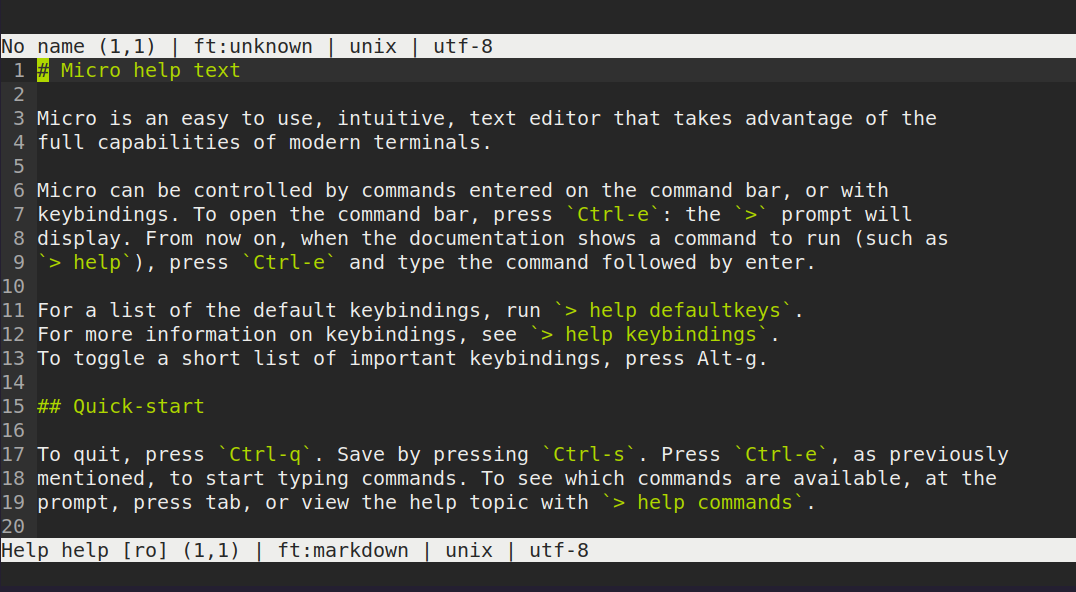
For writers, bloggers, and authors on Linux or macOS, especially in India, complex editors like Vim or Emacs can feel overwhelming. The Micro editor, a lightweight terminal text editor, offers a modern, intuitive alternative to Nano. Written in Go, it’s fast, supports mouse clicks, and mirrors GUI editors like Notepad++ while running in your terminal. Perfect for Markdown, prose, or blogs, Micro provides a distraction-free environment with plugins and syntax highlighting, making it ideal for both beginners and seasoned writers.
Summaries
The Micro editor is a lightweight, terminal-based text editor for writers on Linux and macOS. With vibrant syntax highlighting, Markdown support, and extensible plugins, it’s perfect for blogs, books, and notes, offering an intuitive, distraction-free experience for all skill levels.
Hindi
माइक्रो एडिटर एक हल्का, टर्मिनल-आधारित टेक्स्ट एडिटर है, जो लिनक्स और मैकओएस पर लेखकों के लिए डिज़ाइन किया गया है। यह सिंटेक्स हाइलाइटिंग, मार्कडाउन समर्थन और प्लगइन्स प्रदान करता है, जो ब्लॉग, किताबें और नोट्स के लिए उपयुक्त है।
What Is Micro Editor?
The Micro editor is a modern, terminal-based text editor designed to replace Nano. Built in Go, it’s lightweight (~10MB) and performs efficiently on older machines or over SSH. It supports mouse clicks, syntax highlighting for over 130 languages (including Markdown), and Lua-based plugins for autocompletion and linting. For writers, it offers a clean, distraction-free interface for drafting prose, blogs, or academic papers.Installation
Debian/Ubuntu
$ sudo apt update
$ sudo apt install xclip xsel
$ curl https://getmic.ro | bash
$ sudo mv micro /usr/local/bin/
Install xclip and xsel for clipboard support. Verify:
$ micro -versionmacOS
$ brew install microWindows
Download the executable from Micro’s GitHub releases and add it to your PATH.
Basic Usage
| Feature | Micro Command |
|---|---|
| Save | Ctrl + S |
| Exit | Ctrl + Q |
| Undo | Ctrl + Z |
| Redo | Ctrl + Y |
| Command Mode | Ctrl + E |
| Open Shell | Ctrl + E then term |
| Split Horizontally | Ctrl + E then split |
| Split Vertically | Ctrl + E then vsplit |
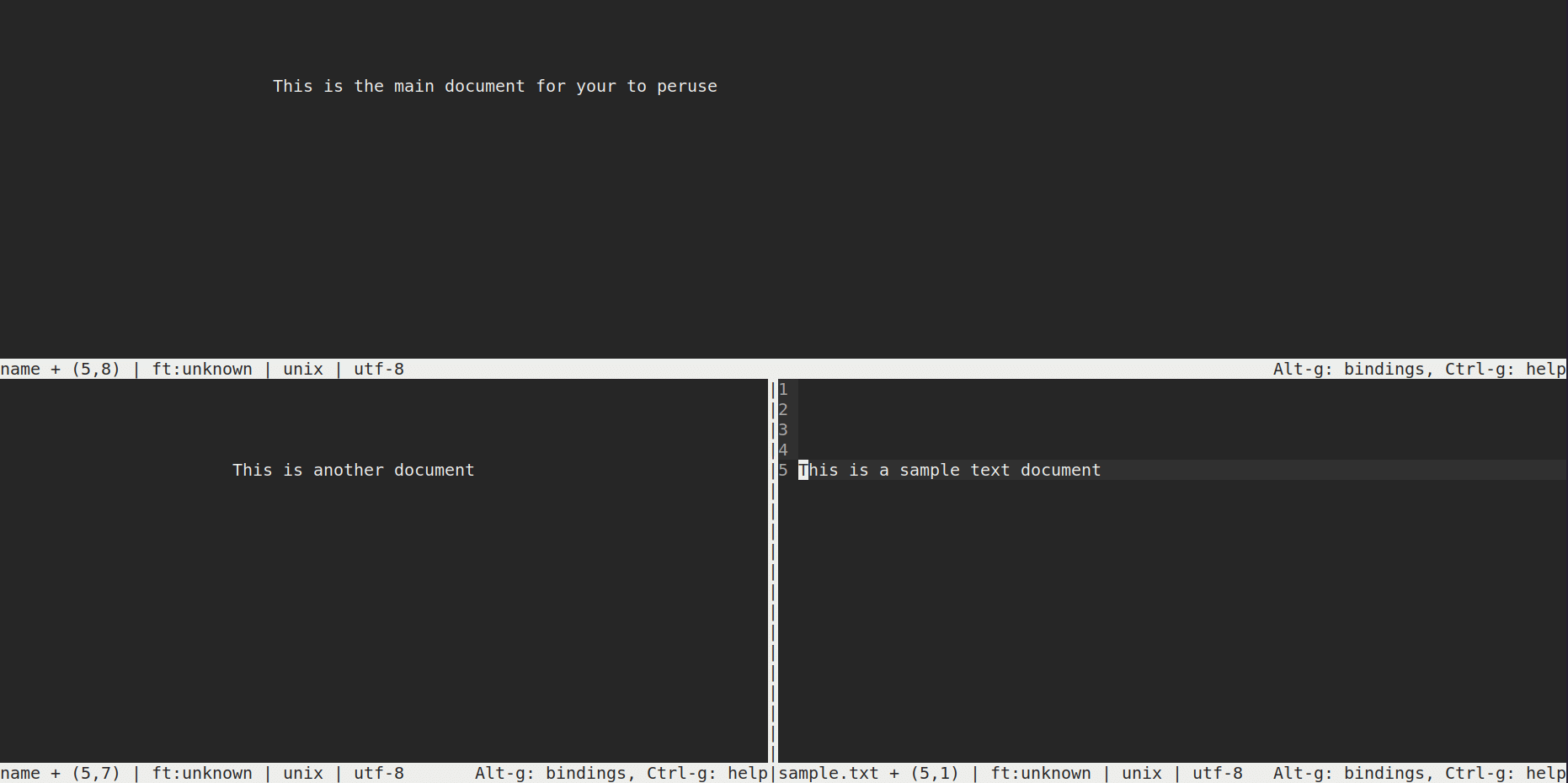 Multi-window session in Micro, using
 hsplit and vsplit commands.
Micro for Markdown
Micro is ideal for writing in Markdown. Use plugins like `markdown-preview` to preview your work. For advanced formatting, pair Micro with **Pandoc** to convert Markdown to PDF or HTML.Example:
$ pandoc chapter1.md --bibliography refs.bib --citeproc -o file.pdfMicro vs. Nano
| Feature | Micro | Nano |
|---|---|---|
| Ease of Use | High | High |
| Mouse Support | Yes | No |
| Syntax Highlighting | Yes with config | No |
| Markdown Preview | No (requires plugin/shell) | No |
| Vim Keybindings | No | No |
| File Tree | No (requires plugin) | No |
Click below to download cheat sheet: Micro vs Nano Editor for Writers Cheat sheet comparing Micro and Nano editors for writers.

Micro vs. Vim, Helix, and Others
| Feature | Micro | Vim | Helix |
|---|---|---|---|
| Ease of Use | High | Low | Moderate |
| Mouse Support | Yes | No | Limited |
| Plugin Support | Yes (Lua-based) | Yes (Vimscript) | Yes (Rust-based) |
| Learning Curve | Low | High | Moderate |
| Markdown Support | Yes | With Plugins | Yes |
Click below to download cheat sheet: [Micro vs Nano Editor for Writers](https://avmedia.gumlet.io/arc/l-oss/micro/nano-versus-micro editor.pdf) Cheat sheet
Frequently Asked Questions
-
Can I access the terminal from Micro? Use
Ctrl + E > termto open a shell (e.g., bash). Run commands likels, thenCtrl + Dto return. -
Are split windows possible? Yes, use
Ctrl + E > hsplit file.mdorvsplit file.md. Cycle withCtrl + W. -
Can I preview Markdown in Micro? Install the
markdown-previewplugin or use Pandoc for HTML/PDF output. -
Is Micro good for long-form writing? Yes, its soft wraps and Markdown support suit blogs and books.
-
Does Micro support Indian languages? Yes, it supports UTF-8 for Hindi, Tamil, etc., with fonts like Noto Sans.
-
How do I navigate between buffers? Use
Ctrl + E > next,prev, orbuffer <name>. Close withCtrl + E > close. -
Can I use Micro with other command-line tools like fzf or yazi? Yes, run
Ctrl + E > termto access a shell and use tools likefzffor fuzzy finding oryazifor file navigation, then return withCtrl + D.
Additional Resources
- Micro Official Site
- Micro GitHub
- Micro Documentation
- Pandoc Documentation
- Micro Editor Crash Course by DistroTube
- Micro Editor Reddit Community
Conclusion
The Micro editor is a beginner-friendly terminal text editor for writers on Linux and macOS, especially in India. With intuitive keybindings, syntax highlighting, and plugins, it excels for Markdown and prose. Its lightweight design and SSH compatibility make it a top choice. Try Micro for your next blog or book chapter, and share your setup in the comments.What’s your favorite terminal editor?