This detailed guide explores using webinoly for wordPress site. It encompasses all aspects, from system preparation to advanced configuration and robust security practices. Drawing from practical deployments, this post provides insights to establish a secure, high-performance WordPress site, even on resource-constrained environments.
सारांश
यह व्यापक गाइड Webinoly के साथ WordPress सर्वर प्रबंधन की गहन जानकारी प्रदान करती है। उबंटू 22.04 LTS और PHP 8.4 (पिछले संस्करणों से अपग्रेड पथ सहित) के लिए अनुकूलित, यह लेख सिस्टम तैयारी से लेकर उन्नत कॉन्फ़िगरेशन और मजबूत सुरक्षा प्रथाओं तक सब कुछ कवर करता है। वास्तविक अनुभवों के आधार पर, यह गाइड सीमित संसाधनों में भी सुरक्षित और उच्च प्रदर्शन वाली वर्डप्रेस साइट बनाने में मदद करती है।
Note: Most images from this post feature screenshots from 2020-2022 era. Some images may be AI generated, including feature image.
If you cannot view the video, click here.
Introduction
This guide for using webinoly for wordPress site presents a structured approach to managing WordPress servers on Ubuntu 22.04 LTS, leveraging PHP 8.4 for optimal performance. Webinoly simplifies the complexities of server administration, enabling efficient and secure WordPress deployments. This post consolidates lessons learned from hands-on implementations to ensure a reliable setup process.
Why I Started with Webinoly
I first came across Webinoly around 2019, when I had started exploring virtual private servers in greater depth. By then, I was becoming increasingly comfortable with SSH, Linux commands and manually setting up web servers for testing websites.
I have always believed in doing more with less. Most WordPress-ready VPS plans seemed to assume fairly generous specifications, but I was curious to see how much could be achieved with modest resources. A discussion on the LowEndTalk forum about running WordPress on extremely low-memory servers further fuelled that curiosity.
As I experimented, I realised that server resources were consumed not only by WordPress itself, but also by the operating system and the surrounding ecosystem comprising the web server, PHP, database and backup utilities. While commercial control panels do an excellent job, I wanted to explore whether a simpler and lighter approach was possible.
Around the same time, I was already using GridPane for production sites. However, I was looking for lightweight alternatives for smaller projects and backup environments. That search introduced me to several command-line based tools including WordOps, EasyEngine, SlickStack and Webinoly.
What attracted me most to the idea of using webinoly for wordpress was its philosophy. Through a simple command-line interface, it made it possible to manage WordPress sites, staging environments, backups, cloning and several routine tasks without the overhead of a traditional control panel. For someone who enjoyed experimenting with Linux and efficient resource usage, it was an appealing approach.
Revisiting Webinoly in 2026
Although I do not currently host any active websites on Webinoly, revisiting this article in 2026 gave me an opportunity to test the project again and see how it had evolved.
Over the years, some features and support options have moved towards a paid model, while many core capabilities continue to remain freely available. In many ways, this represents a practical hybrid approach that balances sustainability with the spirit of open source software.
The project has demonstrated remarkable longevity, which is no small achievement in a rapidly changing ecosystem. Even today, it remains an interesting option for users who prefer lightweight server management and are comfortable working from the command line.
Overview of Webinoly
Webinoly is an efficient tool for automating WordPress site management on a LEMP stack (Linux, Nginx, MySQL/MariaDB, PHP). In 2025, it offers seamless integration with Let’s Encrypt for SSL, HTTP/3 support, and enhanced command-line utilities. Its lightweight design and focus on performance make it a preferred choice for administrators seeking simplicity and speed.
Webinoly guide for WordPress server management
Pre-Installation Requirements
Ensure your system is prepared with the following specifications and supported architectures:
- Operating System: Ubuntu 22.04 LTS and the newer Ubuntu 24.04 LTS.
(Note: While Webinoly may install on Debian 10, it might not work properly based on testing in November 2020) - Hardware: Minimum 2 CPU cores, 2GB RAM, 40GB SSD storage on supported platforms.
- Software: Webinoly, PHP 8.4, MySQL/MariaDB
- Network: Configured DNS, updated firewall rules
Hardware Performance & Benchmarking
Testing hardware capabilities is essential for evaluating Webinoly on varied infrastructure, including standard VPS environments, TinyKVM, or edge devices like the Raspberry Pi 4:
- Disk Speed Diagnostics: Utilize commands such as
hdparm -Tt /dev/sdaanddd if=/dev/zeroto test cached reads, buffered disk reads, and overall write throughput - Thermal Monitoring: Track hardware temperatures during resource-intensive tests (like YABS) using utilities such as
hddtemp /dev/sdaandsensors. - System Benchmarks: Run scripts like
Bench.shto generate a comprehensive overview of system uptime, load averages, I/O speeds across multiple runs, and virtualization details.
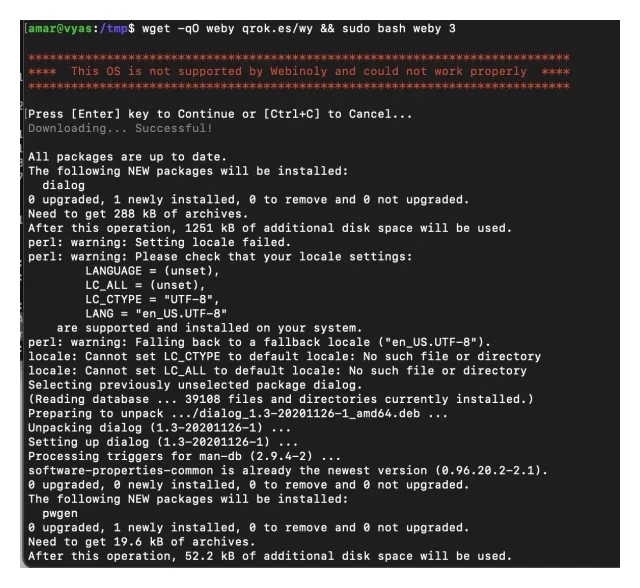
Webinoly installation on VPS
Database and Backup Management
Maintaining a healthy database and reliable backups is critical for server management:
- Database Optimization: Setting up and fine-tuning MySQL/MariaDB for optimal performance.
- Automated Backups: Implementing robust, automated backup solutions to ensure data reliability and quick disaster recovery.
Common Use Cases
Whether you are migrating an old blog or starting fresh, using webinoly for wordpress proves to be highly versatile and can be tailored for various deployment scenarios.
- Single Site Setup: A streamlined, step-by-step approach for standard WordPress deployments.
- Multisite Networks: Specialized configuration and management guidelines for operating a network of sites.
- Staging Environments: Safe testing of site changes and updates before production deployment.
- Migration Procedures: Seamless transfer of existing sites to a Webinoly-managed server.
- Load Balancing: Advanced considerations and configurations for handling high-traffic environments.
Step-by-Step Installation Guide
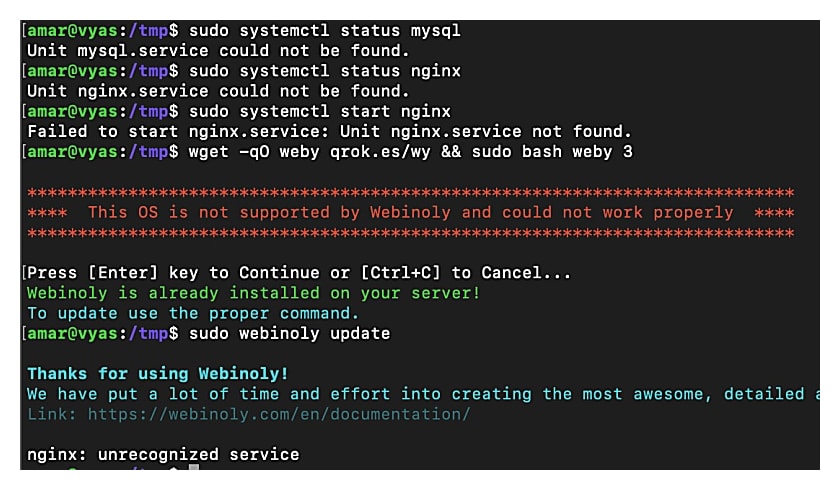
Webinoly installation error on Debian 11 gives errors
System Preparation
Begin by updating your Ubuntu 22.04 LTS system to ensure all packages are current. Execute the following commands:
$ sudo apt update sudo apt upgrade -y sudo apt install -y software-properties-common
PHP 8.4 Installation and Upgrade Path
Ubuntu 22.04 LTS may include an older PHP version by default. Add the PHP 8.4 repository and install it as follows:
$ sudo add-apt-repository ppa:ondrej/php -y sudo apt update sudo apt install -y php8.4 php8.4-fpm php8.4-mysql php8.4-curl php8.4-gd php8.4-mbstring php8.4-xml php8.4-zip
For systems upgrading from PHP 8.3 or earlier, ensure compatibility by updating dependencies:
$ sudo apt remove php8.3* -y sudo apt autoremove -y sudo apt install -y php8.4 php8.4-fpm php8.4-mysql php8.4-curl php8.4-gd php8.4-mbstring php8.4-xml php8.4-zip $ sudo systemctl restart php8.4-fpm
SSH Configuration
Secure your SSH connection to manage the server effectively:
$ sudo nano /etc/ssh/sshd_config # Update Port, PermitRootLogin, and PasswordAuthentication as needed sudo systemctl restart sshd
Installing Webinoly
Install Webinoly using the official script:
$wget -qO weby qrok.es/wy && sudo bash weby
Creating a WordPress Site
The actual process of using webinoly for wordpress site creation is incredibly fast thanks to its streamlined commands, easily enabling caching and SSL:
$sudo site example.com -wp -ssl=on sudo site example.com -cache=on
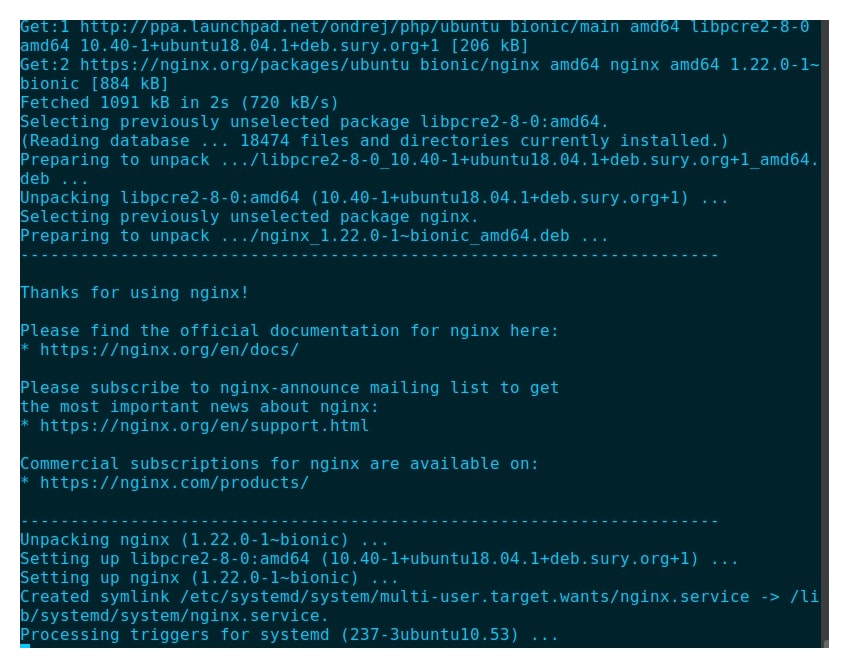
Webinoly install on LXC server
Configuration Optimization
Adjust PHP and Nginx settings for performance:
$ sudo nano /etc/php/8.4/fpm/php.ini # Adjust memory_limit = 256M, max_execution_time = 60 sudo nano /etc/nginx/sites-available/example.com # Add: fastcgi_cache_valid 200 301 302 24h; sudo systemctl restart php8.4-fpm nginx
Advanced Configuration
Enhance performance by configuring FastCGI cache and HTTP/3:
$ sudo nano /etc/nginx/conf.d/fastcgi.conf # Add: fastcgi_cache WORDPRESS; sudo nano /etc/nginx/sites-available/example.com # Add: listen 443 ssl http3; sudo systemctl reload nginx
Standard Operating Procedure: WordPress Restoration
Restoring an existing site backup (such as a .tar.gz and .sql file) into a fresh Webinoly installation requires strict adherence to its security and permission model:
- Permission Integrity: Webinoly sites are strictly controlled by the
www-datauser. Do not modify directory ownership or applychmod 777. Instead, respect the isolation model by executing all WP-CLI commands withsudo -u www-data. - WP-CLI Accessibility: If WP-CLI execution returns a permission denied error, ensure the binary possesses the correct standard permissions by running
sudo chmod 755 /usr/local/bin/wp. - Database Provisioning: Never reuse legacy database credentials from previous hosting. Always create a fresh MariaDB database, grant privileges to a new user, and update the active
wp-config.php. - Configuration Verification: Before importing the SQL backup, use WP-CLI to confirm the active config path and verify the database connection (
sudo -u www-data wp db check). - Domain References: Immediately after importing the database, execute a search-replace (
wp search-replace) for the domain and flush rewrite rules to prevent serialized URL breakage.
Advanced Troubleshooting & Recovery
Address common server and application-level errors encountered during site migrations[cite: 9]:
- 500 Internal Server Errors: Rapidly diagnose issues by bulk-deactivating all plugins via WP-CLI (
sudo -u www-data wp plugin deactivate --all) and re-testing the site. - White Screen of Death: Temporarily enable
WP_DEBUG,WP_DEBUG_LOG, andWP_DEBUG_DISPLAYin the activewp-config.phpto trace fatal errors. - Restoring Dashboard Access: A database import replaces user sessions, URL references, and password hashes. If admin credentials are lost, identify the admin username via
sudo -u www-data wp user listand force a password reset usingsudo -u www-data wp user update. - Login Loops: Verify and explicitly update the
siteurlandhomeoptions via WP-CLI if you cannot access the login page, and clear browser cookies to bypass cached redirects.
Security Best Practices
Implement SSL, configure firewalls, monitor logs, and leverage modern security protocols including AI-powered threat detection:
$ sudo ufw allow 80,443/tcp

$ sudo webinoly -ssl-issue=example.com
$ sudo nano /etc/nginx/common_locations.conf
# Add: location ~* \.(php)$ { deny all; }
$ sudo systemctl reload nginx
Implement SSL, configure firewalls, monitor logs, and elevate your overall WordPress security by leveraging modern protocols
Resources and Community
Access Webinoly’s official resources, recent tutorials, case studies, customer testimonials, and engage with the community:
Comparison with Alternatives
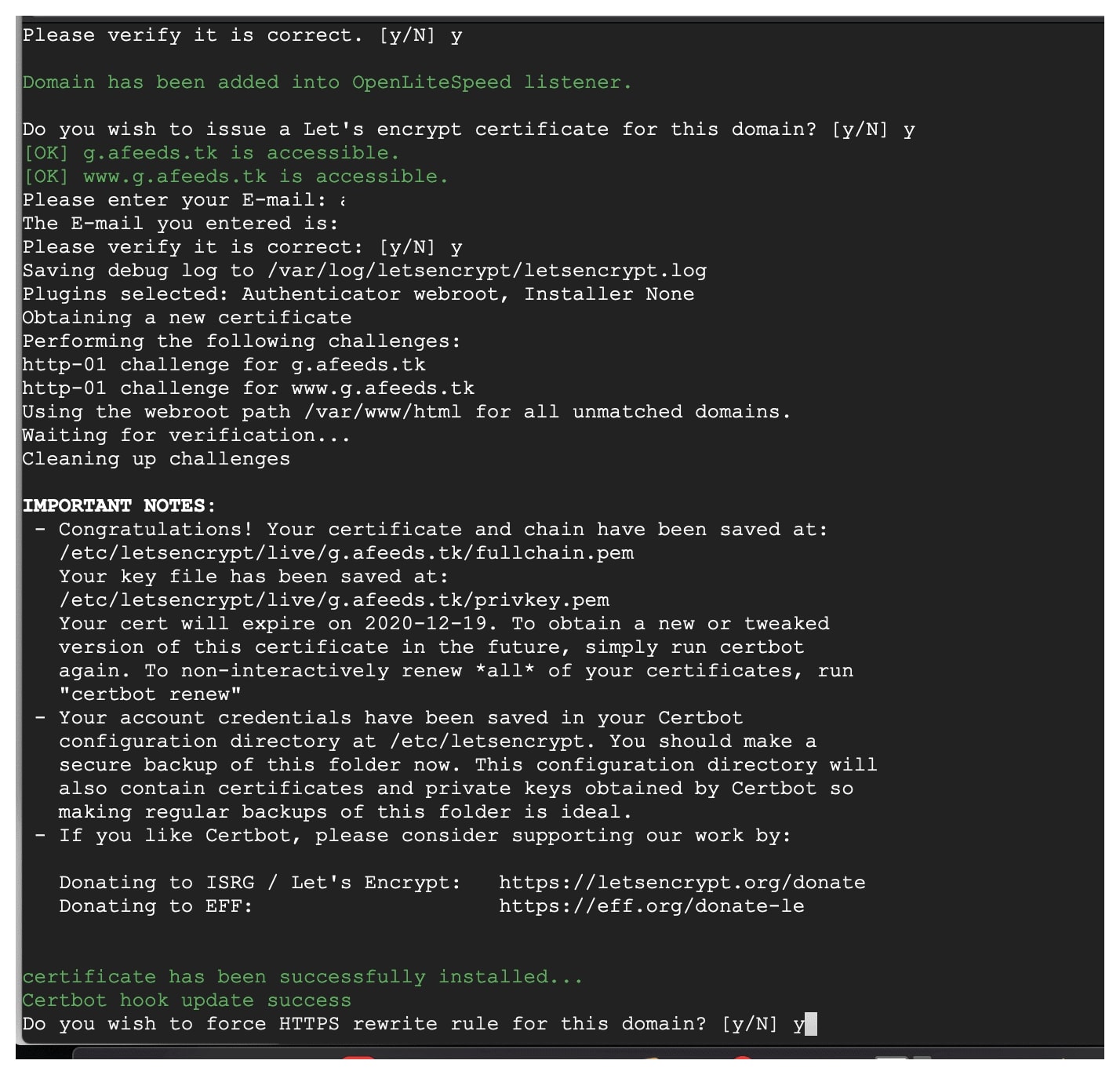
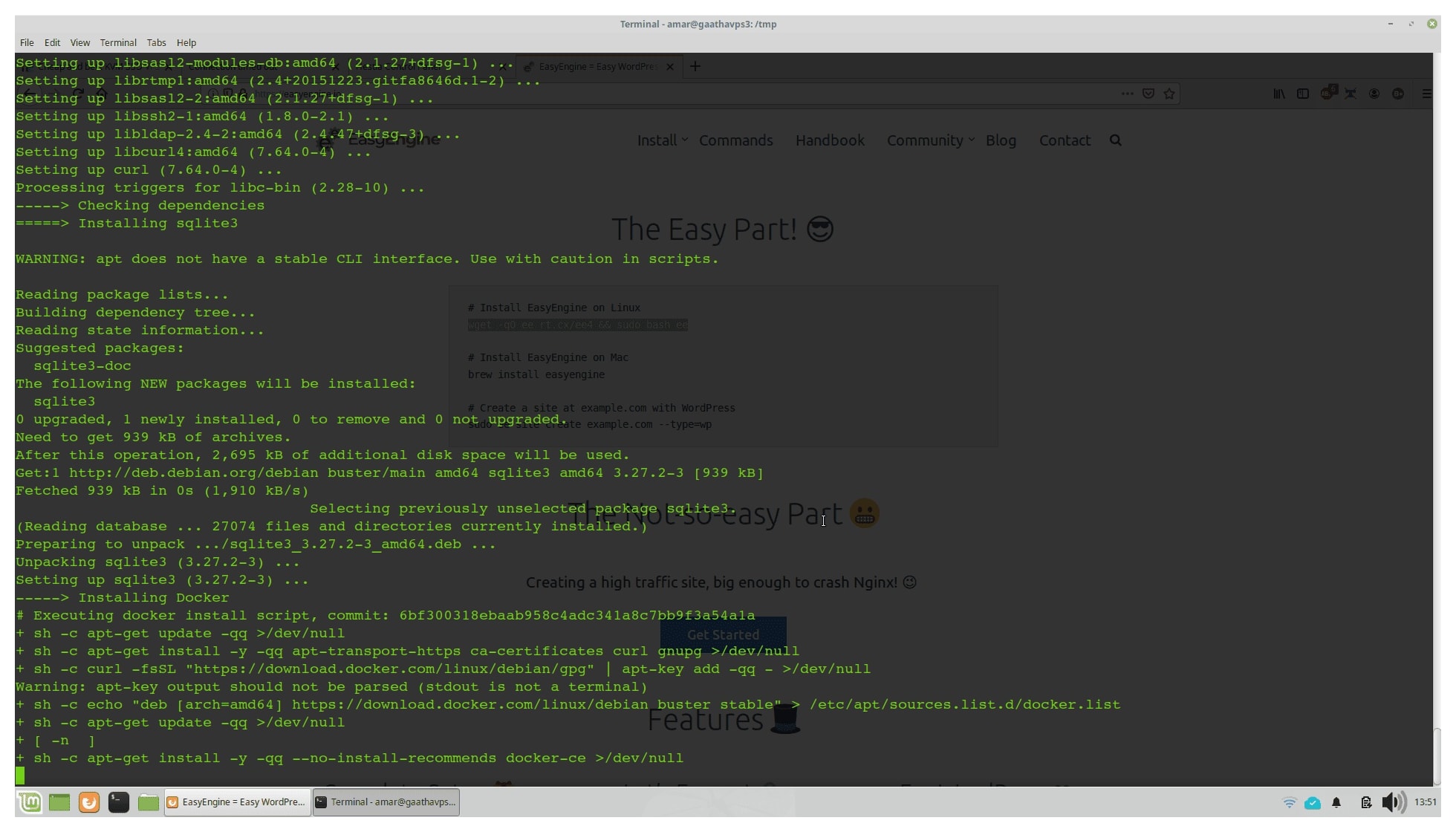
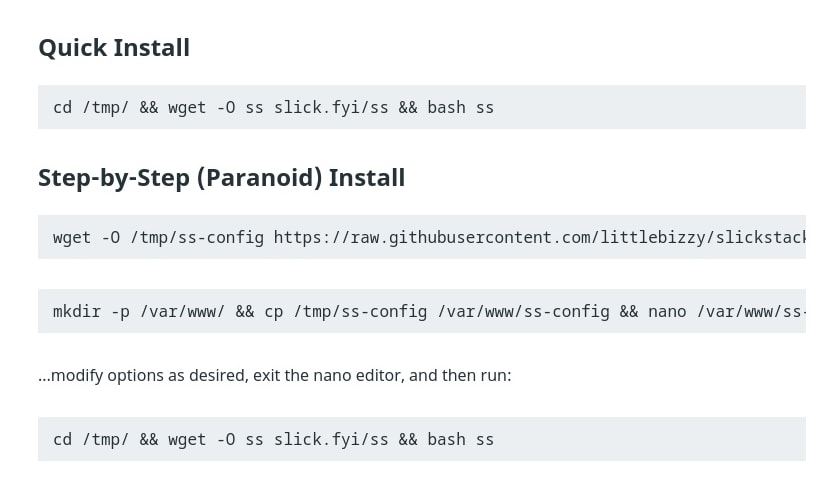
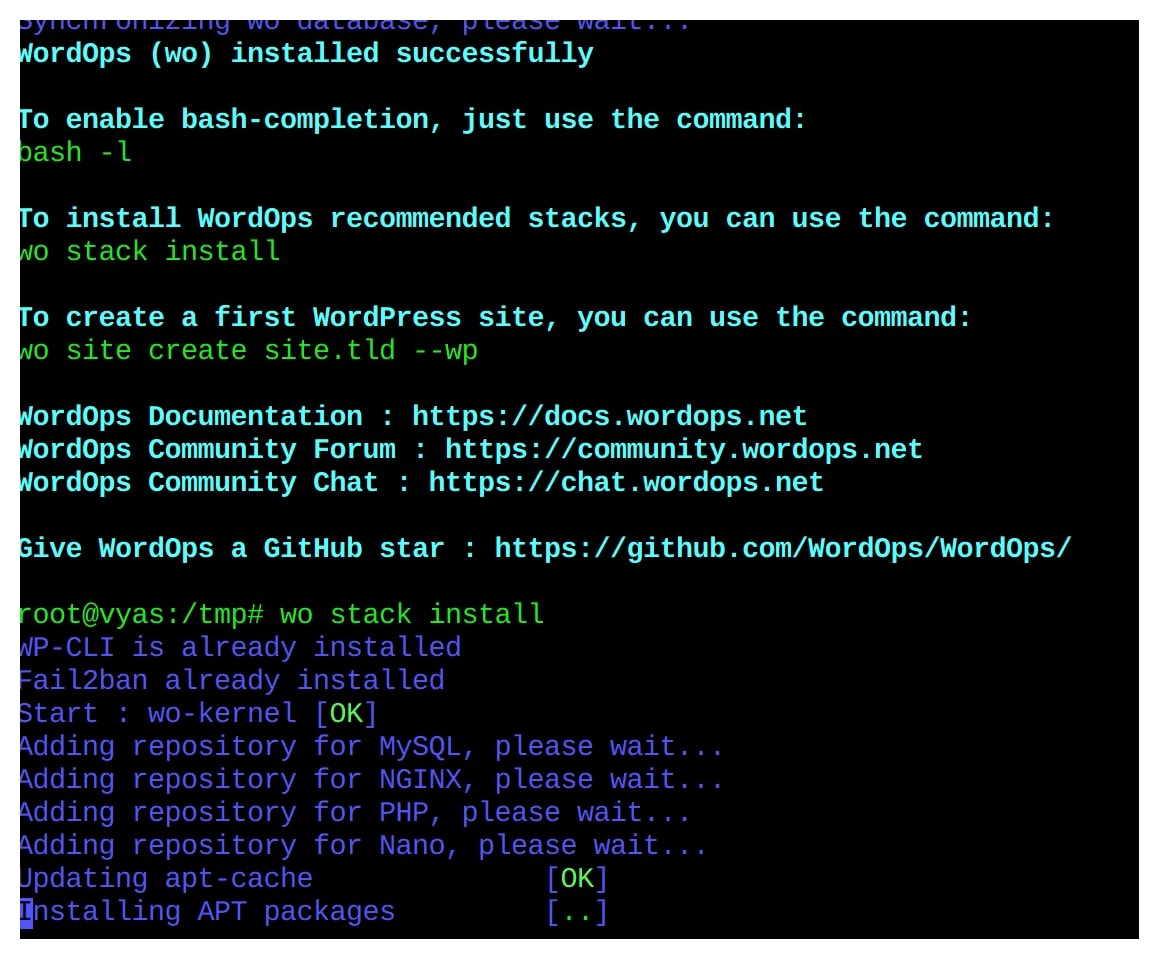
Webinoly excels in simplicity compared to WordOps, EasyEngine,SlickStack, and CyberPanel, offering faster setup and lower resource usage. Based on recent data, Webinoly provides highly competitive performance benchmarks and excellent cost analysis for budget-conscious administrators. Evaluate based on your project’s scalability and maintenance needs.
easyengine install on Debian 10
slickstack install on Debian 10
wordops install on Debian 10
Future Outlook
Conclusion: Using Webinoly for WordPress
Webinoly in 2025 provides a robust framework for managing WordPress servers on Ubuntu 22.04 LTS with PHP 8.4. This guide equips you to deploy secure, high-performance sites efficiently, navigating the intricacies of server administration with confidence.
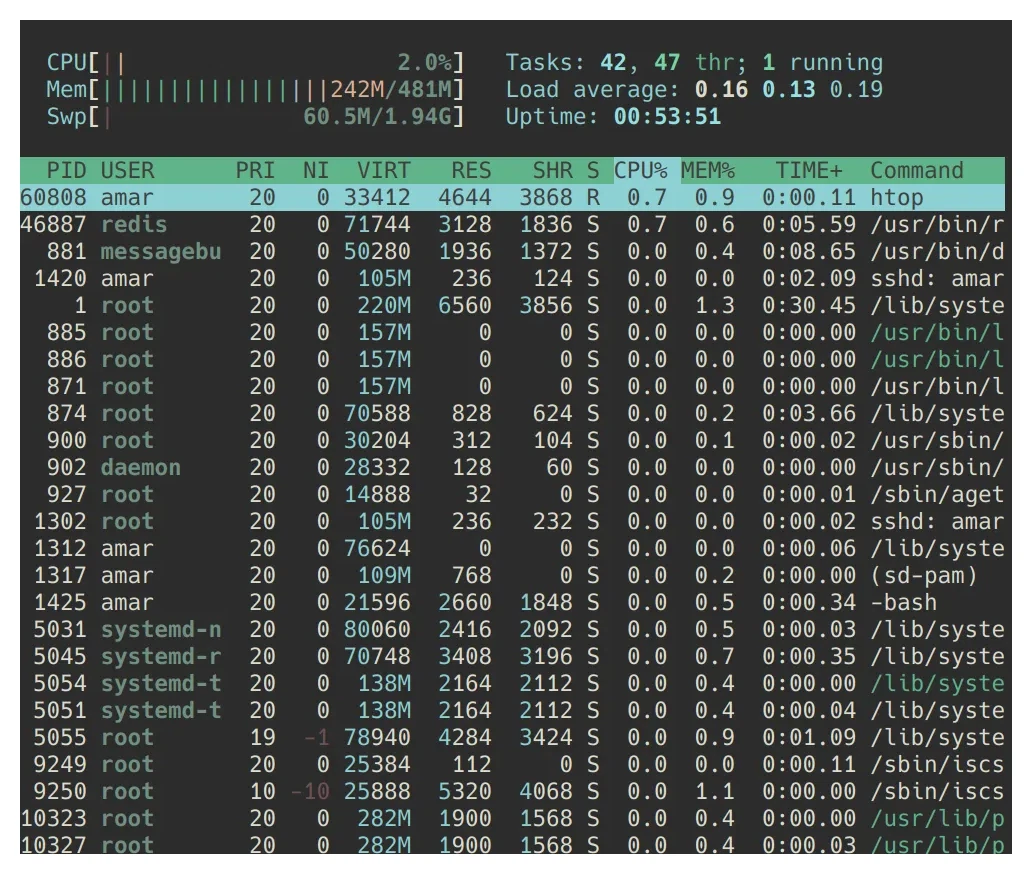
htop command on vps running webinoly.
Related Articles
The topics discussed here connect with several other themes that I have written about over the years. Rather than treating Webinoly in isolation, these articles together document my broader journey into Linux, VPS hosting and command-line tools.
- Command-line tools for Linux
- Installing ClassicPress on a VPS
- Command-line WordPress management tools
Looking back, the biggest takeaway from these experiments was not merely learning a particular tool. It was discovering that many tasks traditionally associated with heavy control panels could be accomplished efficiently with lightweight, open-source solutions and a willingness to spend time at the command line.
This post about using webinoly for wordpress was updated and archived on 5 June 2026.