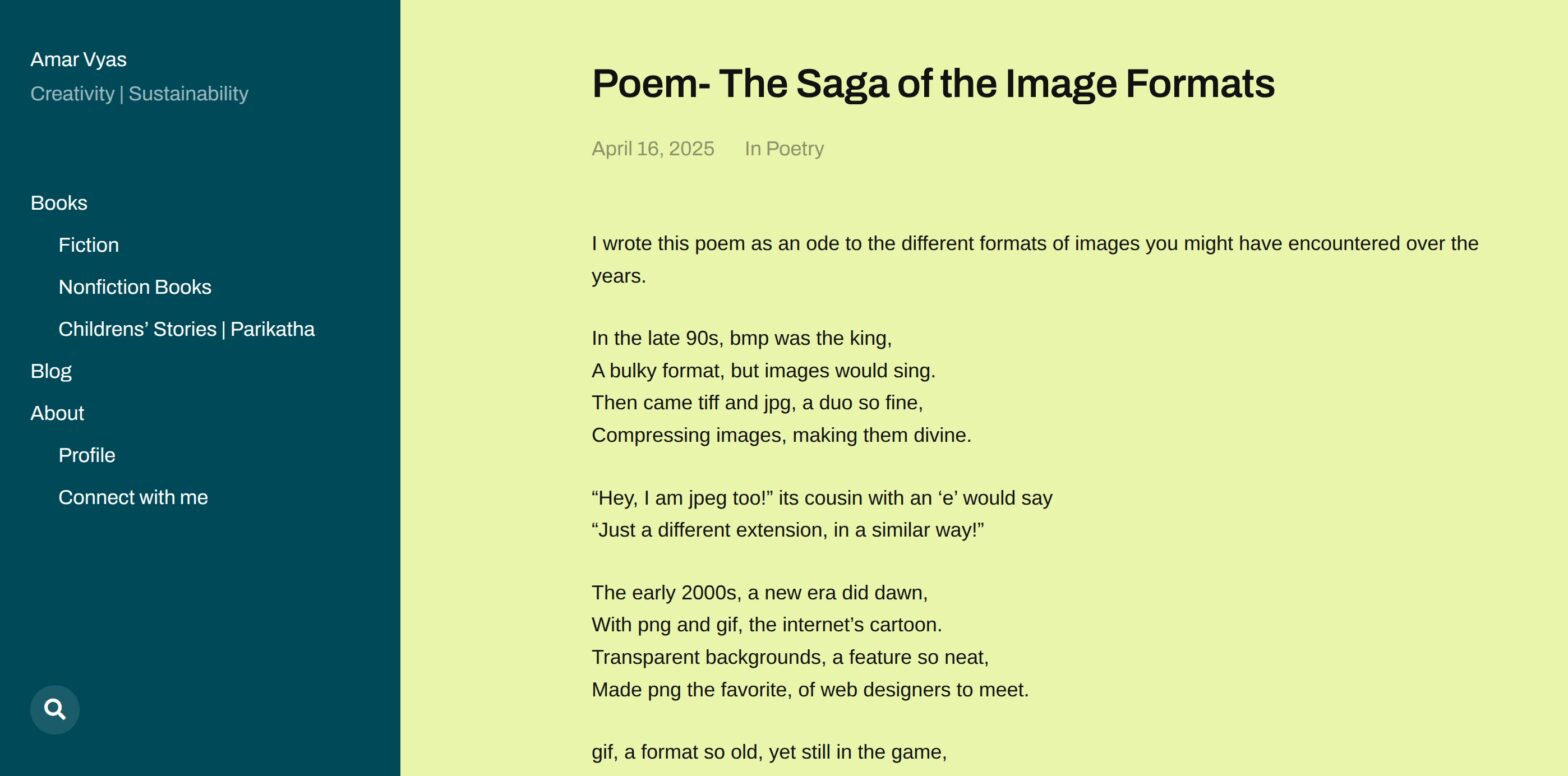
In this post, we will discuss updating McLuhan Theme for CLassicPress. This guide explains how to modernize the beloved McLuhan theme for a 2026 workflow. By creating a robust child theme on ClassicPress, we ensure PHP 8.3 compatibility, integrate Bootstrap utilities, strip away the bloat of comments, and retain a classic non-Gutenberg workflow without touching the Gutenberg editor.
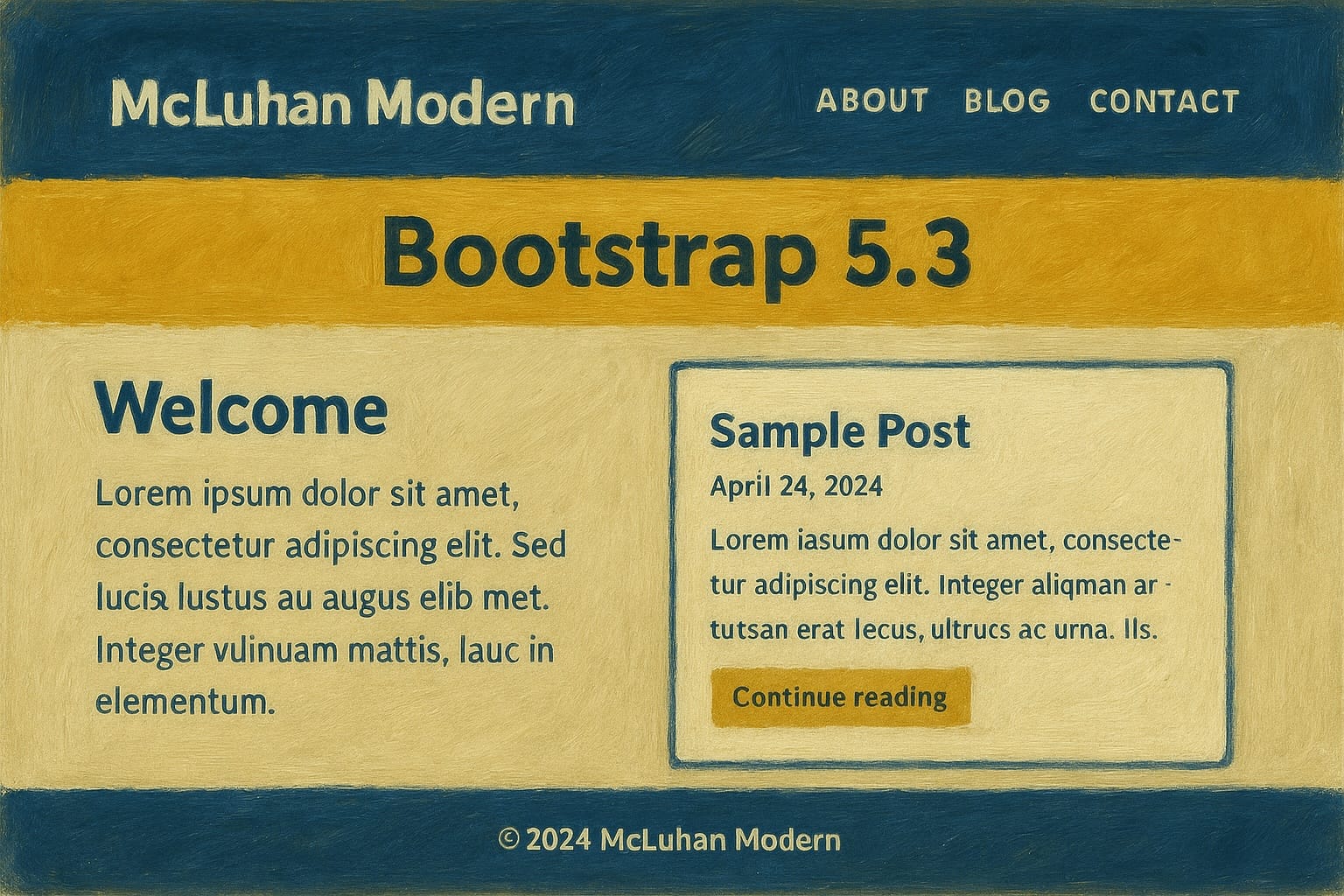
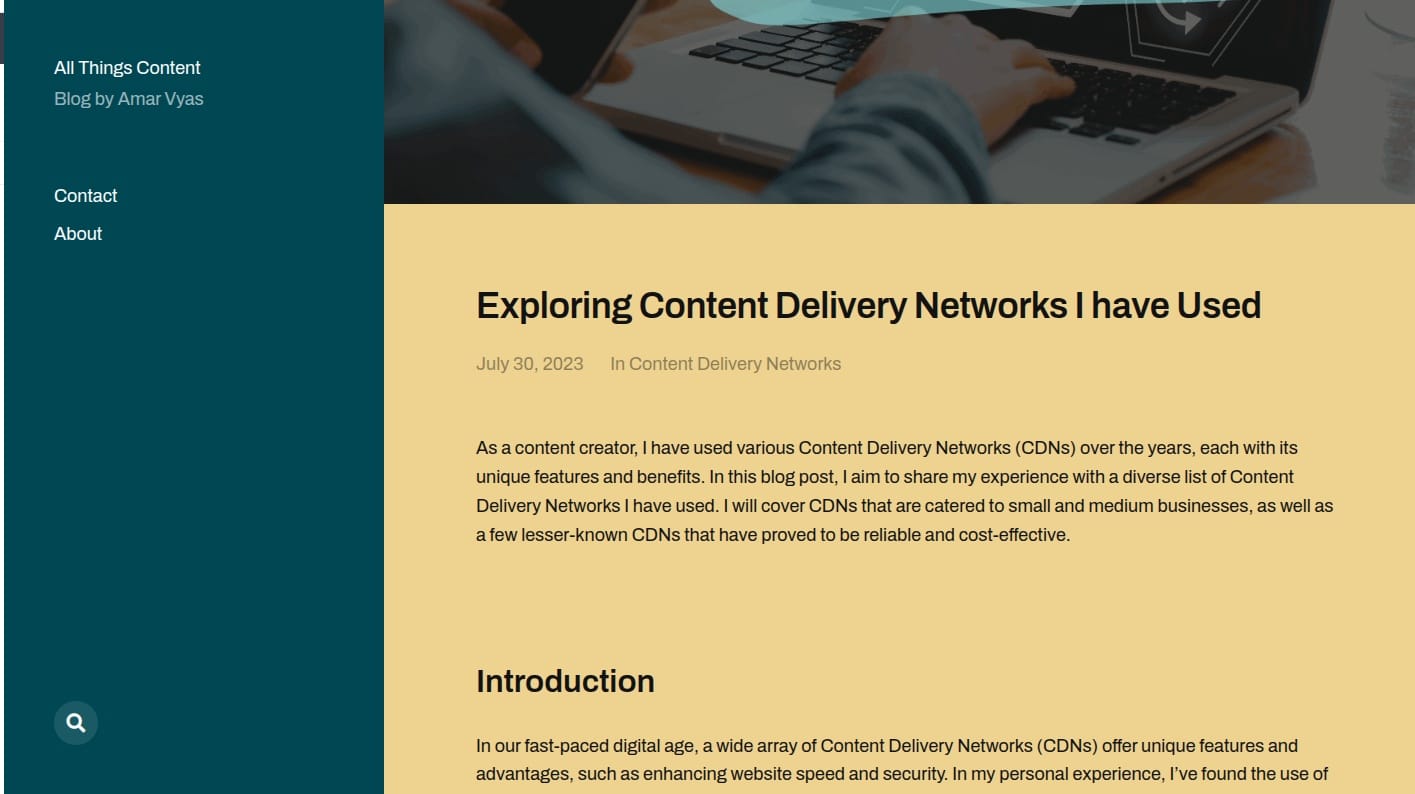
McLuhan theme, is developed by Anders Noren. Link to how the default theme looks is here
1. Updating McLuhan Theme
To future-proof your installation for 2026 and ensure compliance with PHP 8.3, we must establish a clean directory structure. This approach avoids the performance overhead of block themes while keeping the McLuhan aesthetic intact.
1.1. Defining style.css
The foundation of your ClassicPress child theme update lies in the style.css file. This tells ClassicPress to inherit the parent templates while allowing your custom overrides to take precedence.
/* Theme Name: McLuhan Classic 2026
Theme URI: https://yourwebsite.com
Description: A child theme for McLuhan, optimized for ClassicPress, PHP 8.3, and Bootstrap 5 support.
Author: Your Name
Author URI: https://yourwebsite.com
Template: mcluhan
Version: 1.0.0
License: GNU General Public License v2 or later
License URI: http://www.gnu.org/licenses/gpl-2.0.html
Text Domain: mcluhan-classic */
1.2. Configuring functions.php for PHP 8.3
In functions.php, we strictly enforce types and enqueue Bootstrap. This ensures the ClassicPress theme runs efficiently on PHP 8.3 servers without triggering deprecated warnings. We also register our specific featured image sizes here.
<?php
/**
 * McLuhan Classic 2026 functions.php
 * PHP 8.3 Compatible */

function mcluhan_classic_setup() {
    // Enable Featured Images
    add_theme_support('post-thumbnails');

    // Register Custom Sizes (2:1 Ratio for feature images)
    add_image_size('feature-2-1', 1200, 600, true);
    add_image_size('feature-large', 1920, 960, true);
}
add_action('after_setup_theme', 'mcluhan_classic_setup');

function mcluhan_classic_scripts() {
    $parent_style = 'parent-style';

    // Enqueue Parent Style
    wp_enqueue_style($parent_style, get_template_directory_uri() . '/style.css');

    // Attempt to load local Bootstrap, fallback to CDN
    $bootstrap_css = get_stylesheet_directory() . '/assets/bootstrap/bootstrap.min.css';
    if (file_exists($bootstrap_css)) {
        wp_enqueue_style('bootstrap-local', get_stylesheet_directory_uri() . '/assets/bootstrap/bootstrap.min.css', array(), '5.3');
    } else {
        wp_enqueue_style('bootstrap-cdn', 'https://cdn.jsdelivr.net/npm/bootstrap@5.3.0/dist/css/bootstrap.min.css', array(), '5.3');
    }

    // Enqueue Custom Overrides
    wp_enqueue_style('mcluhan-overrides', get_stylesheet_directory_uri() . '/assets/css/mc-overrides.css', array($parent_style), '1.0.0');
}
add_action('wp_enqueue_scripts', 'mcluhan_classic_scripts');

// Disable Comments Functionality
function mcluhan_disable_comments_post_types_support() {
    $post_types = get_post_types();
    foreach ($post_types as $post_type) {
        if (post_type_supports($post_type, 'comments')) {
            remove_post_type_support($post_type, 'comments');
            remove_post_type_support($post_type, 'trackbacks');
        }
    }
}
add_action('admin_init', 'mcluhan_disable_comments_post_types_support');

// Close comments on the front-end
function mcluhan_disable_comments_status() {
    return false;
}
add_filter('comments_open', 'mcluhan_disable_comments_status', 20, 2);
add_filter('pings_open', 'mcluhan_disable_comments_status', 20, 2);
?>
1.3. Template Hierarchy and Custom Files
Create a templates/ directory in your child theme root. This folder will house your specific page templates, sidebar layouts, and content files. By using this structure, you override the parent theme’s default loop without modifying the original files, ensuring your updates remain safe during parent theme updates.
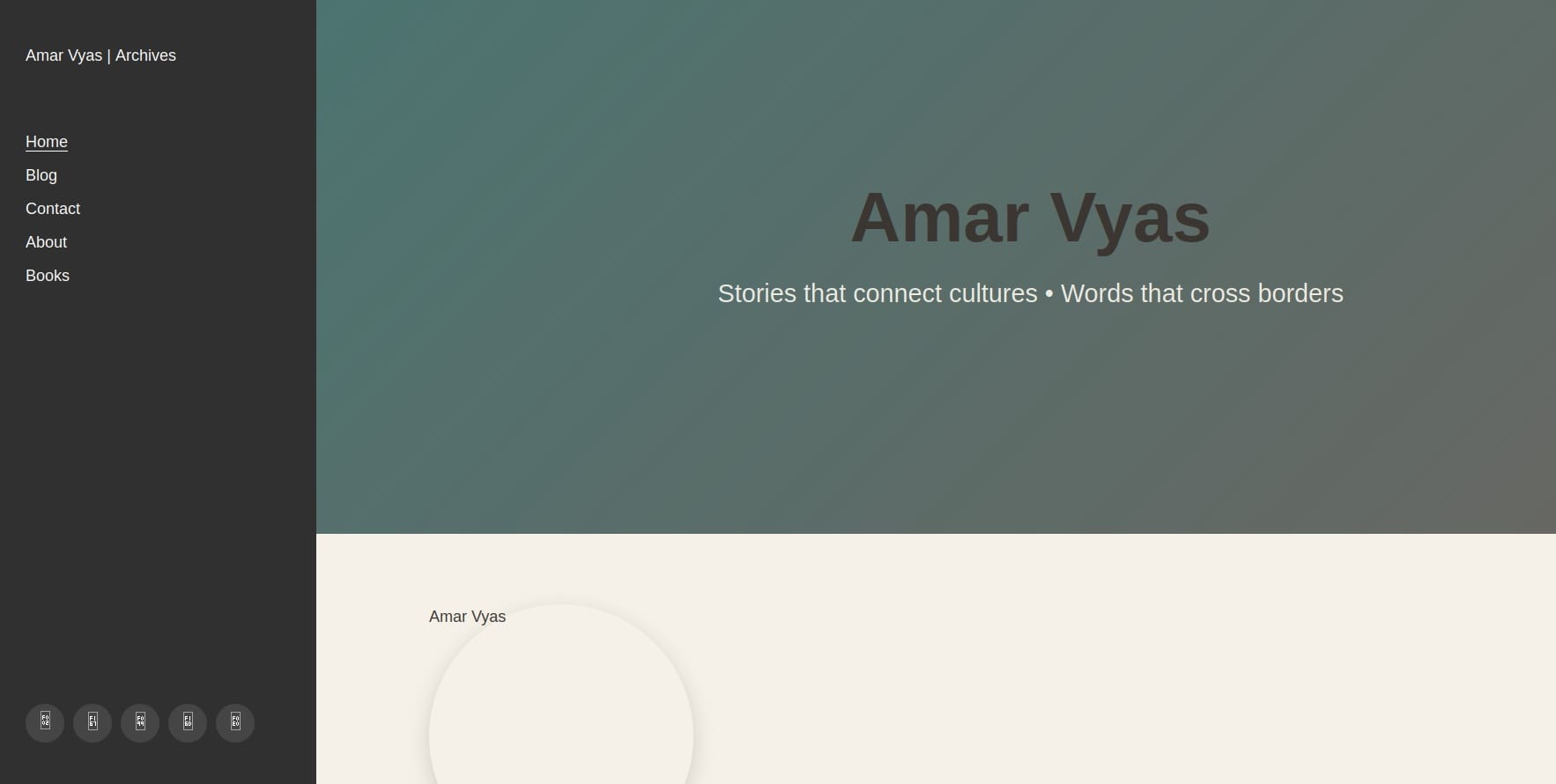
2. Styling, Assets, and Installation
The visual update focuses on “Indian minimalism”—a design philosophy that balances clean whitespace with vibrant, purposeful accents. We achieve this through Bootstrap utilities and strict CSS overrides for your ClassicPress site.
2.1. Implementing Indian Minimalism with CSS Overrides
Create the file assets/css/mc-overrides.css. Here we implement the 2:1 aspect ratio for featured images and apply our minimalist aesthetic. This file scopes your changes so they do not conflict with the core McLuhan styling.
/* Indian Minimalism Overrides - 2026 */

/* Featured Images - Force 2:1 Ratio handling */
.featured-image-container {
    overflow: hidden;
    position: relative;
    padding-top: 50%; /* 2:1 Aspect Ratio */
    background-color: #f4f4f4;
}

.featured-image-container img {
    position: absolute;
    top: 0;
    left: 0;
    width: 100%;
    height: 100%;
    object-fit: cover;
}

/* Typography & Spacing */
body {
    font-family: 'Helvetica Neue', Helvetica, Arial, sans-serif;
    line-height: 1.8;
    color: #333;
}

/* Minimalist Borders */
.entry-content {
    border-left: 2px solid #e0e0e0;
    padding-left: 2rem;
}
2.2. Managing Bootstrap Assets and Fallbacks
To support PicoStrap snippets and utility classes, Bootstrap is essential for this ClassicPress theme. Place a local copy of bootstrap.min.css in assets/bootstrap/. If this file is missing, the functions.php configuration written above will automatically pull the latest version from the CDN, ensuring your site never breaks visually.
2.3. Installation Steps
- Upload: Compress your new child theme folder into a .zip file. Navigate to Appearance → Themes → Add New → Upload Theme in your ClassicPress Admin.
- Activate: Once uploaded, click “Activate” on the McLuhan Classic 2026 theme.
- Media Settings: Go to Settings → Media. Ensure your “Large” image size settings allow for cropping or are wide enough to support the 2:1 aesthetic.
- Regenerate: Install the “Regenerate Thumbnails” plugin and run it. This is crucial to create the new
feature-2-1image sizes defined infunctions.phpfor your existing content.
Additional Notes
- This child theme keeps McLuhan parent styling intact and loads Bootstrap utilities for PicoStrap snippets.
- To insert PicoStrap HTML components, create template parts under
templates/parts/and scope any custom CSS under.ps-componentinmc-overrides.css. - For any visual fixes, edit
assets/css/mc-overrides.css. - This post is published as a part of my series of posts for ClassicPress Content Management System