In this chapter, we’ll introduce Text Editing in Linux with an overview of the beginner friendly nano and micro. We will also take a look at vim text editor(s), powerful and ubiquitous tools in the Linux world. By the end of this chapter, you’ll be able to use nano or vim for basic text editing tasks.
Note: I will use vi/vim inter-changeably, likewise include neovim whenever I use the term vim. Some Purists might frown, apologies in advance. I prefer simplicity over pedantics.
Text Editing in Linux
Text editing in Linux is crucial for managing configuration files, scripts, and logs. This chapter focuses on nano, a beginner-friendly editor, followed by vim, micro, and Helix, introducing essential commands for each to help you edit files efficiently via the command line.
Note: Most Linux distributions, including Debian 12, include nano and vim by default. For micro install using:
$ sudo apt install micro
Why Learn Text Editing in Linux?
Text editors like nano allow beginners to edit files easily, while vim, micro, and Helix offer advanced features for efficiency, enabling you to manage Linux systems without graphical interfaces.
Getting Started with nano
nano is a simple, intuitive text editor, ideal for beginners due to its on-screen command hints and straightforward interface.
Opening and Closing Files in nano
Open a file:
$ nano filename.txt
If the file doesn’t exist, nano creates it upon saving.
Key commands (displayed at the bottom of the screen, ^ means Ctrl):
- Save:
Ctrl + O, thenEnter. - Exit:
Ctrl + X. If changes are unsaved,nanoprompts to save.
Editing and Navigating in nano
Type directly to edit. Use these shortcuts:
Ctrl + G: Show help.Arrow keys: Navigate cursor.Ctrl + K: Cut line.Ctrl + U: Paste line.Ctrl + W: Search for text.Ctrl + \: Replace text (prompts for old/new text).
Practical Example
Create a file:
$ nano notes.txt
Type some text, press Ctrl + O, Enter to save, then Ctrl + X to exit.
Using vi/vim for Text Editing in Linux
vim (an enhanced vi) is a powerful editor available on most Linux systems, known for its efficiency despite a steeper learning curve.
Basic vi/vim Commands
Open:
$ vim filename.txt
Modes:
- Command Mode: Default for navigation/commands.
- Insert Mode: For editing (enter with
i).
Key commands:
i: Insert before cursor.Esc: Return to Command Mode.:w: Save.:q: Quit.:wq: Save and quit.h,j,k,l: Move left, down, up, right.dd: Delete line.
Note: For detailed vim commands, see Annexure B.
Exploring micro Editor
micro is a modern, user-friendly editor with familiar keybindings (e.g., Ctrl + S), ideal for those transitioning from GUI editors.
Installing and Using micro
Install:
$ sudo apt install micro
Open:
$ micro filename.txt
Key commands:
Ctrl + S: Save.Ctrl + Q: Quit.Ctrl + E: Command bar (e.g., typefind textto search).Ctrl + K: Cut line.Ctrl + V: Paste.
Exploring neovim Editor
neovim is a modernized fork of vim, offering enhanced features like asynchronous plugins and Lua scripting while maintaining vim’s core functionality. Install with
$ sudo apt install neovim
and use like vim:
$ nvim filename.txt
. Its plugin ecosystem, managed via tools like vim-plug, supports advanced features such as syntax checking and fuzzy finding.
Introducing emacs Editor
emacs is a highly customizable, extensible editor with a vast ecosystem of packages for tasks beyond text editing, like email and coding. Install with
$ sudo apt install emacs
, open with
$ emacs filename.txt
, and use keybindings like Ctrl + X Ctrl + S to save and Ctrl + X Ctrl + C to quit. Its learning curve is steep but rewarding for advanced users.
Introducing Helix Editor
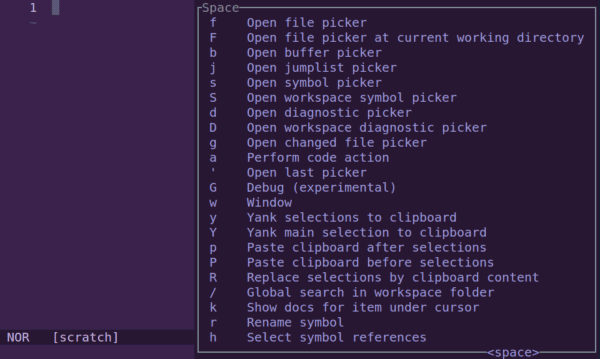
Helix, written in Rust, offers modern features like Tree-sitter syntax highlighting and LSP support, with a selection-based editing model.
Installing and Using Helix
Install (may require custom repository, see Annexure A):
$ sudo apt install helix
Or build from source:
$ git clone https://github.com/helix-editor/helix
$ cd helix
$ cargo install --path helix-term
Open:
$ hx filename
Key commands:
i: Enter Insert Mode.Esc: Return to Normal Mode.h,j,k,l: Move cursor.dd: Delete line.:w: Save.:q: Quit.
Practice Time!
Test your skills:
- Open
nano:$ nano practice.txt
, add text, save, and exit.
- Open
vim:$ vim practice.txt
, insert text, and quit without saving.
- Try
micro:$ micro practice.txt
, edit and save.
- Use
Helix:$ hx practice.txt
, edit and save.
Try This: Open
nano, write a sentence, and save it. Share your experience on X with #LinuxCommandLine!
Summary
Text editing in Linux with nano, vim, and micro equips you to handle files efficiently. nano is beginner-friendly, vim is powerful, micro is intuitive, and Helix is modern. Practice these tools to enhance your Linux workflow.
Glossary of Commands, Tools, and Shortcuts
Reference: For detailed documentation, visit Linux Manpages. For package installation, search on Debian APT.
| Command/Tool/Shortcut | Description |
|---|---|
| nano | Beginner-friendly text editor with on-screen hints. |
| Ctrl + O | Saves file in nano. |
| Ctrl + X | Exits nano. |
| Ctrl + K | Cuts line in nano or micro. |
| Ctrl + U | Pastes line in nano. |
| Ctrl + W | Searches text in nano. |
| micro | Modern text editor with familiar keybindings. |
| Ctrl + S | Saves file in micro. |
| Ctrl + Q | Quits micro. |
| Ctrl + E | Opens command bar in micro. |
Previous: Part II | Next: Chapter 13