In this chapter, we’ll explore Linux process management. You’ll learn how to view, control, and manage running programs using commands like ps, top, kill, and more. By the end of this chapter, you’ll be able to monitor and manage processes like a pro.
Welcome to Linux process management, a critical skill for anyone working with Linux systems. In this chapter, we’ll explore what processes are, how to view and control them, and how to manage their execution and priorities. By mastering these concepts, you’ll be better equipped to maintain system stability and optimize performance.
Introduction to Linux Process Management
Linux process management is vital for system administration because it allows you to monitor, control, and optimize the programs running on your system. Every running program, command, or service on a Linux system is a process, and understanding how to manage them ensures your system runs efficiently and securely.
Processes consume system resources like CPU, memory, and I/O. Effective process management helps you identify resource-heavy tasks, troubleshoot issues, and ensure critical services run smoothly.
What is a Process?
A process is a running instance of a program. Each process has several key attributes:
- PID (Process ID): A unique identifier for the process.
- Parent Process: The process that started it.
- User/Group: The owners of the process.
- State: Indicates if the process is running, sleeping, stopped, etc.
Understanding these attributes is crucial for effective process management.
Viewing Processes
To manage processes, you first need to see what’s running. Here are the key tools for viewing processes in Linux:
ps: Basic Process Status
The ps command provides a snapshot of current processes. For a detailed view of all processes, use:
$ ps auxThis lists all processes with information like PID, CPU usage, memory usage, and more.
top: Real-Time Process Overview
top offers a real-time view of processes and system resource usage. It’s interactive, allowing you to sort and filter processes.
$ topPress q to quit. For a deeper dive into system-wide monitoring, see Chapter 20: System Monitoring in Linux.
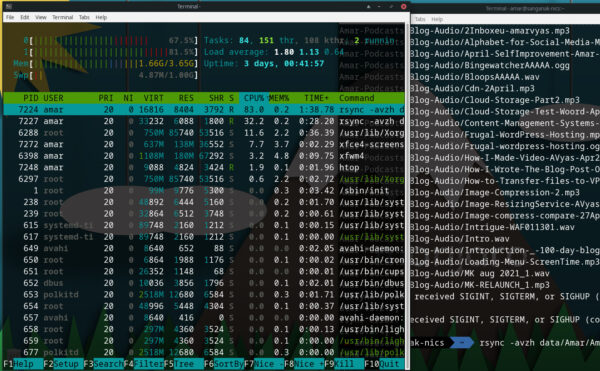
htop: Interactive, Colorized Process Viewer
htop is an enhanced version of top with a user-friendly interface. Install it with:
$ sudo apt install htopRun it with:
$ htopUse arrow keys to navigate, F9 to kill processes, and F10 to quit.
Controlling Processes
Once you’ve identified a process, you may need to control it. Here’s how to terminate processes safely:
kill: Terminate by PID
The kill command sends a signal to terminate a process. Use it with the process’s PID:
$ kill 12345For stubborn processes, use kill -9 as a last resort (it forces termination without cleanup).
pkill: Kill by Process Name
pkill terminates processes by name, which is useful when you don’t know the PID:
$ pkill firefoxkillall: Stop All Instances of a Named Process
killall stops all processes with a given name:
$ killall firefoxBackground and Foreground Management
Processes can run in the foreground (occupying the terminal) or background (freeing the terminal for other tasks). Here’s how to manage them:
Running in Background
Append & to run a command in the background:
$ sleep 100 &This returns a job ID and PID, allowing you to continue using the terminal.
Pausing and Resuming
To pause a foreground process, press Ctrl+Z. Then, use bg to resume it in the background or fg to bring it back to the foreground.
$ sleep 100
[Ctrl+Z]
$ bg
$ fg
Process Priorities
Process priorities determine how much CPU time a process gets. Lower-priority processes yield to higher-priority ones.
nice: Set Priority at Launch
Use nice to start a process with a specific priority (range: -20 to 19, lower is higher priority):
$ nice -n 10 sleep 100renice: Adjust Running Process Priority
Change the priority of an already running process with renice:
$ renice +10 -p 12345Advanced Tools for Process Management
Beyond the basics, several advanced tools can enhance your process management capabilities:
glances
glances provides a comprehensive view of processes and system resources. It is top-like monitoring tool for Linux.
Glances Official Website. Install it with:
$ sudo apt install glancesRun it with:
$ glancesbashtop and nmon
bashtop and nmon are lightweight alternatives for process management. Bashtop is a modern, interactive, and feature-rich monitoring tool for Linux.
Bashtop GitHub Repository
- bashtop: Install with
$ sudo apt install bashtop, run withbashtop. - nmon: Install with
$ sudo apt install nmon, run withnmon.
systemctl: Manage Services
systemctl is used to manage system services, which are long-running processes. For example:
$ sudo systemctl start apache2
$ sudo systemctl stop apache2
$ sudo systemctl enable apache2
Practice Exercises
Put your skills to the test with these exercises:
- View all processes with
ps auxandhtop. - Terminate a process using
kill(find a safe process to kill, likesleep 100 &). - Run a task in the background (e.g.,
sleep 100 &), then adjust its priority withrenice.
| Command/Tool | Description |
|---|---|
ps |
Displays a snapshot of current processes. Use ps aux for a detailed view of all processes. |
top |
Provides a real-time, dynamic view of running processes and system resource usage. |
htop |
An interactive, colorized process viewer with enhanced features over top. |
kill |
Sends a signal to terminate a process by its PID. Use kill -9 as a last resort. |
pkill |
Terminates processes by name instead of PID. |
killall |
Stops all instances of a process by name. |
nice |
Starts a process with a specified priority level. |
renice |
Adjusts the priority of an already running process. |
bg |
Resumes a paused process in the background. |
fg |
Brings a background process to the foreground. |
systemctl |
Manages system services (e.g., starting, stopping, enabling services). |
glances |
A comprehensive tool for viewing processes and system resources. |
bashtop |
A lightweight, visually appealing process manager written in Bash. |
nmon |
A lightweight resource monitor for process management. |
Conclusion
Linux process management is a foundational skill for any system administrator or power user. By understanding how to view, control, and prioritize processes, you can keep your system running efficiently and troubleshoot issues effectively. Later art of this book, we’ll explore System monitoring in Linux , where you’ll learn to monitor broader system resources like CPU, memory, and disk usage.
You’ve been introduced to Linux process management, from ps to systemctl, enhancing system resource monitoring. Practice these to administer your system effectively. Next, we’ll explore networking!
That’s it for Chapter 10, Linux Process Management ! You’ve now learned how to view, control, and manage processes in Linux. In the next chapter, we’ll dive into the environment—understanding environment variables and shell configuration. Until then, practice managing processes to become more comfortable with system administration.
Previous : Chapter 9 | Next: Chapter 11